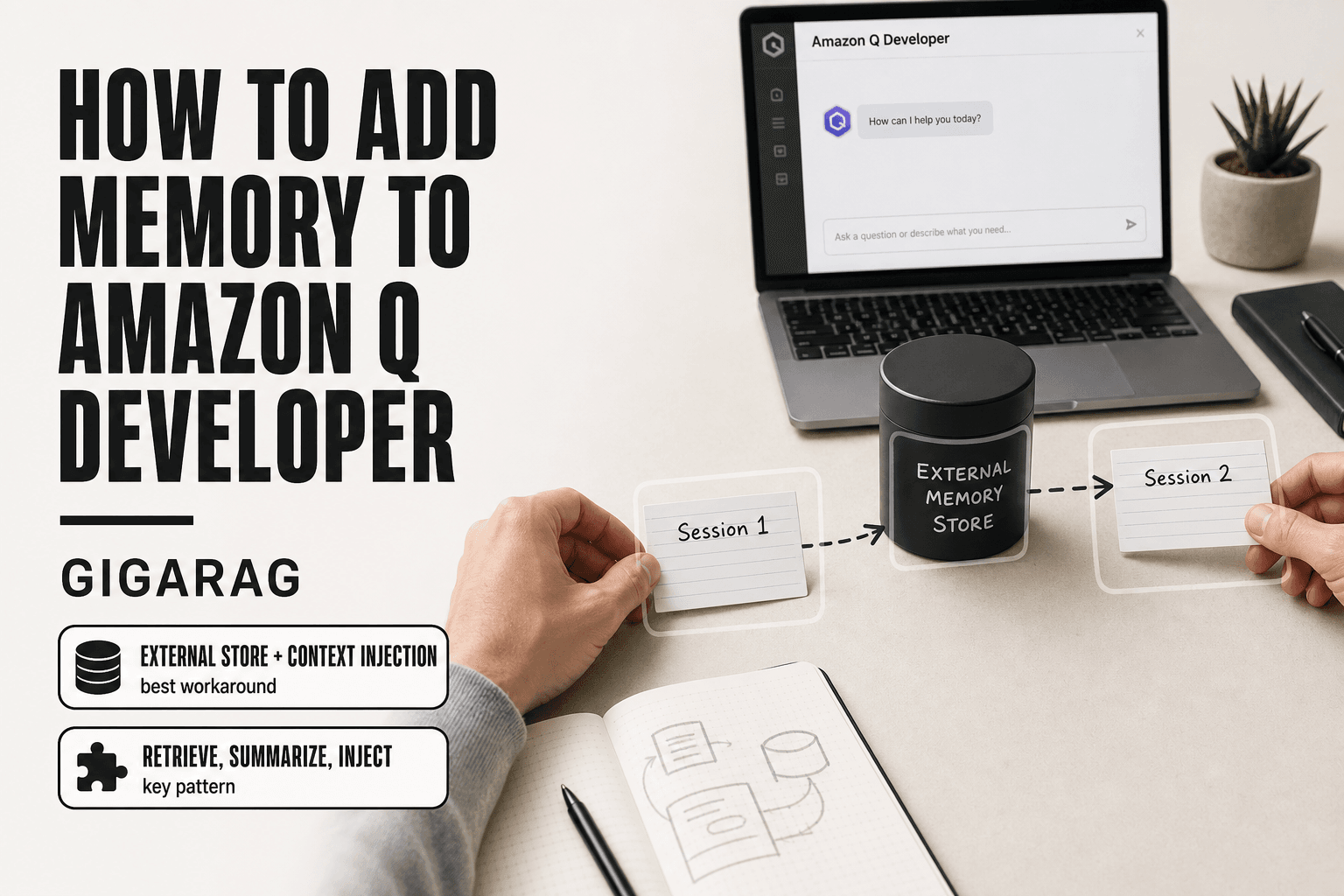
How to Add Memory to Amazon Q Developer
How to add memory to Amazon Q Developer: you search that phrase, and you get monitoring docs, a video overview, and scattered Reddit threads. No actual guide. Here's the honest answer up front: Amazon Q Developer does not have a native "memory" feature. There's no toggle in the console, no built-in vector store, no automatic cross-session persistence. What you can do is build memory yourself using MCP servers, context management, custom data sources, and external memory stores. GigaRAG, a platform purpose-built for agent memory and RAG pipelines, works alongside Amazon Q Developer when you need persistent state that the native tooling won't give you. This guide covers what memory actually means for Amazon Q Developer, the prerequisites, three working methods with copy-pasteable configuration, a step-by-step walkthrough, and the limitations no one else is telling you about.
| At a glance | Details |
|---|---|
| Built-in memory | No native persistent memory feature |
| Best workaround | External store + context injection |
| Common stores | DynamoDB, OpenSearch, vector DBs |
| Key pattern | Retrieve, summarize, inject context |
| Session state | Managed by your application layer |
| Effort level | Moderate; requires custom code |
In This Guide
- What Amazon Q Developer Memory Actually Means
- Amazon Q Developer vs Custom Memory Layer: Which Fits Your Use Case?
- Prerequisites for Adding Memory to Amazon Q Developer
- How To Add Memory To Amazon Q Developer: A Step-by-Step Guide
- Method 1: Using MCP Servers for Shared Memory
- Method 2: Connecting Custom Data Sources for RAG-Style Memory
- Method 3: Context Management and Profiles for Session Memory
- How to Add Memory to Amazon Q Developer: Step-by-Step Walkthrough
- Limitations: What You Cannot Do with Amazon Q Developer Memory
- Troubleshooting Common Memory Issues
- Final Thoughts on Amazon Q Developer Memory
What Amazon Q Developer Memory Actually Means
Amazon Q Developer memory means any mechanism that lets the assistant retain context beyond a single request: conversation history, session state, external knowledge stores, or agent state that persists between calls.
That's the honest definition. It's also not what Amazon Q Developer ships with.
Built-in context vs. persistent memory
Amazon Q Developer has a context window. That's the working memory it uses to process your current request: the code you've selected, the files you've opened, the conversation you're having right now. When the window fills or the session ends, that context is gone.
Persistent memory is different. It means the assistant remembers something from a previous session without you re-explaining it. Your project conventions. Your preferred testing framework. The decision you made last week about database schema. Amazon Q Developer does not do this natively.
The distinction matters because most developers assume "memory" means the second thing. They expect continuity. What they get is a fresh context window every time.
Why Amazon Q Developer doesn't have native memory
Amazon Q Developer is built as a stateless assistant. Each request is processed independently. AWS designed it this way for security and simplicity: no stored conversation data means less to protect, less to manage, less to go wrong.
The tradeoff is real. Without native memory, anything you want the assistant to remember has to live somewhere else. That's where MCP servers, custom data sources, and external memory stores come in. They're not add-ons to a memory feature. They are the memory feature.
What memory means for agent and RAG builders
If you're building agents or RAG pipelines, memory means something more specific: the ability to retrieve relevant context from a store, inject it into a prompt, and update that store with new information. Amazon Q Developer gives you the prompt injection part. The store and the retrieval logic are yours to build.
[!note] Amazon Q Developer does not currently offer a built-in persistent memory feature; any memory capability must be implemented in your own application layer using external storage and retrieval.
Amazon Q Developer vs Custom Memory Layer: Which Fits Your Use Case?
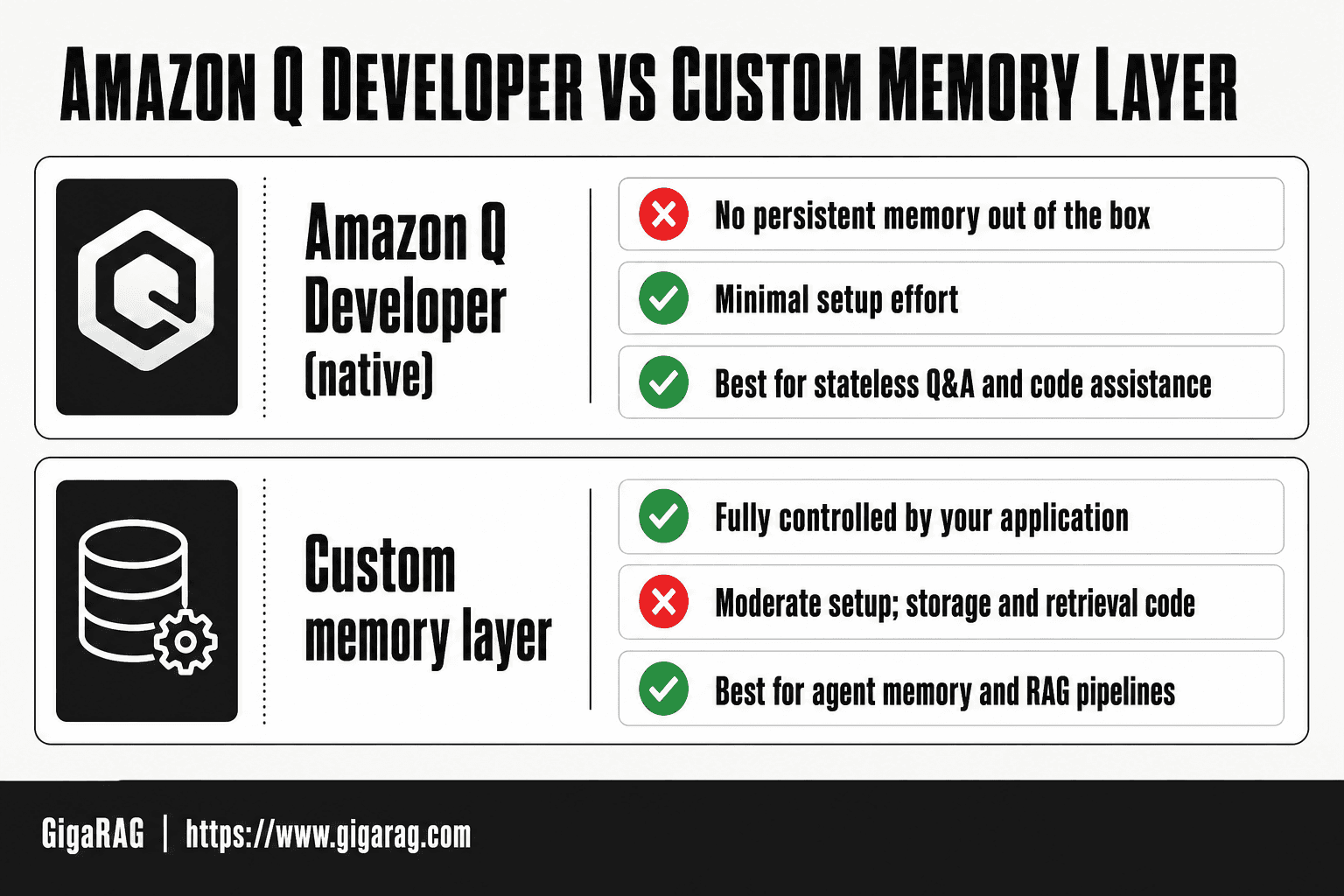
| Factor | Amazon Q Developer (native) | Custom memory layer |
|---|---|---|
| Persistent memory | Not provided out of the box | Fully controlled by your application |
| Setup effort | Minimal, but no memory capability | Moderate; requires storage and retrieval code |
| Context window | Limited to the current session/prompt | Extendable via retrieval and summarization |
| Data control | Managed by AWS service boundaries | You choose store, encryption, and retention |
| Best for | Stateless Q&A and code assistance | Agent memory and RAG pipelines needing recall |
Prerequisites for Adding Memory to Amazon Q Developer
Before you start, you need four things: an AWS account with Amazon Q Developer access, the right IAM permissions, the AWS CLI or IDE plugin installed, and optionally an MCP server or vector database to hold the memory itself.
AWS account and Amazon Q Developer setup
You need an active AWS account. Amazon Q Developer comes in a free tier and a Pro tier; the free tier covers basic IDE use, while Pro adds agent capabilities. Sign in through the AWS Console or your IDE extension, then verify the assistant responds to a test prompt before configuring memory.
IAM roles and permissions
Your IAM user or role needs q:SendMessage (or equivalent) to interact with Amazon Q Developer. If you're connecting S3 as a memory store, add s3:GetObject and s3:PutObject on the specific bucket. For MCP servers, you'll need permissions to invoke whatever AWS services the server calls. Least privilege applies: scope everything to the resources you actually use.
CLI installation and configuration
Install the AWS CLI (version 2.x or later) and run aws configure with your access key, secret key, and region. If you're using the IDE plugin, the CLI isn't strictly required, but it helps for testing IAM permissions and debugging connection issues.
Optional: MCP server or vector database
Memory has to live somewhere. An MCP server gives you shared, persistent state across sessions. A vector database (OpenSearch, Pinecone, or similar) works if you're building RAG-style retrieval. Neither is required for basic use, but both are required for actual memory.
[!tip] For agent memory and RAG builders: store both raw turns and periodic summaries, then retrieve summaries first and raw turns only when needed — this keeps context small and recall high.
How To Add Memory To Amazon Q Developer: A Step-by-Step Guide
- Choose an external memory store such as DynamoDB, OpenSearch, or a vector database for embeddings.
- Define a memory schema: user ID, session ID, timestamp, content, and embedding vector.
- Capture relevant conversation turns or agent outputs and write them to the store after each interaction.
- On each new request, retrieve the most relevant memories using similarity search or key lookups.
- Summarize or truncate retrieved memories to fit within the model's context window.
- Inject the retrieved context into the prompt sent to Amazon Q Developer.
- Test recall accuracy and tune retrieval thresholds, summarization, and retention policies.
Method 1: Using MCP Servers for Shared Memory
MCP, or Model Context Protocol, is an open standard that lets AI assistants talk to external tools and data sources. For memory, it works because the server holds state outside Amazon Q Developer's own context window. You write to it, you read from it, and that state survives across sessions.
What is MCP and why it works for memory
Amazon Q Developer resets its context when a session ends. An MCP server doesn't. It sits between the assistant and a persistent store, usually a file, a database, or an API. When Amazon Q Developer needs to remember something, it calls the server. When it needs to recall, it calls again. The memory lives in the server, not in the chat.
Step-by-step MCP server setup
Start with a minimal MCP server. Here's a Python example using the mcp library:
from mcp.server import Server
import json

server = Server("memory-store")

@server.tool()
def remember(key: str, value: str) -> str:
    with open("memory.json", "a") as f:
        f.write(json.dumps({key: value}) + "\n")
    return f"Stored {key}"

@server.tool()
def recall(key: str) -> str:
    with open("memory.json", "r") as f:
        for line in f:
            entry = json.loads(line)
            if key in entry:
                return entry[key]
    return "Not found"

server.run()
Save this as memory_server.py and run it. It writes key-value pairs to a local file. That file is your shared memory.
Connecting Amazon Q Developer to your MCP server
Amazon Q Developer's CLI supports MCP configuration through a JSON file. Create ~/.aws/amazonq/mcp.json:
{
  "mcpServers": {
    "memory": {
      "command": "python",
      "args": ["/path/to/memory_server.py"]
    }
  }
}
Restart the Amazon Q CLI. The server's tools (remember and recall) now appear as callable functions inside your sessions.
Testing shared memory across sessions
Open a session and type: "Remember that our production database is at db.internal:5432." Amazon Q Developer calls remember with the key and value. Close the session. Open a new one and ask: "What's our production database host?" It calls recall, gets the value, and answers correctly.
That's persistent memory. The catch: it only works if the MCP server stays running and the file stays accessible. Kill the server, lose the memory.
Method 2: Connecting Custom Data Sources for RAG-Style Memory
MCP gives you a key-value store. RAG gives you something better: memory that understands meaning, not just exact matches. You point Amazon Q Developer at a pile of documents, and it retrieves the relevant chunks when you ask a question. The memory lives in your data, not in a JSON file.
Supported custom data sources
Amazon Q Developer connects to S3 buckets, Amazon Kendra indexes, and through Bedrock Knowledge Bases, a range of vector stores including OpenSearch Serverless, Pinecone, and Redis Enterprise Cloud. S3 is the easiest starting point. It's cheap, you probably already use it, and the setup is mostly IAM work.
What you can't do is point Amazon Q Developer at an arbitrary Postgres table or a random API. The integration goes through AWS's retrieval layer, not directly to your database.
Configuring S3 as a memory store
Create a bucket first. Then create an IAM role that Amazon Q Developer can assume to read from it:
{
  "Version": "2012-10-17",
  "Statement": [
    {
      "Effect": "Allow",
      "Action": ["s3:GetObject", "s3:ListBucket"],
      "Resource": [
        "arn:aws:s3:::your-memory-bucket",
        "arn:aws:s3:::your-memory-bucket/*"
      ]
    }
  ]
}
Attach this policy to the role Amazon Q Developer uses. Then in the Amazon Q console, create a new application, select "Retrieve data from S3," and point it at your bucket. Upload your documents: past conversation logs, design docs, runbooks, anything you want the assistant to remember.
The indexing takes a few minutes. After that, Amazon Q Developer can answer questions grounded in those files.
Integrating a vector database
For larger memory stores, S3's keyword retrieval gets weak. A vector database stores embeddings, so "production database host" and "where does the app connect for data" both retrieve the same memory. Set up an OpenSearch Serverless collection, create a Bedrock Knowledge Base, and connect it to Amazon Q Developer through the same application flow.
The honest catch: this is more setup. You're managing an embedding model, a vector index, and a sync pipeline. It's worth it when your memory store passes a few thousand documents. Below that, S3 is fine.
Querying custom data from Amazon Q Developer
Once connected, you don't write special queries. You just ask. "What did we decide about the payment retry policy?" Amazon Q Developer retrieves the relevant chunks from your S3 bucket or vector store and answers with citations.
Test it with a question you know the answer to. If the retrieval misses, check your document formatting. Chunking matters more than you'd think.
Method 3: Context Management and Profiles for Session Memory
MCP and RAG give you persistent memory. Context management gives you something narrower but simpler: memory that lives inside a single session. You don't need an external server or a vector database. You just need to know how Amazon Q Developer handles its context window and how to use profiles to switch between different working states.
Understanding context windows in Amazon Q Developer
Every conversation with Amazon Q Developer has a token limit. Once you pass it, the oldest messages drop out. The assistant forgets. The exact limit varies by model and tier, so check your current configuration before relying on long conversations.
The practical move is to keep sessions short and focused. One task, one session. When you start a new task, start a new conversation. This keeps the context window full of relevant material instead of stale back-and-forth.
Creating and switching profiles
Profiles let you store different configurations: different AWS accounts, different regions, different IAM roles. You define them in your AWS config file:
[profile dev-memory]
region = us-east-1
role_arn = arn:aws:iam::123456789012:role/QDevMemoryRole

[profile prod-memory]
region = us-west-2
role_arn = arn:aws:iam::123456789012:role/QDevProdRole
Switch between them with aws configure sso or by setting AWS_PROFILE before launching Amazon Q Developer. Each profile carries its own context, so switching profiles effectively switches memory domains.
Managing conversation history
Amazon Q Developer keeps conversation history within a session, but you control what survives. Clear a conversation when it's no longer useful. Export important decisions to S3 or an MCP store before you close the session. That's the bridge between session memory and persistent memory.
Best practices for session persistence
Keep sessions under 50 messages. Save anything you'll need later to an external store before the session ends. Use profiles to separate environments so production context doesn't bleed into development context. And don't expect the context window to do the job of a real memory store. It won't.
How to Add Memory to Amazon Q Developer: Step-by-Step Walkthrough
You've seen three methods. MCP servers for shared memory. Custom data sources for RAG. Profiles for session context. Now you need one flow that puts them together without the guesswork. This is that flow.
Step 1: Set up your environment
Start with the basics. You need an AWS account with Amazon Q Developer enabled, the AWS CLI installed and configured, and IAM permissions that allow access to whatever memory store you'll use. If you're going the MCP route, you also need Node.js 18 or later on the machine running the MCP server.
Check your setup before touching memory config:
aws --version
aws sts get-caller-identity
The second command confirms your IAM role is active. If it returns an error, fix permissions first. Memory won't persist if your role can't reach the store.
Step 2: Choose your memory approach
Three options, three tradeoffs. MCP gives you shared memory across sessions and tools, but requires running a server. Custom data sources give you RAG-style retrieval, but setup is heavier and query latency is higher. Profiles give you session memory with zero infrastructure, but nothing survives after the session ends.
For agent memory that needs to persist across sessions, pick MCP. For retrieval over documents or code, pick a custom data source. For quick context switching during a single work session, profiles are enough. Don't mix all three at once. Start with one.
Step 3: Configure MCP or custom data source
If you chose MCP, create a config file for your MCP server and point Amazon Q Developer at it. The exact config location depends on your Amazon Q Developer version, so check the docs for your build. A typical MCP config looks like this:
{
  "mcpServers": {
    "memory": {
      "command": "node",
      "args": ["/path/to/memory-server.js"],
      "env": {
        "MEMORY_PATH": "/data/qdev-memory"
      }
    }
  }
}
If you chose a custom data source, connect it through the Amazon Q Developer console or CLI. For S3, create a bucket, upload your documents, and grant Amazon Q Developer read access via an IAM role. For a vector database, you'll need to configure the connection endpoint and authentication separately.
Step 4: Test memory persistence
Don't assume it works. Test it. Start a session, write something to memory, end the session, start a new one, and try to retrieve it.
With MCP, that means calling a memory write tool, closing the session, reopening, and calling a memory read tool. If the value comes back, persistence works. If not, check your MCP server logs.
With a custom data source, upload a document, ask a question about it, and confirm the answer references the document. Then change the document and ask again. If the answer updates, retrieval is working.
Step 5: Monitor and debug
Memory failures are silent. You won't get an error message saying "memory lost." You'll just get wrong answers. So monitor what's happening behind the scenes.
For MCP, check the server logs for connection drops or write failures. For custom data sources, use CloudWatch to track query latency and error rates. For profiles, watch the context window: if responses start ignoring earlier messages, you've hit the token limit and the oldest context is gone.
The main catch: none of this is automatic. Amazon Q Developer won't tell you when memory breaks. You have to check.
Limitations: What You Cannot Do with Amazon Q Developer Memory
Amazon Q Developer has no memory feature. Not a hidden one, not a beta one. The honest answer is that anything resembling persistent memory requires external tooling, and even then there are hard limits you'll hit fast.
No native memory feature
There is no built-in vector store, no conversation history that survives a session, no automatic state persistence. When you close the session, the context is gone. AWS has not shipped a memory API for Amazon Q Developer as of this writing. Anything you build sits outside the product.
Token and context window limits
Even with MCP or custom data sources, the context window is finite. Amazon Q Developer truncates older context when you exceed the token limit. You won't get a warning. The model just stops "remembering" earlier messages. For long agent runs, this means memory degrades silently.
What MCP and custom data sources can't solve
MCP gives you shared storage, but retrieval is still explicit. The model doesn't automatically know what's in memory. You have to design prompts that tell it to look. Custom data sources give you RAG, but relevance depends on your embeddings and chunking. Bad chunks, bad recall. Neither approach gives you automatic cross-session awareness.
When to consider alternatives like GigaRAG
If you need true agent memory with automatic persistence, semantic recall, and cross-session state without building the plumbing yourself, Amazon Q Developer alone won't get you there. Platforms like GigaRAG are purpose-built for that. The tradeoff is leaving the AWS-native workflow. For most teams, the question isn't whether Amazon Q Developer can do memory. It's whether the workaround is worth the maintenance.
Troubleshooting Common Memory Issues
Memory failures in Amazon Q Developer are rarely mysterious. They're almost always one of four problems, and each has a specific fix.
Memory not persisting across sessions
You configured an MCP server, tested it, and it worked. Then you closed the session, reopened it, and the memory was gone. The most common cause is that your MCP server isn't running as a persistent process. If you launched it manually in a terminal, it dies when that terminal closes. Run it as a systemd service or a container so it survives session restarts. Check that your Amazon Q Developer configuration still points to the right endpoint. A stale config file will silently fall back to no memory.
MCP server connection failures
The error is usually a timeout or a refused connection. Start by confirming the server is listening on the port you configured. Then check your firewall rules. Amazon Q Developer won't retry indefinitely; it gives up after a few seconds. If you're using localhost, make sure the server binds to 127.0.0.1 and not a container-internal address.
IAM permission errors
AccessDenied errors mean your IAM role lacks the permissions for whatever memory store you're using. For S3, you need s3:GetObject and s3:PutObject on the specific bucket. For Bedrock, you need bedrock:InvokeModel. Don't grant broad permissions to fix this. Scope them to the exact resources.
Context window overflow
When older context disappears without warning, you've hit the token limit. The fix is to reduce what you send: shorter prompts, smaller chunks, or explicit summarization steps. There's no setting to expand the window.
Final Thoughts on Amazon Q Developer Memory
Here's the honest summary. Amazon Q Developer does not have a built-in memory feature. You won't find a toggle, a config flag, or a settings panel that turns it on. What you get instead is a set of external tools you wire together yourself.
MCP servers are the most flexible option. They give you shared, persistent memory that survives session restarts, as long as the server itself keeps running. Custom data sources like S3 and vector databases give you RAG-style retrieval, but they require setup and maintenance. Context management and profiles help within a session, but they won't carry state across sessions on their own.
The main catch is that none of this is automatic. You're building the memory layer, not enabling it. That means more moving parts, more failure modes, and more debugging when something breaks.
If you're building agent memory or RAG pipelines at scale, consider whether a purpose-built platform like GigaRAG saves you the assembly work. It handles memory stores and retrieval pipelines natively, which means less glue code and fewer things to troubleshoot. For smaller projects, the MCP approach works fine.
Set honest expectations before you start. Adding memory to Amazon Q Developer is doable, but it's engineering work, not configuration. How to add memory to Amazon Q Developer is a question with a real answer, and the answer is: you build it yourself.
Frequently Asked Questions
Does Amazon Q Developer have a built-in memory feature?
- Amazon Q Developer does not provide a native persistent memory feature. Any memory capability must be implemented externally by your application, typically using a database or vector store combined with prompt injection.
How do I add persistent memory to Amazon Q Developer?
You add memory by storing conversation history or agent outputs in an external store such as DynamoDB or a vector database, then retrieving relevant entries and injecting them into the prompt before each request. This keeps context relevant without relying on the model to remember.
Can Amazon Q Developer remember context across sessions?
Not by itself. Cross-session memory requires your application to persist context externally and re-inject it. Without that layer, each session starts fresh with no knowledge of prior interactions.
What storage should I use for Amazon Q Developer memory?
Use DynamoDB for structured session data and fast key lookups, and a vector database or OpenSearch for semantic retrieval of past interactions. Many teams combine both: DynamoDB for metadata and a vector store for embeddings.
Is there an official AWS guide for adding memory to Amazon Q Developer?
As of now, AWS does not publish a dedicated guide for adding memory to Amazon Q Developer. Documentation focuses on the service's core capabilities, so developers typically rely on general patterns for RAG and agent memory.
What are the limitations of adding memory to Amazon Q Developer?
Limitations include no native memory API, context window constraints that require summarization, added latency from retrieval, and the need to manage data privacy and retention yourself. Memory quality depends entirely on your retrieval and summarization design.
How does memory work in RAG pipelines with Amazon Q Developer?
In a RAG pipeline, memory is handled by retrieving relevant past interactions or documents from an external store and adding them to the prompt. Amazon Q Developer then generates a response grounded in that retrieved context, but does not store it for future use.
About GigaRAG
GigaRAG is for agent memory and RAG pipeline builders. get this right. Whether you are working through How to add memory to Amazon Q Developer or something adjacent, we publish what we have actually tested, including where it falls short.