How to Add Memory to AnythingLLM
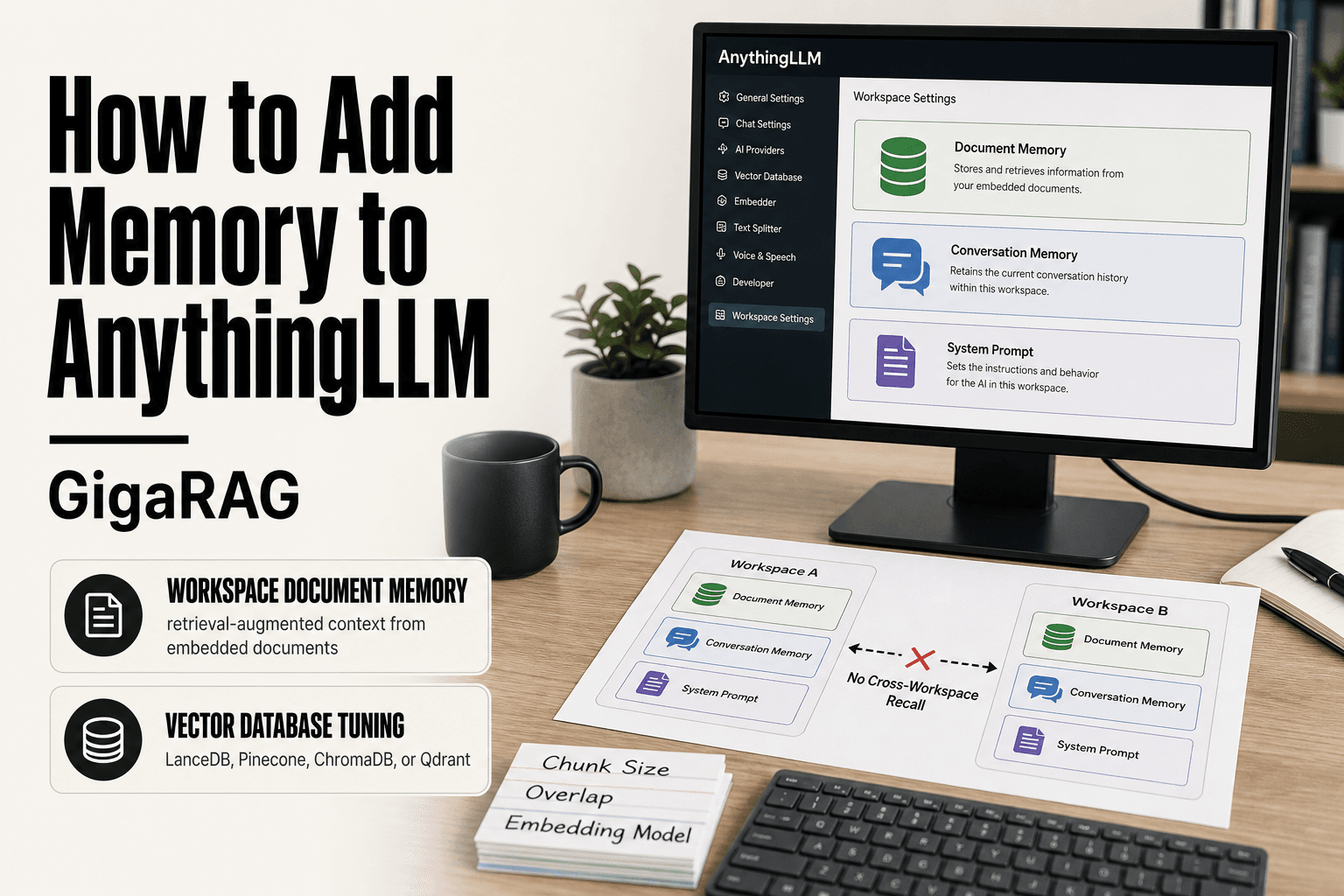
How to add memory to AnythingLLM is the question most guides skip, and it's exactly where the platform starts to matter for RAG pipeline builders. Most tutorials stop at installation. Memory is not a single toggle in AnythingLLM. It's a stack: workspace settings that hold chat history, a vector database that stores document embeddings, and system prompts that act as static instructions. Each layer behaves differently, fails differently, and needs separate configuration. The official docs list the fields but don't tell you what they actually do in production.
The honest answer is that AnythingLLM has no built-in long-term episodic memory, no cross-workspace recall, and no automatic consolidation. What it does have is a configurable retrieval stack, and if you tune it right, it sticks. Teams that outgrow that stack often pair it with a tool like GigaRAG for agent memory that spans sessions. This guide covers what works, what doesn't, and what to configure first: workspace memory, vector database choice, chunk tuning, and agent settings.
| At a glance | Details |
|---|---|
| Memory type | Workspace document memory, not episodic |
| Default vector DB | LanceDB (built-in, zero-config) |
| Key tuning knobs | Chunk size, overlap, embedding model |
| Agent memory | Conversation history only, no persistence |
| Cross-workspace memory | Not supported natively |
| Production DB options | Pinecone, ChromaDB, Qdrant |
In This Guide
- What Memory Actually Means in AnythingLLM
- Which Vector Database Should You Use with AnythingLLM?
- Prerequisites: What You Need Before Configuring Memory
- How To Add Memory To AnythingLLM: A Step-by-Step Guide
- Step 1: Configure Workspace Memory Settings
- Step 2: Choose and Configure Your Vector Database
- Step 3: Tune Chunk Size and Overlap for Better Retrieval
- Step 4: Use Agent Memory Features
- Common Mistakes When Adding Memory to AnythingLLM
- When AnythingLLM Memory Isn't Enough
What Memory Actually Means in AnythingLLM
AnythingLLM memory is not one setting. It's three separate layers: document memory in a vector store, conversation history in the context window, and static instructions in the system prompt. Each layer behaves differently, and none of them talk to each other automatically.
Workspace memory vs conversation memory
Workspace memory is what AnythingLLM retrieves from your documents. When you upload a PDF or text file, AnythingLLM chunks it, embeds it, and stores the vectors in a vector database. At query time, it pulls the most similar chunks and stuffs them into the prompt. That's the RAG pipeline.
Conversation memory is just the chat history. AnythingLLM keeps recent turns in the context window so the model can follow a thread. It's ephemeral. Close the session or hit the context limit, and it's gone unless you saved it somewhere.
What AnythingLLM does NOT remember
AnythingLLM has no built-in episodic memory. It does not remember what you talked about last week unless that conversation was embedded into the vector store. It does not consolidate memories across sessions. It does not share memory between workspaces. Each workspace is an island.
The honest answer: AnythingLLM remembers documents, not experiences. If you want the model to recall a past interaction, you have to write that interaction into a document and embed it yourself.
Where the vector store fits in
The vector store is the only persistent memory layer. Everything else resets. That's why choosing the right vector database and tuning chunk size matters more than any other setting. Get the vector store wrong, and your "memory" is just a search engine returning irrelevant fragments.
[!note] AnythingLLM does not provide built-in long-term episodic memory, cross-workspace memory, or automatic memory consolidation — what it calls 'memory' is retrieval-augmented context from documents you explicitly embed.
Which Vector Database Should You Use with AnythingLLM?
| Factor | LanceDB (built-in) | Pinecone / ChromaDB / Qdrant |
|---|---|---|
| Setup effort | Zero-config, bundled | Requires API keys or self-hosting |
| Scale ceiling | Small to medium workspaces | Large, multi-tenant workloads |
| Latency profile | Local, fast for small data | Network-dependent, tunable |
| Persistence model | Local file-based | Managed or self-hosted server |
| Best for | Prototyping and single-user | Production and team deployments |
Prerequisites: What You Need Before Configuring Memory
Before you touch a single memory setting, you need four things running. Skip one, and the configuration steps later in this guide will fail in ways that look like bugs but aren't.
Running AnythingLLM instance
You need AnythingLLM installed and reachable at localhost:3001 (desktop) or your server URL (Docker). Version 1.4.0 or later is the safe floor for the memory settings covered here. Older builds hide some vector store options. Check your version in the bottom-left corner of the settings sidebar.
LLM provider and embedding model
AnythingLLM needs two models: one to generate answers, one to embed documents. The LLM provider can be Ollama, LM Studio, OpenAI, Anthropic, or a handful of others. The embedding model is separate and must match your vector store's dimensionality. A 384-dimension embedding model won't work in a 1536-dimension index. Pick the embedding model before you pick the vector database, not after.
Vector database options at a glance
AnythingLLM ships with LanceDB built in. That's fine for a few hundred documents. For larger collections or lower latency, you'll want Pinecone, ChromaDB, or Qdrant. Each has a different setup path and cost profile. The decision table in Step 2 covers this in detail.
Make sure you have your API keys ready for whichever external services you plan to use.
[!tip] For production RAG pipelines, benchmark chunk sizes against your actual query distribution rather than defaulting to a single value — retrieval quality often improves more from chunk tuning than from swapping embedding models.
How To Add Memory To AnythingLLM: A Step-by-Step Guide
- Create or open a workspace — memory in AnythingLLM is scoped per workspace, so start there.
- Upload or embed your source documents into that workspace's document store.
- Choose your embedding model in settings; this determines retrieval quality more than any other single setting.
- Tune chunk size and chunk overlap to match your document structure and query style.
- Select a vector database — keep LanceDB for local use, switch to Pinecone, ChromaDB, or Qdrant for scale.
- Adjust the system prompt to instruct the agent how to use retrieved context.
- Test retrieval with representative queries and iterate on chunking and prompt until results are consistent.
Step 1: Configure Workspace Memory Settings
Open your workspace, click the settings icon, and you'll see the memory controls that shape how much context your model keeps during a session. These settings live per workspace, not globally. That matters more than it sounds.
Chat history length and its effect on memory
Chat history length sets how many previous messages AnythingLLM feeds back to the model on each turn. Default is 20. Raise it to 40 or 60 and the model remembers more of the conversation, but you burn tokens faster and risk pushing past your LLM's context window. Lower it to 10 and responses get snappier, but the model loses the thread mid-conversation. For RAG work, 20 to 30 is the practical range. Anything higher rarely helps retrieval quality.
System prompt as static memory
The system prompt is your only truly persistent memory in AnythingLLM. It's injected at the start of every request, unchanged, for as long as the workspace exists. Use it for instructions that must never drift: how to cite sources, what tone to use, what the workspace is for. It does not learn from conversations. It's static by design.
Workspace vs system settings
AnythingLLM splits configuration into two layers. System settings apply to every workspace: LLM provider, embedding model, vector database. Workspace settings apply only to the workspace you're in: chat history length, temperature, system prompt, and which documents are embedded. If you change the system prompt in one workspace, it doesn't touch another. That's the whole point. It's also the main catch: there's no way to set a default system prompt that new workspaces inherit automatically. You'll configure it fresh each time.
Step 2: Choose and Configure Your Vector Database
The vector database is where AnythingLLM stores your document embeddings. It's the retrieval half of your RAG pipeline. Pick wrong and you'll feel it in latency, cost, or both.
Built-in LanceDB vs external vector stores
AnythingLLM ships with LanceDB embedded. Zero setup, zero extra services, works offline. It's fine for a single user with a few hundred documents. The catch: it runs inside the AnythingLLM process, so it competes with your LLM for RAM and CPU. At scale, that's a bottleneck.
External stores run as separate services. Pinecone is managed, so you pay for convenience. ChromaDB and Qdrant are self-hosted, so you pay in setup time and server upkeep. The tradeoff is straightforward: LanceDB for simplicity, external for scale and speed.
Decision table: scale, latency, cost
| Store | Scale | Latency | Cost |
|---|---|---|---|
| LanceDB | Under 10k chunks | Low (local) | Free |
| ChromaDB | Up to 1M chunks | Low (local) | Free, self-hosted |
| Qdrant | 1M+ chunks | Low | Free, self-hosted |
| Pinecone | 10M+ chunks | Low (managed) | Usage-based |
If you're under 10k chunks, LanceDB is honestly fine. Don't over-engineer.
Configuring Pinecone
Create a Pinecone account, grab your API key and environment from the console. In AnythingLLM, go to System Settings > Vector Database, select Pinecone, paste the key, environment, and index name. AnythingLLM creates the index on first embed if it doesn't exist. Make sure your embedding model dimension matches your Pinecone index dimension. Mismatch throws errors silently until retrieval returns garbage.
Configuring ChromaDB
Run ChromaDB as a Docker container or local service. Note the host and port. In AnythingLLM, select ChromaDB, enter the URL (default is http://localhost:8000). No API key needed for local use. AnythingLLM handles collection creation automatically. One gotcha: if you switch embedding models later, you must delete the old collection or your similarity scores will be meaningless.
Step 3: Tune Chunk Size and Overlap for Better Retrieval
Chunk size is how much text AnythingLLM embeds as one vector. Overlap is how much of the previous chunk gets repeated at the start of the next one. Get these wrong and retrieval returns fragments that miss context or bury the answer.
How chunk size affects retrieval
Small chunks (100-200 tokens) retrieve precise facts but lose surrounding context. A question about "the error on line 42" might return the line without the function it sits in. Large chunks (1000+ tokens) keep context but dilute the embedding. The vector represents too many ideas at once, so similarity scores flatten and irrelevant text sneaks in.
Overlap stitches chunks back together. A 10% overlap means the last 10% of chunk one repeats at the start of chunk two. That repetition helps when a sentence or code block spans a chunk boundary. Without overlap, you get clean breaks mid-thought and retrieval misses the connection.
Recommended ranges by document type
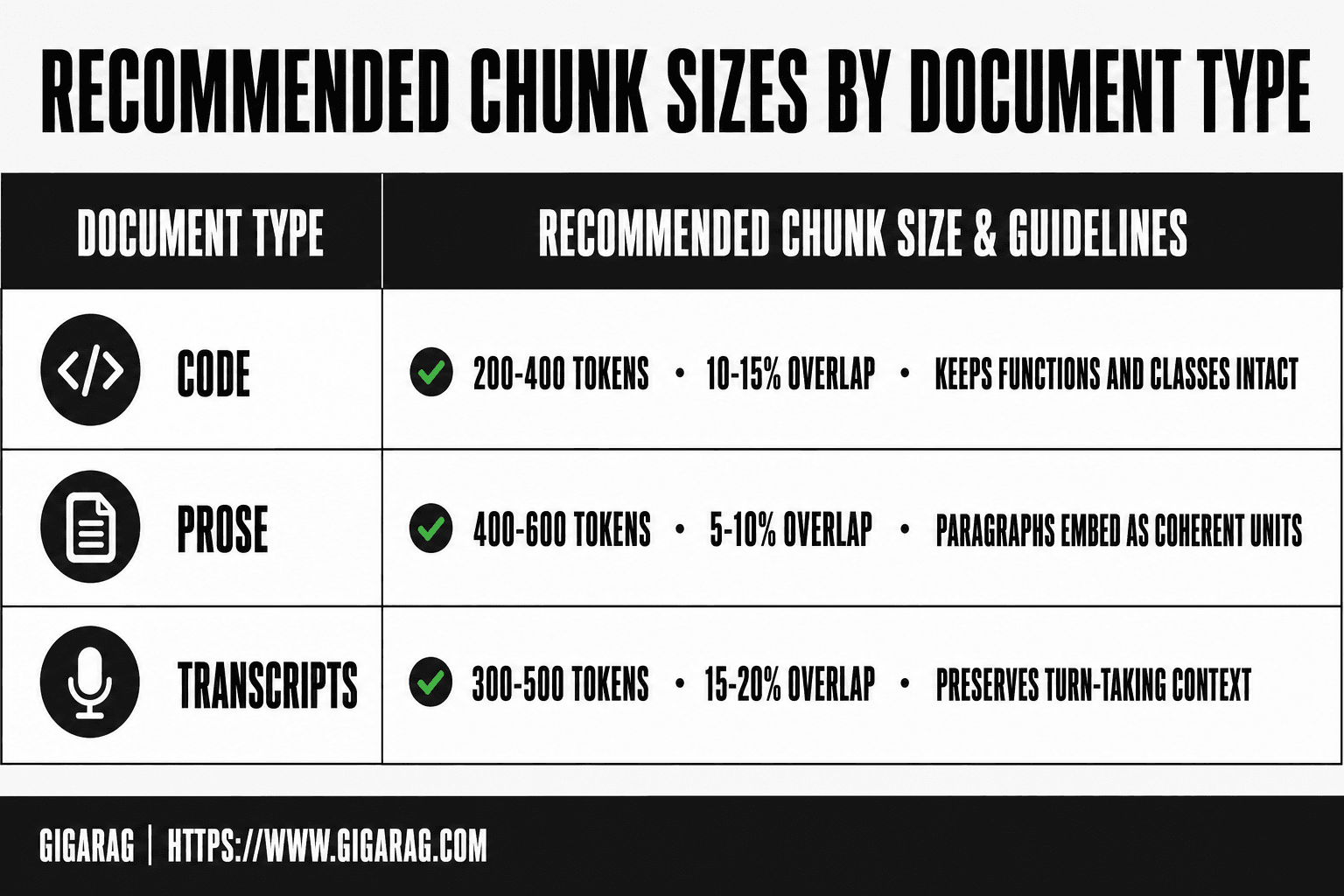
Code: 200-400 tokens with 10-15% overlap. Functions and classes stay intact, and overlap catches logic that crosses file boundaries.
Prose: 400-600 tokens with 5-10% overlap. Paragraphs embed as coherent units without too much repetition.
Transcripts: 300-500 tokens with 15-20% overlap. Spoken language runs on, and overlap preserves turn-taking context that would otherwise split across chunks.
These are starting points, not rules. Test on your own documents. If retrieval returns fragments that read like they were cut with scissors, raise overlap. If answers feel vague, shrink chunk size.
Where to change chunk settings in AnythingLLM
Open your workspace, go to Settings > Vector Database. You'll find chunk size and chunk overlap fields there. Change them, then re-embed your documents. AnythingLLM won't retroactively re-chunk existing vectors, so you need to delete and re-ingest after changing these values. That's the step most people skip, then wonder why nothing improved.
Step 4: Use Agent Memory Features
AnythingLLM agents (@agent) can browse the web, run commands, and call tools. Their memory works differently from a standard chat. Agents pull from workspace documents, but they also carry a separate prompt context that persists across turns within a session.
Agent workspace memory
An agent inherits whatever vector store the workspace uses. If you've embedded documents into that workspace, the agent can retrieve from them just like a normal chat. The catch: agents don't automatically search the workspace unless the agent prompt tells them to. You configure this in the agent's settings, not the workspace settings.
Agent prompt memory
The agent prompt is static memory. Anything you write there stays in context for every turn the agent takes. Use it to store instructions the agent should never forget: which tools to prefer, how to format responses, what to do when retrieval returns nothing. Keep it tight. Every token in the agent prompt eats into the context window the agent has for actual work.
Limitations of agent memory in AnythingLLM
Agents don't remember across sessions. Close the chat, and the agent's turn-by-turn context is gone. There's no built-in episodic memory, no automatic summarization of past interactions, and no cross-workspace recall. If you need an agent that remembers what it did yesterday, AnythingLLM won't do that out of the box.
Common Mistakes When Adding Memory to AnythingLLM
Most memory problems in AnythingLLM come down to four configuration errors. Each has a clear symptom and a straightforward fix.
Wrong embedding model
You embedded documents with one model, then switched to another. Retrieval returns garbage: irrelevant chunks, near-zero similarity scores, or nothing at all. Embeddings are not interchangeable. A vector created by all-MiniLM-L6-v2 cannot be compared against one from text-embedding-ada-002.
The fix: pick your embedding model before you embed anything. If you must switch, delete the workspace's vector data and re-embed every document with the new model. There's no migration path.
Chunk size misconfiguration
Chunks too large bury the answer inside a wall of text the model can't isolate. Chunks too small split a single idea across three fragments, so retrieval returns partial context. Both look like "the model ignored my document."
Start with 500 tokens for prose, 200 for code, 800 for transcripts. Adjust after testing real queries, not before.
Stale vector data
You updated a document, but the old chunks still sit in the vector store. The model answers from outdated text and you can't tell why. AnythingLLM doesn't always auto-refresh embedded content when source files change.
The fix: after any document edit, remove the old embedding and re-embed. Check your workspace's document list for a refresh or delete option.
Expecting cross-workspace memory
You embedded a document in Workspace A, then asked about it in Workspace B. Nothing came back. That's correct behavior. Each workspace has its own vector store, and there's no shared memory layer between them.
The fix: embed the document in every workspace that needs it, or consolidate into one workspace. There's no cross-workspace retrieval setting to enable.
When AnythingLLM Memory Isn't Enough
AnythingLLM's memory works well for document retrieval inside a single workspace. It does not remember what happened in past conversations, and it won't carry context between workspaces.
No long-term episodic memory
AnythingLLM has no built-in episodic memory. When a chat session ends, the model forgets what you discussed. The vector store retains your documents, but not the conversation itself. If you want an agent that recalls "last week you asked me to compare these three vendors," you'll need to build that layer yourself or use a tool designed for it.
No cross-workspace memory
Each workspace is an island. Documents embedded in Workspace A are invisible to Workspace B. There's no shared memory pool, no global context, no way to link workspaces. Teams that need one agent to draw on knowledge from multiple projects will hit this wall quickly.
Scale limitations
The built-in LanceDB vector store handles thousands of chunks fine. Push it past tens of thousands and retrieval latency climbs. External stores like Pinecone or Qdrant help, but they add cost and setup. For teams that outgrow AnythingLLM's built-in memory, GigaRAG offers agent memory that persists across sessions and workspaces. That's the honest tradeoff: AnythingLLM is a solid RAG tool, but its memory has hard edges. If you need memory that spans sessions, workspaces, and agents, that's the point where learning how to add memory to AnythingLLM stops being a configuration problem and starts being an architecture decision.
Frequently Asked Questions
How do I add memory to AnythingLLM?
Memory in AnythingLLM is added by embedding documents into a workspace and letting retrieval pull relevant chunks into the prompt. There is no separate 'memory' toggle — you configure it through workspace documents, embedding model choice, chunk settings, and vector database selection.
Does AnythingLLM have long-term memory?
- AnythingLLM does not ship with built-in long-term episodic memory or automatic memory consolidation. Conversation history is limited to the active session, and cross-workspace memory is not supported natively.
Can AnythingLLM remember across workspaces?
Not natively. Each workspace has its own document store and vector index, so memory does not carry over between workspaces. If you need shared memory, you would have to duplicate documents or build an external retrieval layer.
What vector database should I use with AnythingLLM?
LanceDB is the built-in default and works well for local, single-user setups. For production or multi-tenant workloads, Pinecone, ChromaDB, and Qdrant are common choices — pick based on scale, latency needs, and whether you want managed or self-hosted infrastructure.
How do I tune chunk size and overlap in AnythingLLM?
Chunk size and overlap are configurable in the document processing settings. Smaller chunks improve precision for factual queries; larger chunks preserve context for narrative or technical documents. Overlap helps avoid splitting key information across chunk boundaries.
Does AnythingLLM support agent memory?
Agent mode in AnythingLLM uses conversation history within a session but does not persist memory across sessions or workspaces. For persistent agent memory, you would need to integrate an external memory store or build custom retrieval logic.
Is AnythingLLM memory good enough for production RAG?
It can be, if you tune chunking, choose an appropriate embedding model, and select a vector database that matches your scale. The main limitations are the lack of episodic memory and cross-workspace sharing, which may require external tooling for advanced use cases.
About GigaRAG
GigaRAG is for agent memory and RAG pipeline builders. get this right. Whether you are working through How to add memory to AnythingLLM or something adjacent, we publish what we have actually tested, including where it falls short.