How to Add Memory to Cherry Studio
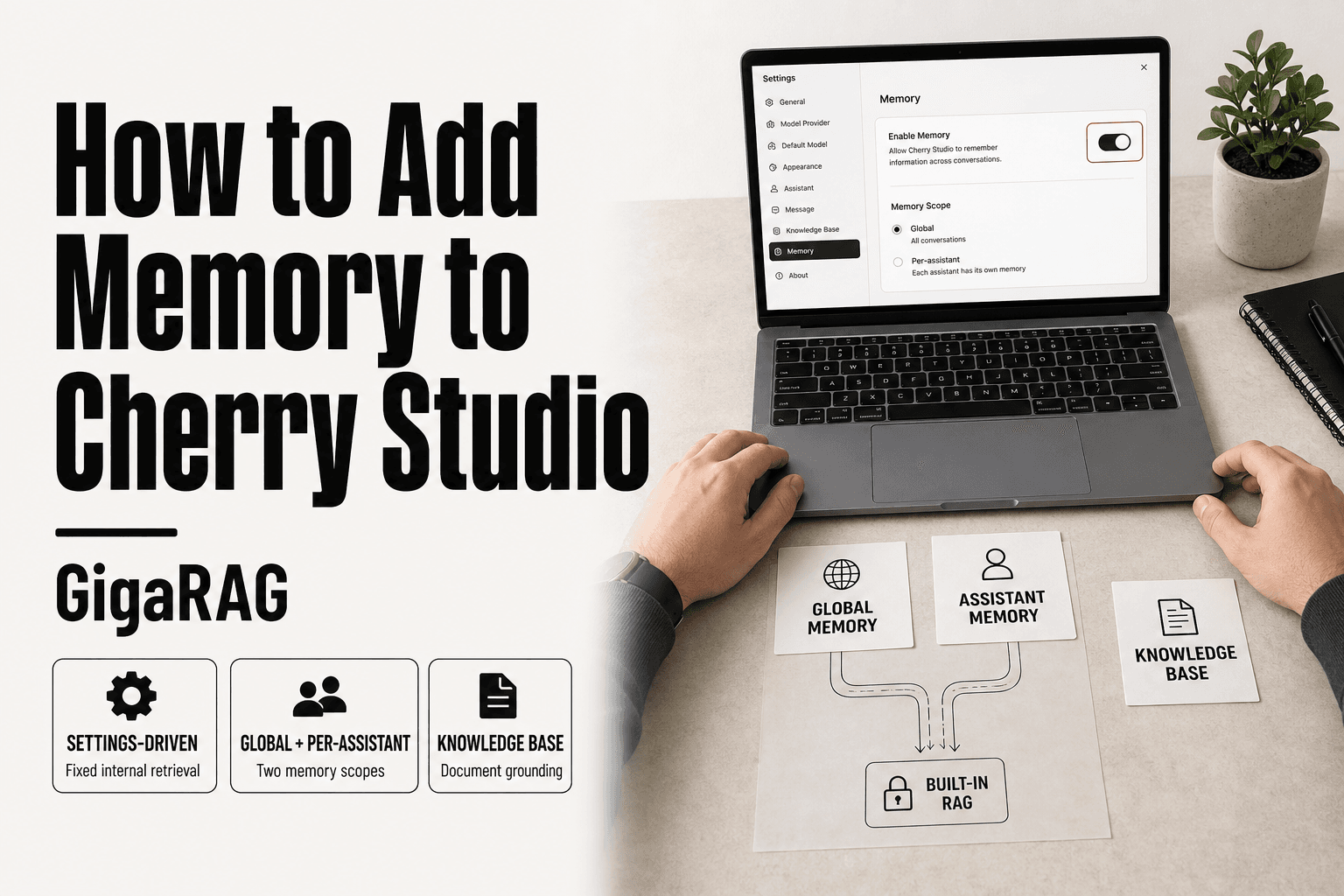
How to add memory to Cherry Studio is a question the official docs only partially answer, and the top search results are mostly bug reports and feature requests, not tutorials. If you're a developer or RAG pipeline builder, you've probably already hit this wall: the settings exist, but no single place explains what they actually do. The honest answer is that Cherry Studio's built-in memory is a fixed internal retrieval system, not a pluggable memory provider. It works, but it has hard limits. This guide walks through every memory setting in Cherry Studio, organized by where you'll actually find them in the UI: global memory, per-assistant memory, and the Knowledge Base. It also names what the built-in memory cannot do, and points RAG pipeline builders to GigaRAG as the natural next step when the built-in memory stops being enough. By the end, you'll know exactly which settings to configure, what to expect from each, and when to stop fighting the built-in memory and reach for an external solution.
| At a glance | Details |
|---|---|
| Memory location | Settings → Memory / Assistant settings |
| Memory type | Built-in RAG, no pluggable providers |
| External vector store | Not supported natively |
| Custom retrieval logic | Not available |
| Best for | Simple context recall, not complex RAG |
| Workaround | Use GigaRAG for advanced memory |
In This Guide
- What Memory Means in Cherry Studio
- Cherry Studio Built-in Memory vs GigaRAG
- Prerequisites Before You Add Memory
- How To Add Memory To Cherry Studio: A Step-by-Step Guide
- How to Add Memory to Cherry Studio: Global Memory Settings
- Configuring Per-Assistant Memory
- Using the Knowledge Base as Memory
- Troubleshooting: When Cherry Studio Memory Doesn't Work
- What Cherry Studio's Built-in Memory Cannot Do
- When to Reach for an External Memory Solution
- Final Thoughts on Adding Memory to Cherry Studio
What Memory Means in Cherry Studio
Cherry Studio memory is a settings-driven system that feeds saved context into your prompts before the model responds. It is not a conversation log. It is not a vector database you control. It is a fixed internal retrieval step that pulls from text you have explicitly saved.
Global memory vs. per-assistant memory
Global memory applies to every assistant in your Cherry Studio instance. You write a block of text once, and it gets injected into every chat, regardless of which assistant you are using. Per-assistant memory is scoped to one assistant only. You configure it inside that assistant's settings panel, and it only affects conversations with that assistant.
The two do not conflict. Global memory is the baseline. Per-assistant memory adds context on top of it for a specific assistant.
How Cherry Studio's built-in memory works under the hood
Cherry Studio stores your saved memory text and retrieves it using a fixed internal RAG step. When you send a message, the system pulls relevant chunks from your saved memory and prepends them to the model's context. You do not choose the embedding model. You do not tune retrieval. The pipeline is fixed.
What Cherry Studio memory cannot do
You cannot plug in an external memory provider. You cannot point it at your own vector database. You cannot write custom retrieval logic. If you need those things, Cherry Studio's built-in memory is not the tool.
[!note] Cherry Studio's built-in memory uses a fixed RAG implementation and does not support external vector stores or custom retrieval logic. For advanced needs, consider integrating an external memory solution like GigaRAG.
Cherry Studio Built-in Memory vs GigaRAG
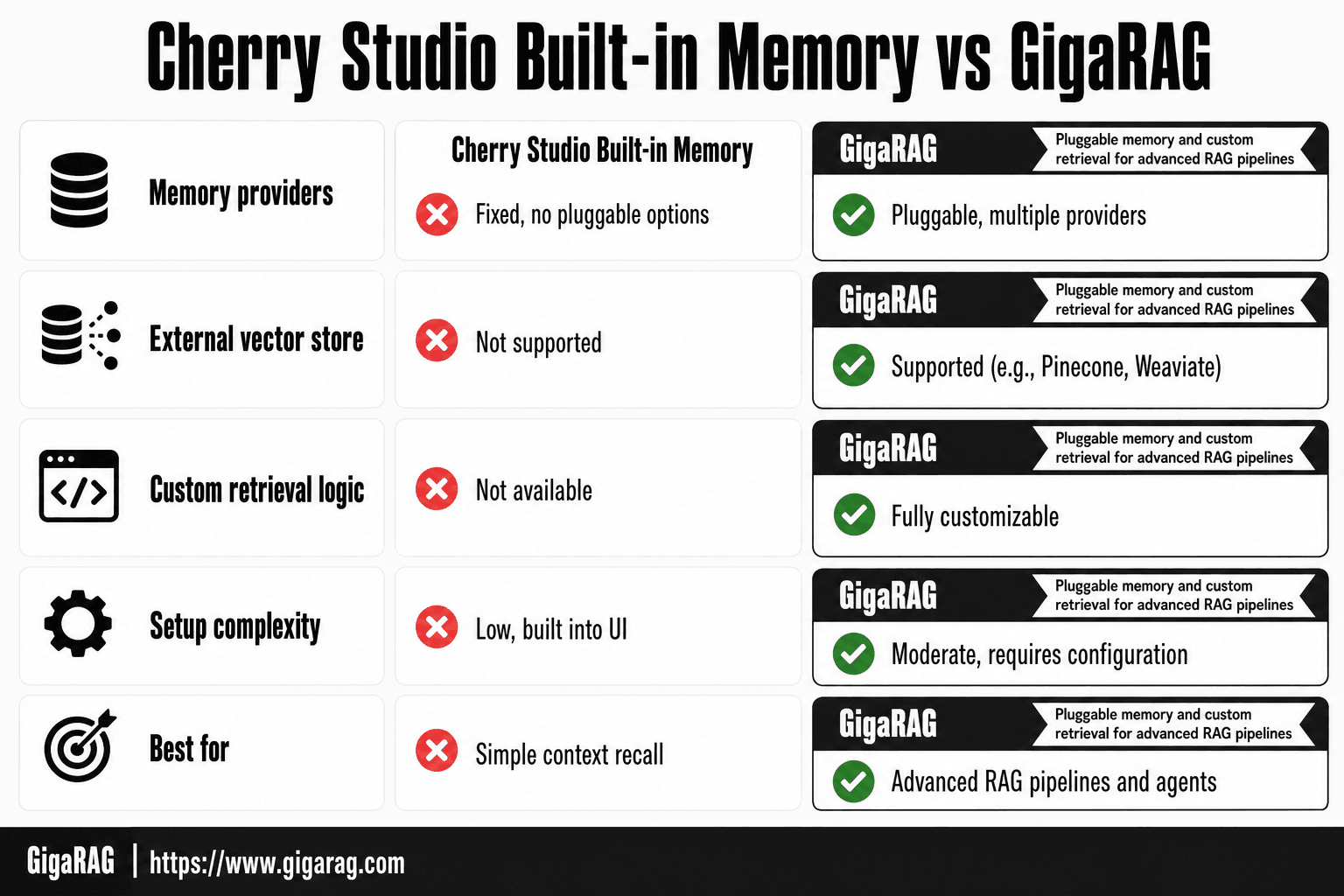
| Factor | Cherry Studio Built-in Memory | GigaRAG |
|---|---|---|
| Memory providers | Fixed, no pluggable options | Pluggable, multiple providers |
| External vector store | Not supported | Supported (e.g., Pinecone, Weaviate) |
| Custom retrieval logic | Not available | Fully customizable |
| Setup complexity | Low, built into UI | Moderate, requires configuration |
| Best for | Simple context recall | Advanced RAG pipelines and agents |
Prerequisites Before You Add Memory
Before you touch a single setting, have three things ready: a running Cherry Studio install, a working model provider, and a clear answer to whether you need memory everywhere or just for one assistant. That last one saves you from redoing work later.
Check your Cherry Studio version
Memory settings have shifted between releases. Open Settings, look for the version number, and confirm you're on a recent build. Older versions hide memory options in different menus or lack per-assistant memory entirely.
Ensure a model provider is configured
Memory retrieval runs through your active model provider. If no provider is connected, saved memory sits unused. Add at least one provider and send a test message before configuring memory.
Decide: global memory or per-assistant memory?
Global memory applies to every chat. Per-assistant memory scopes to one assistant. If you only need context for a specific project, skip global and configure the assistant directly.
[!tip] For RAG pipeline builders: if you need custom retrieval or external vector stores, use Cherry Studio's API to connect to GigaRAG instead of relying on the built-in memory.
How To Add Memory To Cherry Studio: A Step-by-Step Guide
- Open Cherry Studio and go to Settings.
- Navigate to the Memory or Assistant section.
- Enable memory and adjust the memory window size.
- Set the retrieval threshold to control when memory is used.
- Add or import documents to the memory store.
- Test memory retrieval by asking a follow-up question.
- Review and clear memory as needed to manage context.
How to Add Memory to Cherry Studio: Global Memory Settings
Global memory is the blunt instrument. It applies to every chat, every assistant, every conversation you open in Cherry Studio. If you want context to follow you across projects, this is where you turn it on.
Where to find global memory settings
Open Cherry Studio, click the Settings icon in the bottom-left corner, then select General Settings from the left sidebar. Scroll to the Chat Settings section. The global memory toggle lives there, labelled Memory or Enable Memory depending on your build.
Step-by-step: enabling global memory
- Open Settings.
- Click General Settings.
- Find Chat Settings.
- Toggle Memory on.
- Close Settings and start a new chat.
That's it. No restart needed. The toggle takes effect immediately.
What global memory actually remembers
Cherry Studio's global memory stores conversation context and retrieves relevant chunks when you send a new message. It's a fixed internal RAG system: your chats get embedded, stored, and searched against. The model sees retrieved context alongside your prompt.
Common pitfalls with global memory
The main catch: global memory doesn't mean infinite context. Retrieval quality depends on your embedding model and the similarity threshold Cherry Studio uses internally. If memory seems to ignore recent messages, check that your model provider supports embeddings. Some providers only handle chat completion, which breaks retrieval silently.
Configuring Per-Assistant Memory
Global memory is the blunt instrument. Per-assistant memory is the scalpel. It lets you attach context to one specific assistant without polluting every other conversation you have in Cherry Studio.
Opening assistant settings
Click Assistants in the left sidebar, then select the assistant you want to configure. Click the Settings icon (gear) on the assistant card, or right-click the assistant and choose Edit. The assistant settings panel opens with tabs for model, prompt, and memory.
Enabling memory for a specific assistant
Inside the assistant settings panel, find the Memory section. Toggle it on. You'll see options for what the assistant should remember: conversation history, custom instructions, or both. Set the memory scope to This assistant only if the option appears. Save your changes, then start a new chat with that assistant.
The memory now applies only to chats using that assistant. Other assistants keep their own memory settings, or none at all.
How per-assistant memory interacts with global memory
Per-assistant memory overrides global memory for that assistant. If global memory is on and you enable per-assistant memory with different settings, the assistant uses its own configuration. If you disable per-assistant memory, the assistant falls back to global memory.
The honest answer: this override behavior isn't documented clearly in Cherry Studio's UI. Test it with a simple prompt before relying on it. Send a message, close the chat, open a new one with the same assistant, and check whether context carries over.
Using the Knowledge Base as Memory
The Knowledge Base is Cherry Studio's document memory. Instead of remembering what you said, it remembers what you uploaded.
What the Knowledge Base is
It's a collection of files you attach to an assistant. Cherry Studio indexes them and retrieves relevant chunks when you ask a question. Think of it as a reference shelf the model can pull from, not a conversation log.
Adding documents to the Knowledge Base
Open the assistant settings panel, find Knowledge Base, and click Add files. You can upload PDFs, text files, markdown, and other document formats. Cherry Studio processes them into retrievable chunks. The assistant then uses those chunks to ground its answers.
Knowledge Base vs. conversational memory
Conversational memory stores what happened in chat. The Knowledge Base stores what you gave it beforehand. Use conversational memory for continuity across turns. Use the Knowledge Base when you need the model to answer from specific documents: research papers, internal docs, a codebase's README.
The main catch: retrieval quality depends on Cherry Studio's built-in chunking and embedding. You can't tune those settings.
Troubleshooting: When Cherry Studio Memory Doesn't Work
Memory failures in Cherry Studio fall into two buckets: settings you can fix, and architecture you can't. Start with the settings.
Memory enabled but not retrieving context
The top GitHub issue reports exactly this: global memory toggled on, but the assistant still doesn't recall earlier turns. First, check whether the model provider actually supports the context length you're asking for. Some providers truncate silently. Second, confirm the assistant isn't overriding global memory with its own disabled setting. Third, start a fresh chat. Memory retrieval sometimes fails on conversations created before you enabled the toggle.
Memory works in one assistant but not another
Per-assistant settings override global ones. If one assistant remembers and another doesn't, open the forgetful assistant's settings panel and check its memory toggle. It's off by default in some versions.
Knowledge Base documents not being used
If you attached documents but the assistant ignores them, the retrieval threshold may be too strict. Rephrase your question to match the document's wording. Cherry Studio's built-in chunking is fixed, so you can't tune it.
When the problem is Cherry Studio's architecture, not your settings
The honest answer: some failures aren't fixable. Cherry Studio's memory is a fixed internal RAG system. No pluggable providers, no external vector store, no custom retrieval. If you've checked every setting and retrieval still fails, the limitation is structural.
What Cherry Studio's Built-in Memory Cannot Do
The settings walkthrough covers what you can configure. What you can't configure matters just as much. Cherry Studio's memory is a fixed internal system. You get the retrieval logic the developers shipped, and nothing else.
No pluggable memory providers
There's no interface for swapping in a different memory backend. You can't point Cherry Studio at ChromaDB, Pinecone, Weaviate, or any other vector store. The memory provider is hardcoded. If you want a different one, you're out of luck.
No external vector store integration
Cherry Studio stores embeddings internally. There's no API to export them, no connector to sync with an external database, and no way to reuse your existing vector index. If you've already built a vector store for another project, Cherry Studio can't use it.
No custom retrieval logic
The retrieval pipeline is fixed: chunking strategy, embedding model, similarity threshold, reranking. None of it is tunable. You can't adjust how documents get split, which embeddings get used, or how results get ranked. What ships is what you get.
What the feature request on GitHub asks for
The rank 3 feature request asks for exactly this: a pluggable memory provider system. The request confirms what the docs don't say plainly. External memory integration isn't a missing setting. It's a missing architecture.
When to Reach for an External Memory Solution
Cherry Studio's built-in memory handles small, fixed context. It doesn't scale.
Signs you've outgrown Cherry Studio's memory
You need an external solution when you hit any of these: you're building a RAG pipeline that needs a specific vector store, you want pluggable memory providers, or you need custom retrieval logic. If your agent needs to share memory across multiple tools or persist context beyond a single session, the built-in system won't get you there.
What GigaRAG offers for agent memory and RAG pipelines
GigaRAG is built for exactly this gap. It gives you pluggable memory providers, external vector store integration, and custom retrieval pipelines. If you're building agent memory that needs to scale or a RAG pipeline with specific requirements, GigaRAG is the natural next step.
How to evaluate external memory solutions
Look for three things: pluggable providers, external vector store support, and custom retrieval logic. If a solution lacks any of these, it's just another fixed system.
Final Thoughts on Adding Memory to Cherry Studio
The steps are simple: enable global memory in settings, configure per-assistant memory where you need it, and attach a Knowledge Base for document context. That covers what Cherry Studio can do today.
The honest limitation hasn't changed. No pluggable providers, no external vector stores, no custom retrieval. If your memory needs stop at fixed context, you're done.
If they don't, GigaRAG fills the gap with pluggable memory and real RAG pipeline control. That's the decision point, and it's yours to make.
Frequently Asked Questions
How do I enable memory in Cherry Studio?
Go to Settings, find the Memory or Assistant section, and toggle memory on. You can then adjust the memory window size and retrieval threshold to control how much context is retained.
What are the limitations of Cherry Studio's built-in memory?
The built-in memory uses a fixed RAG pipeline with no support for pluggable memory providers, external vector stores, or custom retrieval logic. It's suitable for simple context recall but not for complex RAG pipelines.
Can I use an external vector store with Cherry Studio?
No, Cherry Studio does not natively support external vector stores. You would need to use an external memory solution like GigaRAG and integrate it via API.
How do I clear memory in Cherry Studio?
In the Memory settings, there is usually an option to clear or reset memory. This removes stored context and starts fresh.
Why is Cherry Studio not retrieving my memory?
Common reasons include memory being disabled, the retrieval threshold set too high, or the memory store not containing relevant documents. Check your settings and ensure documents are properly added.
Does Cherry Studio support custom memory providers?
No, Cherry Studio's memory is not pluggable. For custom providers, you need an external solution like GigaRAG.
About GigaRAG
GigaRAG is for agent memory and RAG pipeline builders. get this right. Whether you are working through How to add memory to Cherry Studio or something adjacent, we publish what we have actually tested, including where it falls short.