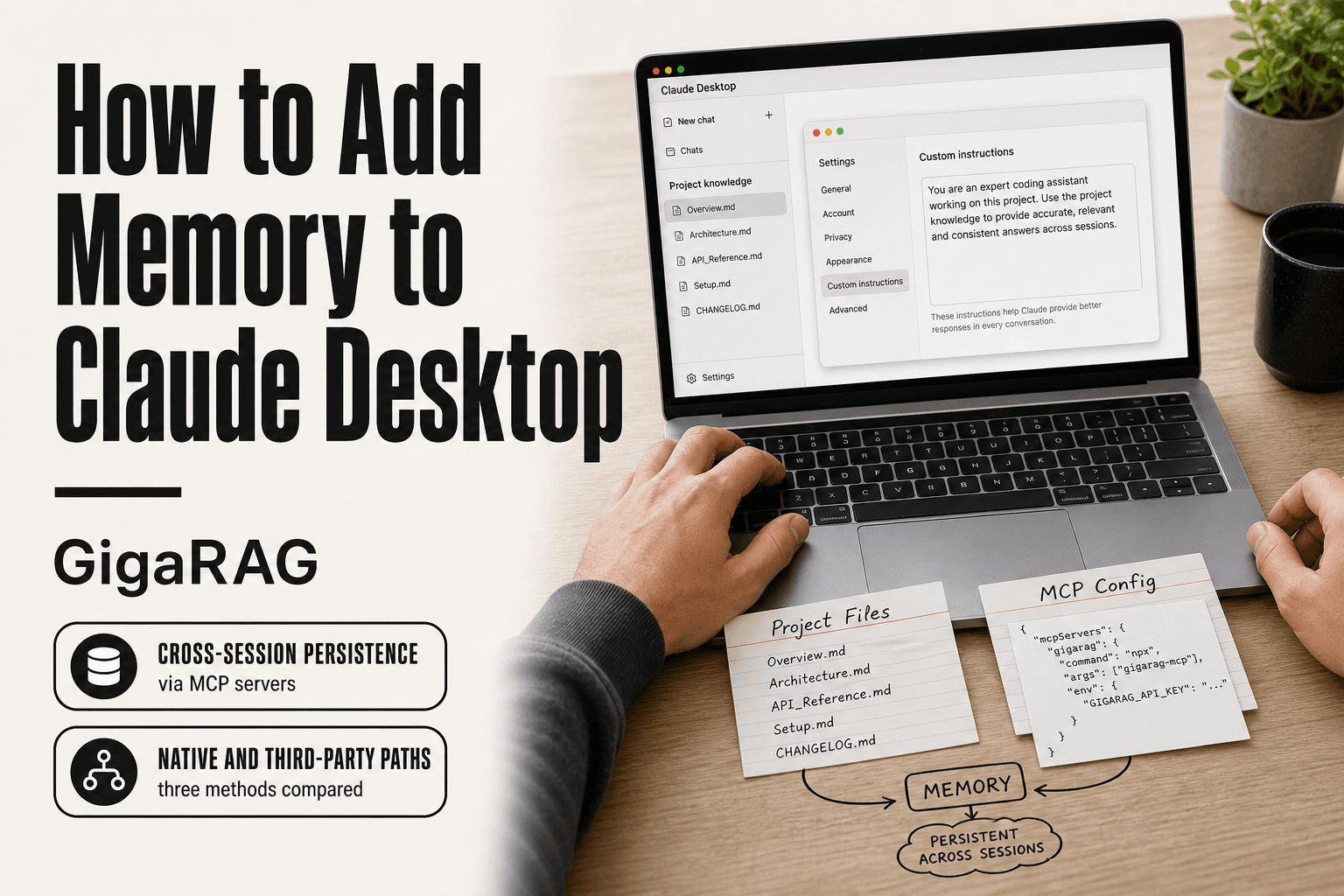
How to Add Memory to Claude Desktop
How to add memory to Claude Desktop starts with a frustration most builders know too well: you close the window, reopen it, and everything is gone. The project context, the decisions, the little corrections you made. And when you search for a fix, most results talk about Claude Code or the API, not the Desktop app sitting on your machine. This guide is for the Desktop app specifically. The honest answer is that memory is achievable, but it has real limits, and you should know them before you start. The good news is there are three distinct paths: native features, MCP servers, and third-party tools. For teams building agent memory or RAG pipelines, GigaRAG offers a production-grade memory layer, but that's a different scale of problem. This guide covers what works in Claude Desktop today, what doesn't, and how to choose without wasting an afternoon.
| At a glance | Details |
|---|---|
| Native memory | Rolling out in Claude apps, availability varies |
| Desktop vs Code | Separate features, not interchangeable |
| MCP option | Community memory servers via config file |
| Third-party tools | External stores synced through MCP or files |
| Persistence scope | Per-account, not per-project by default |
| Best for | Technical users wanting cross-session context |
In This Guide
- What Memory Means in Claude Desktop (and What It Doesn't)
- Native Memory vs MCP Memory Servers for Claude Desktop
- Prerequisites: What You Need Before Adding Memory
- How To Add Memory To Claude Desktop: A Step-by-Step Guide
- Method 1: Native Memory Features in Claude Desktop
- Method 2: Adding Memory via MCP Servers
- Method 3: Third-Party Memory Tools for Claude Desktop
- How to Import Memory from Other Chats and Services
- What Memory Cannot Do: Honest Limitations and Common Frustrations
- Troubleshooting Memory Issues in Claude Desktop
- Choosing the Right Memory Approach for Your Use Case
- Final Thoughts on Adding Memory to Claude Desktop
What Memory Means in Claude Desktop (and What It Doesn't)
Claude Desktop has no built-in persistent memory. When you close the window, the conversation context is gone. What people call "memory" in Desktop is either session context, project files you attach manually, or external storage you wire in yourself.
Claude Desktop vs Claude Code vs API: three different memory models
These three surfaces share the Claude name but not the same memory behavior.
Claude Code reads CLAUDE.md files from your project directory and loads them into context automatically. It also has an auto memory feature that writes to a local file as you work. That's a developer tool, not the Desktop app.
The API exposes a memory tool that lets you store and retrieve key-value pairs programmatically. You write code to call it. Desktop doesn't expose this.
Claude Desktop gives you the chat window, project knowledge you attach per conversation, and custom instructions you set once. Nothing persists between sessions unless you build it.
What "memory" can mean: session context, project files, external storage
Session context is everything in the current conversation. It works fine until you hit the context window or close the app.
Project files are documents you upload or link. Claude can read them during that session. They don't update automatically.
External storage means MCP servers or third-party tools that save conversation data to a database or vector store, then retrieve it in future sessions. That's the only path to true persistence, and it requires setup.
What memory cannot do: hard limits and common misconceptions
Memory is not infinite. The context window has a fixed size, and once you exceed it, older messages drop out. Claude doesn't silently remember everything you've ever said.
It also doesn't learn from one conversation and apply that to the next on its own. No hidden state carries over. If you want continuity, you have to build a mechanism for it.
And Desktop memory is not Claude Code memory. Guides that tell you to edit CLAUDE.md or call the memory tool are describing different products. Desktop needs its own approach.
[!note] Claude Desktop memory, Claude Code memory, and the memory tool in the API are three separate features with different storage and scope — enabling one does not enable the others.
Native Memory vs MCP Memory Servers for Claude Desktop
| Factor | Native Memory | MCP Memory Servers |
|---|---|---|
| Setup effort | Toggle in settings, no config | Edit config file, install server |
| Control over stored data | Limited, managed by Anthropic | Full, you own the store |
| Works in Claude Desktop | Yes, where rolled out | Yes, via MCP support |
| Custom retrieval logic | Not exposed | Yes, you define it |
| Maintenance | None | Updates, backups, debugging |
Prerequisites: What You Need Before Adding Memory
Before you touch any config file, check what you're running. The setup path differs depending on your OS and whether you're comfortable with a terminal. None of this is hard, but skipping a step here means debugging later.
Claude Desktop version and OS requirements
Claude Desktop runs on macOS and Windows. On macOS you need version 11.0 or later. On Windows, Windows 10 or 11. The app auto-updates, so if you installed it recently you're probably fine, but check the version number in Settings before you start.
The key requirement: your Claude account needs access to the Desktop app itself. A free account works for native features. MCP server support doesn't require a paid plan either, though some third-party tools might.
Enabling developer mode and config file access
MCP servers are configured through a JSON file, not through the Desktop UI. You'll need to find that file and edit it.
On macOS, the config lives at ~/Library/Application Support/Claude/claude_desktop_config.json. On Windows, it's %APPDATA%\Claude\claude_desktop_config.json.
There's no developer mode toggle to flip. You just create or edit the file directly. If it doesn't exist yet, create it. That's the whole gate.
Node.js and Python for MCP server setups
Most memory MCP servers are written in Node.js or Python. You need one of those runtimes installed before the server will start.
For Node.js servers, install Node 18 or later. Check with node --version in a terminal. For Python servers, Python 3.10 or later, checked with python3 --version.
You'll also need a package manager: npm comes with Node, pip comes with Python. Some servers install globally, others run from a local directory. Either way, the runtime has to exist first.
[!tip] If you are building RAG or agent pipelines, keep your durable knowledge in your own vector store and expose it to Claude Desktop through an MCP server, so retrieval logic stays under your control rather than the app's.
How To Add Memory To Claude Desktop: A Step-by-Step Guide
- Update Claude Desktop to the latest version and sign in to your account.
- Check Settings for a Memory or personalization option and enable it if present.
- If no native option exists, install a memory MCP server and locate the claude_desktop_config.json file.
- Add the server entry to the config, save, and fully restart Claude Desktop.
- Verify the server appears in the tools or connectors list and run a test write and read.
- Seed memory with a few stable facts and confirm they persist after closing and reopening the app.
- Review and prune stored entries periodically to avoid stale or conflicting context.
Method 1: Native Memory Features in Claude Desktop
The honest answer is that Claude Desktop has no memory toggle. There's no settings panel where you flip a switch and the app starts remembering you. What it has instead are two features that act like memory: project knowledge and custom instructions. Both work, but neither persists the way most people expect.
Using project knowledge and custom instructions
Project knowledge is the closest thing to real memory in the Desktop app. You attach files to a project, and Claude reads them every time you start a conversation in that project. The files stay attached until you remove them. That's persistence, but it's persistence of documents, not persistence of conversation.
To set it up, create a project in the Desktop app, then upload the files you want Claude to remember. A style guide, a codebase readme, a list of your preferences. Claude loads those files into context at the start of each chat in that project. It doesn't summarize them or compress them. It reads them fresh every time.
Custom instructions work differently. You write a short block of text telling Claude how to behave: your name, your preferred tone, what you're building. Claude applies those instructions to every conversation, not just one project. You'll find this under Settings, then Personalization or Custom Instructions depending on your version.
The main catch: custom instructions have a character limit, and project knowledge only loads files you explicitly attach. Neither one learns from your conversations. They're static inputs, not accumulated memory.
Where to find memory settings in the Desktop app
Open Claude Desktop and click your profile icon in the bottom left. Look for Settings. Inside Settings, you'll find Custom Instructions or Personalization. That's where the instruction text goes.
Project knowledge lives in the project itself. Open a project, look for the file attachment area or the project settings. Upload files there. There's no global memory panel anywhere in the app.
If you're looking for a "memory" menu item, you won't find one. Anthropic hasn't shipped a dedicated memory feature for Desktop as of this writing. The features that exist are scattered across Settings and project configuration.
What native memory does and doesn't persist
Native features persist files and instructions. They don't persist conversation history, decisions, or anything Claude learned mid-chat. Close the window and that context is gone.
Project knowledge files stay attached until you delete them. Custom instructions stay applied until you edit them. That's the full extent of native persistence. If you want Claude to remember what you talked about last Tuesday, native features won't do it. You need an MCP server or a third-party tool for that, which the next section covers.
Method 2: Adding Memory via MCP Servers
Native features give you static inputs. They don't learn. If you want Claude Desktop to actually remember things across sessions, you need an MCP server. This is the method developers use, and it's the only way to get true persistent memory in the Desktop app today.
What an MCP server is and why it enables memory
MCP stands for Model Context Protocol. It's Anthropic's open standard for connecting Claude to external tools and data sources. A server is just a program that runs on your machine and exposes specific capabilities to Claude through a defined interface.
Here's why it matters for memory: Claude Desktop can't write to disk on its own. It has no built-in storage layer. An MCP server gives it one. You run a small program locally that handles reading and writing memory files. Claude calls that program through MCP whenever it needs to store or retrieve something. The memory lives in a file on your computer, not in Claude's context window. Close the app, reopen it, and the file is still there.
The tradeoff is setup complexity. You're running a separate process, configuring a JSON file, and possibly writing code. It's not a toggle you flip.
Step-by-step: configuring a local memory MCP server
Start by installing Node.js or Python on your machine. Most memory MCP servers are written in one of those two languages. Check your version with node --version or python --version in a terminal.
Next, create or open the Claude Desktop config file. On macOS it's ~/Library/Application Support/Claude/claude_desktop_config.json. On Windows it's %APPDATA%\Claude\claude_desktop_config.json. If the file doesn't exist, create it.
The config file tells Claude Desktop which MCP servers to launch. A basic entry looks like this:
{
  "mcpServers": {
    "memory": {
      "command": "node",
      "args": ["/path/to/your/memory-server.js"]
    }
  }
}
Save the file, restart Claude Desktop, and the server should appear in the MCP connection list. You'll see a small plug or tools icon indicating the server is connected.
Make sure you test the connection before relying on it. Ask Claude to store a test fact, close the app, reopen it, and ask Claude to retrieve that fact. If it comes back, the server is working.
Example: a simple memory handler in Python or Node.js
You don't need to build a full MCP server from scratch. The MCP SDK handles the protocol details. Your job is writing the memory logic.
Here's a minimal Node.js handler that stores and retrieves key-value pairs:
const fs = require('fs');
const memoryFile = './memory.json';

function loadMemory() {
  if (!fs.existsSync(memoryFile)) return {};
  return JSON.parse(fs.readFileSync(memoryFile, 'utf8'));
}

function saveMemory(data) {
  fs.writeFileSync(memoryFile, JSON.stringify(data, null, 2));
}

// Expose these as MCP tools: store_memory and recall_memory
The store tool writes a key and value to memory.json. The recall tool reads it back. That's the entire memory system. It's not sophisticated, but it persists.
In practice, you'll want more than key-value storage. A better handler stores conversation summaries, timestamps, and tags so Claude can retrieve relevant memories rather than dumping everything into context. That's a real design decision, and it's where memory systems get complicated. The simple version works for basic persistence. The complex version is what you build when you need recall quality.
Method 3: Third-Party Memory Tools for Claude Desktop
If you don't want to write an MCP server yourself, third-party tools fill the gap. They package memory into an installable app or a GitHub repo. The tradeoff is control: you get convenience, but you're trusting someone else's code with your conversation history.
Pieces: what it does and where it falls short
Pieces is a desktop app that stores code snippets, notes, and conversation context in a local database. It integrates with Claude Desktop through its own connector, letting Claude pull relevant snippets into a session. The pitch is that your saved material becomes a searchable memory layer without any MCP config.
The main catch is that Pieces is built for developers managing code snippets, not general conversation memory. It works well if your "memory" is mostly reusable code blocks and technical notes. It's weaker for freeform context like project decisions or user preferences. You're also adding a full separate application, not a lightweight server. That's overhead if all you need is a JSON file on disk.
Open-source options: claude-memory and GitHub projects
claude-memory is a GitHub project that provides a ready-made MCP memory server. You clone the repo, install dependencies, point your Claude Desktop config at it, and you get persistent key-value memory without writing the handler yourself. It's a middle ground between building from scratch and installing a commercial app.
Other GitHub projects offer similar functionality with different storage backends: SQLite, vector databases, or plain markdown files. Quality varies widely. Check the last commit date before you rely on one. An abandoned repo means an unmaintained memory layer, and that's worse than no memory at all.
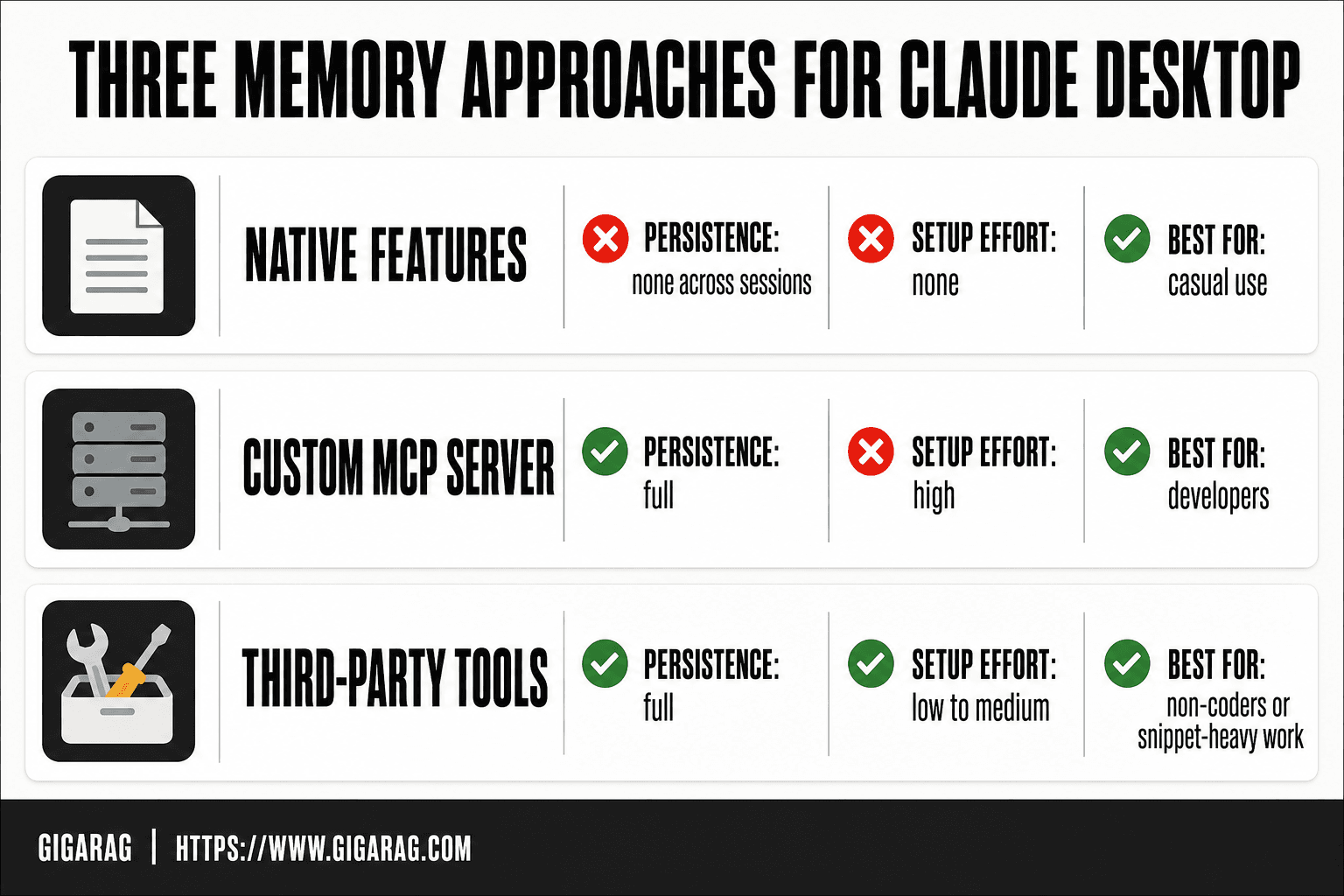
Comparison table: native vs MCP vs third-party
| Approach | Persistence | Setup effort | Control | Best for |
|---|---|---|---|---|
| Native features | None across sessions | None | Low | Casual use |
| Custom MCP server | Full | High | Full | Developers |
| Third-party tools | Full | Low to medium | Medium | Non-coders or snippet-heavy work |
The honest answer is that third-party tools are a convenience layer over the same MCP mechanism. They don't add capabilities you couldn't build yourself. They save you time, and they cost you transparency.
How to Import Memory from Other Chats and Services
Claude Desktop has no native import button for memory. You can't point it at a ChatGPT export and have it absorb the context. What you can do is bring context in as files, project knowledge, or pasted text. That's the whole mechanism.
Importing from previous Claude chats
Claude Desktop keeps a chat history in the sidebar, but it doesn't automatically carry context from one conversation into another. To reuse context from an old chat, open it, copy the relevant parts, and paste them into your new session. For longer histories, export the conversation as a text file and attach it.
You can also use project knowledge. Create a project, add a markdown or text file containing the key decisions, preferences, or facts from your previous chats, and Claude will reference it in every session within that project. This is the closest thing to persistent memory without an MCP server.
Importing from ChatGPT: what's possible and what isn't
ChatGPT lets you export your data as a JSON or HTML file from its settings. You can't import that file directly into Claude Desktop. The formats don't match, and there's no converter built in.
What you can do is extract the text manually. Open the export, copy the conversations you care about, and save them as a plain text or markdown file. Then attach that file to a Claude Desktop session or add it to project knowledge. It's manual, but it works.
Using files and project knowledge as memory imports
Files are the most reliable import path. Claude Desktop accepts text, markdown, PDFs, and code files as attachments. A well-organized markdown file of your project context, past decisions, and user preferences functions as a memory import every time you attach it.
For recurring context, add those files to a project. Project knowledge persists across sessions within that project, which makes it the closest native equivalent to imported memory. The catch is that it's static: you update the file, not the memory.
What Memory Cannot Do: Honest Limitations and Common Frustrations
Memory in Claude Desktop is not a database. It's context that gets loaded into a prompt, and it has hard ceilings. The honest answer is that most "memory" features are conveniences, not guarantees. They fail silently more often than anyone admits.
Context window limits and why memory isn't infinite
Every Claude model has a context window: the total amount of text it can hold in one session. Once you hit it, older context gets dropped. Memory tools don't bypass this. They just re-inject stored text into the window, which means memory competes with your actual conversation for space.
A large memory file can crowd out the very context you're trying to preserve. If your project knowledge is 50,000 words and your conversation is another 30,000, you're burning window fast. The model doesn't warn you when it starts forgetting. It just gets vaguer.
Common failure modes: when memory silently doesn't work
The most frustrating failure is the quiet one. You add a memory file, ask a question that depends on it, and Claude answers as if the file doesn't exist. No error. No warning. The retrieval step simply didn't fire, or the file wasn't loaded into the window at all.
Other common failures: MCP servers crash mid-session and memory stops updating without any visible signal. Project knowledge gets stale because you forgot to update the file. And memory that works in one project doesn't carry to another, even when the content is identical.
Why Claude Desktop memory is not the same as Claude Code memory
Claude Code has a memory tool API and CLAUDE.md conventions that developers can hook into directly. Claude Desktop doesn't expose that same interface. What works in Claude Code, auto-loading CLAUDE.md files, memory tool calls, compaction, won't work in Desktop without an MCP server standing in for the missing plumbing.
Don't copy a Claude Code memory setup into Desktop and expect it to run. The surfaces share a name and a model, but the memory architecture is different. Desktop is more constrained, and the constraints are structural, not settings you can toggle.
Troubleshooting Memory Issues in Claude Desktop
Most memory failures in Claude Desktop come down to three things: a malformed config file, an MCP server that won't connect, or memory that loads but doesn't persist. Here's how to diagnose each.
Config file errors and how to fix them
The config file is JSON, and JSON is unforgiving. A missing comma, an unclosed bracket, or a trailing comma will stop the whole file from loading. Claude Desktop won't always tell you the file failed. It just won't show your MCP servers.
Check the file path first. On macOS it's ~/Library/Application Support/Claude/claude_desktop_config.json. On Windows it's %APPDATA%\Claude\claude_desktop_config.json. Open it in a JSON validator. Fix syntax errors, then restart the app fully. Not just close the window. Quit the process.
MCP server connection failures
If the config is valid but the server still won't connect, check the command path. MCP servers run as local processes, and Claude Desktop needs the full path to the executable. A relative path like node server.js will fail. Use the absolute path.
Also check that Node.js or Python is installed and on your PATH. If the server starts but disconnects mid-session, look at the server's own logs. Most MCP servers write to stderr, which Claude Desktop hides.
Memory not persisting: diagnostic steps
Start by asking Claude directly: "What do you remember about X?" If it can't recall, the memory file likely wasn't loaded into the context window. Check that the file path in your config points to the right location. Then check file permissions. A file Claude can't read is a file Claude can't remember.
If memory works in one session but not the next, the MCP server probably isn't writing to disk. Some memory servers keep everything in RAM and lose it on shutdown. Verify the server has a persistence layer before trusting it.
Choosing the Right Memory Approach for Your Use Case
The right approach depends on what you're building and how much failure tolerance you have. Here's the honest breakdown.
Casual users: native features are enough
If you use Claude Desktop for writing, research, or everyday questions, don't install an MCP server. Project knowledge and custom instructions cover most needs. You'll hit limits when you want memory across unrelated projects or need Claude to recall something from three sessions ago without prompting. Accept that. Native memory is session-scoped and project-scoped, and that's fine for casual use.
Developers: MCP servers for control and persistence
You want memory that survives restarts and works across projects. A local MCP server gives you that. You control the storage format, the file location, and what gets written. The cost is setup time and maintenance. If your server crashes, your memory stops working silently. You'll debug it yourself.
RAG pipeline builders: when to consider GigaRAG or similar
If you're building agent memory for a team, a single MCP server won't scale. You need shared storage, versioned memory, and retrieval that doesn't blow the context window. That's where GigaRAG fits. It's a production memory layer, not a Desktop plugin. For a solo Desktop user, it's overkill. For a team shipping RAG pipelines, it's the difference between a prototype and something that works in production.
Final Thoughts on Adding Memory to Claude Desktop
You have three real paths: native features, a local MCP server, or a third-party tool. Each works. None is magic.
Native memory is the easiest and the least persistent. It survives within a project, not across your whole life in Claude Desktop. An MCP server gives you real persistence, but you own the maintenance. Third-party tools sit in between, with their own tradeoffs and their own lock-in.
The honest limitation hasn't changed: Claude Desktop has no built-in memory that spans sessions without help. Anyone who tells you otherwise is selling something or confusing Desktop with Claude Code.
If you're a solo user, start with native features. If you need memory that survives restarts, build or install an MCP server. If you're shipping agent memory for a team, GigaRAG is the production-grade layer that handles shared storage and retrieval at scale. It's not a Desktop plugin, and it's not pretending to be one.
Adding memory to Claude Desktop is achievable. Just know which problem you're actually solving before you pick a tool.
Frequently Asked Questions
How do I add memory to Claude?
Start by checking Settings in the Claude app for a native memory toggle, since availability varies by plan and region. If it is not there, add a memory MCP server through the Desktop config file. Native memory is the simplest path; MCP gives you control over what is stored and how it is retrieved.
Does Claude Desktop use a lot of memory?
Claude Desktop is an Electron-based app, so its RAM footprint is comparable to other desktop chat clients and grows with long conversations and large attachments. If you run local MCP servers alongside it, those processes add their own memory use. Closing unused servers and starting fresh chats helps keep usage down.
How do I enable memory in the Claude app?
Open Settings and look for a Memory or personalization section, then enable it if it is offered for your account. The feature has been rolled out gradually, so some users will not see the option yet. If it is missing, MCP-based memory is the practical alternative.
How to import memory from chat to Claude?
There is no universal import button that moves a whole chat history into memory. The reliable approach is to summarize the facts you want retained and either paste them into a memory entry or write them into an MCP-backed store. Treat imports as curated facts, not raw transcripts.
Is Claude Desktop memory the same as Claude Code memory?
- Claude Code memory typically lives in project files such as CLAUDE.md and is scoped to a repository, while Claude Desktop memory is tied to your account and the app. Guides that describe one often do not apply to the other, which is a common source of confusion.
Can memory make Claude Desktop remember my whole project?
Not reliably. Memory stores small, durable facts rather than entire codebases or document sets, and retrieval is not guaranteed on every turn. For large or frequently changing knowledge, a RAG pipeline or MCP server that queries an external store is the better fit.
What can memory in Claude Desktop not do?
It does not guarantee recall on every response, does not sync automatically across separate accounts or tools, and does not replace a proper retrieval system for large datasets. It also will not carry context into Claude Code or API calls unless you bridge it yourself.
About GigaRAG
GigaRAG is for agent memory and RAG pipeline builders. get this right. Whether you are working through How to add memory to Claude Desktop or something adjacent, we publish what we have actually tested, including where it falls short.