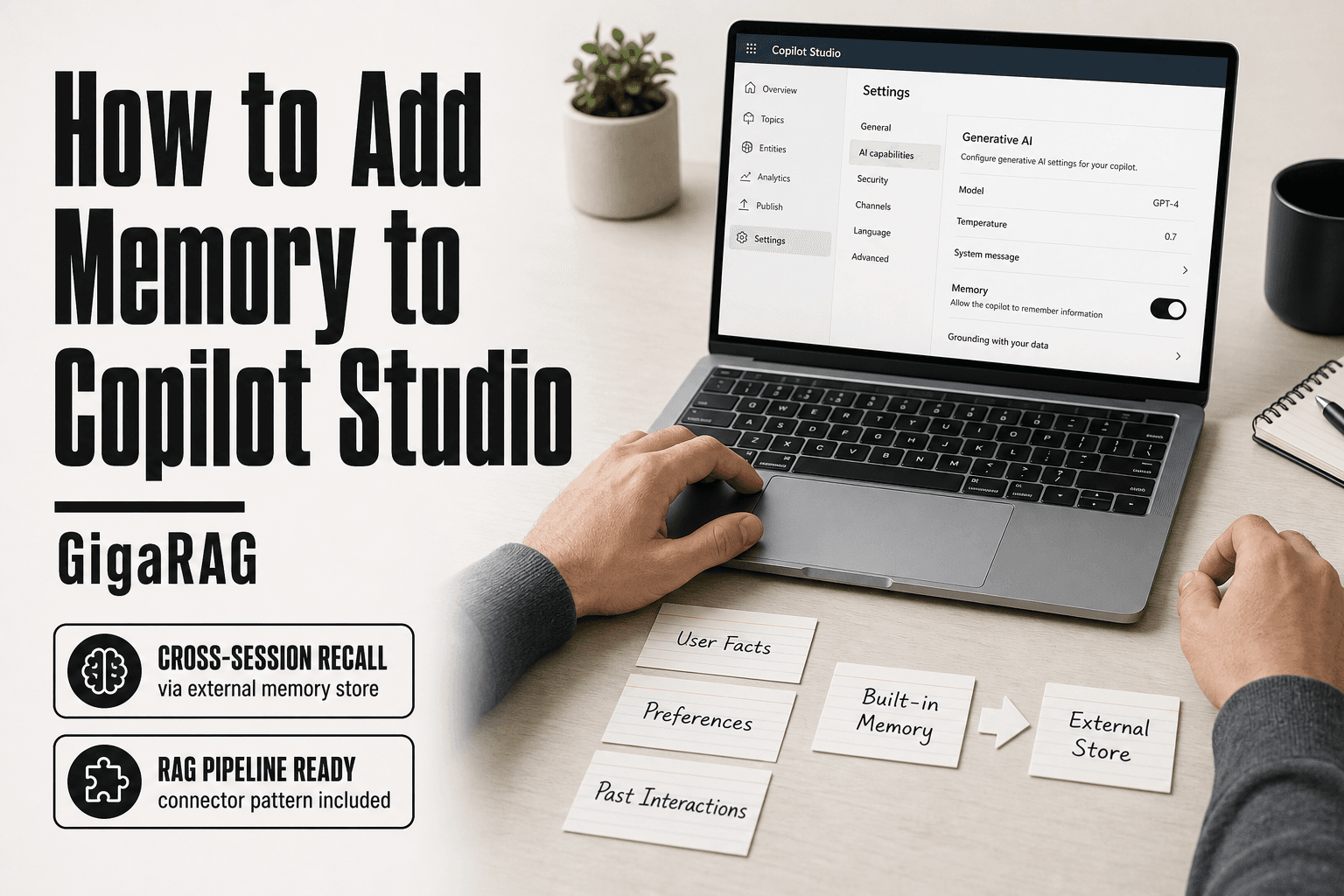
How to Add Memory to Copilot Studio
How to add memory to Copilot Studio isn't a single toggle, especially if you're a developer building RAG pipelines. The built-in Memory (preview) feature exists, and it's a start, but it forgets more than Microsoft's docs let on. I tested the preview and pushed it past its intended shape. The honest answer: it works for light personalization inside one agent, and it falls apart the moment you need cross-session recall, shared context across agents, or a direct line to your vector database.
That's the gap this guide closes. You'll learn exactly how to turn on built-in Memory, what it can and cannot do, and how to extend it with an external memory store like GigaRAG when the preview isn't enough. No fluff, no marketing. Just the steps, the constraints, and a working pattern for agent memory that survives a real deployment.
| At a glance | Details |
|---|---|
| Feature status | Memory in Copilot Studio is preview |
| Where to enable | Settings > Generative AI > Memory |
| What it stores | User facts and preferences across sessions |
| Key limitation | No cross-agent or cross-channel sharing |
| External option | Connect a RAG memory store like GigaRAG |
| Best for | Developers building persistent agent memory |
In This Guide
- What Is Memory in Copilot Studio?
- Built-in Memory (Preview) vs External Memory Store (e.g., GigaRAG)
- How to Turn On Memory in Copilot Studio
- How To Add Memory To Copilot Studio: A Step-by-Step Guide
- How to Manage Memories in Copilot Studio
- What You Cannot Do with Built-In Memory
- How to Add Variables in Copilot Studio for Memory
- How to Add Memory to Copilot Studio with External Stores
- Common Mistakes When Adding Memory to Copilot Studio
What Is Memory in Copilot Studio?
Memory in Copilot Studio is what lets an agent remember facts, preferences, and past interactions across sessions instead of starting from zero each time. The built-in Memory (preview) feature handles this automatically, but you can also wire in your own custom memory using variables or an external store.
Built-in Memory (preview) vs. custom memory
Built-in Memory is a Microsoft-managed feature you toggle on in settings. The agent decides what to store and when to recall it. You don't control the schema or the retention window.
Custom memory is anything you build yourself: variables for a single conversation, a database for long-term storage, or an external vector store for RAG. You own the data, the schema, and the retrieval logic.
The three types of agent memory
Agents use three kinds of memory. Semantic memory holds facts: a user's name, their plan tier, their timezone. Episodic memory holds past interactions: what the user asked last week, what the agent answered. Procedural memory holds how to do things: the steps in a topic, the order of operations.
Built-in Memory (preview) covers semantic and episodic memory. Procedural memory is already in your topics and flows.
Why memory matters for RAG pipeline builders
RAG pipelines retrieve documents. Memory retrieves context about the user. Without it, every query is a cold start. With it, retrieval can be personalized: filter by the user's plan, rank by their past clicks, skip what they've already seen. That's the difference between a search box and an agent.
[!note] Copilot Studio's built-in Memory is a preview feature, so its behavior, availability, and admin controls can change without notice. Always check the latest Microsoft documentation for your environment before relying on it in production.
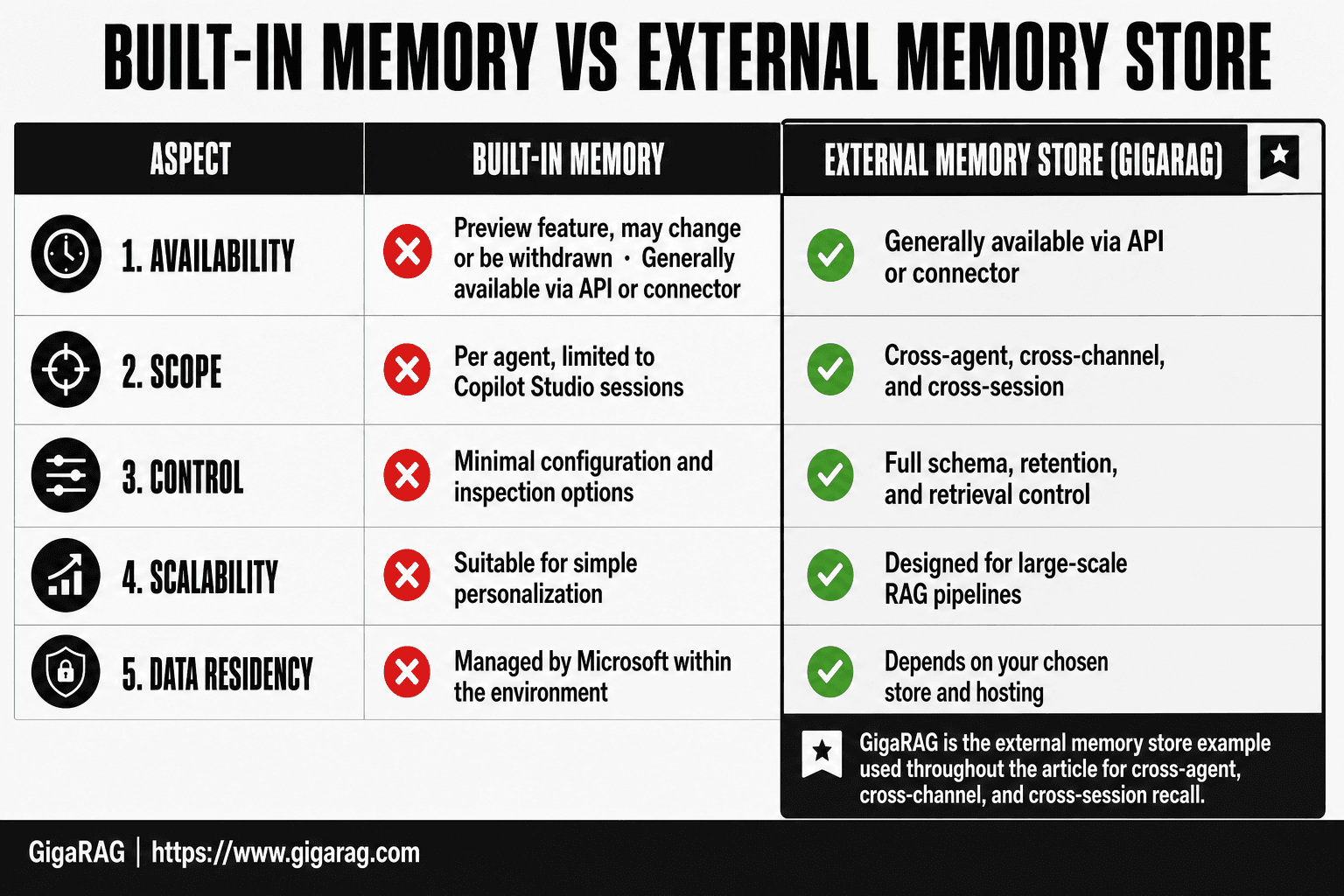
Built-in Memory (Preview) vs External Memory Store (e.g., GigaRAG)
| Factor | Built-in Memory (Preview) | External Memory Store (e.g., GigaRAG) |
|---|---|---|
| Availability | Preview feature, may change or be withdrawn | Generally available via API or connector |
| Scope | Per agent, limited to Copilot Studio sessions | Cross-agent, cross-channel, and cross-session |
| Control | Minimal configuration and inspection options | Full schema, retention, and retrieval control |
| Scalability | Suitable for simple personalization | Designed for large-scale RAG pipelines |
| Data residency | Managed by Microsoft within the environment | Depends on your chosen store and hosting |
How to Turn On Memory in Copilot Studio
Turning on Memory takes under a minute. You need admin access to the environment where the agent lives.
Step 1: Locate the Memory setting
Open Copilot Studio and select your agent. In the left navigation, go to Settings, then AI, then Memory.
If you don't see the Memory option, your environment hasn't received the preview rollout yet. Microsoft ships preview features region by region, so a tenant in one geography may have it while another doesn't.
Step 2: Enable Memory (preview)
Toggle Memory to On. The setting applies to the entire agent, not per topic.
There's no granular control here. You can't pick which conversations get memory or which user data gets stored. The toggle is binary.
Step 3: Verify memory is active
Publish the agent, then start a test conversation. Ask it to remember a fact: "My name is Sam and I'm on the Pro plan." End the session, start a new one, and ask "What's my name?"
If it answers "Sam," memory is working. If it doesn't, check that you published after toggling the setting. Unpublished changes don't reach the live agent.
[!tip] For builders working with RAG pipelines, treat Copilot Studio's built-in memory as a lightweight personalization layer and route durable, queryable memory to an external store like GigaRAG. This keeps your agent's memory portable and auditable even if the preview feature changes.
How To Add Memory To Copilot Studio: A Step-by-Step Guide
- Open your agent in Copilot Studio and go to Settings.
- Under Generative AI, enable Memory (preview) if it is available for your environment.
- Decide what the agent should remember: user preferences, facts, or past interactions.
- Test the memory by chatting with the agent, ending the session, and returning later.
- Review stored memories in the agent's memory panel and clear any incorrect entries.
- If you need cross-agent or cross-channel memory, connect an external memory store such as GigaRAG.
- Validate retrieval accuracy and set a retention policy before going to production.
How to Manage Memories in Copilot Studio
Once memory is on, you need a way to see what the agent stored. The Memory page gives you that view.
Viewing stored memories
Open Settings, then AI, then Memory, and select Manage memories. You'll see a list of stored facts, each with a timestamp and the source conversation.
The honest answer is that this list is flat. You can't filter by user or search by keyword in the preview. You scroll.
Editing and deleting memories
Select any memory to edit its text or delete it. Changes apply immediately to future conversations.
Deleting is permanent. There's no undo, and you can't restore a memory once it's gone.
Providing feedback to improve memory
Each memory has a feedback control: thumbs up or thumbs down. Use it when the agent stored something wrong or irrelevant.
Microsoft uses that signal to tune the model, but don't expect immediate changes to your agent. Feedback shapes the preview, not your specific instance.
What You Cannot Do with Built-In Memory
The preview is honest about its limits if you read the fine print. Most builders don't, so here's the plain version.
Retention and persistence limits
Built-in Memory doesn't store everything forever. Microsoft hasn't published a hard retention window for the preview, but the design intent is short-term recall within a session or across a few sessions, not a permanent user profile. If your agent needs to remember a customer's preferences from six months ago, built-in Memory won't reliably deliver that.
The context window also caps how much memory the agent can actually use at once. Older memories get dropped when the window fills. You can't control which ones.
No cross-agent memory
Each agent has its own memory store. There's no shared pool.
If you build a support agent and a sales agent, the support agent's memory of a customer's issue doesn't transfer to the sales agent. You'd have to duplicate the data or build a custom connector to an external store. For multi-agent setups, built-in Memory is a dead end.
No native vector database integration
Built-in Memory stores facts as plain text, not as embeddings in a vector database. That means no semantic search across memories, no similarity matching, and no way to query memory the way you'd query a RAG pipeline.
If your architecture already uses a vector store like Pinecone, Weaviate, or GigaRAG, built-in Memory won't plug into it. You're maintaining two separate systems with no bridge between them.
How to Add Variables in Copilot Studio for Memory
Variables are the lightweight option. They hold data for one conversation, not across sessions. If you need memory that survives a chat ending, skip to external stores. If you need recall within a single session, variables do the job.
Creating a variable
Open your topic in Copilot Studio. Select Add node, then Set variable value. Name it something plain: customerName, orderNumber, lastIssue. Pick a type: string, number, boolean, or record. The type matters later when you reference it.
Storing user input in variables
Ask a question node captures the user's answer. Store it: set customerName to the question's output. Do this right after the question node. Don't leave the value floating.
Using variables across topics
Variables are scoped to the topic where you create them. To use one in another topic, pass it as an input variable when you redirect. The receiving topic declares the same variable name and type. Miss that, and the value arrives empty.
Keep in mind: variables reset when the conversation ends. They're session memory, not persistent memory.
How to Add Memory to Copilot Studio with External Stores
Built-in Memory (preview) won't survive a production workload. It has no vector database behind it, no cross-agent recall, and retention limits you don't control. If you need memory that persists reliably, you bring your own store.
Architecture: Copilot Studio + external memory store
The pattern is straightforward: Copilot Studio calls a custom connector or MCP server, which talks to an external memory API, which reads and writes to a vector database. The agent never touches the database directly. The connector is the bridge.
Here's what happens behind the scenes. When a user says something worth remembering, your topic sends it to the connector. The connector embeds the text, stores the vector, and returns a memory ID. On the next turn, the agent queries the connector for relevant memories before generating a response.
Step 1: Set up your external memory store
Pick a store that exposes an API. GigaRAG works here because it's built for RAG pipelines and handles embedding, storage, and retrieval in one place. Whatever you choose, make sure it has a REST endpoint you can call from a connector.
Step 2: Create a custom connector or MCP server
In Copilot Studio, create a custom connector. Define two operations: store_memory and query_memory. Point them at your memory store's API. If you're using MCP, expose the same two tools.
Step 3: Route memory reads and writes through the connector
In your topic, add a Call an action node after capturing user input. Call store_memory with the text and any metadata. Before generating a response, call query_memory with the user's current message. Pass the returned memories into your prompt or knowledge source.
Step 4: Test and iterate
Start with one memory type. Test retrieval quality. Adjust your embedding model or chunk size if recall is weak. Don't add more memory types until the first one works.
The main catch: you're now responsible for the memory pipeline. That's the trade for control.
Common Mistakes When Adding Memory to Copilot Studio
Most memory failures aren't technical. They're planning failures. Builders wire up Memory (preview), watch it work in a demo, and ship it. Then the agent forgets a customer's name mid-conversation and nobody knows why.
Treating Memory (preview) as production-ready
Memory (preview) is a preview. Microsoft says so in the name. It can change, break, or disappear between releases. Don't build a customer-facing agent on it without a fallback. If your agent must remember, use an external store or accept the risk.
Ignoring context window limits
Every model has a context window. When you stuff memories into the prompt, you're spending tokens. Past a certain point, the model drops earlier context or degrades. You need a retrieval step that pulls only relevant memories, not everything you've ever stored. The honest answer is that context windows are finite, and memory without retrieval is just bloat.
Confusing variables with persistent memory
Variables live for one conversation. They die when the session ends. If you store a user's preference in a variable and expect it next week, you'll be disappointed. Variables are scratch paper. Persistent memory is a filing cabinet. Don't mistake one for the other.
Not planning for memory at scale
Ten memories are easy. Ten thousand are not. Retrieval quality drops as your store grows unless you plan for it: embeddings, chunking, metadata filters, and a real vector database. If you're adding memory to Copilot Studio for a RAG pipeline, plan the retrieval architecture before you store your first vector. The cost of retrofitting is higher than the cost of planning.
Frequently Asked Questions
How do I add a space in Copilot?
In Copilot Studio, you can add a space by typing it directly in the message or using the appropriate syntax in your prompt. If you are referring to adding a space in a variable or expression, use the concatenation operator or a space character within quotes. Check the Copilot Studio documentation for the exact syntax in your context.
Where does Copilot store memory files?
Copilot Studio's built-in memory stores data within the Microsoft-managed environment associated with your agent. The exact storage location depends on your tenant and region settings. For external memory stores like GigaRAG, storage is determined by your chosen database or service.
Does Copilot use up memory?
Copilot itself does not consume your device's memory in a way that affects performance; it runs in the cloud. However, the agent's memory feature stores conversation data, which counts toward your environment's storage limits. Monitor usage in the Power Platform admin center.
How to add variables in Copilot Studio?
In Copilot Studio, you can add variables through the Variables panel or by using the formula bar in the authoring canvas. Variables can store user input, system values, or custom data. Use them to personalize responses and manage state across topics.
What are the limitations of Copilot Studio's built-in memory?
Built-in memory is in preview and may not support cross-agent or cross-channel sharing. It offers limited control over what is stored and how long it is retained. For advanced RAG use cases, an external memory store is often necessary.
Can I use an external memory store with Copilot Studio?
Yes, you can connect Copilot Studio to an external memory store like GigaRAG using connectors or custom APIs. This allows you to store and retrieve memories across agents and channels. It also gives you more control over data residency and retention.
How do I turn on Memory in Copilot?
To turn on Memory in Copilot Studio, go to your agent's settings, find the Generative AI section, and enable the Memory (preview) toggle if available. Note that this feature may require admin consent and is subject to regional availability.
About GigaRAG
GigaRAG is for agent memory and RAG pipeline builders. get this right. Whether you are working through How to add memory to Copilot Studio or something adjacent, we publish what we have actually tested, including where it falls short.