
How to Add Memory to JetBrains AI Assistant: What Works, What Doesn't, and How to Extend It
You asked JetBrains AI Assistant to remember a project convention, and it didn't. That's not a bug. It's the honest starting point for this guide: memory for JetBrains AI Assistant isn't a single toggle you flip in settings. It's a layered system of session context, rules, and external integrations, and most of what developers want from "memory" falls into the third layer, the one JetBrains hasn't shipped natively.
Here's what happens behind the scenes. JetBrains AI Assistant keeps working context for a session, but there's no built-in persistent memory across sessions and no direct API to inject memory into a running conversation. The good news is you can still build real memory. You configure rules, you use AGENTS.md for project-level conventions, and when those hit their ceiling, you connect an external memory system like GigaRAG to feed context back into the IDE.
By the end, you'll know exactly which layer to use for your use case.
| At a glance | Details |
|---|---|
| Built-in memory | No persistent memory across sessions |
| Rules support | Yes, via .aiignore and rules files |
| Context files | AGENTS.md and similar supported |
| Memory injection API | Not available natively |
| External memory | Possible via RAG pipelines |
| Best workaround | Use rules + external RAG system |
In This Guide
- What "Memory" Means for JetBrains AI Assistant
- Native JetBrains AI Assistant Memory vs External RAG Memory
- What You Cannot Do with JetBrains AI Assistant Memory
- How To Add Memory To JetBrains AI Assistant: A Step-by-Step Guide
- Step 1: Configure Rules as Memory in JetBrains AI Assistant
- Step 2: Use AGENTS.md for Project-Level Memory
- Architecture
- Conventions
- Decisions
- Step 3: Extend Memory with Context Files and External Systems
- Common Mistakes When Adding Memory to JetBrains AI Assistant
- How to Add Memory to JetBrains AI Assistant: A Practical Checklist
- Final Thoughts: Memory Is a System, Not a Setting
What "Memory" Means for JetBrains AI Assistant
JetBrains AI Assistant has no built-in persistent memory. What it calls "memory" is three separate layers: session context, rules you write, and external systems you connect yourself.
Session context vs. persistent memory
Session context is what the assistant can see right now: your open files, the chat history, the code you've selected. It's real, but it dies when the session ends. Persistent memory would carry decisions across sessions automatically. JetBrains AI Assistant doesn't do that. You have to build it.
Rules as declarative memory
Rules are the closest thing to built-in memory. You write them once, they apply to every chat in that project or IDE. They're declarative: you state a convention, and the assistant follows it. The catch is that rules only work if you remember to write them down.
External memory systems (RAG, vector stores)
When rules aren't enough, you connect external memory. A RAG pipeline retrieves relevant context from a vector store and feeds it into the prompt. That's how you get memory that scales past what you can type into a settings panel.
[!note] JetBrains AI Assistant does not have a built-in persistent memory feature that stores information across sessions; any memory-like behavior relies on rules, context files, or external integrations.
Native JetBrains AI Assistant Memory vs External RAG Memory
| Factor | Native AI Assistant | External RAG Memory |
|---|---|---|
| Persistence across sessions | No | Yes, with a database |
| Setup complexity | Low | Medium to high |
| Customization | Limited to rules and context files | Full control over retrieval and storage |
| Integration effort | Built-in | Requires API or plugin development |
| Best for | Simple project-specific instructions | Complex, long-term memory needs |
What You Cannot Do with JetBrains AI Assistant Memory
Before you spend an afternoon configuring, know the hard limits. JetBrains AI Assistant has no built-in persistent memory across sessions, no direct API for memory injection, and no native vector store. None of these exist in the product today.
No built-in persistent memory
Close the IDE, lose the context. The assistant remembers nothing from your last session unless you wrote it into a rule or a file. There's no hidden cache of past decisions. What you didn't save is gone.
No direct memory injection API
You can't call a method to push context into the assistant's memory. No endpoint, no SDK hook, no plugin API that says "store this and recall it later." The only injection path is the prompt itself, which you control through rules and context files.
Why JetBrains hasn't shipped this yet
Persistent memory is a hard product problem. It raises privacy questions, storage costs, and stale-context risks. JetBrains has chosen to keep the assistant stateless and let developers bring their own memory. That's not an oversight. It's a design decision, and it means the work falls to you.
[!tip] For RAG pipeline builders: use the AGENTS.md file to document your external memory system's API endpoints and retrieval patterns, so the AI Assistant can consistently reference them in prompts.
How To Add Memory To JetBrains AI Assistant: A Step-by-Step Guide
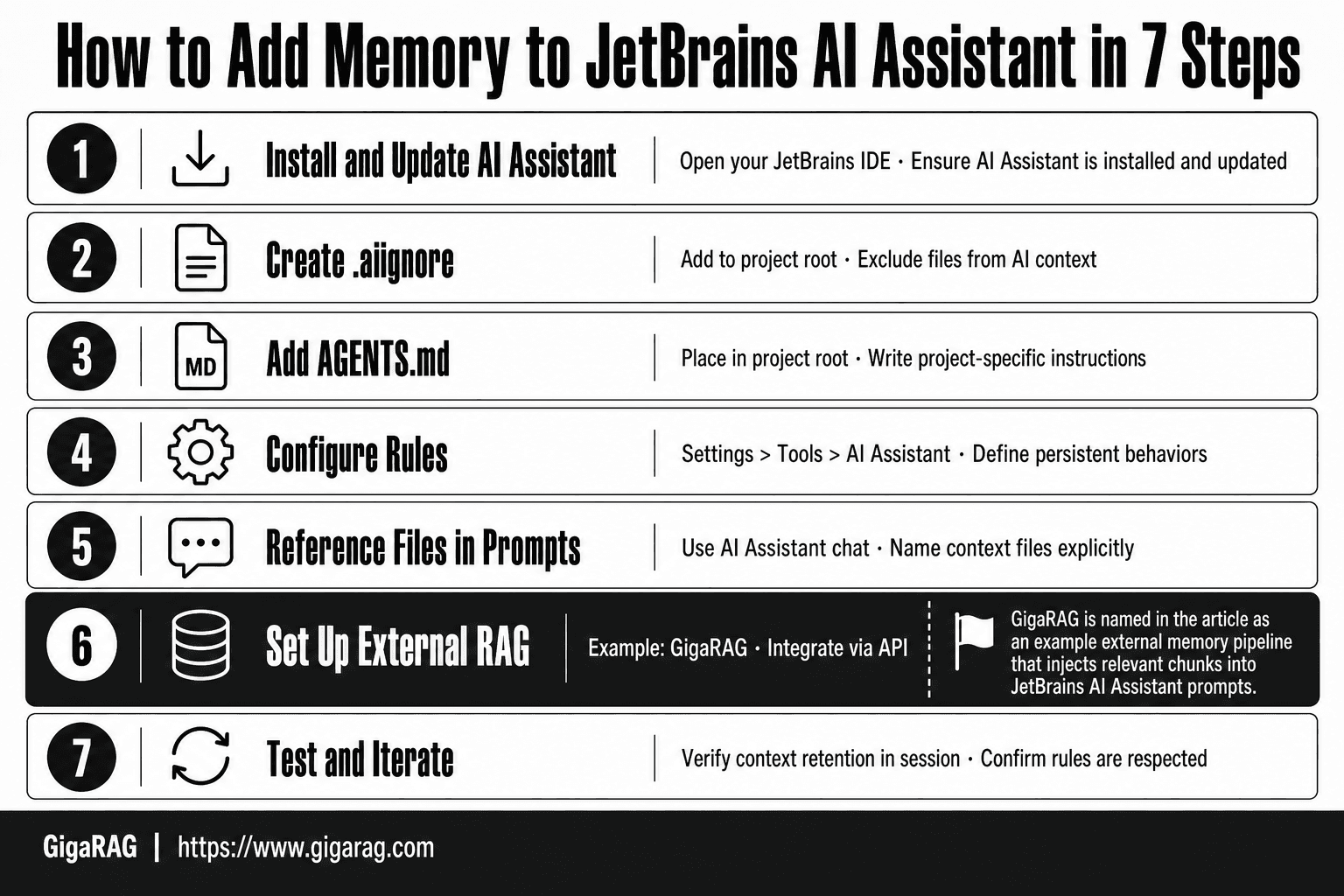
- Open your JetBrains IDE and ensure AI Assistant is installed and updated.
- Create a .aiignore file in your project root to exclude files from AI context.
- Add an AGENTS.md file with project-specific instructions for the AI.
- Configure rules in Settings > Tools > AI Assistant to define persistent behaviors.
- Use the AI Assistant chat to reference files and context explicitly in prompts.
- For external memory, set up a RAG pipeline (e.g., GigaRAG) and integrate via API.
- Test and iterate: verify that the AI retains context within a session and respects rules.
Step 1: Configure Rules as Memory in JetBrains AI Assistant
Rules are the closest thing JetBrains AI Assistant has to built-in memory. They're declarative instructions you write once, and the assistant applies them to every prompt in that scope. Think of them as standing orders: not context the model recalls, but constraints you've pinned in place.
Where to find AI Assistant rules in settings
Open Settings (Ctrl+Alt+S on Windows/Linux, Cmd+, on macOS), then go to Tools > AI Assistant > Rules. You'll see two tabs: Project Rules and User Rules. Project rules live in your repo and apply to everyone working on it. User rules apply to all your projects on that machine.
Click the + button to add a rule. Each rule has a name and a body. The body is plain text, written as an instruction to the assistant.
Example rules for project conventions
Keep rules short and specific. A rule that says "write good code" does nothing. A rule that says "use snake_case for all Python function names" changes every suggestion you get.
Here are three rules that earn their place:
- "Use type hints on all function signatures in this project."
- "Tests go in a
tests/directory mirroring the source tree. Name test filestest_<module>.py." - "Never import from
legacy_utils. Usecore.utilsinstead."
Each rule is one line, one convention. When the assistant generates code, it reads these before responding.
How rules persist across sessions
Rules are stored on disk, not in the model's context. Project rules live in your repo (check .idea/ or your project config), so they survive IDE restarts and get shared with your team through version control. User rules live in your IDE config directory.
The catch: rules only shape the assistant's output when it reads them. They don't accumulate knowledge from your sessions. You still have to write down what matters.
Step 2: Use AGENTS.md for Project-Level Memory
Rules pin down conventions. AGENTS.md holds the context behind those conventions: why the architecture looks the way it does, what decisions you've already made, and what a new contributor (human or AI) needs to know before touching the code.
What AGENTS.md is and where to place it
AGENTS.md is a plain Markdown file that lives in your project root. It's an emerging convention for giving AI coding agents project-specific instructions, similar to how CONTRIBUTING.md tells humans how to work in a repo. JetBrains AI Assistant reads it when it's present.
Place the file at the root of your repository, next to README.md. That's it. No plugin, no settings toggle. The assistant looks for it automatically in recent JetBrains IDE versions. If you're on an older build, you may need to update. (verify at publish)
Template: project conventions, architecture, decisions
A useful AGENTS.md answers three questions: how is this project structured, what conventions do we follow, and what decisions are already settled. Here's a template that works:
# AGENTS.md

## Architecture
- Monorepo with `apps/` and `packages/`. Apps are deployable. Packages are shared.
- Data flows through `core/` only. UI components never call the database directly.

## Conventions
- TypeScript strict mode is on. No `any` without a comment explaining why.
- API routes return JSON. Errors use the `ApiError` class from `core/errors`.
- Tests use Vitest. Mock network calls, never the database.

## Decisions
- We use PostgreSQL, not MongoDB. The team chose relational for reporting needs.
- No ORM. Raw SQL via `pg` with a thin query builder in `core/db`.
- We dropped microservices in 2024. The monolith is intentional.
Keep it under 200 lines. If it gets longer, split decisions into a separate docs/decisions/ directory and link from AGENTS.md.
How JetBrains AI Assistant reads AGENTS.md
When you prompt the assistant, it includes the contents of AGENTS.md in its context automatically. That means the file's size matters. A 500-line AGENTS.md eats into the context window and leaves less room for your actual code and question.
The file is read fresh each session. Change it, and the next prompt picks up the change. No restart required.
The honest limit: AGENTS.md is static. The assistant doesn't update it as you work. If your team makes a new architectural decision, someone has to write it down. The file remembers what you tell it, not what you do.
Step 3: Extend Memory with Context Files and External Systems
Rules and AGENTS.md cover static memory. They hold what you write down. They don't hold what your codebase already knows: past pull requests, design docs, incident reports, or decisions scattered across a wiki. For that, you need to point the assistant at files it wouldn't otherwise read.
Pointing AI Assistant to context files
The simplest extension is explicit. When you prompt, tell the assistant which files matter: "Read docs/decisions/2024-11-auth.md before answering." You can also add a CONTEXT.md file in your project root and reference it from AGENTS.md. The assistant reads what you name. It doesn't discover context on its own.
The catch is manual upkeep. Every new decision doc means another prompt instruction. Forget to mention a file, and the assistant works without it.
Integrating external memory via RAG pipelines
RAG pipelines solve the discovery problem. Instead of naming files, you index them: chunk the text, embed the chunks, store vectors, and retrieve the relevant ones at prompt time. The assistant gets context it never asked for, pulled from a store that updates as you add documents.
This is real agent memory. It survives sessions, scales past the context window, and doesn't depend on you remembering to mention a file. The tradeoff is setup. You're running a pipeline: an embedder, a vector store, and retrieval logic that decides what's relevant to each prompt.
How GigaRAG fits into a JetBrains workflow
GigaRAG is one option for that pipeline. It indexes your project docs, code comments, and past decisions into a vector store, then injects the most relevant chunks into your JetBrains AI Assistant prompts. You keep working in the IDE. The memory lives outside it.
The honest limit: GigaRAG adds a moving part. If your project is small and your AGENTS.md is current, you don't need it. If you're building agent memory across a large codebase or multiple repos, it's worth testing.
Common Mistakes When Adding Memory to JetBrains AI Assistant
Most memory problems aren't missing features. They're misconfigurations.
Confusing IDE RAM with AI Assistant memory
IntelliJ's heap size controls how much memory the IDE itself can use for indexing, caching, and plugins. It has nothing to do with what the AI Assistant remembers. Bumping -Xmx to 8GB won't make the assistant recall last week's refactoring decision. It just stops the IDE from freezing on large projects. Check your actual heap usage under Help > Diagnostic Tools > Show Memory Indicator if you're unsure which one is struggling.
Overloading rules until they're ignored
Ten rules work. Fifty get skimmed. The assistant treats rules as context, and context competes for attention. Every rule you add dilutes the ones that matter. Keep rules to what changes the answer: naming conventions, forbidden patterns, deployment constraints. If a rule hasn't changed an output in a week, delete it.
Expecting AGENTS.md to work without configuration
AGENTS.md isn't magic. The assistant reads it only when the file is in the project root and the project is open. Put it in a subdirectory, or forget to reference it in your prompt, and it sits there unused. Test it: ask the assistant a question that should be answered by your AGENTS.md. If it can't answer, the file isn't being read.
How to Add Memory to JetBrains AI Assistant: A Practical Checklist
Copy this list. Work top to bottom.
Quick wins (rules, AGENTS.md)
- Open Settings > Tools > AI Assistant > Rules and add 3-5 rules that change answers: naming conventions, forbidden patterns, deployment constraints.
- Create
AGENTS.mdin the project root. Include architecture, conventions, and decisions the assistant keeps getting wrong. - Test it: ask a question your AGENTS.md should answer. No answer means the file isn't being read.
Advanced setup (external memory, RAG)
- Point the assistant to context files in your prompt when a task needs more than rules can hold.
- For persistent agent memory across sessions, connect a RAG pipeline or vector store. GigaRAG is one option if you're already building retrieval infrastructure.
What to skip if you're short on time
Skip external memory until rules and AGENTS.md stop being enough. Skip IDE heap tuning entirely. It doesn't touch AI memory.
Final Thoughts: Memory Is a System, Not a Setting
You won't find a "memory" toggle in JetBrains AI Assistant. You'll find rules, AGENTS.md, and external systems that each hold a different kind of context.
The honest answer is it depends on what you need. Session context dies when the session ends. Rules and AGENTS.md persist but stay static until you edit them. External memory via a RAG pipeline is the only layer that grows with your project.
If you're building retrieval infrastructure anyway, GigaRAG is a natural next step. It plugs into the pipeline rather than the IDE, so the assistant pulls from the same store your agents use.
Start with rules. Add AGENTS.md. Reach for external memory when those stop being enough. That's how to add memory to JetBrains AI Assistant without waiting for JetBrains to ship it.
Frequently Asked Questions
How to give IntelliJ more RAM?
You can increase the maximum heap size for IntelliJ by editing the custom VM options. Go to Help > Edit Custom VM Options and adjust the -Xmx value (e.g., -Xmx4g for 4 GB). Restart the IDE for changes to take effect.
How can I fix IntelliJ IDEA when it's running low on memory?
First, check memory usage via Help > Diagnostic Tools > Show Memory Indicator. If memory is consistently high, increase the heap size in VM options, close unused projects, and disable unnecessary plugins. Regularly restarting the IDE can also help.
How to show memory usage in IntelliJ?
Enable the memory indicator by right-clicking the status bar and selecting 'Memory Indicator'. It will display used and allocated heap memory. You can also use Help > Diagnostic Tools > Show Memory Indicator.
Does JetBrains AI Assistant have persistent memory?
No, JetBrains AI Assistant does not have a built-in persistent memory that remembers context across sessions. It can use rules and context files within a session, but information is not stored long-term.
Can I add memory to JetBrains AI Assistant on Mac?
The process is the same on Mac as on other platforms: configure rules and context files. There is no platform-specific memory feature. For external memory, you can integrate a RAG system regardless of OS.
How to add memory to JetBrains AI Assistant without coding?
You can use the built-in rules and AGENTS.md files to provide persistent instructions without coding. However, for true memory across sessions, some coding or integration with an external system is required.
What is the best way to extend JetBrains AI Assistant's memory?
The best way is to integrate an external RAG pipeline that stores and retrieves context. You can use tools like GigaRAG to build a custom memory system and connect it via API, allowing the AI Assistant to access long-term memory.
About GigaRAG
GigaRAG is for agent memory and RAG pipeline builders. get this right. Whether you are working through How to add memory to JetBrains AI Assistant or something adjacent, we publish what we have actually tested, including where it falls short.