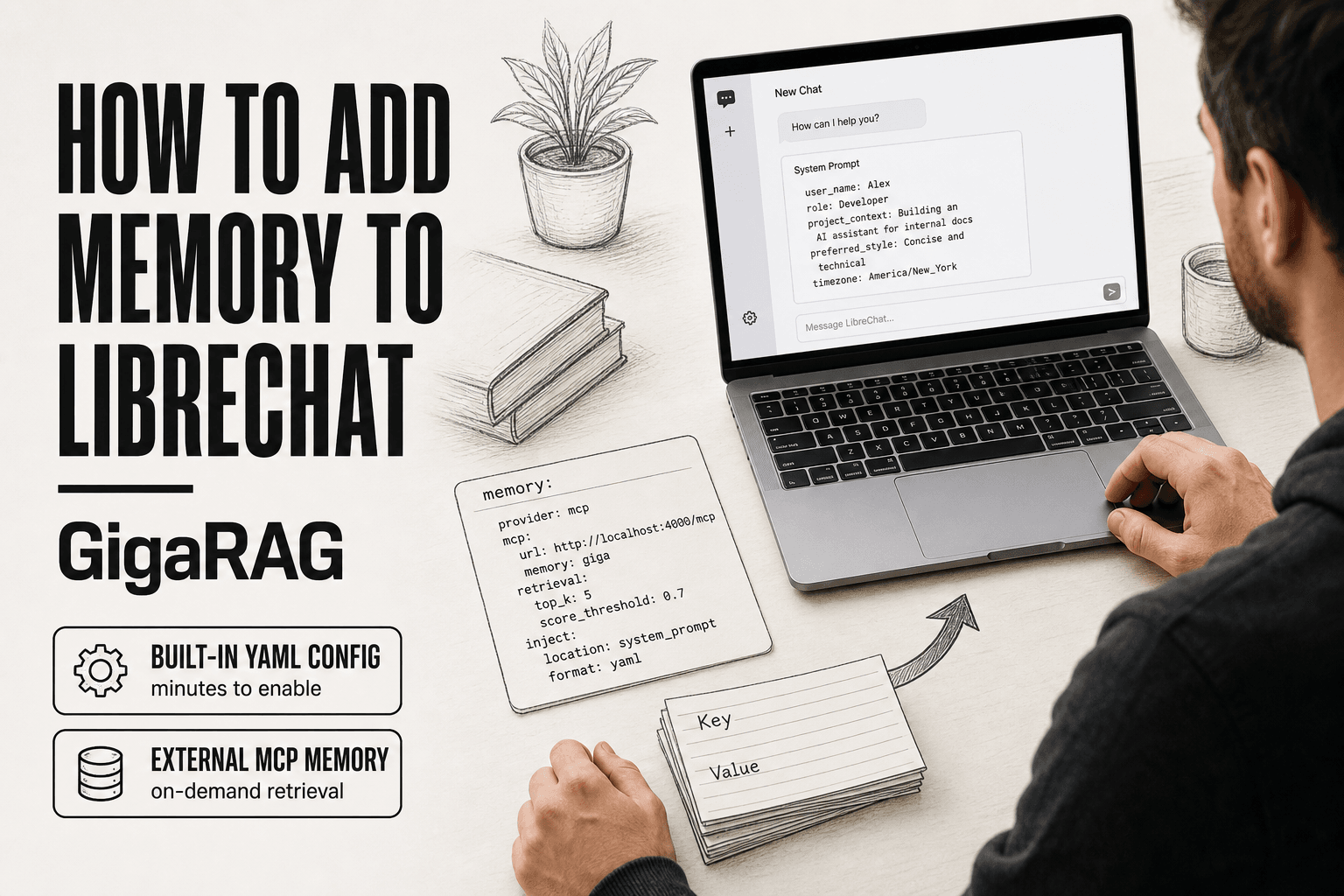
How to Add Memory to LibreChat
How to add memory to LibreChat is a question most RAG pipeline builders ask after their first production deployment, when the built-in key/value store starts feeling like a scratchpad instead of a memory system. It works. It remembers facts you tell it. It injects them into the context window. But it won't summarize conversations, won't share memory across instances, and won't do semantic search out of the box. If you're building agent memory that needs to survive real workloads, you'll hit those walls fast. This guide covers every option: the built-in YAML config, external memory via MCP tools, and a fair look at dedicated systems like GigaRAG for when you outgrow both. You'll get working configuration examples, a comparison table, and an honest list of what LibreChat memory cannot do.
| At a glance | Details |
|---|---|
| What it is | Built-in per-user memory via YAML config |
| Default state | Disabled until explicitly enabled |
| Scope | Per-user, per-instance; no cross-instance sync |
| Extend with | MCP servers for external memory stores |
| Key limitation | No automatic summarization or semantic search |
| Best for | Simple recall; pair with external store for RAG |
In This Guide
- What LibreChat Memory Actually Does
- LibreChat Built-in Memory vs External MCP Memory
- How to Add Memory to LibreChat: Built-in Configuration
- How To Add Memory To LibreChat: A Step-by-Step Guide
- How LibreChat Memory Works Under the Hood
- Adding External Memory via MCP Tools
- Built-in vs. External Memory: Honest Comparison
- What You Cannot Do with LibreChat Memory
- Troubleshooting Common LibreChat Memory Issues
- Best Practices for Production Memory Setups
- Final Thoughts
What LibreChat Memory Actually Does
LibreChat memory stores key/value pairs you define and injects them into the context window on every request. It's a simple, user-controlled persistence layer, not a semantic memory system.
Built-in memory: key/value storage explained
LibreChat's memory object holds key/value pairs in librechat.yaml. You define a key like "user_name" and a value like "Alex". LibreChat saves that pair and retrieves it whenever the conversation runs. There's no vector database, no embedding, no similarity search. It's a flat lookup table.
How memory is injected into the context window
When a request hits the model, LibreChat prepends your stored key/value pairs to the system prompt. The model sees them as plain text. If you set a tokenLimit, LibreChat truncates the injected memory to fit. That's the whole mechanism. The model reads the values and uses them, but it doesn't update them on its own.
What built-in memory does NOT do
It doesn't summarize past conversations. It doesn't search across messages semantically. It doesn't share memory between users or instances. And it won't grow or adapt unless you edit the YAML or call an external tool. For RAG pipelines, that's the main catch: built-in memory is static context, not retrieval.
[!note] LibreChat's built-in memory stores user-provided facts and preferences; it does not automatically summarize conversations, perform semantic search, or share memory across separate LibreChat instances. For those capabilities you need an external memory service wired in through MCP or a custom endpoint.
LibreChat Built-in Memory vs External MCP Memory
| Factor | Built-in Memory | External MCP Memory |
|---|---|---|
| Setup effort | Edit librechat.yaml, restart | Deploy MCP server, register tools |
| Storage scope | Per-user, per-instance | Shared across instances and clients |
| Search type | Keyword or exact recall | Semantic or vector search possible |
| Summarization | Manual, user-driven | Automatic via pipeline logic |
| Best fit | Single-user chat recall | Production RAG and agent workflows |
How to Add Memory to LibreChat: Built-in Configuration
You enable memory by editing librechat.yaml. There's no UI toggle for the core memory object. You edit the file, restart LibreChat, and the key/value pairs start appearing in your prompts.
Step 1: Locate librechat.yaml
The file lives in the root of your LibreChat installation. If you used the default Docker setup, it's at ./librechat.yaml in the directory where you ran docker compose. If you installed from source, it's in the project root. Don't edit the example file. Copy librechat.example.yaml to librechat.yaml first, then make your changes there.
Step 2: Enable the memory object
Add a memory block to your YAML. The basic shape looks like this:
memory:
  disabled: false
  validKeys:
    - user_name
    - user_language
    - project_context
  tokenLimit: 500
  charLimit: 2000
  maxInputTokens: 1000
  messageWindowSize: 10
  personalize: false
  agent:
    disabled: false
The validKeys list controls which keys users can set. If a key isn't listed, LibreChat ignores it. That's your allowlist. Keep it tight.
Step 3: Set tokenLimit, charLimit, and messageWindowSize
tokenLimit caps how many tokens of memory get injected into the prompt. charLimit caps the raw character count of stored values. They overlap but serve different purposes: tokenLimit protects your context window, charLimit protects your storage. Set tokenLimit first, then charLimit as a backstop.
messageWindowSize controls how many recent messages LibreChat includes when it builds the context. A value of 10 means the last 10 messages get sent alongside your memory. Lower it if you're hitting context limits. Raise it if the model keeps losing track of the conversation.
Step 4: Enable personalize mode
Set personalize: true and LibreChat lets each user maintain their own memory values. The memory becomes per-user rather than global. That's useful for multi-user deployments, but it means each user's memory consumes its own token budget. If you're running a single-user instance, leave it false.
Step 5: Configure agent memory
The agent block controls memory for LibreChat's agent features. Set agent.disabled: false to let agents read and write memory. Agents can update key/value pairs during a conversation, which is the one place built-in memory gets dynamic. A user can't update their own memory mid-chat without an agent or an external tool.
Complete YAML example
memory:
  disabled: false
  validKeys:
    - user_name
    - user_language
    - project_context
  tokenLimit: 500
  charLimit: 2000
  maxInputTokens: 1000
  messageWindowSize: 10
  personalize: false
  agent:
    disabled: false
Restart LibreChat after saving. Test it by setting a key and asking the model what it remembers. If the value doesn't appear, check your YAML indentation first. Two spaces, not tabs.
[!tip] For RAG pipeline builders: keep the built-in memory budget small and route durable knowledge to an external vector store via MCP, so retrieval quality is governed by your embedding and chunking strategy rather than by LibreChat's context window.
How To Add Memory To LibreChat: A Step-by-Step Guide
- Locate your librechat.yaml file in the project root or mounted config directory.
- Add or edit the memory section and set the enabled flag to true.
- Configure the token or character budget so memory does not crowd out the context window.
- Restart the LibreChat container or process so the config change takes effect.
- Verify memory is active by checking the UI memory panel and confirming entries persist across sessions.
- Deploy an MCP server that exposes memory tools such as store, retrieve, and search.
- Register the MCP server in librechat.yaml and confirm the tools appear in the chat interface.
- Test end-to-end by storing a fact in one session and retrieving it in a fresh conversation.
How LibreChat Memory Works Under the Hood
The config tells LibreChat what to store. The mechanics decide whether that storage actually helps your prompts. Here's what happens behind the scenes.
Storage and retrieval flow
LibreChat stores memory as a flat key/value map. When a user sets a key, the value gets written to the database alongside the conversation. Nothing gets embedded. Nothing gets vectorized. It's a lookup table, not a knowledge base.
On each request, LibreChat pulls the current memory values and injects them into the system prompt. The injection happens before the conversation history. Your memory sits above the chat, framed as context the model should treat as persistent facts. If a key changes mid-conversation, the next request uses the new value. There's no versioning and no history of what changed.
Context window consumption and token budgeting
Every token of memory is a token you can't spend on conversation. The tokenLimit setting caps how much memory gets injected, but it doesn't compress anything. If your memory block is 500 tokens, that's 500 tokens gone from every single request, whether the model needs that context or not.
The honest math: a 4k context window with 500 tokens of memory leaves 3,500 for the actual exchange. With messageWindowSize pulling in recent messages on top of that, you can run out fast. Builders who treat memory as free context are the ones who hit "token limit exceeded" and don't know why.
Why messageWindowSize matters
messageWindowSize controls how many recent messages ride along with your memory. It's a sliding window, not a summary. LibreChat doesn't compress older messages. It drops them.
Set it too high and you burn context on stale turns. Set it too low and the model loses the thread mid-conversation. The right number depends on your use case: short Q&A sessions can run with 5. Long agent tasks that need continuity want 15 or more. Test it against your actual prompts, not a default.
Adding External Memory via MCP Tools
Built-in memory is a lookup table. If you need semantic search, cross-conversation recall, or memory that survives a restart, you need something outside LibreChat. MCP tools are the cleanest path.
What MCP tools are and why they matter for memory
MCP (Model Context Protocol) lets LibreChat call external tools during a conversation. A tool is just a function the model can invoke: save this, fetch that, delete the other. For memory, you expose three tools to a memory backend. The model decides when to call them based on the prompt.
The reason this matters: MCP memory isn't injected into every request. It's fetched on demand. That changes your token math completely. You only spend context when the model actually needs a memory.
Setting up an MCP memory server
You need a memory backend first. mem0 works. So does a vector store like Pinecone or a simple Postgres table with pgvector. The backend holds the data. The MCP server exposes it as tools.
Configure the server in LibreChat's MCP settings. Point it at your backend URL and credentials. Restart LibreChat. The tools appear in the model's available actions.
Example: save, fetch, and delete memory via MCP
A typical tool set looks like this:
save_memory(key, value)writes a key/value pair to the backendfetch_memory(query)runs a semantic search and returns the closest matchdelete_memory(key)removes an entry
The model calls save_memory when a user says "remember my API key is sk-123". It calls fetch_memory when a later prompt asks "what's my API key?". Delete happens when the user says "forget that".
Connecting MCP memory to a RAG pipeline
Here's the part most guides skip. In a RAG pipeline, you already have a retrieval step. MCP memory can feed that step directly. Your retriever calls fetch_memory alongside your vector store query, merges the results, and passes both to the generator.
The catch: the model has to know when to call these tools. That means prompt engineering. You'll write instructions telling it to save facts that look persistent and fetch before answering questions that need context. It won't do this automatically. Test it with real conversations before trusting it in production.
Built-in vs. External Memory: Honest Comparison
You've seen two paths now: a YAML config that injects memory into every request, and MCP tools that fetch memory on demand. The right choice depends on what you're building. Here's the comparison without the marketing.
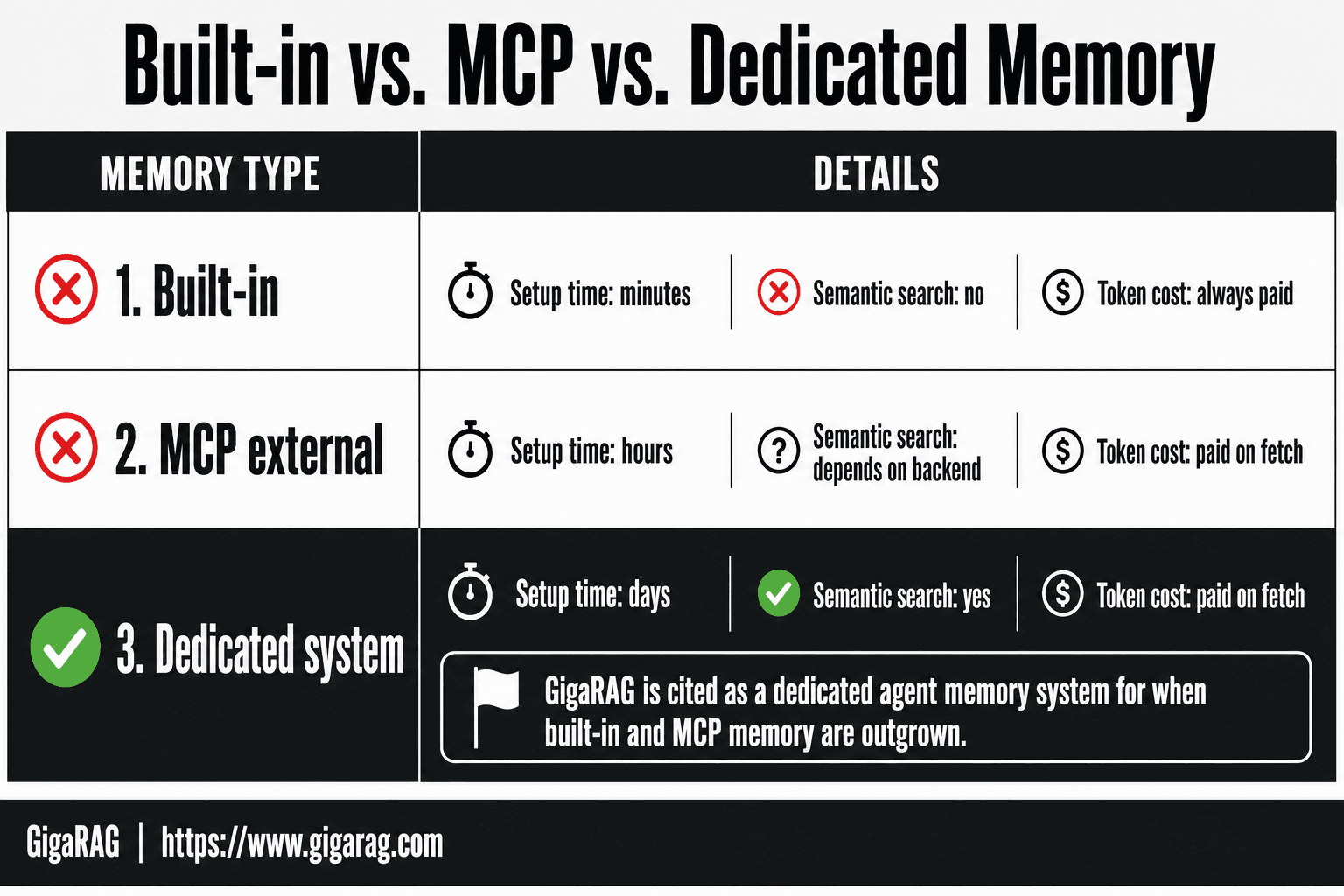
Comparison table: built-in vs. MCP vs. dedicated memory
| Built-in | MCP external | Dedicated system | |
|---|---|---|---|
| Setup time | Minutes | Hours | Days |
| Semantic search | No | Depends on backend | Yes |
| Cross-conversation recall | No | Yes | Yes |
| Token cost per request | Always paid | Paid on fetch | Paid on fetch |
| Survives restart | Yes | Yes | Yes |
| Cross-instance | No | Yes | Yes |
| Maintenance | None | You run the server | You run the system |
Built-in memory is a key/value store injected into the context window. MCP external memory is a tool interface to whatever backend you choose. A dedicated memory system like GigaRAG is a full pipeline: storage, embedding, retrieval, and agent integration in one deployable unit.
When built-in memory is enough
Built-in memory works when your needs are small and predictable. A user's name, their preferred model, a project ID. Things that fit in a few hundred tokens and don't change often.
It's also the right call when you're prototyping. You can enable it in five minutes, test whether memory improves your agent's output, and decide later whether to invest in something heavier. If the answer is no, you've spent almost nothing.
When you need external or dedicated memory
You need external memory when any of these are true: you're running a RAG pipeline that needs semantic search, you want memory shared across LibreChat instances, or your memory payload is large enough that injecting it into every request blows your token budget.
A dedicated system earns its cost when you're running agents in production. You get retrieval quality controls, monitoring, and a storage layer you can tune. The tradeoff is real: you're now operating infrastructure. That's not free, and it's not set-and-forget.
What You Cannot Do with LibreChat Memory
You've seen what built-in memory handles and when to reach for external tools. Now the honest list of what it won't do, no matter how you tune the YAML.
No automatic conversation summarization
LibreChat does not summarize your conversations for you. It stores what you tell it to store, in the form you give it. If you want a running summary of a long chat, you write the summary yourself and save it as a memory entry, or you build an external pipeline that does the summarization and writes the result back.
That's a real gap for agent builders. A 50-message conversation doesn't compress itself into a 200-token memory block. The context window just grows until you hit your limit, and then older messages drop off. Nothing in the built-in memory object prevents that.
No cross-instance or cross-user memory
Memory lives in the LibreChat instance where it was created. Run two deployments, point them at different databases, and they don't share anything. A user's saved preferences on instance A don't exist on instance B.
The same applies across users. Built-in memory is scoped per user, and there's no mechanism for one user to read another user's memory. If you're building a team assistant where context should flow between people, built-in memory won't get you there. You need an external store with its own access controls.
No semantic search without external tools
Built-in memory is exact-match key/value lookup. You ask for the key "project_deadline" and you get back whatever you stored under that key. You don't get "find me everything related to deadlines" unless you already know the key names.
Semantic search, the kind where you query "what did we decide about pricing" and the system finds relevant chunks across many conversations, requires embeddings and a vector store. LibreChat's built-in memory has neither. That's the main reason RAG pipeline builders end up wiring in MCP tools or a dedicated memory system.
Troubleshooting Common LibreChat Memory Issues
Most "memory not working" reports come down to one of four things. Here's how to spot each.
Memory not saving or persisting
Check the obvious first: is the memory object actually enabled in librechat.yaml? A missing memory: true line means the feature is off, and nothing you type will save. Next, confirm the database is writable. If you're running LibreChat in Docker and the volume isn't mounted correctly, memory writes fail silently. Restart the container and watch the logs for database errors.
Also check validKeys. If you try to save a key that isn't listed there, LibreChat drops it. That's by design, not a bug.
Token limit exceeded errors
This happens when your stored memory plus the current conversation exceeds the model's context window. Lower tokenLimit in the memory object, or reduce messageWindowSize so fewer past messages get injected. The error isn't about disk space. It's about prompt size.
YAML configuration mistakes
YAML is indentation-sensitive. A tokenLimit nested under the wrong parent key won't throw an error, it just gets ignored. Validate your file with a YAML linter before restarting. Check for tabs instead of spaces. Check that memory sits at the top level, not under interface or endpoints.
MCP tool connection failures
If your MCP memory tools don't appear in LibreChat, the server isn't connecting. Verify the MCP server URL and that the server process is actually running. Check LibreChat's startup logs for MCP handshake errors. A common failure is a missing MCP_SERVERS environment variable or a malformed JSON config for the tool definitions.
Best Practices for Production Memory Setups
Memory works until it doesn't. In production, the failure mode is usually silent: context bloat, dropped keys, or a prompt that quietly exceeds the model's window. Here's what to watch.
Token budgeting for memory
Set tokenLimit to a hard ceiling you can afford. A common starting point is 500 to 1000 tokens for memory, leaving the rest of the context window for the actual conversation. Check your model's total context size first. If you're on a 4k-token model, 1000 tokens of memory eats a quarter of the window before the user types anything.
Tuning messageWindowSize for your use case
messageWindowSize controls how many past messages get injected alongside memory. For short, task-focused chats, 5 to 10 messages is plenty. For long debugging sessions, you may want 20 or more. The tradeoff is direct: more window means more context, but also more tokens and slower responses. Test with your actual workload, not a toy example.
When to offload to external memory
Offload when stored memory outgrows what a key-value pair can hold, or when you need semantic search across past conversations. Built-in memory is fine for preferences and small facts. It is not a vector store. If you're building a RAG pipeline that needs retrieval across hundreds of documents, external memory via MCP is the point where built-in stops being enough.
Final Thoughts
Adding memory to LibreChat comes down to one decision: how much retrieval you actually need. Built-in key-value memory handles preferences and small facts. It won't summarize conversations, search semantically, or persist across instances. That's the honest boundary.
For most RAG pipeline builders, the path is clear. Start with built-in YAML config, tune tokenLimit and messageWindowSize, and move to MCP external memory when retrieval demands outgrow key-value storage. How to add memory to LibreChat is mostly configuration, then integration.
If you outgrow both, a dedicated agent memory system like GigaRAG is worth evaluating as the next step.
Frequently Asked Questions
Why is LibreChat memory not working after I enabled it?
The most common causes are a YAML syntax error, the memory flag not being set at the correct config level, or the container not being restarted after the edit. Check the LibreChat logs on startup for config parse warnings, and confirm the memory panel appears in the UI for the logged-in user.
Does LibreChat memory work across multiple instances or deployments?
- Built-in memory is scoped to the user within a single LibreChat instance and its backing database. If you run multiple instances or want memory shared with other tools, you need an external memory store accessed through MCP or a custom API.
Can LibreChat automatically summarize long conversations into memory?
Not out of the box. Built-in memory relies on explicit user or model actions to save facts. Automatic summarization requires either a custom endpoint that writes summaries into memory or an external MCP memory server that handles summarization in its own pipeline.
How do I connect an external memory system to LibreChat using MCP?
Run an MCP server that exposes memory operations as tools, then declare that server in your librechat.yaml under the MCP servers section. After restarting, the tools become available to the model, which can call them to store and retrieve context during a conversation.
Does LibreChat memory support semantic or vector search?
Built-in memory does not provide semantic search; recall is based on what is stored and surfaced in context. To get vector similarity search, pair LibreChat with an external memory or RAG service that performs embedding and retrieval, and expose it via MCP or a custom endpoint.
What is the difference between LibreChat memory and a dedicated memory system like GigaRAG?
LibreChat memory is a lightweight, per-user fact store tied to one instance. A dedicated memory system typically adds persistent vector storage, automatic summarization, cross-session and cross-tool recall, and retrieval APIs designed for production RAG pipelines. Many builders use both: LibreChat for chat-level recall and an external system for durable knowledge.
How much memory can LibreChat store before it affects performance?
There is no fixed published limit, but memory consumes context window tokens on every request, so large memory stores can crowd out conversation history and retrieved documents. Keep the injected memory budget modest and move bulk knowledge to an external retrieval layer.
About GigaRAG
GigaRAG is for agent memory and RAG pipeline builders. get this right. Whether you are working through How to add memory to LibreChat or something adjacent, we publish what we have actually tested, including where it falls short.