How to Add Memory to Raycast
How to add memory to Raycast isn't one question, it's three. Search for it and you'll find a Reddit thread about RAM usage, a Supermemory store page, and generic settings docs. None of them answer what agent builders and RAG pipeline developers actually need: persistent memory that survives across sessions. Raycast itself uses "memory" to mean at least two different things, and the third meaning only exists through third-party extensions. This guide focuses on that third meaning. The first two get honest coverage where they matter. For serious agent memory and RAG pipelines, tools like GigaRAG are built for that job, but this guide shows what Raycast can and cannot do on its own. You'll get a step-by-step walkthrough of native AI memory settings, third-party extension setup, a direct comparison table, and plain statements of what Raycast won't handle.
| At a glance | Details |
|---|---|
| Native memory | Limited to AI chat history |
| Persistent memory | Requires third-party extensions |
| Vector store | Not built into Raycast |
| Best for agents | External memory via extensions |
| Install extensions | Via Raycast Store or CLI |
| Raycast Pro | Adds AI features, not memory |
In This Guide
- What 'Memory' Means in Raycast (and What You Can Actually Add)
- Native Raycast Memory vs Third-Party Extensions for Agent Builders
- Prerequisites: What You Need Before Adding Memory to Raycast
- How To Add Memory To Raycast: A Step-by-Step Guide
- Option 1: Using Raycast's Native AI Memory Features
- Option 2: Adding Memory with Third-Party Extensions (Supermemory and Alternatives)
- Native vs. Third-Party Memory: An Honest Comparison for Agent and RAG Builders
- What You Cannot Do: Raycast Memory Limitations You Should Know
- How to Add Memory to Raycast for RAG Pipelines: A Practical Workflow
- Troubleshooting Common Issues When Adding Memory to Raycast
- Final Thoughts: Choosing the Right Memory Approach for Your Raycast Workflow
What 'Memory' Means in Raycast (and What You Can Actually Add)
Raycast has no single "memory" feature. The word means three different things depending on who's asking: RAM usage, native AI conversation history, or third-party persistent memory extensions. Only the third gives you cross-session memory for agents or RAG pipelines.
Search "how to add memory to Raycast" and you'll get a Reddit thread about RAM, a store page for Supermemory, and generic settings docs. None of them tell you which meaning you're actually dealing with. That's the problem this section fixes.
RAM usage vs. persistent memory
RAM is what Raycast consumes while it's running. It's not memory you can add to. It's memory the app uses to stay fast. If Raycast feels sluggish, you're looking at RAM pressure, not a missing feature. Closing extensions or restarting Raycast frees it. This has nothing to do with remembering your conversations or data across sessions.
Native Raycast AI memory
Raycast Pro includes AI features with some conversation context. You can ask follow-up questions within a single AI chat session and Raycast keeps the thread alive. But that context dies when the session ends. There's no built-in setting to extend it, no "memory" toggle in preferences that makes Raycast remember past conversations indefinitely. What you get is session-scoped context, not persistent memory.
Third-party persistent memory extensions
This is where actual memory lives. Extensions like Supermemory store your notes, links, and conversations in an external database and let you query them later through Raycast commands. You authenticate with an API key, the extension writes to a remote store, and your data survives restarts, reboots, and new sessions. That's the only path to real cross-session memory in Raycast today.
[!note] Raycast does not include a built-in vector store or persistent cross-session memory for AI agents without third-party extensions. Native AI memory is limited to chat history within Raycast's AI features.
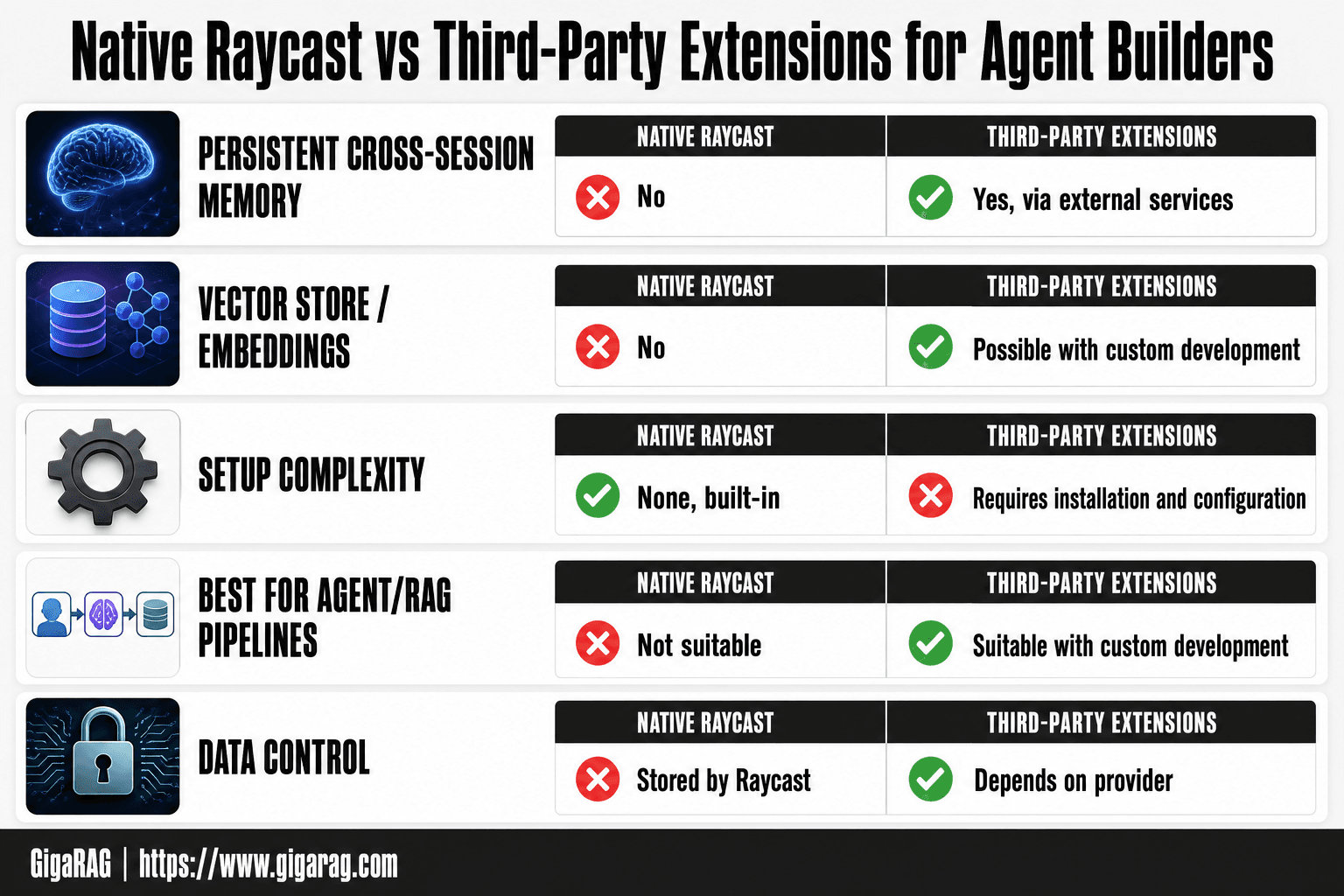
Native Raycast Memory vs Third-Party Extensions for Agent Builders
| Factor | Native Raycast | Third-Party Extensions |
|---|---|---|
| Persistent cross-session memory | No | Yes, via external services |
| Vector store / embeddings | No | Possible with custom extensions |
| Setup complexity | None (built-in) | Requires installation and configuration |
| Best for agent/RAG pipelines | Not suitable | Suitable with custom development |
| Data control | Stored by Raycast | Depends on extension provider |
Prerequisites: What You Need Before Adding Memory to Raycast
Before you touch any memory extension, get the basics right. You need Raycast installed, updated, and configured to accept third-party extensions. Most setup failures come from skipping one of these steps.
Installing and updating Raycast
Download Raycast from raycast.com and install it like any macOS app. It replaces Spotlight by default, so you'll be prompted to set a hotkey. Keep it simple: Command-Space works if you've freed it from Spotlight. Check for updates with Command-Comma to open preferences, then look under General. Raycast updates frequently, and memory extensions often require a recent build.
Accessing Raycast settings
Open Raycast with your hotkey, type "settings," and hit Return. That's the whole trick. From there you'll see tabs for General, Extensions, and Advanced. Memory extensions live under Extensions, but you'll also touch General for hotkeys and Advanced for anything related to data storage.
Enabling the Raycast Store and extension permissions
The Store is built in. Open Raycast, type "store," and browse. Installing an extension asks for permissions like clipboard access or file system access. Grant them only if the extension needs them for memory to work. You can revoke any permission later from the extension's settings page.
[!tip] For agent builders, avoid relying on Raycast's native memory for production RAG pipelines; instead, use a dedicated memory service and call it from a Raycast script for quick access during development.
How To Add Memory To Raycast: A Step-by-Step Guide
- Clarify what 'memory' means for your use case: RAM, native AI chat history, or persistent memory for agents.
- Open Raycast settings (default: Cmd + ,) and review AI memory options under the AI section.
- Install a memory-focused extension from the Raycast Store if you need persistent storage.
- Configure the extension with your own API keys or local storage for agent memory.
- Test memory persistence by restarting Raycast and checking if data is retained.
- For RAG pipelines, integrate an external vector database and connect it via a custom Raycast script or extension.
Option 1: Using Raycast's Native AI Memory Features
Raycast ships with a set of AI features under the hood, but "memory" here means something narrow. It's not a vector store. It's not cross-session recall. It's conversation context and a few settings that control how much of it sticks around. If you're building an agent or RAG pipeline, you'll hit the ceiling fast. But it's worth knowing exactly what's there before reaching for an extension.
Enabling Raycast AI and Pro features
Open Raycast, type "AI," and select the AI settings page. You'll need Raycast Pro to use AI chat at all. Sign in with your Raycast account, then check that AI Chat is enabled. Without Pro, the AI commands don't appear. The free tier gives you the launcher, snippets, and extensions, but no AI chat, no AI commands, and no memory-related features.
Configuring AI memory and context retention
Raycast's AI chat keeps your conversation history within a session. You can start a new chat to clear it. There's no slider for "memory length" or "context window." What you get is a setting to choose the AI model, which indirectly affects how much context fits. GPT-4o and Claude models handle longer conversations than smaller ones, but Raycast doesn't expose token counts or let you pin specific facts. You can't tell it "remember this project's API key for next time." It won't.
What native memory can and cannot do
Here's the honest breakdown. Native Raycast AI can hold a conversation thread while the chat window stays open. It can reference earlier messages in that same thread. It cannot persist anything after you close the chat. It cannot search your files, notes, or past conversations. It cannot act as a knowledge base for an agent. There's no built-in vector database, no embedding layer, no retrieval. If your workflow needs memory that survives a restart, native Raycast won't get you there. You'll need an extension or an external tool.
Option 2: Adding Memory with Third-Party Extensions (Supermemory and Alternatives)
Native Raycast memory stops the moment you close the chat. If you need persistence, you need an extension. Supermemory is the most direct option for this, and it's built specifically to give Raycast a long-term memory layer. It's not a vector database, but it does store and retrieve saved snippets across sessions.
Installing Supermemory from the Raycast Store
Open Raycast and type "Store." Search for "Supermemory" and hit Enter to open the store page. Click "Install" and Raycast handles the rest. The extension appears in your command list immediately. No restart needed. If you don't see it, check that you're signed in to your Raycast account and that the Store is enabled under Settings > Extensions.
Configuring authentication and API keys
Supermemory requires a separate account. After installing, open the extension and you'll be prompted to sign in. It uses OAuth, so you'll be redirected to your browser to authorize the connection. Once authorized, the extension stores a token locally. You don't paste an API key manually. If the token expires, you'll need to re-authenticate. Keep that in mind if you're using this in a headless or automated workflow.
Using memory commands in daily workflows
Supermemory adds a few commands to Raycast. The main one is "Save to Supermemory," which stores whatever text you've selected or typed. You can also search your saved items with "Search Supermemory." In practice, you'd highlight a code snippet, hit your Raycast hotkey, type "save," and it's stored. Later, you search for a keyword and it surfaces the snippet. It's a bookmarking tool for text, not a reasoning engine. Don't expect it to answer questions or synthesize across saved items.
Alternative memory extensions to consider
CogniMemo is another option in the Raycast Store. It focuses on quick note capture with lightweight tagging. It's simpler than Supermemory and doesn't require a separate account. The tradeoff is that it stores everything locally, so there's no sync across machines. If you work on one Mac, that's fine. If you switch between machines, Supermemory's cloud sync matters more. Neither extension gives you embeddings, retrieval, or anything resembling agent-grade memory. They're capture tools with search.
Native vs. Third-Party Memory: An Honest Comparison for Agent and RAG Builders
Supermemory and CogniMemo both capture text. Neither gives you agent memory. The gap between what these extensions do and what a RAG pipeline needs is the whole story here, so let's compare them directly against Raycast's native options across the criteria that actually matter.
Persistence and cross-session memory
Native Raycast AI keeps conversation history only within the current session. Close the window, lose the context. There's no toggle to change this. Supermemory persists saved snippets across sessions because it stores them in the cloud, tied to your account. CogniMemo persists locally on one machine. For cross-session memory, Supermemory wins. For cross-machine memory, Supermemory is the only option of the three. But persistence here means "your saved text is still there," not "the model remembers what you talked about." That distinction matters.
Context retention and prompt injection
Here's what happens behind the scenes: native Raycast AI sends your current prompt plus whatever context the command includes. It doesn't pull from a memory store. Supermemory lets you search saved items and manually insert them into a prompt. That's manual retrieval, not automatic context injection. None of these options inject memory into prompts automatically. If you want the model to "remember" something without you explicitly pasting it in, you need an external system that handles retrieval and prompt assembly. Raycast won't do that for you.
Privacy and data control
Native Raycast AI sends prompts to Raycast's AI provider. Supermemory sends saved snippets to Supermemory's servers. CogniMemo keeps everything on your local disk. If data control is your priority, CogniMemo is the only one that never leaves your machine. The tradeoff: no sync, no cross-device access. Supermemory's cloud storage means your snippets live on someone else's infrastructure. Read their privacy policy before saving anything sensitive. Native Raycast AI has its own data handling terms, and they vary by whether you're on Pro or free.
Scalability for RAG pipelines
None of these scale for RAG. Native Raycast AI has no retrieval mechanism at all. Supermemory is a searchable snippet store, not a vector database. CogniMemo is a local note app. If you're building a pipeline that needs embeddings, semantic search, or automatic context assembly, you'll hit the ceiling immediately. The honest answer is that Raycast, with or without extensions, is a frontend. The memory layer has to live somewhere else. Tools like GigaRAG are built for that job: persistent vector storage, retrieval, and prompt assembly as a service. Raycast can call into them, but it can't replace them.
What You Cannot Do: Raycast Memory Limitations You Should Know
The comparison above points to a hard ceiling. Raycast is a launcher with a good extension system. It is not a memory platform. Before you invest time building around it, know exactly where that ceiling sits.
No built-in vector database
Raycast has no vector store. None. You cannot create embeddings, run semantic search, or store high-dimensional vectors anywhere inside Raycast itself. The extension API lets you call external services, but the storage and retrieval have to happen elsewhere. If your RAG pipeline needs a vector index, you'll run Postgres with pgvector, Pinecone, Weaviate, or a similar system outside Raycast. Raycast can send a query to that system and display the result. It cannot be that system.
No persistent cross-session memory without extensions
Close Raycast and the native AI conversation history is gone. There's no setting to change this. The only way to get anything resembling persistent memory is to install a third-party extension like Supermemory or CogniMemo, and even then you get saved snippets, not model memory. The model does not remember you. It sees whatever you paste into the prompt. If you need actual cross-session context that survives a restart without manual effort, Raycast alone won't give it to you.
No native RAG or agent memory integration
Raycast has no built-in retrieval-augmented generation. No native way to connect a vector store, run a retrieval step, and inject results into a prompt automatically. You can build an extension that does this by calling external APIs, but that's custom development work. The extension has to handle retrieval, prompt assembly, and context injection itself. Raycast provides the UI and the shortcut. Everything else is on you.
The main catch: every serious memory capability lives outside Raycast. Plan for that from the start, and you'll avoid building a workflow that collapses the first time you close the app.
How to Add Memory to Raycast for RAG Pipelines: A Practical Workflow
The limitations are clear: Raycast won't store vectors, won't persist context, and won't run retrieval on its own. That doesn't mean it's useless in a RAG stack. It means you treat it as the frontend, not the brain.
Using Raycast as a frontend for agent memory
Raycast's real strength here is the command bar. You type a query, hit a hotkey, and an extension fires. That extension can call any HTTP API, including your own agent memory service. The workflow looks like this: you run a custom command, Raycast sends your input to your backend, the backend runs retrieval and prompt assembly, and the response appears in the Raycast window. You get a fast, keyboard-driven interface into a memory system that lives elsewhere. The memory itself never touches Raycast.
Connecting Raycast extensions to external memory stores
You'll need a custom extension. Raycast's extension API supports TypeScript, and you can write a script command that POSTs to your vector database or memory API. Start with a simple script command that takes your query as an argument, sends it to your retrieval endpoint, and prints the top results. From there, add a second command that writes new entries to your store. Keep the extension thin. All the logic, embedding, and retrieval stays in your backend. Raycast just moves text between you and the API.
Where GigaRAG fits in the stack
If you're building a RAG pipeline that needs persistent, queryable memory, GigaRAG is designed for exactly that layer. It handles document ingestion, embedding, and retrieval as an external memory store. Your Raycast extension calls GigaRAG's API, sends the query, and displays the retrieved context. Raycast stays the frontend. GigaRAG stays the memory. The two don't overlap, and that's the point.
The honest answer: Raycast adds speed and convenience to a RAG workflow, not memory. Build the memory first, then wire Raycast to it.
Troubleshooting Common Issues When Adding Memory to Raycast
Most failures come down to four things: a bad install, a bad key, a bad cache, or a settings conflict. Here's what each looks like and how to fix it.
Extension won't install or load
Check Raycast's version first. Extensions built on newer APIs won't load on older Raycast builds. Update Raycast from the menu bar, then retry. If the extension installs but won't appear in the command bar, open Raycast Settings, find the extension, and confirm it's enabled. Some extensions ship disabled by default. A full Raycast restart clears most load failures: quit from the menu bar, reopen, and try again.
Authentication and API key errors
Third-party memory extensions need an API key from the provider's dashboard. The most common error is pasting the key with a trailing space or copying the wrong key entirely. Paste it into a plain text editor first, check for whitespace, then copy again. If the extension still rejects it, the key may lack the right scopes. Generate a new one with full read/write access.
Memory not persisting across sessions
If entries disappear after a restart, the extension is likely storing memory in Raycast's local cache rather than a remote store. Check the extension's settings for a sync or cloud option and enable it. Without that, memory lives only on that machine and only until the cache clears.
Conflicts with Raycast settings
Two extensions can claim the same hotkey. When that happens, neither fires reliably. Open Raycast Settings, go to Extensions, and check for duplicate shortcuts. Assign each extension a unique hotkey. Also check the extension's permissions: if it can't access the network, it can't reach your memory store. Grant network access in the extension's settings panel.
Final Thoughts: Choosing the Right Memory Approach for Your Raycast Workflow
The decision comes down to what you're building.
For light use, native Raycast AI memory is enough. You get conversation history and context retention inside Raycast Pro, and you don't need to configure anything. It won't survive a reinstall, and it won't feed a RAG pipeline, but for quick AI commands it works.
For persistent memory, install a third-party extension like Supermemory. You'll get cross-session storage, API access, and commands that pull saved context back into your workflow. The catch is setup: API keys, authentication, and a remote store to manage.
For serious agent or RAG memory, Raycast is the frontend, not the memory layer. You'll want an external tool like GigaRAG that handles embeddings, vector storage, and retrieval. Raycast extensions can call into it, but GigaRAG does the heavy lifting.
That's the honest answer to how to add memory to Raycast: pick the layer that matches your workload, and don't expect the launcher to do more than it's built for.
Frequently Asked Questions
How do I add extensions to Raycast?
You can add extensions by opening the Raycast Store (search 'Store' in Raycast), browsing or searching for an extension, and clicking 'Install'. Alternatively, use the Raycast CLI to install extensions from the terminal.
Is Raycast really worth it?
For developers and power users, Raycast can significantly speed up workflows with its extensibility and AI features. However, if you need persistent memory for agents, you'll need to supplement it with third-party tools.
How to set command space to Raycast?
Open Raycast settings, go to the 'General' tab, and under 'Raycast Hotkey' set it to Cmd + Space. You may need to disable the default Spotlight shortcut in System Settings > Keyboard > Keyboard Shortcuts > Spotlight.
How to configure Raycast?
Open Raycast and press Cmd + , to access settings. From there, you can adjust hotkeys, AI preferences, extensions, and advanced options. Configuration varies by extension.
Does Raycast have built-in memory for AI?
Raycast's AI features include some memory of past conversations, but it is not a persistent, cross-session memory system for agents. It does not provide a vector store or long-term memory API.
Can I use Raycast with a RAG pipeline?
Yes, but you'll need to build a custom extension or script that connects to your external vector database and memory service. Raycast itself does not provide RAG capabilities out of the box.
What is the best way to add persistent memory to Raycast?
The best approach depends on your needs: for simple notes, use a notes extension; for agent memory, integrate an external memory service like GigaRAG via a custom extension. There is no one-size-fits-all native solution.
About GigaRAG
GigaRAG is for agent memory and RAG pipeline builders. get this right. Whether you are working through How to add memory to Raycast or something adjacent, we publish what we have actually tested, including where it falls short.