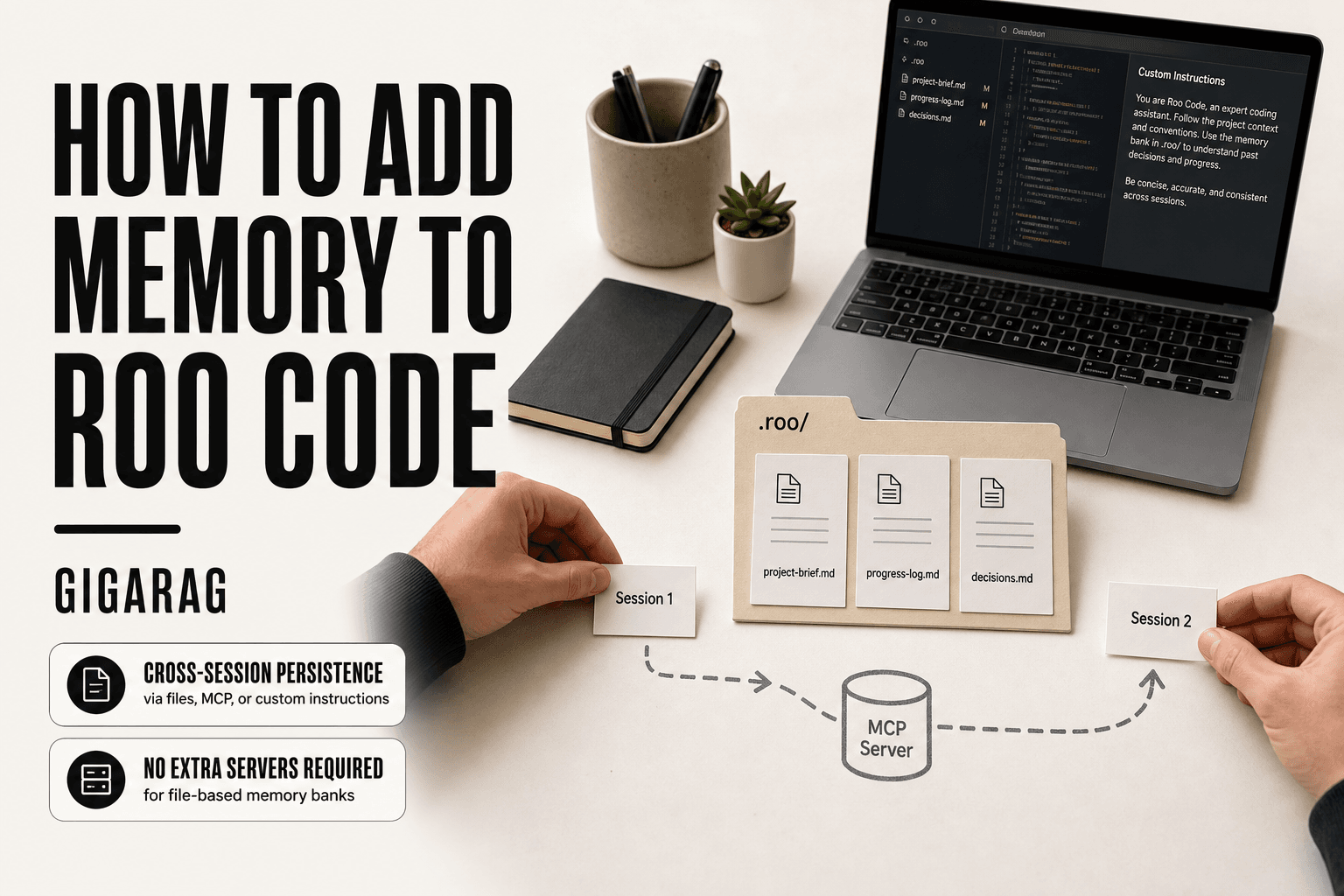
How to Add Memory to Roo Code
How to add memory to Roo Code starts with accepting a hard truth for agent and RAG pipeline builders: your assistant forgets everything the moment a session ends. You explain the project architecture, the conventions, the decisions you made three hours ago, and then you do it again tomorrow. That repetition isn't just annoying. It breaks workflow continuity for complex, multi-step agent tasks and makes cross-session debugging nearly impossible.
The good news is you can build persistence yourself. Roo Code has no native memory, but three practical workarounds exist: file-based memory banks, MCP memory servers, and mode-specific custom instructions. Each trades complexity for recall, and none of them is perfect. If you need memory that scales beyond a single project, tools like GigaRAG handle agent memory and RAG pipelines more cleanly than anything you'll bolt onto Roo Code.
| At a glance | Details |
|---|---|
| Primary method | Memory Bank files in .roo/ |
| Alternative | MCP memory server |
| Setup time | Minutes to an hour |
| Persistence | Across sessions, per project |
| Cross-project recall | Not automatic; needs config |
| Best for | Agent memory and RAG builders |
In This Guide
- What Roo Code Memory Actually Means
- Memory Bank vs MCP Memory Server vs Custom Instructions: Which Fits Your Roo Code Workflow?
- Prerequisites for Adding Memory to Roo Code
- How To Add Memory To Roo Code: A Step-by-Step Guide
- Approach 1: File-Based Memory Bank
- Approach 2: MCP Memory Servers
- Approach 3: Mode-Specific Custom Instructions
- Comparing Memory Approaches: MCP vs Rules vs Hybrid
- Verifying Your Roo Code Memory Setup
- What Roo Code Memory Won't Do
- Scaling Memory for Agent and RAG Pipelines
- Final Thoughts on Adding Memory to Roo Code
What Roo Code Memory Actually Means
Roo Code has no native persistent memory. Everything it "remembers" comes from files, MCP servers, or custom instructions you configure yourself.
When you close a session, Roo Code forgets the conversation. The context window clears. What survives is only what you wrote down somewhere it can read next time.
What Roo Code remembers by default
Within a single session, Roo Code keeps the full conversation in its context window. That's it. No hidden database, no automatic recall of past projects.
Why persistent memory requires configuration
Persistence is a workaround, not a feature. You build it by pointing Roo Code at files it reads on startup, connecting an MCP memory server, or adding custom instructions that tell it where to look. None of this happens unless you set it up.
[!note] Roo Code's file-based memory does not automatically recall context across different projects unless you explicitly configure shared paths or an MCP server. Memory Bank files are only as good as the updates you make to them.
Memory Bank vs MCP Memory Server vs Custom Instructions: Which Fits Your Roo Code Workflow?
| Factor | Memory Bank Files | MCP Memory Server |
|---|---|---|
| Setup effort | Low: create markdown files in .roo/ | Medium: install and configure an MCP server |
| Persistence scope | Per project, manual updates | Configurable, can span projects |
| Retrieval style | Reads files into context on demand | Queries a memory store via tools |
| Best for | Solo devs wanting simple, transparent memory | Teams or pipelines needing structured recall |
| Maintenance | You curate and prune files | Server manages storage; you tune queries |
Prerequisites for Adding Memory to Roo Code
Before you start, you need three things: Roo Code installed, a project workspace, and a basic grasp of how modes work. An MCP server or memory bank template is optional but useful.
Installing Roo Code
Install Roo Code from the VS Code marketplace or your editor's extension panel. You'll need a working API key for your model provider. Check that Roo Code loads and responds to a simple prompt before configuring memory.
Understanding Roo Code modes
Roo Code runs in modes: Architect, Code, Ask, and Debug. Each mode has its own custom instructions. You'll assign memory instructions per mode later, so know which modes you actually use.
Choosing a memory approach
Decide early: file-based memory bank, MCP server, or custom instructions. File-based is simplest. MCP adds structure and querying. Custom instructions work for lightweight context. Your choice shapes every step after this.
[!tip] For developers building RAG pipelines, treat the Memory Bank as a lightweight, version-controlled knowledge base: commit it to git and review changes like code. This keeps memory auditable and makes it easy to roll back bad context.
How To Add Memory To Roo Code: A Step-by-Step Guide
- Create a .roo/ directory in your project root to hold memory files.
- Add a memory-bank.md (or similar) file describing project goals, architecture, and key decisions.
- Reference the memory file in your Roo Code custom instructions so the agent reads it at session start.
- Update the memory file after each significant session to capture new context and decisions.
- For cross-project or structured memory, install and configure an MCP memory server in Roo Code settings.
- Verify memory is loaded by asking the agent to summarize the project from memory at the start of a new session.
- Troubleshoot by checking file paths, permissions, and that custom instructions are active.
Approach 1: File-Based Memory Bank
A memory bank is a folder of Markdown files that Roo Code reads at the start of each session. You write the files, Roo Code updates them as you work. It's the simplest approach and needs no extra servers.
Creating the memory bank directory
Create a memory/ folder in your project root. Put it under version control so changes are tracked. Roo Code needs read and write access to this folder.
Core memory files to include
Start with three files:
project-brief.md: what the project does, key constraints, and the tech stack.progress-log.md: what's done, what's in progress, and what's next.decisions.md: choices you've made and why, so Roo Code doesn't re-litigate them.
Keep each file short. A brief that runs past 30 lines gets ignored in practice.
Instructing Roo Code to use the memory bank
Add a custom instruction telling Roo Code to read memory/ at session start and update files when decisions or progress change. Without that instruction, the files just sit there. Test it: start a new session and ask Roo Code to summarize the project brief. If it can't, the instruction isn't firing.
Approach 2: MCP Memory Servers
MCP servers give Roo Code structured memory instead of flat files. You get querying, typed storage, and persistence that survives a session restart. The tradeoff is setup: you're running another service.
What an MCP memory server does
An MCP memory server stores context as structured records, not Markdown. Roo Code sends queries to it, and the server returns relevant entries. That means retrieval is selective: you pull what matches the current task instead of loading a whole folder.
Configuring MCP in Roo Code
Add the server to Roo Code's MCP settings. You'll need the server's command or URL, plus any API keys. Roo Code connects at startup. If the server isn't running, memory silently fails.
Testing the MCP connection
Start a new session and ask Roo Code to recall a fact you stored earlier. If it returns the right entry, the connection works. If it returns nothing, check that the server process is alive and the settings point to the right port.
Approach 3: Mode-Specific Custom Instructions
Custom instructions are the lightest memory layer. You write rules per mode, and Roo Code applies them every session. No files to maintain, no server to run. The catch: they only shape behaviour, they don't store facts.
Configuring custom instructions per mode
Open Roo Code settings and find the custom instructions field for each mode: Architect, Code, Ask, Debug. Architect plans, Code edits, Ask answers, Debug traces. Each needs different memory prompts because each reads context differently.
Example instructions for Architect and Code modes
For Architect, try: "Before planning, read memory/decisions.md and memory/progress.md. Reference past decisions in your plan." For Code mode: "Before editing, check memory/decisions.md for constraints. After editing, append a one-line summary to memory/progress.md."
When mode-specific memory is enough
It's enough for small projects where you repeat the same workflow. It won't recall arbitrary facts across weeks. For that, pair it with a memory bank or MCP server.
Comparing Memory Approaches: MCP vs Rules vs Hybrid
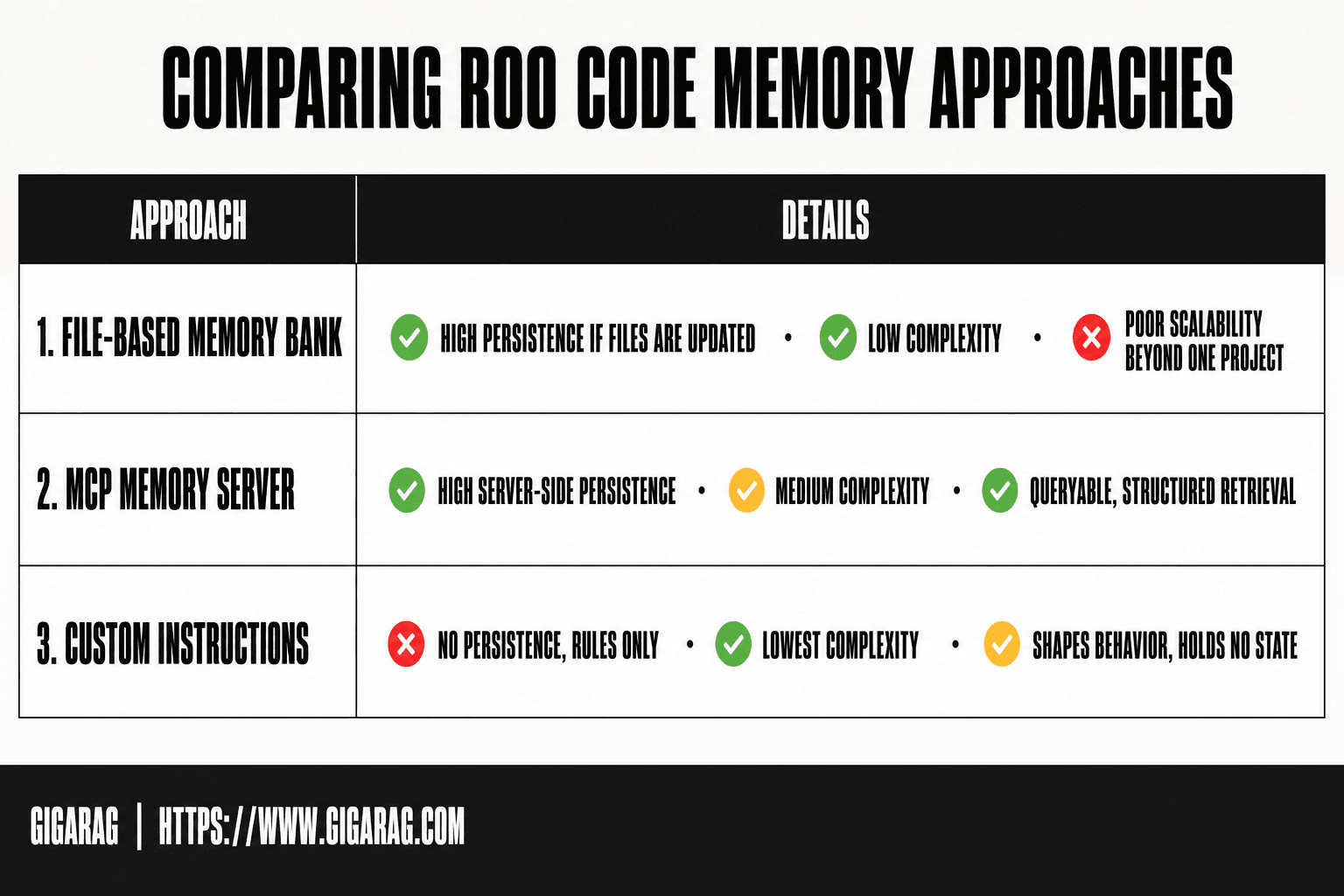
Three approaches, three trade-offs. File-based memory banks persist facts but need manual upkeep. MCP servers store structured data and query it, but add a dependency. Custom instructions shape behaviour but hold no state.
Comparison table: file-based vs MCP vs custom instructions
| Dimension | File-based | MCP server | Custom instructions |
|---|---|---|---|
| Persistence | High, if files are updated | High, server-side | None, rules only |
| Complexity | Low | Medium | Lowest |
| Scalability | Poor beyond one project | Good, queryable | N/A |
| Cross-project | Manual copy | Possible via shared server | No |
| RAG suitability | Weak, flat files | Strong, structured retrieval | None |
When to choose a hybrid approach
Pair custom instructions with a memory bank. Instructions force Roo Code to read and write files. Files hold the facts. That's the cheapest reliable setup.
What works best for RAG pipeline builders
MCP memory servers win here. They expose structured, queryable storage that a RAG pipeline can retrieve from directly. File-based memory banks are flat markdown; you'd need to parse and chunk them yourself.
Verifying Your Roo Code Memory Setup
You've configured memory. Now prove it works. Don't assume.
Testing memory persistence across sessions
Start a new session. Ask Roo Code to recall a specific fact from the previous session, something you deliberately stored. If it can't, your setup failed. Check the memory files directly: did the last session write anything? If the file is empty or unchanged, the write step never ran.
Debugging when memory fails
The most common failure is Roo Code reading memory but never writing to it. Your custom instructions may say "read these files" without saying "update these files after each task." Fix the instruction. Second failure: wrong file path. Roo Code looks where you told it to look, not where you meant.
Performance considerations
Every memory file Roo Code reads consumes context window tokens. A 2,000-word memory bank eats roughly 2,500 tokens before your prompt even starts. Trim ruthlessly. Store only what changes decisions, not what you can re-derive.
What Roo Code Memory Won't Do
Roo Code memory is a workaround, not a database. It won't recall anything across projects unless you explicitly point it at shared files or a shared MCP server. File-based memory sits in one directory. Open a different workspace and it's gone.
Cross-project recall limitations
No automatic cross-project recall exists. You configure the path, or you get nothing. If two projects need shared context, you must set up a shared memory location yourself.
Context window constraints
Memory does not expand the context window. Every memory file you load consumes tokens from the same fixed budget. More memory means less room for the actual task.
When memory fails silently
The worst failure is silence. Roo Code won't warn you when a memory file is missing, unreadable, or stale. It just proceeds without the context you assumed was there. Check your files.
Scaling Memory for Agent and RAG Pipelines
File-based memory and MCP servers work for a single project. They break down when you need retrieval across many projects, semantic search over past sessions, or memory shared between Roo Code and other agents.
When Roo Code memory is not enough
The honest answer is: it depends on scale. A memory bank file handles one project fine. But when you're building a RAG pipeline that needs to query hundreds of past sessions, or an agent that must recall context from a vector database, flat files won't cut it. You need structured storage with real retrieval.
Integrating Roo Code with external memory systems
Roo Code can call external memory through MCP servers. Point it at a vector database or a dedicated memory service, and it can store and query structured context. The integration is straightforward: configure the MCP server, then instruct Roo Code to use it for recall.
A note on GigaRAG for scalable agent memory
GigaRAG is one option for scalable agent memory. It provides persistent, queryable memory across sessions and projects, built for RAG pipelines. If your memory needs outgrow files, it's worth a look.
Final Thoughts on Adding Memory to Roo Code
The right memory approach depends on two things: project complexity and how far you need recall to scale. A file-based memory bank handles a single project with a few sessions. MCP servers add structure and querying. Custom instructions keep mode-specific context tight.
For most developers, start with the memory bank. It's simple, it's transparent, and it works. Move to MCP when you need cross-session persistence that survives file edits or when you're querying memory rather than just reading it. Reach for external systems like GigaRAG when memory becomes a pipeline problem, not a project problem.
How to add memory to Roo Code isn't a one-time setup. It's a habit: write decisions down, update the files, verify recall in a fresh session. The tools matter less than the discipline.
Frequently Asked Questions
How do I add memory to Roo Code on Mac?
The process is the same as on any platform: create a .roo/ directory in your project, add memory files, and reference them in custom instructions. On Mac, ensure file paths use forward slashes and that Roo Code has permission to read the directory. You can also configure an MCP memory server via the settings.
What is the Roo Code Memory Bank?
The Memory Bank is a community pattern where you store project context in markdown files within a .roo/ folder. Roo Code can be instructed to read these files to maintain context across sessions. It is not a built-in feature but a workflow enabled by custom instructions.
Can Roo Code remember context across different projects?
By default, no. Memory Bank files are project-specific. To share memory across projects, you need to configure a shared directory or use an MCP memory server that stores data centrally. Even then, you must explicitly query or load that memory.
How do I set up Roo Code for the first time?
Install the Roo Code extension in VS Code, then open its settings to configure your API key and model. You can then create custom instructions and a .roo/ directory for memory. The official documentation provides a quickstart guide.
Is Roo Code free?
Roo Code itself is open-source and free to use, but you pay for the underlying AI model API calls (e.g., OpenAI, Anthropic). Some models offer free tiers. Check the Roo Code pricing page for current details.
What are Roo Code best practices for memory?
Keep memory files concise and focused on decisions, not raw logs. Update them at the end of each session. Use clear naming and version control. For complex needs, combine Memory Bank with an MCP server for structured retrieval.
What does 'Roo code sunset' mean?
It likely refers to discussions about deprecating certain features or the project's roadmap. As of now, Roo Code is actively maintained. Check the official repository or community forums for the latest status.
About GigaRAG
GigaRAG is for agent memory and RAG pipeline builders. get this right. Whether you are working through How to add memory to Roo Code or something adjacent, we publish what we have actually tested, including where it falls short.