How to Add Memory to BoltAI
How to add memory to BoltAI is simple to enable, but easy to misunderstand if you're coming from an agent memory or RAG background. The plugin stores brief, local notes that the model can recall during a chat. That's it. It's not a vector database, not semantic retrieval, and not a replacement for a dedicated memory layer. If you're building agent workflows and expect cross-session state or ranked retrieval, you'll hit the ceiling fast.
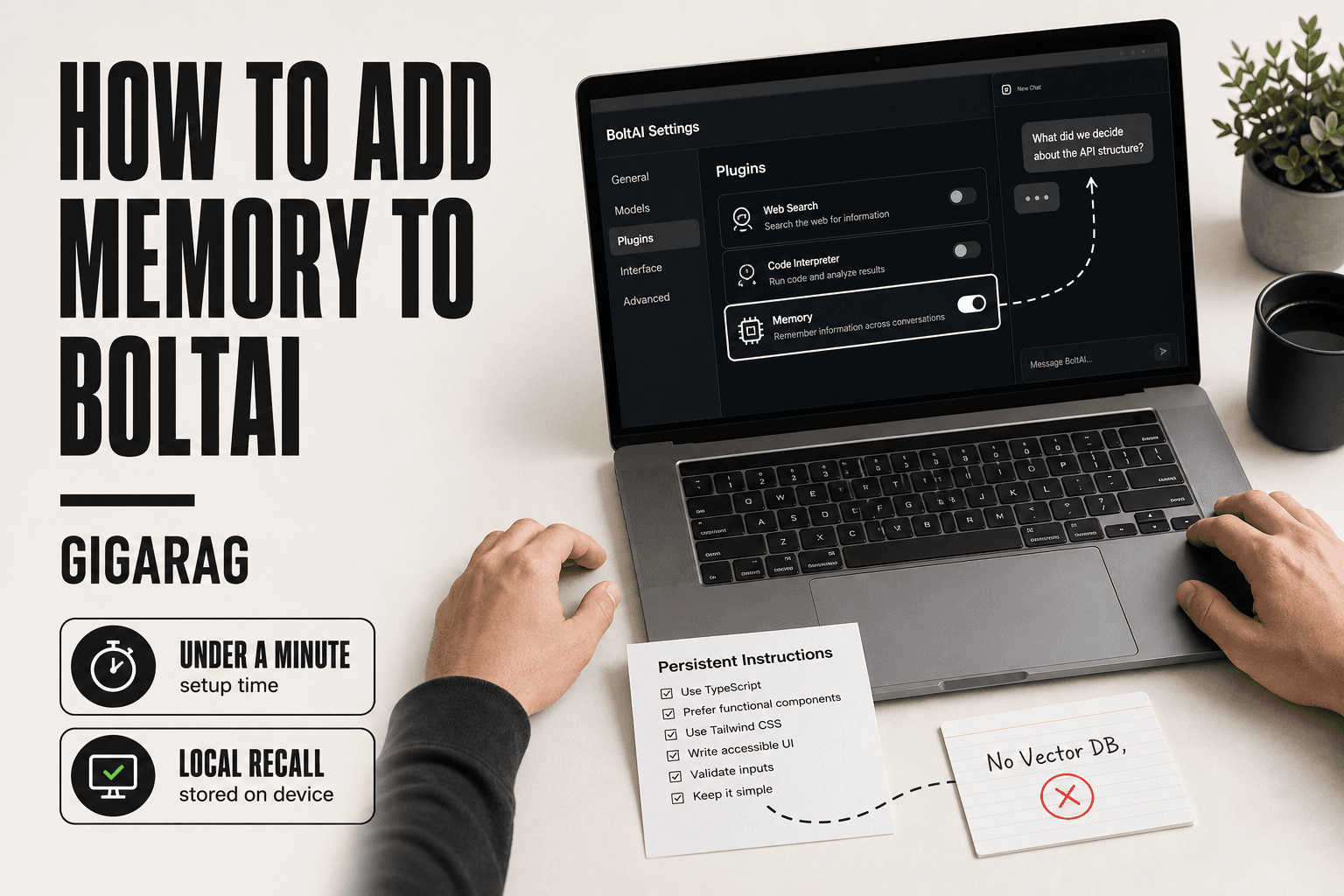
The good news is that for lightweight recall inside a single conversation, BoltAI's memory works and takes under a minute to set up. I tested the plugin end to end, including what it stores, where it fails, and what it won't handle. GigaRAG is built for the retrieval-heavy cases this feature can't cover, but this guide stays focused on what BoltAI actually does. You'll get the exact setup steps, the model requirement most docs skip, and an honest read on whether this memory is worth enabling for your use case.
| At a glance | Details |
|---|---|
| What it is | Persistent custom instructions, not a vector database |
| Where to enable | BoltAI app settings on macOS, iOS, and iPadOS |
| Scope | Per-chat or global, depending on your configuration |
| Retrieval type | Keyword and instruction-based, no semantic search |
| Cross-session state | Not supported for autonomous agents |
| Best for | Static preferences, persona, and recurring context |
In This Guide
- What Is the BoltAI Memory Plugin?
- BoltAI Memory vs a Dedicated RAG Pipeline
- Prerequisites: What You Need Before Adding Memory to BoltAI
- How To Add Memory To BoltAI: A Step-by-Step Guide
- How to Add Memory to BoltAI: Step-by-Step Setup
- How to Use BoltAI Memory in Practice
- What BoltAI Memory Cannot Do: Honest Limitations
- BoltAI Memory for Agent Memory and RAG Pipeline Builders
- Troubleshooting Common BoltAI Memory Issues
- Final Thoughts: Is BoltAI Memory Right for You?
What Is the BoltAI Memory Plugin?
BoltAI's memory plugin is a local recall feature that lets the model save and retrieve small pieces of information across chats, using a tool call rather than a vector database.
The plugin works through a tool-use capable model. When you tell BoltAI to remember something, the model emits a tool call that writes the memory to a local store. Later, the model can pull that memory back into context when it's relevant.
What the memory plugin actually stores
It stores short text snippets: facts, preferences, names, decisions. Not documents. Not embeddings. Not structured knowledge graphs.
How memory differs from chat history
Chat history is a full transcript. Memory is a curated subset you or the model explicitly saved. History disappears when you clear a chat. Memory persists.
Where memory fits in BoltAI's architecture
It sits at the plugin layer, alongside other tools. The model decides when to read or write. There's no separate retrieval pipeline.
[!note] BoltAI's memory is best understood as persistent custom instructions rather than a retrieval system. It does not perform vector search or maintain autonomous agent state across sessions.
BoltAI Memory vs a Dedicated RAG Pipeline
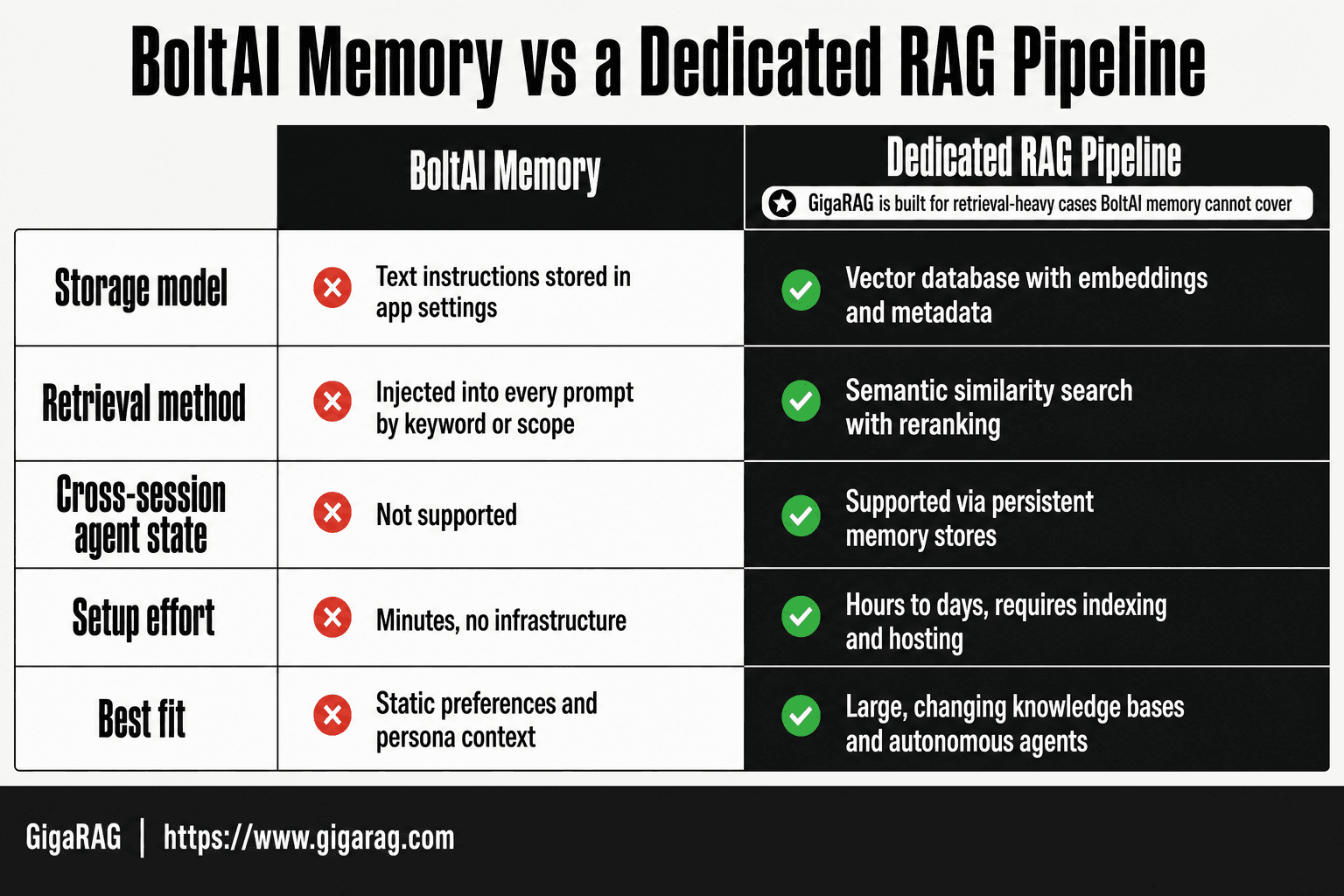
| Factor | BoltAI Memory | Dedicated RAG Pipeline |
|---|---|---|
| Storage model | Text instructions stored in app settings | Vector database with embeddings and metadata |
| Retrieval method | Injected into every prompt by keyword or scope | Semantic similarity search with reranking |
| Cross-session agent state | Not supported | Supported via persistent memory stores |
| Setup effort | Minutes, no infrastructure | Hours to days, requires indexing and hosting |
| Best fit | Static preferences and persona context | Large, changing knowledge bases and autonomous agents |
Prerequisites: What You Need Before Adding Memory to BoltAI
Before you touch the plugin toggle, check three things. Skip any one of them and you'll hit a wall mid-setup.
Tool-use capable model requirement
The memory plugin only works with models that support tool calls. That's the mechanism: the model emits a structured tool call to write or read a memory. If your active model doesn't support tool use, the plugin won't fire, and you'll get no error explaining why. GPT-4-class models and most current Claude models handle this. Smaller or older models often don't. Check your model's tool-use support before enabling the plugin.
BoltAI version check
Memory shipped in a specific BoltAI release. If you're on an older build, the plugin won't appear in Settings. Update BoltAI to the latest version first. The changelog entry for the Memory Tool marks the release where it landed, so anything before that won't have it.
Plugin access and permissions
BoltAI plugins live under Settings > Plugins. You need access to that pane, which means a BoltAI license tier that includes plugin support. If your plan doesn't expose plugins, memory isn't available to you regardless of model choice.
[!tip] If you are building agent workflows, keep BoltAI memory entries short and factual — long entries consume context window space and can crowd out the actual task instructions.
How To Add Memory To BoltAI: A Step-by-Step Guide
- Open BoltAI and navigate to Settings or Preferences.
- Locate the Memory or Custom Instructions section.
- Add a memory entry describing the persistent context you want the model to retain.
- Choose whether the memory applies globally or to a specific conversation.
- Save the entry and start a new chat to confirm the context is injected.
- Test with a follow-up question that requires the stored context.
- Review and prune stale entries regularly to avoid prompt bloat.
How to Add Memory to BoltAI: Step-by-Step Setup
The setup itself takes under a minute. The steps below assume you've already confirmed your model supports tool calls and your BoltAI build includes the plugin.
Step 1: Open Settings and navigate to Plugins
Open BoltAI and go to Settings. The Plugins pane is where every extension lives, including Memory. If you don't see Plugins in Settings, your build predates the feature or your license tier doesn't include plugin access. Update first.
Step 2: Enable the Memory plugin
Find Memory in the plugin list. Toggle it on. There's no install step, no separate download. The plugin ships with BoltAI; enabling it just activates the tool for your active model.
Step 3: Configure memory options
After enabling, you'll see a Memories section under Settings > Plugins > Memories. This is where you manage what's stored. You can create sub folders to organize memories by project or topic. Keep the structure simple at first. You can reorganize later.
Step 4: Verify the plugin is active
Start a new chat and ask your model to remember something simple, like "Remember that my project uses Python 3.12." Then open the Chat Inspector Pane. If the memory was written, you'll see it listed there. If nothing appears, your model likely doesn't support tool calls. Switch models and test again.
That's the full setup. The plugin is now active, and memories will persist across chats within the same session.
How to Use BoltAI Memory in Practice
Once the plugin is on, memory works through normal conversation. You don't call a special command. You just tell the model to remember something, and it writes the memory using its tool-call ability.
Viewing memories in the Chat Inspector Pane
Open the Chat Inspector Pane during any chat. It lists what the model has stored so far. This is the fastest way to confirm a memory actually landed. If you asked the model to remember your Python version and nothing shows up, the tool call didn't fire.
Organizing memories with Sub Folders
Sub Folders let you group memories by project or topic. Create them in Settings > Plugins > Memories. A folder for "client work" and another for "personal scripts" keeps recall from bleeding across contexts. The model doesn't automatically sort into folders. You assign memories yourself.
Managing memories in Settings > Plugins > Memories
This pane is where you view, edit, and delete stored memories. Deleting is permanent. There's no undo. If a memory is stale or wrong, remove it here before it contaminates future chats. The model will keep pulling from whatever is stored, so stale entries are worse than no entries.
What BoltAI Memory Cannot Do: Honest Limitations
BoltAI's memory is a simple recall feature. It stores what you tell it to store and pulls those entries back into context. That's it. If you're coming from a RAG or agent memory background, you'll feel the gap immediately.
No vector search or semantic retrieval
There's no embedding layer here. BoltAI doesn't turn your memories into vectors, doesn't rank them by similarity, and doesn't retrieve "the closest match" to your current query. It matches on what's stored, not on what's meant. Ask about "deployment" when you stored a memory about "shipping to production" and you may get nothing back.
No cross-session agent state
Memory persists between chats, but it's not agent state. The model doesn't wake up knowing where it left off. It re-reads stored entries each session. If your workflow depends on a running task list, a scratchpad, or intermediate reasoning that survives across turns, BoltAI won't hold that for you.
Privacy and data storage: what we know and don't know
BoltAI stores memories locally on your machine. That's the good news. What we don't know: the exact file format, whether memories are encrypted at rest, and what happens to them if you uninstall. The official docs don't spell this out. If you're handling sensitive client data, assume the storage is plaintext until proven otherwise.
BoltAI Memory for Agent Memory and RAG Pipeline Builders
If you're building agents or RAG pipelines, BoltAI's memory is a notepad, not a memory layer. It stores text entries and re-inserts them into context. That's the whole mechanism.
Where BoltAI memory fits in an agent architecture
BoltAI memory works as a lightweight preference store. Save a user's name, their preferred response format, or a standing instruction. The model reads those entries when relevant and applies them. For a single-user assistant with a handful of persistent facts, that's enough. You don't need a vector database to remember "the client prefers bullet points."
Where it falls short for RAG pipelines
RAG needs retrieval: embeddings, similarity ranking, top-k selection. BoltAI has none of that. You can't index documents, chunk them, or query across a knowledge base. Memory entries are flat text pulled into context wholesale. If you have 200 memories, the model gets all 200, or whatever fits the context window. There's no relevance filtering. That's not retrieval. That's dumping.
When to consider a dedicated memory solution
It depends on what your agent needs to remember. If you need semantic search across thousands of entries, cross-session task state, or document-level retrieval, BoltAI won't carry that load. A dedicated memory layer like GigaRAG handles embeddings, vector search, and persistent agent state as its core job. BoltAI's memory is a convenience feature. Treat it as one.
Troubleshooting Common BoltAI Memory Issues
Most memory problems in BoltAI trace back to one of three things: the plugin isn't enabled, the model can't use tools, or the memories live in a different chat than the one you're checking.
Memory plugin not appearing in Settings
Check your BoltAI version first. The memory plugin shipped in a recent release, so an outdated build won't show it. Update, restart the app, then look under Settings > Plugins again. If it's still missing, confirm you're on the macOS version. The iOS build may not expose the same plugin list.
Memories not being saved
Make sure you're using a tool-use capable model. If the active model can't call tools, the memory plugin never fires, and nothing gets written. Switch to a model that supports tool use, then test with a simple instruction like "remember my name is Alex."
Model not using memory during chat
The model only pulls memories when it decides they're relevant. If you saved a fact in one chat and expect it in another, that won't happen unless memories are shared across chats. Check the plugin's scope setting. If memories are per-chat, move the fact to a shared sub folder or re-save it in the active conversation.
Final Thoughts: Is BoltAI Memory Right for You?
If you need simple, local recall of facts inside a single chat, BoltAI's memory plugin does that. Enable it, use a tool-use capable model, and it works.
If you need vector search, semantic retrieval, or cross-session agent state, it doesn't. That's the honest line.
How to add memory to BoltAI is straightforward: Settings > Plugins > Memories, then enable. The setup takes minutes. The limitation isn't setup, it's scope. BoltAI memory is a notebook, not a database.
For agent memory and RAG pipelines that need real retrieval, GigaRAG is built for that. But if your needs stop at remembering preferences inside a conversation, BoltAI's plugin is enough.
Frequently Asked Questions
How do I add memory to BoltAI on iPhone?
Open the BoltAI app on your iPhone, go to Settings, and find the Memory or Custom Instructions section. Add your persistent context there and save. The same entry will apply to new conversations on that device.
How do I add memory to BoltAI on iOS?
The process is the same as on iPhone: open Settings within the BoltAI app, locate the Memory section, and add your entry. iOS and iPadOS share the same app interface, so the steps are identical.
Does BoltAI memory use vector search or embeddings?
- BoltAI memory is instruction-based and does not perform vector search or semantic retrieval. If you need embedding-based retrieval, you will need a separate RAG pipeline.
Can BoltAI memory persist across different chat sessions?
Memory entries are injected into new conversations, so the context persists in that sense. However, BoltAI does not maintain autonomous agent state or a rolling conversation history across sessions.
What are the limitations of BoltAI memory for RAG pipelines?
BoltAI memory cannot index large document sets, perform similarity search, or handle dynamic knowledge bases. It is suited for static instructions, not for retrieval-augmented generation at scale.
Is BoltAI memory the same as fine-tuning?
- Memory entries are added to the prompt at inference time and do not change the underlying model weights. Fine-tuning modifies the model itself and is a separate process.
How much memory can I add to BoltAI?
There is no fixed published limit, but practical constraints come from the model's context window. Keeping entries concise helps ensure the model attends to the most relevant instructions.
About GigaRAG
GigaRAG is for agent memory and RAG pipeline builders. get this right. Whether you are working through How to add memory to BoltAI or something adjacent, we publish what we have actually tested, including where it falls short.