
How to Add Memory to Warp: A Practical Guide for Agent and RAG Builders
How to add memory to Warp means two completely different things, and most search results mash them together. Developers ask because they've seen Warp's Agent Memory feature in release notes, or because Activity Monitor shows the terminal eating 2 GB of RAM. Those are separate problems. Agent Memory is persistent context for AI agents, a research preview with a waitlist. System RAM is what the Rust-based terminal app uses to run, and you can't manually allocate more of it. Warp doesn't expose a memory setting. The OS decides. I tested both paths so you don't have to guess which one applies to your setup. For teams building agent memory outside Warp, GigaRAG provides external memory infrastructure for RAG pipelines, but that's a separate stack from what this guide covers. This guide covers what you can and cannot control, how to join the Agent Memory waitlist, and OS-specific steps for macOS and Windows 11 to reduce Warp's RAM footprint.
| At a glance | Details |
|---|---|
| Two meanings | Agent Memory feature vs system RAM usage |
| Manual RAM allocation | Not possible; OS and app manage it |
| Agent Memory status | Research preview; waitlist may apply |
| Diagnose on macOS | Activity Monitor; check Memory column |
| Diagnose on Windows 11 | Task Manager; Details tab |
| Reduce footprint | Close tabs, update app, limit sessions |
In This Guide
- What 'Memory' Means in Warp: Agent Memory vs. System RAM
- Warp Agent Memory vs System RAM: What's the Difference?
- What You Cannot Do: The Honest Limits of Adding Memory to Warp
- How To Add Memory To Warp: A Step-by-Step Guide
- How to Add Memory to Warp via Agent Memory (Research Preview)
- Managing Warp's System Memory Usage on macOS
- Managing Warp's System Memory Usage on Windows 11
- Warp vs. Claude Code: Memory Features Compared
- Virtual Memory and Warp: What You Need to Know
- Common Mistakes When Trying to Add Memory to Warp
What 'Memory' Means in Warp: Agent Memory vs. System RAM
Warp has two unrelated meanings for "memory": Agent Memory, a research preview feature that stores persistent context for AI agents, and system RAM, the application memory footprint you can monitor but not manually increase.
Agent Memory: persistent context for AI agents
Agent Memory is a feature, not hardware. It lets Warp's AI agents remember context across sessions: past commands, project details, conversation history. The agent pulls from memory stores instead of starting blank each time. For RAG pipeline builders, this is the interesting part. It's a vector-store-like layer that sits behind the agent, feeding relevant context into prompts.
System RAM: the terminal's application memory footprint
System RAM is what Activity Monitor or Task Manager reports when Warp runs. Warp is a Rust-based, GPU-accelerated terminal, so it uses more RAM than a plain terminal like Terminal.app or Windows Terminal. Users report anywhere from 300 MB to over 1 GB depending on tabs, panes, and active sessions. You cannot allocate more RAM to Warp. The OS decides.
Why search results conflate the two
GitHub issues and Reddit threads discuss Warp's memory leaks and high RAM usage. The docs page covers Agent Memory. No result bridges them, so a search for "how to add memory to Warp" returns troubleshooting threads when you wanted feature docs, or feature docs when you wanted to fix a leak. The fix depends on which problem you actually have.
[!note] You cannot manually allocate more RAM to Warp; memory is managed by the operating system and the application itself. Warp's Agent Memory feature is separate and does not increase system RAM.
Warp Agent Memory vs System RAM: What's the Difference?
| Factor | Agent Memory (Warp feature) | System RAM (computer memory) |
|---|---|---|
| What it is | A feature for storing context across agent sessions | Physical memory used by all running apps |
| User control | Enable/disable in settings; no manual allocation | Managed by OS; cannot be manually allocated to Warp |
| Typical use case | RAG pipelines, agent workflows, context retention | Running Warp and other applications smoothly |
| How to check | Warp settings or documentation | Activity Monitor (macOS) or Task Manager (Windows) |
| Limitations | Research preview; may have waitlist; not for general RAM | Limited by hardware; upgrade requires new RAM sticks |
What You Cannot Do: The Honest Limits of Adding Memory to Warp
Warp does not expose a memory allocation setting. You cannot assign more RAM to the app, and no config file changes that. The OS manages memory. Warp requests what it needs.
No manual RAM allocation setting exists
There's no slider, no preferences pane, no settings.json key for memory. If you're hunting for one, stop. It isn't there. Warp's Rust runtime and GPU renderer decide their own footprint based on tabs, panes, and active sessions.
Agent Memory is research preview — waitlist required
Agent Memory isn't generally available. You join a waitlist. There's no ETA for wider rollout, and no guarantee you'll get access soon. If you need persistent agent context today, Warp won't give it to you on demand.
What 'adding memory' cannot solve
Adding RAM to your machine won't fix a Warp memory leak. It won't make Agent Memory available faster. And it won't turn Warp into a vector store for your RAG pipeline. Those are separate problems with separate fixes.
[!tip] For RAG pipeline builders: use Warp's Agent Memory to persist context across sessions, but monitor its impact on system memory via Activity Monitor or Task Manager to avoid leaks.
How To Add Memory To Warp: A Step-by-Step Guide
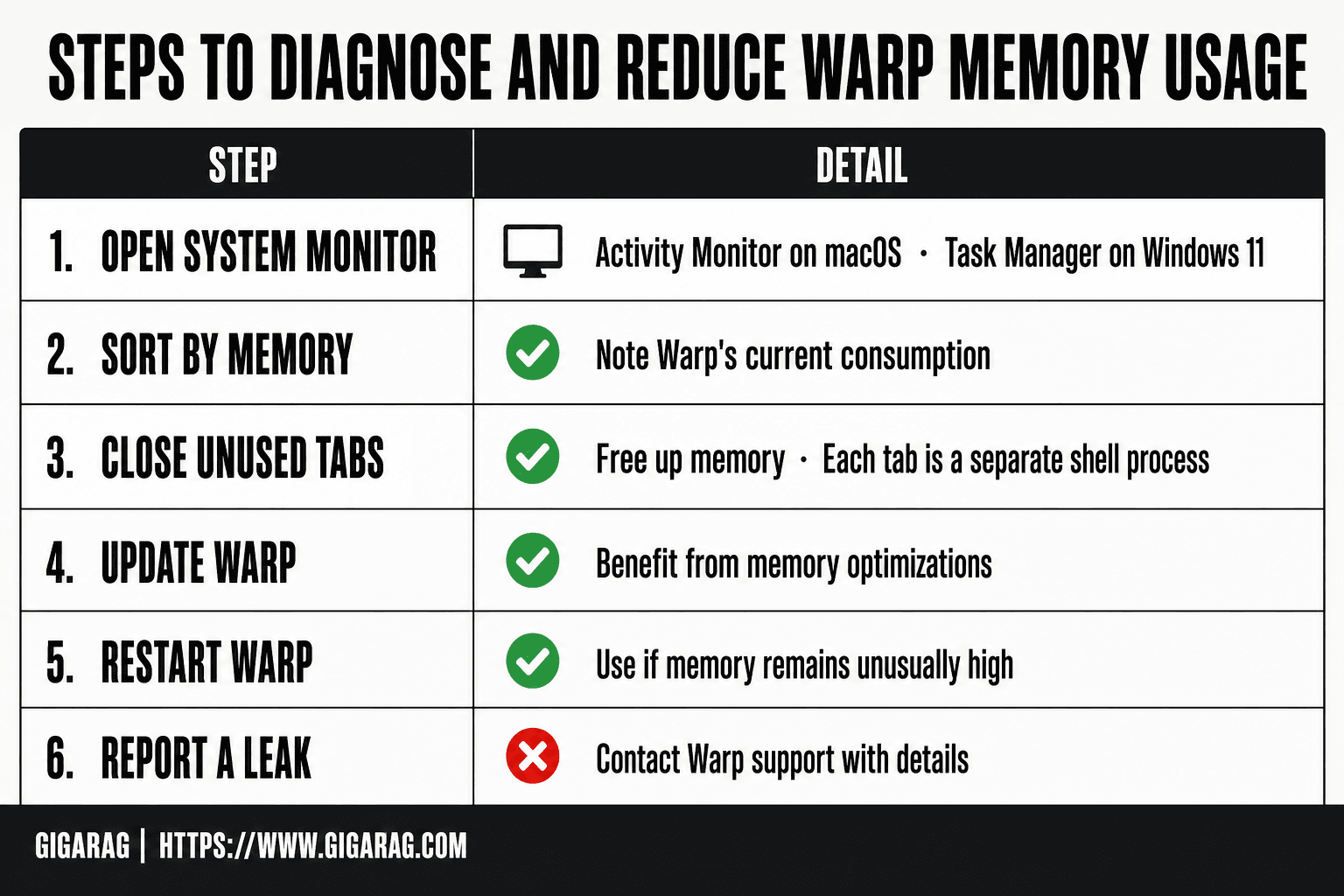
- Open Activity Monitor (macOS) or Task Manager (Windows 11) to view Warp's memory usage.
- Sort processes by memory and note Warp's current consumption.
- Close unnecessary Warp tabs, panes, or sessions to free up memory.
- Update Warp to the latest version to benefit from memory optimizations.
- Restart Warp if memory usage remains unusually high.
- If issues persist, report a memory leak to Warp support with details.
How to Add Memory to Warp via Agent Memory (Research Preview)
You can't flip a switch and get Agent Memory. It's a waitlist feature. But the path from waitlist to working memory is short once you're in.
Step 1: Join the Agent Memory waitlist
Go to the Warp docs page for Agent Memory and find the waitlist link. Enter your email. That's the whole step. There's no form asking about your use case, no approval criteria published, and no ETA after you submit.
What you get when approved: access to memory stores, automatic memory creation from conversations, and the ability to attach memory to agents. Until then, you're waiting.
Step 2: Understand memory stores and automatic creation
Agent Memory runs on Warp's infrastructure, not on your machine. That matters. Your conversation history with agents feeds into memory stores automatically. You don't manually write entries. The system extracts what it considers worth keeping from your sessions.
Memory stores hold persistent context. When an agent runs a new task, it can pull from those stores instead of starting blank. For RAG pipeline builders, this is the interesting part: it's a managed memory layer you don't have to build yourself.
Step 3: Attach memory to your agents
Once you have access, you attach a memory store to an agent. The agent then reads from that store during conversations. You choose which store to attach, so different agents can carry different context.
The docs don't specify a limit on stores or a size cap. (verify at publish)
What Agent Memory does NOT do
It doesn't give you a vector database you can query directly. It doesn't expose an API for your own RAG pipeline. It doesn't let you import external documents or embeddings. It's memory for Warp's agents, inside Warp's environment.
If you need external memory infrastructure for your own agents, you'll need something else. That's a separate build.
Managing Warp's System Memory Usage on macOS
Warp is a Rust-based, GPU-accelerated terminal. That speed has a cost: it can hold more RAM than a plain terminal like Terminal.app. The good news is you can see exactly what's happening and act on it.
Diagnose with Activity Monitor
Open Activity Monitor (Spotlight: Command-Space, type "Activity Monitor"). Click the Memory tab. Find Warp in the list. Watch the Memory column for a few minutes while you work normally. A healthy Warp session sits between 300 MB and 800 MB. If you see 1.5 GB or more with only a few tabs open, something's off.
Identify memory leak symptoms
A leak shows a pattern: memory climbs steadily while you do nothing. You leave Warp idle, and RAM keeps rising. That's not normal caching. Quit Warp and reopen it. If memory drops back to baseline, you had a leak. If it stays high after reopen, it's your session state, not a leak.
Reduce memory usage: practical steps
Close tabs you're not using. Each open tab is a separate shell process. Disable GPU acceleration in Warp's settings if you're on an older Mac; software rendering uses less memory. Update Warp. Leak fixes ship in releases. If memory stays high, restart Warp weekly. It's not elegant, but it works.
Managing Warp's System Memory Usage on Windows 11
Windows 11 users see the same Rust-based memory behavior as macOS, but the diagnosis path runs through Task Manager. The numbers are similar: a healthy Warp session holds 300 MB to 800 MB. Higher than that with few tabs open means something's wrong.
Diagnose with Task Manager
Press Ctrl-Shift-Esc to open Task Manager. Click the Processes tab. Find Warp. Watch the Memory column while you work normally. Sort by memory to spot it fast.
Identify memory leak symptoms
A leak climbs while you do nothing. Leave Warp idle and watch the number. If it keeps rising, quit and reopen. Memory dropping back to baseline confirms a leak. If it stays high, it's your session state.
Reduce memory usage: practical steps
Close unused tabs. Each tab is a separate shell process. Update Warp; leak fixes ship in releases. Restart weekly if memory stays high. It's not elegant, but it works.
Warp vs. Claude Code: Memory Features Compared
The honest answer: it depends on what you're building. Warp's Agent Memory is a research preview with a waitlist. Claude Code's memory is available now but works differently. Neither is a drop-in replacement for the other.
Memory persistence: Warp vs. Claude Code
Warp's Agent Memory stores context in memory stores that persist across sessions. Agents attach to those stores and pull relevant context automatically. Claude Code keeps memory in CLAUDE.md files and conversation history. It's file-based, not a managed store. Warp aims for automatic memory creation from conversations. Claude Code requires you to write the memory yourself.
Which fits agent workflows better
For RAG pipeline builders, Claude Code wins today. It's available, it's file-based, and you control exactly what goes into memory. Warp's Agent Memory promises automatic context, but you can't use it unless you're off the waitlist. When Warp ships broadly, its managed stores may beat hand-written CLAUDE.md files for long-running agents. Right now, the comparison is theoretical.
Virtual Memory and Warp: What You Need to Know
Virtual memory is an OS-level concept, not a Warp setting. You won't find a slider for it inside the terminal.
What virtual memory actually is
Your OS uses disk space as overflow when RAM fills up. macOS calls it swap. Windows calls it a page file. The OS manages both automatically.
Does expanding virtual memory help Warp?
Rarely. If Warp is using 3 GB of RAM and you have 16 GB total, virtual memory isn't the bottleneck. The honest answer: it depends on whether your machine is actually running out of physical RAM. Check Activity Monitor or Task Manager first. If memory pressure is green or moderate, expanding virtual memory won't change Warp's footprint. If it's red, the fix is closing tabs or adding physical RAM, not a bigger page file.
Common Mistakes When Trying to Add Memory to Warp
Most wasted effort comes from three wrong turns.
Mistake 1: Looking for a memory allocation setting
It doesn't exist. Warp manages its own memory. No config file, no settings toggle, no command-line flag changes how much RAM it uses.
Mistake 2: Confusing virtual memory with Warp memory
Expanding your page file or swap won't touch Warp's footprint. That's an OS fix for a different problem.
Mistake 3: Ignoring memory leak symptoms
If Warp climbs past 2 GB and keeps growing, that's a leak, not a setting. Restart the app. Don't hunt for a slider that isn't there. That's the honest answer on how to add memory to Warp: you can't add it manually, but you can stop wasting it.
Frequently Asked Questions
How can I add more memory to Warp?
You cannot manually add more RAM to Warp; the operating system manages memory allocation. To improve performance, close unused tabs, update Warp, or upgrade your computer's physical RAM.
Is Warp better than Claude Code?
Warp and Claude Code serve different purposes: Warp is a terminal with AI features, while Claude Code is a command-line AI coding assistant. The better choice depends on your workflow and needs.
How to expand Virtual Memory?
Virtual memory is managed by the OS. On Windows, you can adjust the page file size in System Properties; on macOS, it's automatic. Expanding it may help if you frequently run out of RAM.
How to create Virtual Memory?
Virtual memory is created automatically by the operating system using disk space. You can configure its size on Windows via the page file settings, but macOS manages it dynamically.
Does Warp have a memory leak?
Some users have reported memory leaks in Warp, but these are often fixed in updates. If you experience high memory usage, update Warp and report the issue to support.
What is Warp's Agent Memory feature?
Agent Memory is a research preview feature that allows Warp's AI agent to remember context across sessions. It is not for increasing system RAM and may require waitlist access.
How to add memory to Warp on Windows 11?
You cannot add memory directly to Warp on Windows 11; memory is managed by the OS. Use Task Manager to monitor usage and consider upgrading your RAM if needed.
About GigaRAG
GigaRAG is for agent memory and RAG pipeline builders. get this right. Whether you are working through How to add memory to Warp or something adjacent, we publish what we have actually tested, including where it falls short.