
How to Add Memory to Witsy
Searches for "how to add memory to Witsy" pull up feature lists, not instructions. That's the problem this guide fixes. First, a clarification: memory in Witsy doesn't mean system RAM or virtual memory. It's the long-term memory plugin that gives the AI assistant persistent context across sessions, so it can recall earlier conversations and retrieved documents instead of starting cold every time. The plugin sits inside Witsy's settings, but no top result shows you where to click, what to toggle, or how to confirm it's actually working. This guide covers the AI memory plugin only, not Windows or Mac virtual memory settings. It walks through setup, configuration for RAG document chat, and honest limitations, including what the plugin cannot do and when a dedicated memory layer makes more sense. For production-grade agent memory in RAG pipelines, GigaRAG offers a more robust solution, but this guide focuses on Witsy's built-in capability.
| At a glance | Details |
|---|---|
| What it is | Persistent AI context, not system RAM |
| Where to enable | Witsy settings, plugins section |
| Requires | Witsy desktop app and a model |
| Storage | Local memory file on your device |
| Best for | Developers building agent memory workflows |
| Not for | Increasing physical RAM or virtual memory |
In This Guide
- What Is Witsy's Long-Term Memory Plugin?
- Witsy AI Memory vs System RAM: What's the Difference?
- Prerequisites for Adding Memory to Witsy
- How To Add Memory To Witsy: A Step-by-Step Guide
- How to Add Memory to Witsy: Step-by-Step Setup
- Configuring Memory for RAG and Document Chat
- What the Memory Plugin Cannot Do
- Troubleshooting Common Memory Issues in Witsy
- Witsy Memory vs. Dedicated Agent Memory Solutions
What Is Witsy's Long-Term Memory Plugin?
Witsy's long-term memory plugin gives the AI assistant persistent context across sessions. Instead of starting every conversation from a blank slate, the LLM can recall earlier chats, preferences, or stored document embeddings. It's a retrieval layer bolted onto the model, not a bigger brain.
The plugin stores conversation history or document chunks, then pulls relevant pieces back into the prompt when you ask a follow-up. That's the whole mechanic: store, retrieve, inject. The LLM itself doesn't change. Its context window doesn't grow. You're just feeding it better material.
How the memory plugin works (technically)
Behind the scenes, the plugin writes session data to local storage. When a new message arrives, it runs a retrieval step against that stored data, picks what looks relevant, and prepends it to the system prompt or message history. The model then answers with that context in view.
The honest catch: retrieval quality depends on how the plugin chunks and ranks stored content. Small datasets work fine. Large, messy histories can return noise, and the model can't tell the difference.
What 'memory' means in Witsy vs. system RAM
System RAM is physical hardware. Witsy's memory plugin is software that stores text. One holds running processes; the other holds conversation context. They don't interact.
If your computer is slow because you're out of RAM, this plugin won't help. It may even add a small disk and CPU load during retrieval. If your problem is that Witsy forgets what you told it yesterday, that's what the plugin addresses.
[!note] Witsy's memory plugin stores AI conversation context locally; it does not change your computer's RAM or virtual memory settings. If you searched for 'how to add memory' expecting system RAM advice, that is a separate Windows or macOS configuration.
Witsy AI Memory vs System RAM: What's the Difference?
| Factor | Witsy AI Memory | System RAM |
|---|---|---|
| What it stores | Conversation context and facts | Running program data |
| Persistence | Survives app restarts | Cleared on shutdown |
| How to add | Enable plugin in settings | Install physical modules |
| Managed by | Witsy application | Operating system |
| Typical user | AI assistant users | All computer users |
Prerequisites for Adding Memory to Witsy
Before you touch the memory plugin, make sure the base install works. Witsy needs to be running and talking to an AI provider already. If chat works, you're ready. If it doesn't, fix that first.
Witsy installation check
You need Witsy installed and updated to a version that ships the long-term memory plugin. The GitHub README lists the plugin under features, but older builds may not include it. Check your version against the latest release on the repository. On desktop, open Witsy and confirm the settings panel loads without errors.
Don't skip this. A stale install is the most common reason the plugin doesn't appear where the docs say it should.
Supported AI providers for memory features
The memory plugin works with whatever provider Witsy is already configured to use. That includes OpenAI, Anthropic, and local models through compatible endpoints. You'll need a valid API key for cloud providers, or a running local model server for offline setups.
Keep in mind: retrieval happens inside Witsy, not on the provider's side. The provider only sees the final prompt with retrieved context injected. So any provider that accepts a standard chat completion call should work. If you're on a local model, make sure it has enough context window to hold the retrieved chunks plus your message. Small local models may truncate.
[!tip] For developers: keep your Witsy memory store separate from your RAG pipeline's vector database so you can version and back up each independently.
How To Add Memory To Witsy: A Step-by-Step Guide
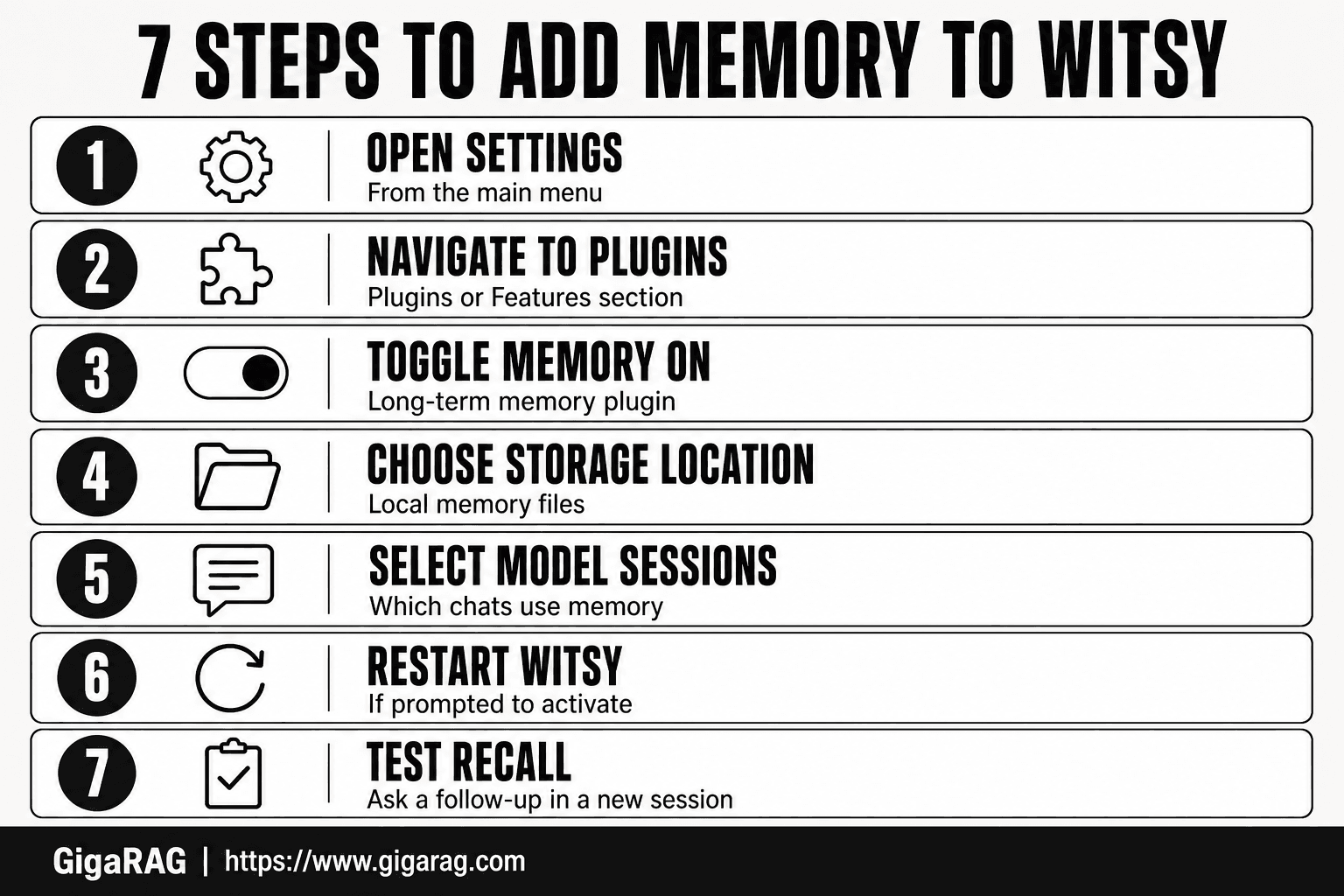
- Open Witsy and go to Settings from the main menu.
- Navigate to the Plugins or Features section.
- Locate the long-term memory plugin and toggle it on.
- Choose or confirm the local storage location for memory files.
- Select which model or chat sessions should use memory.
- Restart Witsy if prompted to activate the plugin.
- Test by asking a follow-up question in a new session to confirm recall.
How to Add Memory to Witsy: Step-by-Step Setup
To add memory to Witsy, open Settings, find the long-term memory plugin, toggle it on, and configure how much conversation history to persist. The plugin then injects that stored context into future chats automatically.
Step 1: Locate the memory plugin in Witsy settings
Open Witsy and go to the settings panel. Look for a section labeled Plugins, Extensions, or Memory, depending on your build. The long-term memory plugin sits there alongside other optional features like document chat and web search.
If you don't see it, your version is too old. Update from the GitHub releases page and check again.
Step 2: Enable the long-term memory plugin
Toggle the plugin on. Witsy may ask you to restart the app or reload the current conversation. Do it.
Once enabled, the plugin starts recording your conversation turns. It won't retroactively import old chats. Only new messages after the toggle get stored.
Step 3: Configure memory persistence options
You'll see a few settings. The main one controls how much history to keep: a fixed number of turns, a token budget, or a time window. Pick based on your provider's context limit.
Smaller is safer. If you're on a local model with a 4K context window, keeping 50 turns of history will blow past it and the model will truncate. Start with 10 to 20 turns and adjust.
Some builds let you choose what gets stored: full messages, summaries, or extracted facts. Summaries cost fewer tokens but lose detail. Full messages preserve everything but eat context fast.
Step 4: Verify memory is working
Start a new conversation. Tell Witsy a specific fact: "My dog's name is Biscuit." End the session. Open a fresh chat and ask, "What's my dog's name?"
If it answers Biscuit, memory works. If it doesn't, check that the plugin is still enabled and that you didn't clear history between sessions.
Keep in mind: this only proves short-term persistence. True long-term memory across many sessions depends on how Witsy stores the data on disk. Test again after a full app restart to confirm it survives.
Configuring Memory for RAG and Document Chat
Witsy's document chat feature uses retrieval-augmented generation: your files get split into chunks, embedded into vectors, and stored in a local index. When you ask a question, Witsy pulls the most relevant chunks and feeds them to the model as context.
Memory changes how that works. Without it, each document question starts cold. With the memory plugin on, Witsy can carry forward what you already asked about, which chunks you found useful, and any clarifications you made. That means fewer repeated retrievals and less re-explaining.
How memory works with document embeddings
The memory plugin doesn't touch the embeddings themselves. Your document vectors stay in their own index. What memory stores is the conversation around those documents: which files you referenced, what questions you asked, and what the model answered.
On the next query, Witsy can use that stored context to narrow retrieval. If you asked about "the pricing section" three turns ago, memory tells it which document and which chunk range you meant. Without memory, it has to guess from the query alone.
Optimizing memory for RAG workflows
Keep memory scope tight when working with documents. Store summaries or extracted facts, not full message history. Full transcripts eat context that should go to retrieved chunks.
If your document set is large, test with memory off first. Get retrieval working clean. Then enable memory and watch whether answers improve or degrade. On small context windows, memory and RAG compete for the same token budget.
What the Memory Plugin Cannot Do
The memory plugin does not expand system RAM. It won't make Witsy run faster, load bigger models, or handle larger documents. If your machine is swapping or running out of physical memory, this plugin is not the fix. You need actual RAM or a bigger page file for that.
It also doesn't give the LLM infinite context. Memory stores a limited summary of past conversations, not a full transcript of everything you've ever typed. The model still has a fixed context window. Stored memory competes with retrieved chunks and your current prompt for that same token budget.
Memory plugin vs. system RAM: what it won't fix
System RAM holds live program state. The memory plugin stores conversation data on disk. They don't overlap. If Witsy crashes because your machine ran out of RAM, enabling memory won't help. If you're asking "how to increase RAM without buying," virtual memory is a different topic entirely. This plugin has nothing to do with it.
Privacy and data retention considerations
Memory means Witsy keeps records of what you asked. Those records sit in local storage, but they're still there after you close the app. If you share a machine, anyone with access to your user profile can potentially read stored memory. Clear it manually if you've discussed anything sensitive.
Performance impact of persistent memory
Every query now includes a memory lookup. On small local models, that adds latency and eats context. Test with memory off first. If answers get worse with it on, the stored context is crowding out what matters.
Troubleshooting Common Memory Issues in Witsy
Most memory problems in Witsy come down to three things: the plugin not saving, the plugin not showing up, or the plugin holding onto data you want gone. Here's how to fix each.
Memory not persisting between sessions
Check the storage location first. Witsy writes memory to a local file, and if that path is blocked or the app lacks write permission, nothing saves. Run Witsy as your normal user, not as admin. Then confirm the AI provider you're using actually supports the memory feature. Some providers strip stored context before it reaches the model.
If memory works for one provider but not another, that's your answer. The plugin is fine. The provider is dropping it.
Plugin not appearing in settings
Update Witsy. The memory plugin ships with recent versions, and older builds don't include it. If you're on the latest release and it's still missing, check that you installed the full package rather than a minimal build. Reinstall clean if needed.
How to reset or clear Witsy memory
Find the memory file in Witsy's data directory and delete it. The app recreates a blank one on next launch. There's no built-in reset button in most versions, so manual deletion is the reliable path. Back up the file first if you might want the old context back.
Witsy Memory vs. Dedicated Agent Memory Solutions
Witsy's memory plugin is a local convenience feature. It stores conversation context in a file on your machine and feeds it back to the LLM on request. That's the whole mechanism. For a desktop assistant you use daily, that's often enough.
When Witsy's built-in memory is enough
Use Witsy's memory when you're working solo, on one machine, with a single AI provider. Personal note-taking, quick document questions, remembering your preferences across sessions. The plugin handles that without extra infrastructure.
Keep in mind the ceiling: Witsy's memory is bounded by the context window of whatever model you've connected. It retrieves stored text, but it doesn't rank, filter, or deduplicate across large collections. If your memory file grows past a few thousand words, retrieval quality drops.
When to consider a dedicated memory layer
The honest answer is it depends on scale and reliability. If you're building a production RAG pipeline, serving multiple users, or need memory that survives machine changes, Witsy's plugin isn't the right tool. You need a memory layer that stores embeddings in a queryable store, handles retrieval ranking, and persists independently of any single app.
That's where GigaRAG fits. It's a dedicated agent memory solution built for RAG pipelines, not a desktop plugin. It manages embeddings, retrieval, and persistence as a separate service. Witsy's memory is a feature. GigaRAG is infrastructure. For production-grade agent memory in RAG pipelines, that's the more robust answer to how to add memory to Witsy when the built-in plugin hits its ceiling.
Frequently Asked Questions
How can I add more memory to Witsy?
Enable the long-term memory plugin in Witsy's settings under the plugins section. Once activated, Witsy will persist conversation context across sessions. You can also configure where memory files are stored locally.
Does adding memory to Witsy increase my system RAM?
- Witsy's memory feature is about AI context persistence, not hardware RAM. Adding memory to Witsy will not change your computer's physical or virtual memory. For system RAM, you need hardware upgrades or virtual memory settings.
How to enable virtual RAM?
Virtual RAM (page file) is configured in your operating system settings, not in Witsy. On Windows, go to System Properties > Advanced > Performance > Virtual Memory. This is unrelated to Witsy's AI memory plugin.
How much virtual memory should I set for 64 GB RAM?
Windows typically manages virtual memory automatically, but a common recommendation is to let the system manage it or set it to 1.5x your RAM. For 64 GB, that would be around 96 GB, but this depends on your workload. This setting does not affect Witsy's memory feature.
Is Witsy's memory plugin available on Mac and Windows?
Witsy is a desktop application, and the memory plugin is generally available on supported platforms including Windows and macOS. Check the official Witsy documentation or GitHub for the latest platform support.
What are the limitations of Witsy's memory plugin?
The memory plugin stores context locally and may have size limits or performance trade-offs depending on your usage. It does not provide unlimited memory, and privacy depends on your local storage security. Always review what data is being stored.
How does Witsy's memory compare to other AI assistants?
Witsy's memory plugin is designed for local, user-controlled persistence, which differs from cloud-based memory in some assistants. It gives you more control over data but requires manual setup. The exact capabilities depend on the plugin version.
About GigaRAG
GigaRAG is for agent memory and RAG pipeline builders. get this right. Whether you are working through How to add memory to Witsy or something adjacent, we publish what we have actually tested, including where it falls short.