ChatGPT Conversation Limit Reached: A Practical Guide for Developers and RAG Builders
You're mid-debugging session, three hours deep, and ChatGPT hits you with "conversation limit reached." The error is blunt. Your context is gone. No warning, no export button, no undo. If you're a developer or RAG pipeline builder, you've probably lost more than a chat: you've lost the mental model of the problem you were solving.
The good news is the limit isn't arbitrary, and it isn't a bug. It's a design constraint built around context windows and token budgets. Once you understand that, recovery and prevention become mechanical problems, not mysteries. The main catch: infinite context is not possible, and no plan tier or workaround changes that. This guide covers what the ChatGPT conversation limit reached error actually is, why it exists, how to save your work after hitting it, and how to architect around it with external memory tools like GigaRAG.
| At a glance | Details |
|---|---|
| What it means | Context window full, not a hard ban |
| Typical trigger | Long coding or data-heavy sessions |
| Immediate fix | Start new chat with summary |
| Prevention | External memory via RAG pipeline |
| Key distinction | Conversation length vs message caps vs API |
| Recovery window | Copy key context before it's lost |
In This Guide
- What Does 'ChatGPT Conversation Limit Reached' Actually Mean?
- ChatGPT Conversation Limit vs API Context Limit: What Developers Need to Know
- The Technical Reason: Context Windows and Token Limits
- Chatgpt Conversation Limit Reached: A Step-by-Step Guide
- What You Cannot Do: Honest Limits of ChatGPT's Memory
- Immediate Recovery: How to Save Your Work After Hitting the Limit
- Prevention: Architecting Around the ChatGPT Conversation Limit
- Free vs. Paid Plans: Do ChatGPT Conversation Limits Differ?
- Common Mistakes When ChatGPT Conversation Limit Is Reached
What Does 'ChatGPT Conversation Limit Reached' Actually Mean?
"ChatGPT conversation limit reached" means the chat has consumed its entire context window, and the model can no longer process new messages in that thread. You must start a new conversation to continue.
The exact error message and when it appears
The message appears when you try to send a new prompt and the conversation has grown too long. ChatGPT doesn't always use those exact words. You might see "The message you submitted was too long" or "Please start a new chat." The trigger is the same: the thread's total token count has hit the ceiling.
It appears mid-session, not at the start. You'll be deep into a debugging session or a long document review, and the next message simply won't go through.
Conversation length limit vs. message cap vs. feature limits
These are three different things, and conflating them causes most of the confusion.
The conversation length limit is about total tokens across the entire thread. Every message you send and every response ChatGPT gives consumes tokens. When the combined total exceeds the model's context window, the conversation ends.
A message cap is a separate restriction on how many messages you can send in a given time period. This applies to the API and to some free plan usage, not to a single conversation's length.
Feature limits are narrower still. Voice chat has its own time limits. Image generation has daily caps. These have nothing to do with conversation length.
Why the limit exists: a design constraint, not a bug
The limit isn't a policy choice or a paywall trick. It's a hard technical constraint. The model processes the entire conversation history on every turn. More history means more computation, more memory, and slower responses. At some point the model simply cannot hold any more.
The limit exists because transformer models have a fixed attention window. That window is measured in tokens, not messages or characters. When it fills, the conversation stops.
[!note] ChatGPT's conversation limit is tied to the model's context window (token limit), not a fixed number of messages. Once the cumulative tokens exceed that window, the oldest messages are dropped or the chat is capped, depending on the interface.
ChatGPT Conversation Limit vs API Context Limit: What Developers Need to Know
| Factor | ChatGPT Web/App | OpenAI API |
|---|---|---|
| Limit type | Conversation length cap | Token context window per request |
| User control | Cannot extend; must start new chat | Can manage by truncating or summarizing |
| Typical workaround | Summarize and paste into new chat | Implement RAG or external memory |
| Best for | Interactive debugging, quick queries | Production pipelines, long-running agents |
| Context persistence | Lost when limit reached | Controlled by your architecture |
The Technical Reason: Context Windows and Token Limits
The previous section named the constraint. Here's what happens behind the scenes.
What is a context window?
A context window is the maximum number of tokens a model can process in a single forward pass. A token is roughly three-quarters of a word. The word "debugging" is about two tokens. A 500-word prompt is around 650 tokens.
Every message you send and every response ChatGPT returns gets appended to the conversation history. On each new turn, the model re-reads that entire history before generating a response. The context window is the hard ceiling on how much history it can re-read.
When the combined token count of your conversation exceeds the window, the model cannot process another turn. That's the limit you hit.
How tokens consume the context budget
Think of the context window as a fixed budget. Every turn spends from it.
Your prompt consumes tokens. The model's response consumes tokens. The system prompt, which sets ChatGPT's behaviour and safety rules, consumes tokens too. It's invisible to you, but it's always there, eating into the budget before you type a word.
A 2,000-word debugging session with back-and-forth exchanges can burn through tens of thousands of tokens quickly. Code blocks are especially expensive. A single pasted function might be 300 tokens. Paste twenty of them across a session and you've spent 6,000 tokens on code alone.
The budget doesn't reset. It only grows as the conversation continues. There's no compression, no garbage collection, no way to reclaim spent tokens mid-thread.
Why ChatGPT cannot 'remember' everything
The honest answer is that ChatGPT doesn't remember anything. It has no persistent memory between turns. What looks like memory is just the conversation history being re-fed into the model on every request.
That's the key distinction. The model isn't storing your conversation somewhere and recalling it. It's re-reading the entire transcript each time. When the transcript exceeds the context window, the model physically cannot process it.
This is why the limit is a hard stop, not a soft degradation. The model doesn't gradually get worse as the conversation grows. It works fine right up until the token count crosses the threshold, then it refuses to continue.
The good news is that understanding this mechanic tells you exactly what to do about it. You can't expand the window. But you can manage what goes into it.
[!tip] For developers: before starting a long debugging session, paste your codebase structure and key files into a RAG tool like GigaRAG. Then, even if ChatGPT's chat resets, you can retrieve the exact context you need without re-pasting everything.
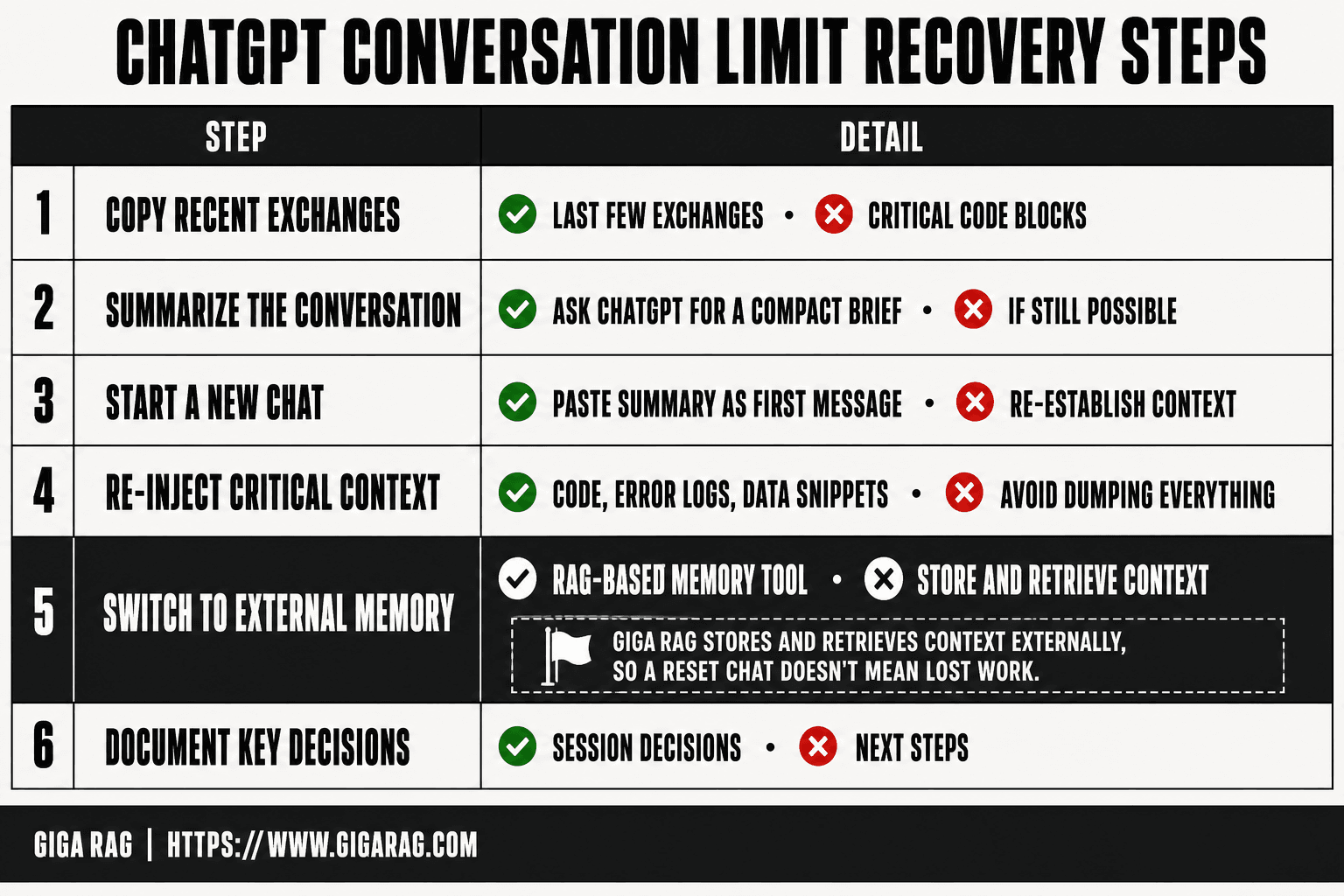
Chatgpt Conversation Limit Reached: A Step-by-Step Guide
- Copy the last few exchanges and any code blocks you need before the chat becomes read-only.
- Ask ChatGPT to summarize the entire conversation into a compact brief (if still possible).
- Open a new chat and paste the summary as your first message to re-establish context.
- Re-inject only the most critical code, error logs, or data snippets—avoid dumping everything.
- For ongoing work, switch to a RAG-based memory tool like GigaRAG to store and retrieve context externally.
- Document the session's key decisions and next steps in your own notes for future reference.
What You Cannot Do: Honest Limits of ChatGPT's Memory
The previous section explained the mechanic. Now the honest part: what that mechanic rules out.
No infinite context, ever
You cannot have an infinite conversation with ChatGPT. Not on the free plan, not on Plus, not on the API. The context window is a physical constraint of the model architecture, not a setting OpenAI toggles to upsell you.
Every model has a fixed token ceiling. When your conversation crosses it, the model stops. There's no hidden mode, no prompt trick, no browser extension that expands the window. Anyone claiming otherwise is selling something.
The main catch is that this limit applies to every turn. You can't bank unused context from earlier in the conversation and spend it later. The budget is per-conversation, and it only shrinks as you go.
No perfect recall of earlier messages
ChatGPT does not remember your earlier messages. It re-reads them, and only up to the context window's limit.
Once the conversation exceeds the window, older messages drop out of what the model can see. It doesn't degrade gracefully. It simply loses access to the beginning of the thread. If you asked a question in message three and need the answer in message forty, the model may no longer have message three in view.
This is why long debugging sessions fall apart. The model can still respond, but it's responding to a truncated transcript. The early context that shaped the conversation is gone.
No way to 'unlock' more space in the same conversation
You cannot extend a conversation that has hit the limit. Starting a new chat is the only path forward.
There's no "compress this thread" button. No way to summarise the conversation in place and continue. No setting that increases the token budget for a single session. The conversation is done.
The honest answer is that recovery means extracting what you can and starting fresh. The next section covers exactly how to do that without losing your work.
Immediate Recovery: How to Save Your Work After Hitting the Limit
You hit the wall. The conversation is done. But your work isn't lost unless you abandon it. Here's the recovery sequence, in order.
Step 1: Copy the most recent context manually
Before you click anything else, select and copy the last 20 to 30 messages. That's the context the model still had in view when it stopped. It contains the current state of your debugging session, the variables you were tracking, the error you were chasing.
Don't try to copy the whole thread. The early messages are already gone from the model's view, and pasting them back won't restore them. Copy what's recent and relevant.
Paste it into a text file, a note app, or a code comment. Anything outside ChatGPT. The browser tab can crash, the session can expire, and then it's gone.
Step 2: Export the conversation if still accessible
ChatGPT's interface has an export option. On the web, open the conversation menu and look for "Export data" or "Share" depending on your plan. The export gives you the full transcript, including messages the model can no longer see.
That's useful for your own records. It is not useful for re-seeding a new conversation. A 40,000-token transcript pasted into a fresh chat will eat the new context window before you've asked a single question.
Export for the archive. Summarize for the restart.
Step 3: Summarize key state before starting a new chat
Open a new conversation and ask ChatGPT to help you summarize what you just copied. Give it the 20 to 30 messages from Step 1 and say: "Summarize the current state of this debugging session. Include the error, what we've tried, what we've ruled out, and the next step."
The summary should land under 500 words. That's your bridge document.
Include specifics: variable names, file paths, error codes, the exact command that failed. Generic summaries lose the thread. Specific ones let the new conversation pick up where the old one died.
Step 4: Re-seed the new conversation with a condensed prompt
Start the new chat with the summary, not the raw transcript. A prompt like this works:
"You are continuing a debugging session. Here is the current state: [paste summary]. The last thing we tried was [X]. It failed with [Y]. What should we try next?"
The new conversation starts with full context and a clear task. It won't know the early history, but it doesn't need to. It needs the current state and the next move.
That's the recovery. It takes five minutes and saves hours of re-explaining.
Prevention: Architecting Around the ChatGPT Conversation Limit
Recovery works once. Prevention means you never have to do it again. If you're a developer or RAG builder running long sessions, the fix isn't a bigger context window. It's moving state out of the conversation and into tools built to hold it.
External memory tools for long-term context
The conversation window is ephemeral. External memory is not. Instead of asking ChatGPT to remember everything, you store the important parts somewhere else and retrieve them when needed.
The pattern: after each meaningful exchange, write the key facts to a file, a database, or a vector store. Then, when you start a new conversation, load the relevant slice back in. You're not asking the model to remember. You're giving it a lookup table.
For RAG builders, this is already familiar. Your pipeline retrieves documents from a vector database and injects them into the prompt. The same pattern works for conversation state. Store session summaries, decisions, and code snippets as embeddings. Query them when the context resets.
Tools like GigaRAG do this by design: they index your conversation history and retrieve the relevant chunks when you start a new session. It's not infinite context. It's selective recall, which is what you actually need.
Summarization checkpoints during long sessions
Don't wait until the limit hits to summarize. Do it on a schedule.
Every 15 to 20 messages, ask ChatGPT to produce a 200-word checkpoint: what we've built, what's broken, what we've ruled out, what's next. Save that checkpoint outside the conversation. A text file works. A note app works. A git commit message works better if you're coding.
The checkpoint becomes your restore point. When the conversation dies, you paste the latest checkpoint into a new chat and continue. You lose the last few messages, not the whole session.
This costs a minute every checkpoint and saves an hour of reconstruction. Do it even when the conversation feels fine. The limit doesn't warn you before it hits.
Session management patterns for agent builders
If you're building agents, the conversation limit is your problem too. Your agent's context window fills with every tool call, every observation, every intermediate step. When it overflows, the agent forgets its own goal.
The fix is the same: externalize state. Keep a session object outside the model. Store the goal, the completed steps, the current plan, and the last few observations. Inject only what the agent needs for the next decision.
A common pattern: the agent writes its state to a JSON file after each step. The next step reads that file, appends the new observation, and passes a condensed view to the model. The model never sees the full history. It sees the current state plus the next action.
That's the architecture. It's not a ChatGPT feature. It's a design choice you make before the limit forces it on you.
Free vs. Paid Plans: Do ChatGPT Conversation Limits Differ?
The short answer: no. ChatGPT Plus does not give you a longer conversation window than the free plan. Both tiers run on the same underlying context limits for a given model. What changes is which models you can access, how fast they respond, and how many messages you can send before hitting a usage cap.
What ChatGPT Plus changes (and what it doesn't)
Plus gets you access to newer models, priority during peak load, and higher message caps for advanced features like image generation and data analysis. It does not extend the context window. A conversation that hits the limit on the free plan hits the same limit on Plus.
The honest answer is that paying removes some friction. It doesn't remove the wall. If your conversation is too long, it's too long on every tier.
API usage vs. ChatGPT interface limits
The ChatGPT interface and the API are different products with different rules. The interface enforces a conversation length limit to keep sessions manageable. The API lets you set your own context window, up to the model's maximum, and you pay per token.
That means the API can handle longer effective conversations, but only if you manage the context yourself. You trim, summarize, or retrieve. The API won't do it for you.
The real bottleneck: context window, not plan tier
The limit you're hitting is a property of the model, not your subscription. GPT-4o, GPT-4 Turbo, and the newer models all have fixed context windows measured in tokens. No plan changes that number.
So before you upgrade to fix the conversation limit, ask what you're actually buying. If you need faster responses or more messages per hour, Plus helps. If you need a longer conversation, it won't. The fix is the architecture from the previous section: external memory, checkpoints, and selective retrieval.
Common Mistakes When ChatGPT Conversation Limit Is Reached
Hitting the limit triggers panic. Most users make the same three errors in the first five minutes, and each one costs work you can't get back.
Starting a new chat without exporting context
The instinct is to click "New chat" and keep moving. Don't. Once you start a new conversation, the old one is still in your sidebar, but its context is gone from the model's working memory. Copy the last few messages first. Paste them into a text file. That's your recovery seed.
Assuming ChatGPT Plus removes the limit
The previous section covered this, but it bears repeating because the mistake is so common. Plus changes speed, model access, and message caps. It does not change the context window. A conversation that hits the limit on the free plan hits the same limit on Plus. Upgrading won't save a conversation that's already too long.
Trying to 'compress' the conversation manually
Some users paste the entire conversation into a new chat and ask ChatGPT to summarize it. That works for short threads. For a conversation that already hit the limit, the paste itself exceeds the input window. You'll get a truncated summary that drops the details you actually need.
The fix is selective, not wholesale. Pull out the specific state you need: variable names, error messages, decisions made. Leave the rest. When you see the ChatGPT conversation limit reached warning, save first, then act.
Frequently Asked Questions
What happens when a ChatGPT chat reaches its limit?
ChatGPT stops accepting new messages in that conversation and prompts you to start a new one. The existing chat remains viewable but you cannot continue it. Any unsaved context is effectively frozen.
Is there a way to extend the conversation limit in ChatGPT?
No, the limit is determined by the model's context window and cannot be extended by the user. Workarounds include summarizing and starting a new chat, or using external memory tools like GigaRAG to manage context outside the conversation.
Does ChatGPT Plus have a higher conversation limit?
ChatGPT Plus may offer access to models with larger context windows, but the fundamental limit still exists. The exact token limit depends on the model version selected. Plus does not remove the need to start new chats eventually.
How is the API context limit different from the ChatGPT conversation limit?
The API enforces a token limit per request, but you control what gets sent. You can truncate, summarize, or retrieve relevant context via RAG. In the ChatGPT interface, the conversation accumulates and you have less control over what is retained.
What is the best workaround for the 'conversation too long' error?
The most reliable workaround is to ask for a summary of the conversation, copy it, and start a new chat with that summary. For developers, integrating a RAG pipeline like GigaRAG provides a more permanent solution by storing and retrieving context on demand.
Is there a time limit on ChatGPT voice chat?
Voice chat sessions may have practical time limits due to session timeouts or usage policies, but these are separate from the text conversation length limit. For long voice sessions, you may need to restart periodically.
About GigaRAG
GigaRAG is for agent memory and RAG pipeline builders. get this right. Whether you are working through chatgpt conversation limit reached or something adjacent, we publish what we have actually tested, including where it falls short.