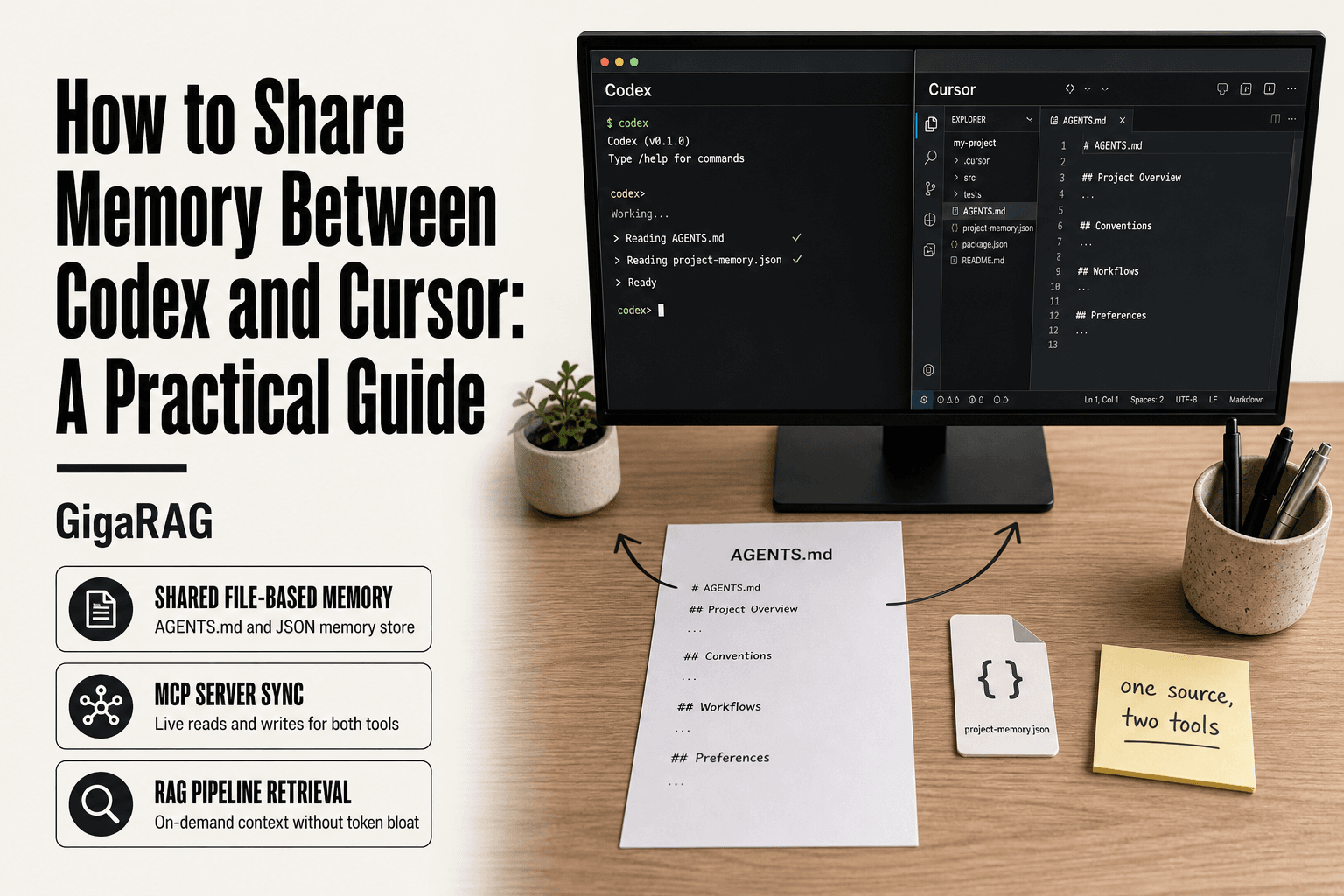
How to Share Memory Between Codex and Cursor: A Practical Guide
How to Share Memory Between Codex and Cursor starts with a frustration most agent memory builders know too well: you ask Codex to remember a project convention, switch to Cursor, and the context is gone. You re-type the same architecture notes, the same API quirks, the same naming rules. The agents drift apart. Here's the honest answer: native memory sync between Codex and Cursor does not exist. Neither tool reads the other's session state, and no setting flips that on. But practical workarounds do work, and they're not hard to build. File-based memory, MCP servers, and a shared RAG layer like GigaRAG can keep both tools reading from the same source. This guide covers exact steps for each approach, what breaks, and what to skip.
| At a glance | Details |
|---|---|
| Native memory sharing | Not supported between Codex and Cursor |
| Practical workaround | Shared file-based memory layer |
| Tool-based option | MCP server for memory |
| Key limitation | No real-time sync; manual or scripted |
| Effort to set up | Moderate; requires scripting |
| Best for | Agent memory and RAG pipeline builders |
In This Guide
- What Does Sharing Memory Between Codex and Cursor Actually Mean?
- File-Based vs MCP Server for Sharing Memory
- Can Codex and Cursor Work Together?
- How To Share Memory Between Codex And Cursor: A Step-by-Step Guide
- Prerequisites for Sharing Memory Between Codex and Cursor
- Step 1: Create a Shared Memory File (AGENTS.md)
- Step 2: Configure Cursor Rules to Match Codex Memory
- Step 3: Use an MCP Server for Shared Memory
- Step 4: Sync Memory with a RAG Pipeline or Memory Tool
- Common Mistakes When Sharing Memory Between Codex and Cursor
- How to Reset Codex Memory
- How to Connect ChatGPT to Codex
- Final Thoughts on Sharing Memory Between Codex and Cursor
What Does Sharing Memory Between Codex and Cursor Actually Mean?
Sharing memory between Codex and Cursor means both tools read from the same persistent files or external memory system, so project knowledge survives context resets and tool switches. It does not mean a live, two-way sync of conversation history.
Most people use "memory" loosely. They mean one of three things: the context window, a persistent memory file, or an external memory system. Each works differently, and confusing them leads to bad setups.
Context windows vs. persistent memory
A context window is the working memory of a single session. Codex and Cursor each load a snapshot of your project into their context window when you start a task. When the session ends or the window fills, that context is gone. You can't share a context window between tools. It's ephemeral by design.
Persistent memory is different. It's a file on disk that both tools read when they start. AGENTS.md is the most common format. Codex reads it automatically from your project root. Cursor can read it through rules configuration. The file doesn't change unless you edit it, but both tools see the same content every session.
External memory systems sit outside both tools. An MCP server or a RAG pipeline stores knowledge in a database or vector store. Both Codex and Cursor query it through an API. This is the closest thing to true shared memory, because the knowledge lives in one place and both tools pull from it on demand.
What shared memory looks like in practice
In practice, shared memory means you write project conventions, architecture decisions, and coding standards once. Both tools read that file or query that server before they generate code. You stop re-explaining your stack every time you switch tools.
Here's a concrete example. You're building a FastAPI backend with a specific error-handling pattern. You write that pattern in AGENTS.md. Codex reads it when you ask for a new endpoint. Cursor reads it when you ask for a refactor. Both produce code that follows the same convention. That's shared memory working.
What it doesn't mean: Codex remembering what you told Cursor yesterday. Conversation history is not shared. Decisions are shared only if you write them down.
Why native sync doesn't exist
Codex and Cursor are built by different companies with different architectures. Codex is a CLI tool from OpenAI. Cursor is a fork of VS Code from Anysphere. Neither has a public API for the other to hook into. There's no shared session state, no common memory format, no sync protocol.
The honest answer is that native sync isn't on either roadmap in any public form. What you can build is a shared memory layer that both tools read from. That's the practical ceiling, and it's enough for most workflows.
[!note] Codex and Cursor do not natively share memory; any sharing requires custom integration such as file-based workflows or an MCP server.
File-Based vs MCP Server for Sharing Memory
| Factor | File-Based | MCP Server |
|---|---|---|
| Setup complexity | Low: create and share files | Moderate: run and configure server |
| Real-time sync | No; manual or scripted | Yes; via server API |
| Tool compatibility | Any tool that reads files | Requires MCP support in tools |
| Maintenance | Low; just manage files | Higher; server upkeep and updates |
| Best for | Simple, static memory sharing | Dynamic, multi-tool memory sharing |
Can Codex and Cursor Work Together?
Yes, Codex and Cursor can work together through shared files, MCP servers, and manual workflows. They cannot integrate natively. No plugin, no sync button, no shared session state exists between them. What you get is a shared workspace that both tools read from.
How Codex and Cursor interact
The interaction is indirect. Both tools operate on the same project directory. Codex runs in your terminal, reads files from disk, writes code back to disk. Cursor runs as an IDE, reads the same files, writes to the same disk. The filesystem is the bridge.
Here's what happens behind the scenes. You ask Codex to add a feature. Codex reads AGENTS.md, generates code, writes it to your project. You open Cursor. Cursor reads the same AGENTS.md through its rules configuration, sees the new code, and continues from there. Neither tool knows the other exists. They just share the files.
The good news is that this filesystem bridge is reliable. Files don't drift out of sync because there's only one copy. The catch is that you're responsible for keeping the memory files current. Neither tool updates them automatically.
Limitations of cross-tool collaboration
The main limitation is that conversation context never transfers. If you explain a bug to Codex in your terminal, Cursor has no idea that conversation happened. You have to write down anything worth remembering.
Another limitation is speed. Switching tools means re-reading context. Codex loads AGENTS.md fresh each session. Cursor does the same. For small projects, that's seconds. For large memory files, it adds up.
MCP servers help here. Both tools can connect to the same MCP server, which stores memory externally. That gives you a single source of truth that isn't tied to either tool's session. But it's still not native integration. You're building the bridge yourself.
[!tip] For agent memory builders: use a versioned JSON file in a Git repo as your shared memory store, and write a simple CLI tool that both Codex and Cursor can call to read/write memory, ensuring consistency and auditability.
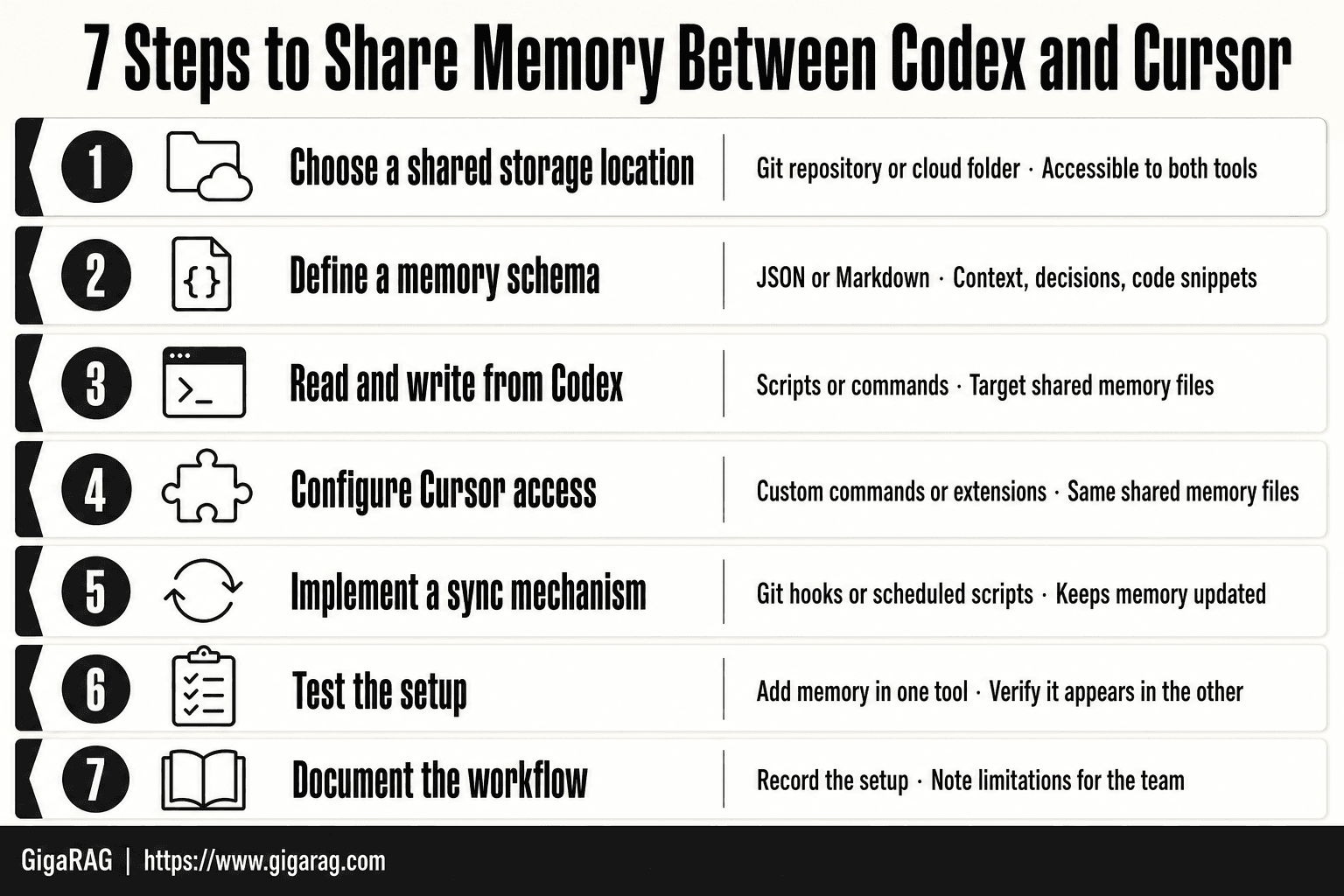
How To Share Memory Between Codex And Cursor: A Step-by-Step Guide
- Choose a shared storage location (e.g., a Git repository or cloud folder) accessible to both Codex and Cursor.
- Define a memory schema (e.g., JSON or Markdown) for storing context, decisions, and code snippets.
- In Codex, use scripts or commands to read from and write to the shared memory files.
- In Cursor, configure custom commands or extensions to access the same shared memory files.
- Implement a sync mechanism (e.g., Git hooks or scheduled scripts) to keep memory updated.
- Test the setup by adding memory in one tool and verifying it appears in the other.
- Document the workflow and limitations for your team.
Prerequisites for Sharing Memory Between Codex and Cursor
Before you start, you need three things: Codex CLI installed, Cursor IDE, and a workspace folder both tools can read. That's it. Everything else is optional.
Tools and accounts needed
Install Codex CLI and sign in with your OpenAI account. Install Cursor and sign in. You don't need a paid plan on either to test file-based memory. An MCP server or memory tool like GigaRAG is optional, but it changes what you can build.
Workspace setup
Create one project folder. Both tools point at it. Keep memory files in the project root, not scattered across subdirectories. A single AGENTS.md at the root is easier to maintain than five files in different places.
Understanding your memory needs
Decide what memory actually means for your workflow. If you just need project conventions and build commands, a markdown file is enough. If you need retrieval across hundreds of documents, you'll want a RAG pipeline or MCP server. Don't build more than you need.
Step 1: Create a Shared Memory File (AGENTS.md)
The simplest way to share memory between Codex and Cursor is a plain markdown file in your project root. Both tools read it. You edit it once. No API keys, no servers, no sync jobs.
What is AGENTS.md?
AGENTS.md is a markdown file that sits in your project root and holds instructions, conventions, and context for AI coding agents. It's the file-based equivalent of a system prompt you control. Codex reads it automatically when you run it in a directory. Cursor can read it through its rules system or by referencing it directly.
The file is not magic. It's just text. What makes it work is that both tools agree to look for it.
Creating the file
Create AGENTS.md in your project root:
touch AGENTS.md
Open it in any editor. Start small. A file with five lines of real project context beats a 500-line document nobody maintains.
What to include
Keep it to what an agent actually needs:
- Project overview: one or two sentences on what the codebase does.
- Build and test commands: the exact commands, not descriptions of them.
- Code conventions: naming patterns, file structure rules, linting requirements.
- Current focus: what you're working on right now, so agents don't suggest irrelevant changes.
- Known gotchas: things that break, dependencies that can't be upgraded, tests that fail for reasons unrelated to code.
Don't paste entire documentation into it. Agents have context windows. A bloated AGENTS.md eats tokens and buries the useful lines.
How Codex reads AGENTS.md
Codex CLI automatically loads AGENTS.md from the directory where you run it. You don't need to configure anything. If the file is in the project root and you launch Codex there, it's in context.
The catch: Codex reads it at session start. If you edit the file mid-session, Codex won't see the changes until you restart or start a new session.
How Cursor reads AGENTS.md
Cursor doesn't load AGENTS.md automatically the way Codex does. You have two options.
First, you can reference it in your Cursor rules file. Add a line to .cursorrules or .cursor/rules that points to AGENTS.md and tells Cursor to read it before responding.
Second, you can use Cursor's @ mention to pull the file into context manually. Type @AGENTS.md in the chat input. This works but requires you to remember to do it every session.
The reliable path is the rules file. We'll cover that in the next step.
Step 2: Configure Cursor Rules to Match Codex Memory
AGENTS.md gives you one file both tools can read. The problem is that Cursor won't read it unless you tell it to. That's what Cursor rules are for.
Cursor rules vs. AGENTS.md
Cursor rules and AGENTS.md are not the same thing. AGENTS.md is a shared memory file you control. Cursor rules are instructions Cursor loads automatically at the start of every session, stored in .cursorrules or .cursor/rules.
The honest answer is that you need both. AGENTS.md holds the content. Cursor rules tell Cursor to load that content. Without the rules file, Cursor ignores AGENTS.md entirely.
You have two places to put Cursor rules. The legacy .cursorrules file in your project root still works. The newer .cursor/rules directory supports multiple rule files with different scopes. Either works for this purpose. Pick one and stay consistent.
Syncing rule content
Start by creating a .cursorrules file in your project root:
touch .cursorrules
Add a directive that points Cursor to your shared memory file:
Always read AGENTS.md from the project root before responding.
Follow the conventions, commands, and context in that file.
If AGENTS.md conflicts with these rules, AGENTS.md wins.
That last line matters. You want one source of truth. If your Cursor rules and AGENTS.md disagree, Cursor needs to know which one to trust.
If you're using .cursor/rules, create a file like .cursor/rules/memory.md with the same content. Cursor loads all files in that directory automatically.
The key rule: don't duplicate memory content in both places. Put project conventions in AGENTS.md. Put only the pointer in Cursor rules. Duplication is how files drift out of sync.
Common configuration mistakes
The most common mistake is putting full memory content in .cursorrules and nothing in AGENTS.md. That works for Cursor but leaves Codex with no memory at all. You've built a Cursor-only setup by accident.
The second mistake is forgetting that Cursor rules load at session start, same as Codex. Edit AGENTS.md mid-session and neither tool sees the change until you restart.
The third mistake is using both .cursorrules and .cursor/rules at once. Cursor may load both, and conflicting instructions produce unpredictable behavior. Delete one.
The fourth mistake is writing rules as vague preferences. "Be helpful" does nothing. "Read AGENTS.md before responding" is an instruction Cursor can actually follow.
Test it. Open Cursor, start a new chat, and ask it to name one convention from your AGENTS.md. If it can't, your rules file isn't loading. Check the file path and restart Cursor.
Step 3: Use an MCP Server for Shared Memory
File-based memory works, but it has a ceiling. Both tools read the file at session start and then stop. Nothing updates mid-session. An MCP server changes that: it gives both Codex and Cursor a live connection to the same memory store, so reads and writes happen on demand.
What is an MCP server?
MCP stands for Model Context Protocol. It's an open standard that lets AI tools connect to external data sources through a single interface. Think of it as a USB port for AI context. One server can expose files, databases, or APIs, and any MCP-compatible tool can plug into it.
The practical benefit is that you build the memory layer once. Codex connects to it. Cursor connects to it. Both read from and write to the same source. You stop maintaining parallel memory files that drift apart.
The main catch is that MCP servers are not magic. They don't sync anything by themselves. You still have to decide what memory lives where, and the server only serves what you tell it to serve.
Setting up a memory MCP server
You have two realistic options. The first is running an existing memory server, like the official @modelcontextprotocol/server-memory package. The second is building a thin custom server that wraps a JSON file or SQLite database. For most readers, the official memory server is enough to start.
Install it with npm:
npm install -g @modelcontextprotocol/server-memory
Run it locally:
npx @modelcontextprotocol/server-memory
The server stores memory in a local JSON file. By default, that file lives in your home directory. You can point it at a project-specific path with the --memory-file flag:
npx @modelcontextprotocol/server-memory --memory-file ./project-memory.json
Put that file in your project root, commit it to version control, and you have a shared memory store that travels with the repo.
Connecting Codex to the MCP server
Codex CLI supports MCP servers through its configuration file. Open ~/.codex/config.toml and add a server entry:
[mcp_servers.memory]
command = "npx"
args = ["@modelcontextprotocol/server-memory", "--memory-file", "./project-memory.json"]
Restart Codex. The server starts automatically when Codex launches. You can verify the connection by asking Codex to write a fact to memory, then checking the JSON file to confirm it landed.
Keep in mind that Codex treats MCP tools as callable functions. You may need to prompt it explicitly: "Store this in memory" or "Recall what we saved about the API design." It won't automatically log every exchange.
Connecting Cursor to the MCP server
Cursor added MCP support in version 0.44. Open Cursor settings, find the MCP section, and add a new server with the same command and arguments you used for Codex.
The configuration is nearly identical:
{
  "mcpServers": {
    "memory": {
      "command": "npx",
      "args": ["@modelcontextprotocol/server-memory", "--memory-file", "./project-memory.json"]
    }
  }
}
Both tools now point at the same JSON file. Write a fact in Codex, switch to Cursor, and ask it to recall that fact. It should read from the same store.
The honest limitation: MCP servers don't solve context window limits. Memory still consumes tokens when loaded. And if both tools write to the same file simultaneously, you can hit race conditions. For solo work, that's rare. For team use, you'll want a database-backed server instead of a flat JSON file.
Step 4: Sync Memory with a RAG Pipeline or Memory Tool
MCP servers give you live reads and writes. But they still load memory directly into the context window. Every fact you store costs tokens. A RAG pipeline changes that: it stores memory as embeddings in a vector database, then retrieves only the relevant chunks when a query comes in. You pay for what you use, not the whole store.
Why use a RAG pipeline for memory
The honest answer is scale. A flat AGENTS.md file works fine at 200 lines. An MCP server with a JSON file works fine at a few hundred facts. But when your project memory grows past what fits comfortably in a context window, you need retrieval. RAG stands for retrieval-augmented generation. It splits your memory into chunks, embeds each chunk into a vector, and stores those vectors in a database. When Codex or Cursor asks a question, the pipeline finds the most similar chunks and injects only those into the prompt.
The tradeoff is complexity. You now run a vector database, an embedding model, and a retrieval layer. That's three moving parts where a markdown file was one. For small projects, it's overkill. For a codebase with years of decisions, API contracts, and architectural notes, it's the only thing that scales.
Setting up GigaRAG for shared memory
GigaRAG is a memory tool built for agent workflows. It ingests your project files, meeting notes, and decision logs, then serves relevant context through a retrieval API. Both Codex and Cursor can call that API through MCP, which means one memory layer feeds both tools.
Start by pointing GigaRAG at your project directory. It indexes markdown files, source code comments, and any documents you flag as memory. The indexing step runs once, then updates incrementally as files change. You control what gets indexed, so you're not embedding your entire node_modules folder.
The main catch is that GigaRAG is not a drop-in replacement for AGENTS.md. You still want a small bootstrap file that tells each tool where to find the memory API. GigaRAG handles the retrieval, not the initial handshake.
Integrating with Codex
Codex connects to GigaRAG through an MCP server. Add the server to your ~/.codex/config.toml:
[mcp_servers.gigarag]
command = "npx"
args = ["@gigarag/mcp-server", "--api-key", "YOUR_KEY", "--project", "./"]
Restart Codex. When you ask a question about project history, Codex calls the GigaRAG MCP tool, which retrieves relevant chunks and returns them as context. You don't load the entire memory store. You load the five or ten chunks that match your query.
In practice, you'll need to prompt Codex to use the tool. "Search project memory for decisions about the API rate limit" works. Codex won't automatically query GigaRAG for every prompt, and that's a feature: retrieval costs latency, and you don't want it on trivial questions.
Integrating with Cursor
Cursor connects the same way. Open Cursor's MCP settings and add the GigaRAG server with the same command and arguments. Both tools now hit the same retrieval endpoint.
The benefit over a flat MCP memory server is that Cursor doesn't need to load the entire memory file. It sends a query, gets back relevant chunks, and injects those into the context. Your context window stays lean even as your memory store grows into thousands of entries.
Keep in mind that retrieval quality depends on your embedding model and chunking strategy. If you chunk too coarsely, you pull in irrelevant context. Too finely, and you miss the surrounding discussion that gives a fact its meaning. GigaRAG handles chunking automatically, but you should test retrieval on real queries before trusting it with critical decisions.
Common Mistakes When Sharing Memory Between Codex and Cursor
Most shared memory setups fail for boring reasons. Not because the tools are broken, but because the person wiring them up expected something the tools don't do. Here are the four mistakes I see most often.
Expecting native sync
Codex and Cursor don't talk to each other. There's no API, no background sync, no shared memory store that both tools read automatically. When you update AGENTS.md in Cursor, Codex doesn't know until you tell it to re-read the file. When you add a fact through an MCP server, the other tool doesn't get a push notification.
The honest answer is that every shared memory workflow in this guide is pull-based, not push-based. You write to a file or a database. Each tool reads from it when prompted. If you expect real-time sync, you'll be disappointed. If you accept that memory updates happen when a tool next reads the source, the workflow works.
Overloading memory files
A 2,000-line AGENTS.md is not memory. It's a novel, and both Codex and Cursor will skim it the way you skim a terms-of-service page. The more you stuff into a memory file, the less any single fact gets weighted.
Keep AGENTS.md under 300 lines. Put project conventions, key decisions, and gotchas there. Move detailed history, API contracts, and long-form notes to a RAG pipeline or a separate file that gets retrieved on demand. If you can't scan the file in 30 seconds and find what you need, it's too long.
Ignoring context window limits
Every memory file you load eats tokens. Codex and Cursor both have context windows, and when memory fills half of it, the tool has less room to actually reason about your code. A 5,000-token memory file might leave you with almost no budget for the actual task.
The fix is retrieval. Load a small bootstrap file always, and retrieve the rest only when a query needs it. That's the whole argument for MCP servers and RAG pipelines over flat files.
Forgetting to update memory
Memory rots. The decision you made three months ago about the API rate limit might be wrong now, but if it's still in AGENTS.md, both tools will treat it as current. Stale memory is worse than no memory, because it's confident and wrong.
Make memory updates part of your workflow. When you change a convention, update the file in the same commit. When you reverse a decision, delete the old note, don't just append a correction. A memory file with contradictions trains both tools to pick whichever fact they see first.
How to Reset Codex Memory
Resetting Codex memory means different things depending on what you've set up. There's no single "reset" command. You clear session context, delete memory files, or reset MCP server state, and each one does a different job.
Clearing session context
Codex holds conversation context in the current session. When you want a clean slate without touching any files, start a new session. In the Codex CLI, that means exiting and running codex again. The old conversation is gone, but any AGENTS.md file or memory files on disk stay untouched.
If you're mid-session and want Codex to forget something you told it earlier, you can't selectively delete a single message. The honest answer is that Codex doesn't expose per-message memory editing. You either restart the session or you work around it by restating the corrected fact in your next prompt.
Deleting memory files
Codex reads memory from files like AGENTS.md in your project root. To reset that memory, delete or empty the file. If you want a full reset, remove AGENTS.md and any other memory files you've configured, then restart Codex so it doesn't hold the old content in its context.
Keep in mind that deleting the file is permanent. There's no recycle bin. If you think you might want the old memory back, rename the file instead of deleting it, or copy it somewhere outside the project before you clear it.
Resetting MCP server state
If you connected Codex to an MCP server for memory, the server holds its own state. Restarting Codex won't clear it. You need to reset the server itself.
For a memory MCP server backed by a database or a vector store, that means clearing the stored entries. The exact command depends on the server. Some expose a reset endpoint or a CLI command. Others require you to delete the database file or drop the collection directly. Check the server's documentation for the reset path, and don't assume that disconnecting Codex from the server wipes the data. It doesn't.
How to Connect ChatGPT to Codex
ChatGPT and Codex are separate products from OpenAI. They don't share a native connection. You can't plug ChatGPT directly into Codex the way you'd connect two APIs, and there's no toggle in either interface that links them. What you can do is use ChatGPT to generate prompts, memory files, and configuration that Codex then reads.
ChatGPT and Codex relationship
Codex is OpenAI's agentic coding tool. It runs in the terminal or IDE, reads your files, and executes commands. ChatGPT is the chat interface. They're built on related models but they don't talk to each other automatically.
The practical relationship is one-way: you use ChatGPT to think through a problem, draft an AGENTS.md file, or write a prompt, then you paste that output into Codex. Codex has no awareness that ChatGPT produced the text. It just sees the content.
Connecting ChatGPT to Codex
There's no official integration. The honest answer is that "connecting" them means building a manual workflow. Here's the simplest version:
- Ask ChatGPT to generate a memory file for your project. Be specific about your stack, conventions, and what Codex should remember.
- Save the output as AGENTS.md in your project root.
- Run Codex in that directory. It reads AGENTS.md automatically.
- When you want to update the memory, go back to ChatGPT, revise the file, and overwrite it.
You can also use ChatGPT to generate Codex prompts. If you have a complex refactoring task, describe it to ChatGPT, ask for a detailed prompt, then paste that into Codex. The prompt quality transfers. The context doesn't.
Implications for shared memory
This matters for the Codex-Cursor problem because ChatGPT can act as the author of your shared memory files. You don't need ChatGPT running alongside Codex. You need ChatGPT to produce the AGENTS.md content that both Codex and Cursor will read.
The limitation is real. ChatGPT won't update the file when your project changes. You have to re-prompt it. And ChatGPT doesn't know what Codex did in its last session unless you tell it. So the workflow works for creating memory, not for syncing it.
If you want memory that updates itself as you work, a file-based workflow with ChatGPT as the author won't get you there. You'd need an MCP server or a memory tool that both Codex and Cursor can query directly.
Final Thoughts on Sharing Memory Between Codex and Cursor
Native memory sync between Codex and Cursor doesn't exist. No setting flips it on. No plugin bridges the two tools automatically. If you go in expecting that, you'll waste an afternoon.
What works is simpler than most people assume. A shared AGENTS.md file in your project root gives both tools the same baseline context. It's free, it's portable, and it takes five minutes to set up. The catch is that it's static. You update it by hand, and both tools only see what you last wrote.
MCP servers add real power. A memory MCP server lets both Codex and Cursor query and write to the same store, so context persists across sessions without manual file edits. The tradeoff is setup time and maintenance. You're running another service, and if it goes down, both tools lose their memory layer.
For agent memory and RAG pipeline builders, a dedicated memory tool like GigaRAG handles the heavy lifting. It stores embeddings, retrieves relevant context on demand, and works with both tools through a shared interface. It's the most complete answer to how to share memory between Codex and Cursor, but it's overkill if all you need is a project conventions file.
Start with AGENTS.md. If that breaks, add an MCP server. If you're building something that needs retrieval across large codebases or multiple projects, reach for GigaRAG. The right tool depends on how much memory you actually need to persist.
Frequently Asked Questions
Can Codex and Cursor work together?
Yes, they can work together indirectly. Since they don't share memory natively, you can set up a shared file system or an MCP server to exchange context. This requires custom configuration but enables a cohesive workflow.
Does Codex support memory?
Codex does not have built-in persistent memory across sessions. However, you can implement memory by having Codex read from and write to external files or a database. This allows you to maintain context between uses.
How to connect ChatGPT to Codex?
ChatGPT and Codex are separate tools. You can connect them by using ChatGPT to generate code or instructions and then manually feeding them into Codex, or by scripting an integration via APIs if available. There is no native direct connection.
How to reset Codex memory?
If you've implemented external memory for Codex, resetting it involves clearing or archiving the shared memory files or database entries. Without external memory, Codex doesn't retain state, so there's nothing to reset.
What is the best way to share memory between Codex and Cursor?
The best way depends on your needs. For simplicity, use a shared file-based approach with a versioned repository. For more dynamic, real-time sharing, consider setting up an MCP server that both tools can query. Evaluate based on your team's technical capacity.
Can I use an MCP server to share memory between Codex and Cursor?
Yes, if both tools support MCP (Model Context Protocol) or can be configured to interact with an MCP server. You would run a memory server that stores and retrieves context, and have Codex and Cursor connect to it. This enables real-time memory sharing.
About GigaRAG
GigaRAG is for agent memory and RAG pipeline builders. get this right. Whether you are working through How to Share Memory Between Codex and Cursor or something adjacent, we publish what we have actually tested, including where it falls short.