
How to Add Memory to GitHub Copilot
If you build agent memory or RAG pipelines, you've probably already asked how to add memory to GitHub Copilot and whether the native feature is enough. The short answer: it depends on what you need it to persist across. Copilot Memory now ships inside VS Code and GitHub.com, and it does remember repository facts and user preferences. But it won't replace a custom retrieval layer. That's the honest starting point. This guide walks through exactly how to enable and manage Copilot Memory, where the files live, and what the feature refuses to do. You'll get the decision framework I use when choosing between built-in memory and an external setup like GigaRAG. No marketing fluff. Just what works, what doesn't, and when to reach for something heavier.
| At a glance | Details |
|---|---|
| What it is | Copilot's built-in memory for chat and coding context |
| Where it works | GitHub Copilot in supported IDEs and surfaces |
| How to enable | Turn on memory in Copilot settings or chat tools |
| What it stores | Preferences, project context, and conversation facts |
| Key limitation | Not a full RAG or cross-tool memory layer |
| Best for | Individual devs wanting persistent chat context |
In This Guide
- What Is GitHub Copilot Memory?
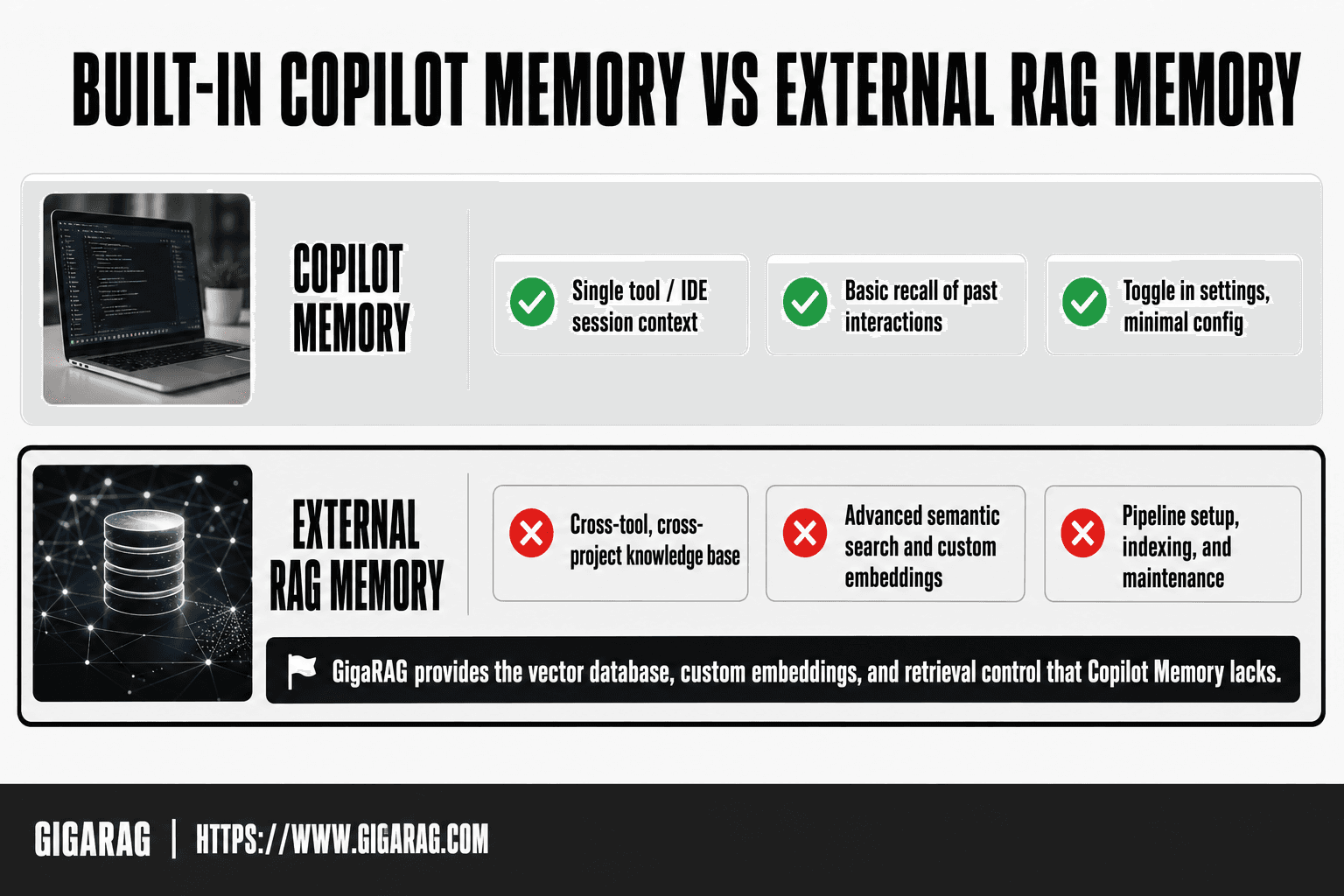
- Built-in Copilot Memory vs External RAG Memory (e.g., GigaRAG)
- How to Enable Copilot Memory
- How To Add Memory To GitHub Copilot: A Step-by-Step Guide
- Managing Copilot Memory: Commands and Actions
- Where Copilot Memory Files Live
- What Copilot Memory Cannot Do
- Copilot Memory vs. External Memory for Agent and RAG Pipelines
- Troubleshooting Common Copilot Memory Issues
- Final Thoughts on Adding Memory to GitHub Copilot
What Is GitHub Copilot Memory?
Copilot Memory is a native feature that lets GitHub Copilot store and recall facts about your repositories and your preferences across sessions. It's built into Copilot Chat, not a separate add-on.
Repository-level vs. user-level memories
Copilot Memory works at two scopes. Repository-level memories hold facts about a specific codebase: build commands, architecture decisions, file conventions. User-level memories hold your preferences: how you like code formatted, which libraries you avoid, how you name things. Repository memories stay with the repo. User memories follow you across projects.
How Copilot Memory stores and retains information
Behind the scenes, Copilot Memory stores memories as structured text files. When you tell Copilot to remember something, it writes that fact to a memory file. On later requests, Copilot retrieves relevant memories and injects them into the prompt context before generating a response. You control what gets stored through explicit commands. Nothing is remembered automatically without you asking.
The main catch: this is prompt-context memory, not a vector database. It works for small sets of curated facts. It won't scale to thousands of documents.
[!note] Copilot Memory is designed for convenience within GitHub Copilot surfaces; it does not provide a general-purpose memory API or cross-application persistence.
Built-in Copilot Memory vs External RAG Memory (e.g., GigaRAG)
| Factor | Copilot Memory | External RAG Memory |
|---|---|---|
| Scope | Single tool / IDE session context | Cross-tool, cross-project knowledge base |
| Retrieval | Basic recall of past interactions | Advanced semantic search and custom embeddings |
| Setup | Toggle in settings, minimal config | Pipeline setup, indexing, and maintenance |
| Control | Limited customization | Full control over data, models, and privacy |
| Best for | Quick context in Copilot chats | Production agent memory and complex RAG pipelines |
How to Enable Copilot Memory
Enabling Copilot Memory takes about a minute. The feature is off by default, so you need to turn it on in each environment where you want it.
Enabling in VS Code
Open the Copilot Chat panel. Type /memory and press Enter. If memory isn't enabled yet, Copilot will prompt you to turn it on. Confirm the prompt. That's it.
You can also enable it through Settings. Search for "Copilot Memory" in the VS Code settings search bar. Toggle it on. Restart the Copilot Chat session if the toggle doesn't take effect immediately.
Enabling in GitHub.com
Open any repository on GitHub.com. Click the Copilot icon in the top right corner to open Copilot Chat. Type /memory in the chat input. If the feature is available for your account, you'll see an option to enable it. Confirm.
Keep in mind: GitHub.com Copilot Chat supports memory only for accounts with Copilot Pro, Business, or Enterprise plans. Free tier users won't see the option.
Enabling via CLI
The GitHub Copilot CLI supports memory through the same /memory command. Open your terminal, run copilot chat, then type /memory. Confirm the enable prompt.
The honest answer: CLI support is newer than VS Code and GitHub.com support. If the command doesn't appear, update the Copilot CLI to the latest version first.
[!tip] If you are building a RAG pipeline, treat Copilot Memory as a complementary tool for individual productivity, not as a replacement for a dedicated external memory layer like GigaRAG that offers custom embeddings and cross-tool retrieval.
How To Add Memory To GitHub Copilot: A Step-by-Step Guide
- Open your IDE (VS Code, Visual Studio, JetBrains) and ensure GitHub Copilot is installed and updated.
- Go to Copilot settings or chat tools and locate the memory or context option.
- Enable memory and grant any requested permissions for storing context.
- Start a chat and explicitly tell Copilot to remember key facts or preferences.
- Review and manage stored memories periodically via the memory management interface.
- Test recall by asking Copilot about a previously stored detail.
- Adjust or clear memories as needed to keep context relevant.
Managing Copilot Memory: Commands and Actions
Once memory is on, you get a small set of commands to control what Copilot remembers. There's no GUI for this. You manage everything through the /memory command in Copilot Chat.
Viewing memories
Type /memory with no arguments. Copilot lists every memory it has stored, split into repository-level and user-level entries. Each entry shows a short label and the content behind it.
The list is plain text. Don't expect a searchable index or filters. For a handful of memories, that's fine. Past twenty or thirty entries, you'll be scrolling.
Creating and editing memories
You create a memory by telling Copilot to remember something in plain language. "Remember that we use pnpm, not npm." Copilot stores it and confirms.
Editing works the same way. Say "Update the pnpm memory to note we're on pnpm 9." Copilot replaces the old entry. There's no manual edit mode where you open a memory and change a line yourself. You talk to it, and it rewrites the entry.
Deleting memories
Deleting is just as direct. "Forget the pnpm memory" removes it. You can also delete by asking Copilot to clear all memories for the current repository or for your user account.
The main catch: deletion is permanent. There's no trash or undo. If you delete the wrong memory, you'll need to recreate it from scratch.
Where Copilot Memory Files Live
Copilot Memory doesn't store entries in a plain file you can open and edit. The memories live in GitHub's backend, tied to your account or repository. You can't browse them in your project directory.
VS Code memory file location
VS Code itself doesn't keep a local memory file. The /memory command reads from GitHub's service, not from disk. If you search your workspace for a memory.json or similar, you won't find one.
Editing memory files directly
You can't. There's no file to edit. All changes go through the chat interface using plain language commands. That's the tradeoff: simple to use, but no direct control over the stored content.
For developers who want file-based memory they can inspect and version, an external RAG pipeline is the practical alternative.
What Copilot Memory Cannot Do
Copilot Memory is a simple key-value store with a chat interface. It's not a retrieval system, not a vector database, and not a shared memory layer. If you're building agent memory or RAG pipelines, you need to know where it stops.
No cross-tool persistence
Memories stay inside Copilot. They don't sync to Claude, Cursor, or any other coding assistant. If you switch tools, you start over. There's no export format and no API to pull memories into another system.
No advanced retrieval or custom embeddings
Copilot decides what's relevant using its own internal logic. You can't swap in your own embedding model, tune retrieval thresholds, or control which memories get surfaced for a given prompt. The retrieval is a black box. For RAG pipeline builders, that's the dealbreaker: no control over recall precision.
No fine-grained access control
Memories are either on or off. You can't scope a memory to a specific team, role, or branch. Repository-level memories are visible to anyone with access to that repo. There's no per-memory permission model, no audit trail of who added or changed an entry, and no way to review memories before they're used in a response.
That's the honest picture. Copilot Memory handles simple preference recall. It doesn't replace a real memory layer.
Copilot Memory vs. External Memory for Agent and RAG Pipelines
The decision comes down to one question: does your memory need to leave Copilot? If it doesn't, built-in memory is fine. If it does, you need an external layer.
When built-in memory is enough
Copilot Memory works when you're a solo developer who wants the assistant to remember your preferences, coding conventions, and project-specific facts. You stay inside VS Code or GitHub.com. The memory is scoped to you or your repo. Nothing needs to be shared across tools, and you don't care how retrieval works under the hood. For that use case, it's genuinely useful and free.
When you need external memory
You need an external memory layer the moment any of these apply: you're building an agent that spans multiple tools, you need custom embeddings or retrieval control, you need per-memory permissions, or you need an audit trail. RAG pipelines fall into this bucket by definition. Copilot Memory can't serve as a vector store, can't expose an API, and can't share state across systems. If your agent needs to recall context outside Copilot, built-in memory is a dead end.
How GigaRAG fits into the picture
GigaRAG is an external memory layer built for exactly this gap. It gives you a vector database, custom embedding models, and retrieval you control. You can scope memories to teams or roles, audit every entry, and share state across any tool that can call an API. It's not a replacement for Copilot Memory; it's what you reach for when Copilot's key-value store stops being enough.
Troubleshooting Common Copilot Memory Issues
Most problems come down to scope or timing. Memory is scoped to you or your repo, and it only loads when Copilot decides it's relevant. Don't expect it to fire on every prompt.
Memory not appearing
Check that you enabled memory in the right place. VS Code, GitHub.com, and the CLI each have their own toggle. If you set it in one, it won't show in the others. Also confirm you're in the same account and repo where the memory was created.
Memory not being used in responses
Copilot retrieves memory selectively. It won't cite a memory unless it matches the current context. Try rephrasing your prompt to include the topic the memory covers. If it still doesn't surface, the memory may be too vague or too long.
Memory conflicts between users
Repository-level memories apply to everyone on the repo. If two users set conflicting preferences, the most recent write wins. There's no merge or conflict resolution. Keep repo-level memories factual, not personal.
Final Thoughts on Adding Memory to GitHub Copilot
Adding memory to GitHub Copilot is straightforward: enable the toggle, then let the tool record repository facts and user preferences as you work. The honest catch is scope. Copilot Memory helps inside Copilot. It won't carry context to other tools, won't do custom retrieval, and won't replace a real RAG pipeline.
If you're building agent memory across multiple systems, Copilot's built-in memory is a starting point, not the destination. That's where an external layer like GigaRAG comes in. It handles cross-tool persistence and custom embeddings that Copilot Memory simply doesn't offer.
Start with the built-in feature. When you hit its limits, you'll know exactly what you need to build next.
Frequently Asked Questions
How to activate memory on Copilot?
Activation varies by IDE and Copilot version. Typically, you enable it in Copilot settings or via chat tools. Check the official GitHub Copilot documentation for the exact steps in your environment.
Does Copilot have memory?
Yes, GitHub Copilot has introduced memory features that allow it to remember context across conversations in supported environments. However, it is not a full RAG system and has limitations in scope and customization.
Can Copilot Memory replace a custom RAG pipeline?
- Copilot Memory is limited to the Copilot environment and does not offer advanced retrieval, custom embeddings, or cross-tool persistence. For production-grade agent memory, you need an external solution like GigaRAG.
Where is Copilot Memory stored?
Memory data is stored within GitHub's infrastructure, tied to your Copilot usage. The exact location and retention policies are subject to GitHub's privacy terms. It is not stored locally in your repository by default.
Does Copilot Memory work with the CLI?
Memory support may vary between the IDE extension and the CLI. As of recent updates, memory features are primarily available in IDE chat interfaces. Check the latest Copilot CLI documentation for current capabilities.
How do I clear or manage Copilot Memory?
You can typically manage memories through the Copilot settings or a dedicated memory interface within your IDE. Look for options to view, edit, or delete stored memories.
What are the alternatives to Copilot Memory for agent memory?
External RAG and agent memory solutions like GigaRAG offer more advanced features such as custom embeddings, cross-tool persistence, and scalable retrieval. These are better suited for building sophisticated AI agents.
About GigaRAG
GigaRAG is for agent memory and RAG pipeline builders. get this right. Whether you are working through How to add memory to GitHub Copilot or something adjacent, we publish what we have actually tested, including where it falls short.