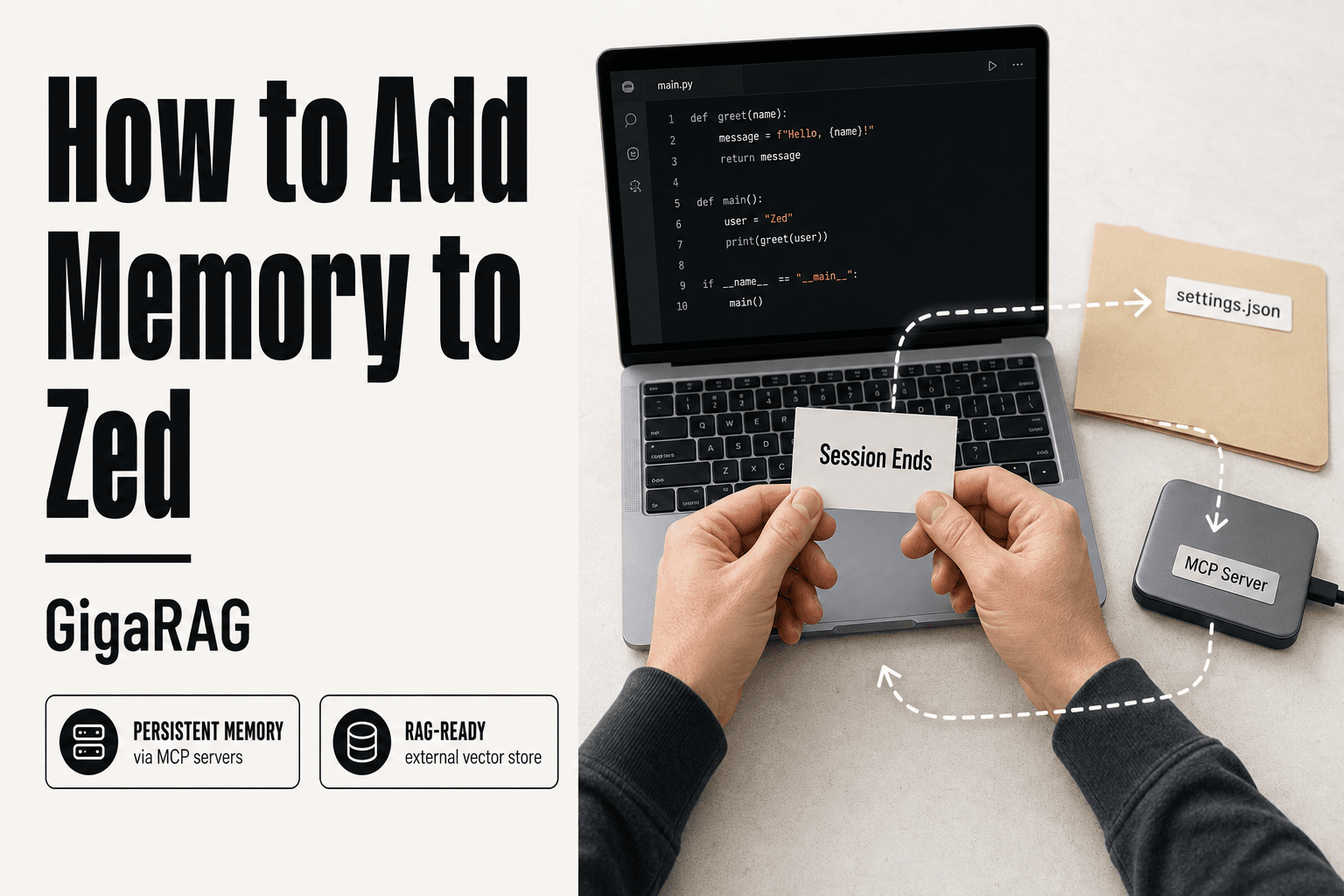
How to Add Memory to Zed
You know the moment. You're deep in a build, the AI assistant in Zed has been nailing every answer for an hour, and then you restart the editor. Everything it knew about your project is gone. That's when how to add memory to Zed becomes a real question for RAG builders and agent developers, not a casual search.
Zed has no built-in persistent memory. But several practical workarounds exist, and the honest answer is that some are worth your time and some aren't. This guide covers what works, what doesn't, and how to choose the right approach for your stack. If you need more than Zed can natively offer, GigaRAG is a purpose-built platform for agent memory and RAG pipelines that fills the gaps. But first, let's see what Zed can actually do.
| At a glance | Details |
|---|---|
| Primary method | MCP servers for persistent memory |
| Secondary method | Rules files for static context |
| Built-in memory | None across sessions |
| Config location | ~/.config/zed/settings.json |
| Best for RAG | External vector store via MCP |
| Setup difficulty | Moderate (requires MCP config) |
In This Guide
- What Memory Means in Zed (and What It Doesn't)
- MCP Servers vs Extensions vs Rules Files for Zed Memory
- Zed's Memory Architecture: Rules Files, Saved Threads, and MCP Servers
- How To Add Memory To Zed: A Step-by-Step Guide
- Where to Find the Zed Config File
- How to Add Memory to Zed Using MCP Servers
- Alternative Memory Solutions for Zed: Extensions and Third-Party Tools
- Memory for RAG Pipeline Builders: What You Need to Know
- Limitations and Trade-offs of Zed Memory Solutions
- Troubleshooting Common Zed Memory Issues
- Final Thoughts on Adding Memory to Zed
What Memory Means in Zed (and What It Doesn't)
Zed has no built-in persistent memory. When you close a session, the AI assistant forgets everything you told it. What people call "memory" in Zed is a set of workarounds: rules files, saved threads, and MCP servers that store context outside the editor.
Session memory vs. persistent memory
Session memory lives in the context window. It's gone when the window closes or the conversation ends. Persistent memory means context survives across sessions. Zed only does the first natively. The second requires external tooling.
How Zed's AI assistant currently handles context
The assistant reads your open files, your rules file, and the current thread. That's it. Nothing carries over automatically. You can save a thread manually, but it won't reload itself next time.
What Zed cannot remember (and won't anytime soon)
It can't recall past projects, your preferences, or decisions from yesterday. It won't learn from your codebase over time. If you need that, you're adding an MCP server or a separate memory layer.
[!note] Zed's built-in assistant does not retain memory across sessions by default; any persistence requires an external mechanism like MCP servers or rules files.
MCP Servers vs Extensions vs Rules Files for Zed Memory
| Factor | MCP Servers | Rules Files |
|---|---|---|
| Persistence | Cross-session, dynamic | Static, manual updates |
| Setup complexity | Moderate to high | Low |
| RAG integration | Native via external stores | None |
| Context awareness | Semantic retrieval | Keyword-based only |
| Best use case | Agent memory systems | Project conventions |
Zed's Memory Architecture: Rules Files, Saved Threads, and MCP Servers
Zed's memory stack has three layers. Rules files hold static instructions. Saved threads capture manual snapshots. MCP servers provide dynamic, queryable memory. Each layer serves a different job in a RAG pipeline.
Rules files: static memory for instructions
Rules files live in your project or global config. They tell the assistant how to behave every session: coding style, project conventions, tool preferences. They're static. You edit them by hand. They don't learn or update themselves.
Saved threads: manual persistence
Saved threads freeze a conversation for later. You decide what's worth keeping. The assistant won't reload them automatically. You open the thread, and the context returns. It's persistence by hand, not by design.
MCP servers: dynamic, queryable memory
MCP servers connect Zed to external memory stores. They can write context, query it, and return relevant results mid-conversation. This is the layer that actually behaves like memory: it persists without your intervention and retrieves on demand. For RAG builders, this is where Zed plugs into a vector store or knowledge base.
[!tip] For RAG pipeline builders, use an MCP server that connects to your existing vector store rather than duplicating memory in a separate system—this keeps your retrieval logic consistent across tools.
How To Add Memory To Zed: A Step-by-Step Guide
- Locate your Zed config file at ~/.config/zed/settings.json (or use the command palette to open settings).
- Choose a memory solution: MCP server for dynamic memory, rules files for static context, or a third-party extension.
- For MCP: install a memory-capable MCP server (e.g., a vector-store-backed server) and add its command to the context_servers section in settings.json.
- For rules files: create a .rules file in your project root and populate it with persistent instructions or context.
- Restart Zed and verify the memory source is active via the assistant panel or MCP logs.
- Test persistence by starting a new thread and confirming the assistant recalls prior context.
- For RAG pipelines: connect the MCP server to your existing vector database and configure retrieval parameters.
Where to Find the Zed Config File
The Zed config file lives at ~/.config/zed/settings.json on macOS and Linux, and %APPDATA%\Zed\settings.json on Windows.
macOS and Linux config location
The path is ~/.config/zed/settings.json. If the file doesn't exist, create it. Zed reads it on startup.
Windows config location
Windows uses %APPDATA%\Zed\settings.json. Paste that into File Explorer's address bar to jump straight there.
How to open and edit the config file
In Zed, press Cmd+, on macOS or Ctrl+, on Windows and Linux to open settings. Click "Open settings file" to edit JSON directly.
How to Add Memory to Zed Using MCP Servers
The Memory MCP Server is the most flexible way to give Zed persistent memory. It stores context in a queryable database that survives restarts, so your AI assistant can recall past conversations and project details across sessions.
Step 1: Install the Memory MCP Server extension
Open Zed's extension panel with Cmd+Shift+X on macOS or Ctrl+Shift+X on Windows and Linux. Search for "Memory MCP Server" and click Install. The extension bundles the MCP server binary, so you don't need to install anything separately.
Step 2: Configure the MCP server in Zed's settings
Open your settings.json file. Add a context_servers block that points to the Memory MCP Server. The exact configuration depends on the extension version, but the basic shape looks like this:
{
  "context_servers": {
    "memory": {
      "command": "memory-mcp-server",
      "args": []
    }
  }
}
Save the file. Zed reloads context servers automatically when settings change.
Step 3: Test memory persistence between sessions
Start a new AI conversation and ask the assistant to remember a specific fact, like a project name or a file path. Close Zed completely. Reopen it and start another conversation. Ask the assistant what it remembers. If the fact comes back, memory is working.
The main catch is that the Memory MCP Server stores everything locally. Nothing syncs across machines unless you back up the database file yourself. For RAG pipeline builders, that means this memory lives outside your vector store unless you explicitly export it.
Alternative Memory Solutions for Zed: Extensions and Third-Party Tools
The official Memory MCP Server isn't your only option. Two third-party tools fill gaps the built-in extension leaves open: vendor-specific memory and web-content memory.
Vectorize Hindsight: vendor-specific memory
Hindsight is a memory tool from Vectorize that stores context in their managed vector database. It plugs into Zed through the MCP protocol, same as the official server, but the storage lives in Vectorize's cloud instead of a local file. That means memory syncs across machines without manual database backups.
The trade-off is vendor lock-in. Your memory data sits on Vectorize's infrastructure, and you pay for storage and queries. If Vectorize changes pricing or shuts down, you migrate or lose the memory.
IWE (Intelligent Web Extractor): memory for web content
IWE is a different beast. It doesn't store conversation memory at all. It extracts structured content from web pages and feeds it into your AI assistant's context window. For RAG builders, that's useful when you need fresh web data in your pipeline without writing a scraper.
The catch: IWE memory is ephemeral. It lives only as long as the context window holds it. Nothing persists between sessions unless you pair it with another storage layer.
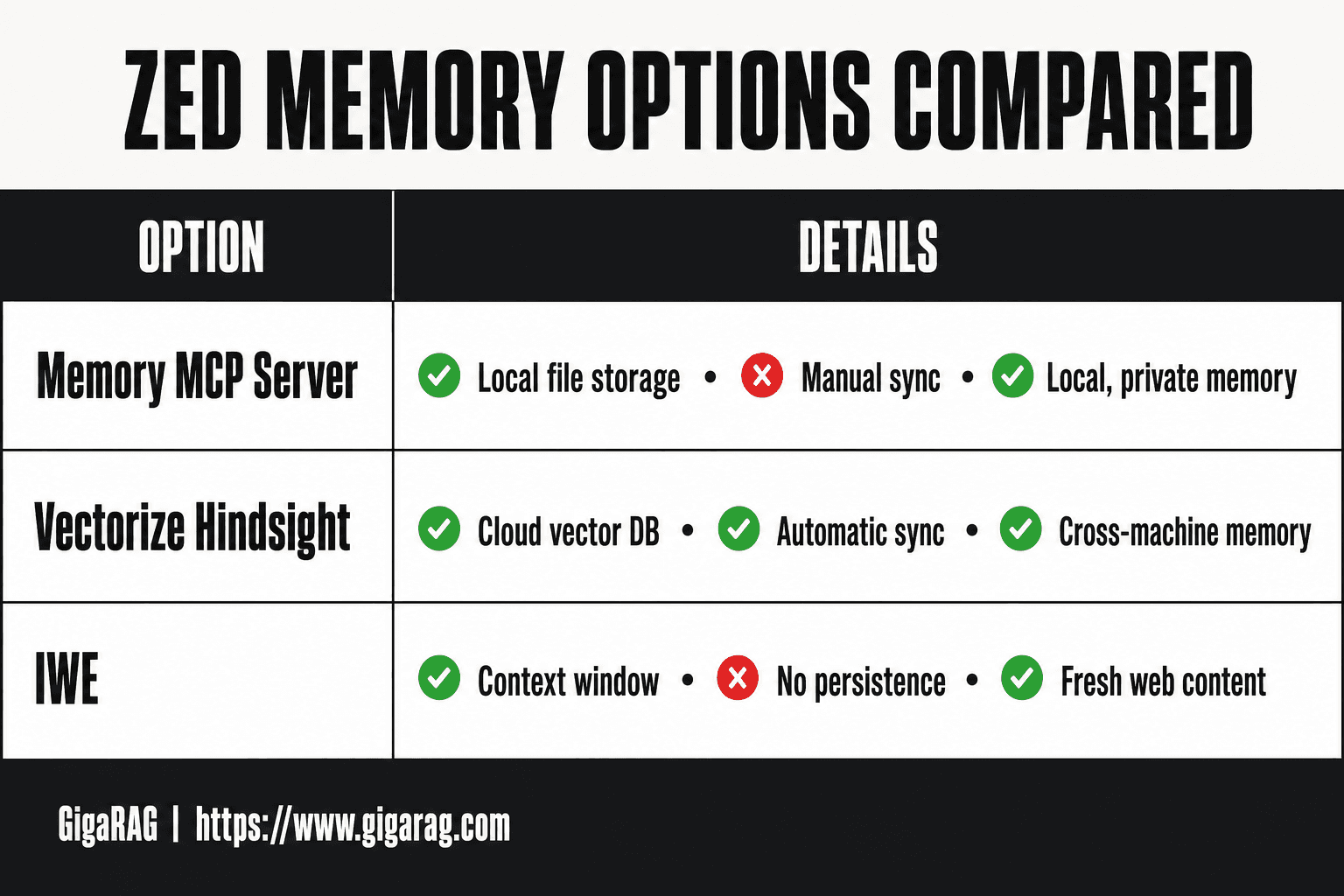
Comparison table: MCP server vs. Hindsight vs. IWE
| Tool | Storage | Persistence | Sync | Best for |
|---|---|---|---|---|
| Memory MCP Server | Local file | Yes | Manual | Local, private memory |
| Vectorize Hindsight | Cloud vector DB | Yes | Automatic | Cross-machine memory |
| IWE | Context window | No | N/A | Fresh web content |
The honest answer: most Zed users only need the official MCP server. Hindsight earns its cost when you work across multiple machines. IWE solves a different problem entirely.
Memory for RAG Pipeline Builders: What You Need to Know
Zed's memory options work fine for a single editor. They get awkward fast when you're feeding a RAG pipeline.
Integrating Zed memory with your RAG pipeline
The Memory MCP Server writes to a local JSON file. You can point your ingestion script at that file, parse the entries, chunk them, and embed them into your vector store. It's manual but it works. Saved threads are harder to reuse: they're stored in Zed's internal format, not a clean export.
When Zed's memory is not enough
The main catch is querying. Zed's memory has no semantic search, no ranking, no retrieval API. Your pipeline has to treat it as a raw data source, not a memory layer. If you need agent memory that your application can query directly, Zed won't get you there.
GigaRAG: a purpose-built solution for agent memory
GigaRAG is a platform for agent memory and RAG pipelines. It handles storage, embedding, and retrieval as one system, with an API your agents can call. If Zed's file-based memory is a starting point, GigaRAG is the production layer. You keep Zed as your editor and let GigaRAG own the memory.
Limitations and Trade-offs of Zed Memory Solutions
Zed has no native persistent memory. Every solution in this guide is a workaround. That's the honest starting point.
What Zed's memory cannot do
It can't query memory semantically. No vector search, no relevance ranking, no retrieval API. It can't share memory across machines unless you sync the JSON file yourself. It can't remember anything automatically: you write to memory, or it doesn't exist.
RAM usage and performance considerations
How much RAM does Zed use? It depends on your extensions and MCP servers. A bare Zed install sits around 200-400 MB. Add a memory MCP server and you're loading another Node process, typically 50-150 MB more. Large memory files slow down writes, since every entry appends to one JSON blob.
Manual vs. automated persistence
Rules files persist automatically. Saved threads persist when you save them. MCP memory persists only when you explicitly write to it. Nothing in Zed remembers on its own. If you forget to save, the context is gone.
Troubleshooting Common Zed Memory Issues
Most failures come down to three things: a bad config path, a server that never started, or a JSON file that got corrupted.
MCP server not connecting
Check that the server binary exists at the path in your config. Run it from a terminal first. If it fails there, Zed won't fix it.
Memory not persisting between sessions
Your MCP server writes to a JSON file. If that file's path is relative, it resolves from wherever the server process starts, not your project. Use an absolute path.
Config file syntax errors
Zed's config is JSON with comments allowed. A trailing comma breaks it. Open the command palette, run "check config", and Zed will point at the line.
Final Thoughts on Adding Memory to Zed
Zed has no native persistent memory. That's the honest starting point. MCP servers and third-party tools fill the gap, but each one adds a moving part you have to maintain.
For most developers, the Memory MCP Server is enough. It's simple, it works, and it stores context in a JSON file you control. If you're building a production RAG pipeline or agent memory system, though, Zed's workarounds start to strain. That's where GigaRAG fits: purpose-built for agent memory and RAG pipelines, without the manual persistence and config juggling.
Learning how to add memory to Zed is worth doing. Just know when to stop patching and reach for a tool built for the job.
Frequently Asked Questions
Where can I find the Zed config file?
Zed's main config file is located at ~/.config/zed/settings.json on macOS and Linux. On Windows, it is typically at %APPDATA%\Zed\settings.json. You can also open it via the command palette with 'zed: open settings'.
How do I add Zed to my path?
On macOS, you can add Zed to your PATH by running 'ln -s /Applications/Zed.app/Contents/MacOS/cli /usr/local/bin/zed' in Terminal. On Linux, the Zed CLI is usually installed automatically; if not, symlink the binary to /usr/local/bin. This allows you to launch Zed from the terminal with the 'zed' command.
How much RAM does Zed use?
Zed's RAM usage varies by project size and extensions, but it is generally lightweight compared to Electron-based editors. Expect a few hundred megabytes for typical projects, with increases when using AI features or large language models locally. Exact figures depend on your setup.
How to configure Zed?
Zed is configured through the settings.json file, which you can edit directly or via the command palette. Key settings include theme, keybindings, language servers, and AI assistant options. Changes take effect immediately upon saving.
Does Zed have built-in memory for AI conversations?
No, Zed's AI assistant does not retain memory across separate sessions or threads by default. Each conversation starts fresh unless you use external tools like MCP servers or rules files to provide persistent context.
Can I use Zed with my existing RAG pipeline?
Yes, you can integrate Zed with a RAG pipeline by using an MCP server that connects to your vector database or retrieval system. This allows the assistant to query your pipeline for context, though you may need to handle retrieval logic externally.
What are the limitations of Zed's memory solutions?
Zed's memory solutions are not native; they rely on external components like MCP servers or static rules files. This means setup is more complex, and performance depends on the external tools. Additionally, there is no built-in semantic memory, so retrieval quality varies by implementation.
About GigaRAG
GigaRAG is for agent memory and RAG pipeline builders. get this right. Whether you are working through How to add memory to Zed or something adjacent, we publish what we have actually tested, including where it falls short.