
How to Add Memory to VS Code: A Practical Guide for Agent and RAG Pipeline Builders
Searching "how to add memory to VS Code" returns fragmented forum threads and unrelated documentation. You won't find a clear path for agent memory or RAG pipelines because VS Code has no native memory feature for agents. Nothing in the editor stores conversation state, retrieves past context, or feeds a vector database on its own.
The honest answer is that memory gets added through extensions, configuration, and external tools. That's the gap this guide fills. GigaRAG exists precisely because agent memory and RAG pipelines need a purpose-built store that integrates with VS Code workflows, not a patchwork of workspace hacks.
Here's what you'll get: a working definition of memory in the VS Code context, the prerequisites you need before touching settings.json, three implementation steps covering extensions, configuration, and external memory stores, the mistakes that waste hours, real RAM numbers, and a plain list of what you cannot do no matter how many extensions you install.
| At a glance | Details |
|---|---|
| What this covers | Adding memory to VS Code for agents and RAG |
| Core approach | Use extensions plus external memory stores |
| Best for | Developers building agent memory pipelines |
| Key limitation | VS Code has no built-in persistent memory |
| Typical setup time | A few hours to a few days |
| Maintenance | Ongoing: schema, embeddings, and pruning |
In This Guide
- What Does 'Memory' Mean in VS Code for Agents and RAG?
- In-Editor Memory Extension vs External Memory Service
- Prerequisites: What You Need Before Adding Memory to VS Code
- How To Add Memory To VS Code: A Step-by-Step Guide
- Step 1: Install Memory-Related VS Code Extensions
- Step 2: Configure VS Code Settings for Memory Persistence
- Step 3: Integrate an External Memory Store (Vector DB or RAG Pipeline)
- Common Mistakes When Adding Memory to VS Code
- How Much RAM Does VS Code Take? (And Why It Matters for Memory)
- What You Cannot Do: Honest Limitations of VS Code Memory
- Final Thoughts: Building Memory That Works for Your Agents
What Does 'Memory' Mean in VS Code for Agents and RAG?
Memory in VS Code for agents and RAG means state that survives. Session state lives only while the extension runs. Persistent state survives restarts. External memory stores hold embeddings and retrieval indexes outside the editor entirely. VS Code itself provides none of these natively for agents.
Session memory vs. persistent memory
Session memory is what an agent holds while a single VS Code window stays open. Close the window, kill the extension host, and it's gone. That's fine for a quick coding task, but useless for an agent that needs to remember a user's preferences across days.
Persistent memory survives restarts. It's written to disk, usually as JSON files in the workspace or in the extension's global storage folder. The catch: persistent memory is still local to one machine. It doesn't sync across devices unless you build that yourself.
Why VS Code alone can't store agent memory
VS Code is an editor, not a database. It has no built-in API for storing embeddings, no retrieval layer, no vector index. Extensions can write files, and that's about it. If you want an agent to recall past conversations or retrieve relevant code snippets, you need something outside the editor doing the remembering.
The role of external memory stores (vector DBs, RAG pipelines)
That's where vector databases and RAG pipelines come in. You embed your data, store the vectors in something like Pinecone, Weaviate, or a local option like Chroma, and query it when the agent needs context. VS Code's job is to host the extension that talks to that store. The memory itself lives elsewhere.
[!note] VS Code itself does not provide persistent memory for agents or RAG pipelines; any memory you add comes from extensions, external stores, or your own code, and it lives outside the editor process.
In-Editor Memory Extension vs External Memory Service
| Factor | In-Editor Memory Extension | External Memory Service |
|---|---|---|
| Setup effort | Low: install and configure in VS Code | Medium: run or connect to a service |
| Persistence | Session or workspace scoped | Durable across sessions and machines |
| Scalability | Limited by editor process memory | Scales independently of the editor |
| Team sharing | Difficult to share across developers | Central store can be shared |
| Best for | Quick prototyping and single-user workflows | Production agent and RAG pipelines |
Prerequisites: What You Need Before Adding Memory to VS Code
You need three things before any of this works: a current VS Code install, at least one extension that can talk to a memory store, and a memory store itself. Skip any one and you're building on sand.
VS Code version and settings
Use VS Code 1.85 or newer. Older builds still run most extensions, but you'll hit API gaps with agent frameworks that expect recent extension host features. Check your version under Help > About. No special settings.json changes are required up front. You'll add those in Step 2.
Required extensions and tools
You need an extension that bridges VS Code and your memory store. For agent workflows, that's typically a framework extension like Continue, Cody, or a custom extension using the VS Code Language Model API. For RAG pipelines, you'll want whatever client your vector database publishes. Node.js 18+ is required for most of these extensions to run their local tooling.
External services: vector databases and memory stores
The memory itself lives outside VS Code. You'll need a running vector database: Pinecone or Weaviate in the cloud, or Chroma or Qdrant locally. For agent memory specifically, some frameworks bundle their own store. Make sure it's running and reachable before you install anything in the editor.
[!tip] For agent and RAG builders, start with a file-based or local vector store and a thin adapter layer in your code, so you can swap in a hosted memory service later without rewriting your pipeline.
How To Add Memory To VS Code: A Step-by-Step Guide
- Define what 'memory' means for your workflow: conversation history, retrieved documents, or long-term facts.
- Choose a storage layer such as a local vector database, a file-based store, or a hosted memory service.
- Install and configure a VS Code extension that can read from and write to that storage layer.
- Wire your agent or RAG pipeline code to call the memory store for reads and writes at the right points.
- Test with a small set of interactions and verify that memory persists across editor restarts.
- Add pruning, summarization, or expiry rules so the memory store does not grow unbounded.
- Document the setup and limitations for your team so expectations stay realistic.
Step 1: Install Memory-Related VS Code Extensions
VS Code has no memory feature of its own. Extensions are the bridge between the editor and whatever store you picked in the prerequisites. Install them first, configure later.
Searching the VS Code Marketplace for memory extensions
Open the Extensions panel with Ctrl+Shift+X. Search for your vector database by name: "Pinecone", "Weaviate", "Chroma", "Qdrant". Most vendors publish an official client. For agent frameworks, search "Continue" or "Cody". Don't search the generic term "memory". It returns note-taking apps and session savers that have nothing to do with agent state.
Recommended extension categories for agent memory
You need two categories. First, a framework extension that handles agent loops and context assembly. Second, a database client or custom extension that reads and writes to your vector store. Some frameworks bundle both. Continue, for example, ships with retrieval built in. If you're building a custom RAG pipeline, you'll likely write your own extension using the VS Code Language Model API and a database SDK.
Installation and basic configuration
Click Install on the extension page. Reload the window when prompted. Most extensions then ask for an API key or a database URL on first run. Enter the connection string for your running store. Don't skip the test connection step if the extension offers one. A misconfigured URL here fails silently later, and you'll waste an hour debugging retrieval that was never connected.
Step 2: Configure VS Code Settings for Memory Persistence
Extensions install clean, but they won't persist anything until you tell them where to write. That's settings.json. Open it with Ctrl+Shift+P, then "Preferences: Open Settings (JSON)".
Editing settings.json for memory-related options
Memory-related settings live under each extension's namespace. For Continue, that's continue.. For a database client, it's usually [vendor].connectionString or similar. You set the storage path, the embedding model, and the collection name. Here's the shape:
{
  "continue.embeddingsProvider": "openai",
  "continue.reranker": "voyage",
  "myVectorStore.connectionString": "http://localhost:8000",
  "myVectorStore.collection": "agent_memory"
}
The collection name matters. Point every workspace at the same collection and your agents share memory. Point them at different ones and they don't.
Workspace vs. user settings for memory
User settings apply everywhere. Workspace settings apply to one project. For agent memory, put connection strings in user settings. Put collection names and storage paths in workspace settings. That way your personal API keys stay global, but each project writes to its own memory store. The workspace .vscode/settings.json file also travels with the repo, so teammates get the same memory config.
Common configuration pitfalls to avoid
The biggest one: relative paths. VS Code resolves them from the workspace root, not from your home directory. A path like ./memory writes to the project folder, which you probably don't want for persistent agent state. Use absolute paths for anything you expect to survive a workspace reload.
Second pitfall: forgetting that settings.json changes need a window reload. Some extensions pick up changes live. Most don't. Reload after every edit or you'll chase a config that's already correct.
Step 3: Integrate an External Memory Store (Vector DB or RAG Pipeline)
Extensions and settings give you a place to write. They don't give you memory. Real agent memory lives outside VS Code, in a vector database or a RAG pipeline that survives workspace reloads and IDE restarts.
Choosing a memory store: vector DBs vs. RAG pipelines
A vector database stores embeddings and retrieves them by similarity. That's the raw material for memory. A RAG pipeline wraps that store with retrieval, reranking, and prompt assembly. If you're building agents, you'll want both eventually. Start with the vector DB. It's the piece that actually holds state.
For local work, Chroma and LanceDB run in-process and need no server. For shared memory across teammates or machines, use Pinecone, Weaviate, or Qdrant. The choice comes down to where your agents run and who needs access.
Connecting VS Code to your memory store
Most database clients expose a REST or gRPC endpoint. Your extension or a small script talks to it. Here's a minimal Python snippet using Chroma:
import chromadb
client = chromadb.PersistentClient(path="./memory")
collection = client.get_or_create_collection("agent_memory")
collection.add(
    documents=["User prefers TypeScript for new services"],
    ids=["pref-001"]
)
Run this from a VS Code task or a Jupyter notebook inside the IDE. The memory persists on disk, not in the editor.
Testing the integration with a simple query
Add a document, then query it back:
results = collection.query(query_texts=["language preference"], n_results=1)
print(results["documents"])
If that returns your stored text, the pipeline works. If it returns nothing, check your collection name and embedding model. Those two mismatches cause most silent failures.
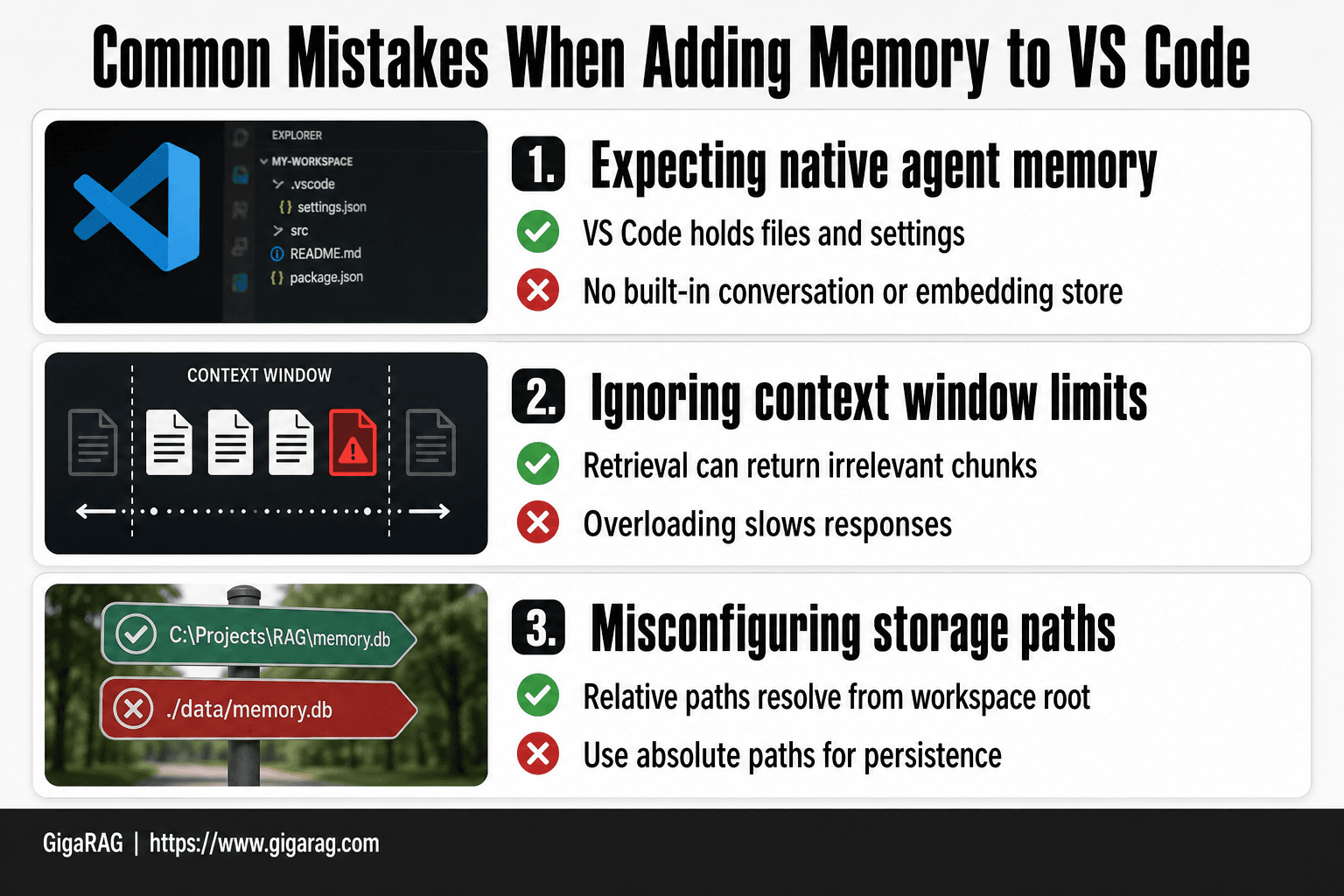
Common Mistakes When Adding Memory to VS Code
Most failures come from three wrong assumptions. Fix these and the rest of the setup usually works.
Expecting VS Code to natively store agent memory
VS Code holds your files, settings, and undo history. It does not hold agent memory. No built-in feature persists conversation state or embeddings across sessions. If you skip the external store, your agent forgets everything the moment the workspace closes.
Ignoring context window limits
Extensions that stuff chat history into the prompt hit a wall fast. A 128k context window sounds big until retrieval returns 40k tokens of irrelevant chunks. Memory is not about storing more. It's about retrieving the right slice. Overloading the window slows responses and degrades answer quality.
Misconfiguring persistent storage paths
A relative path like ./memory resolves against the workspace root. Open the same project from a different folder and your agent loses access to everything it stored. Use an absolute path or a path anchored to a stable location outside the repo. Check the path before you trust the memory.
How Much RAM Does VS Code Take? (And Why It Matters for Memory)
A fresh VS Code install with no extensions sits around 300-400 MB. Open a TypeScript project with IntelliSense running and you'll see 1-2 GB. Add agent extensions, vector DB clients, and a local embedding model and 4-6 GB is common.
Typical VS Code RAM usage
The base editor is Electron, which means Chromium overhead before you open a single file. Each extension runs in its own process. Language servers add more. The honest answer: expect 1 GB minimum for real work, and 4 GB or more once memory tooling is active.
How RAM affects agent memory performance
RAM is where your agent's working memory lives. Embeddings, retrieved chunks, and conversation state all sit in memory during a session. When RAM runs out, the OS swaps to disk and retrieval latency spikes. A vector query that takes 50 ms in RAM can take 2 seconds under swap pressure.
Optimizing VS Code for memory-intensive tasks
Disable extensions you're not using. Close workspaces you're not working in. Watch the Process Explorer (Help > Open Process Explorer) to see which extension is eating RAM. If you're running a local embedding model, give it a separate process or container so VS Code's UI stays responsive.
What You Cannot Do: Honest Limitations of VS Code Memory
VS Code is an editor, not a memory system. It holds your files, your undo stack, and your open tabs. It does not hold what your agent learned last week.
No native agent memory in VS Code
There is no settings.json key that turns on agent memory. No built-in store for conversation history, retrieved chunks, or embeddings. When you close VS Code, the editor forgets everything except what's saved to disk as files. That's the whole story.
Extensions are not a complete solution
Extensions can add memory, but they bolt onto an editor that wasn't designed for it. Each extension manages its own state, its own storage format, its own cleanup. Two memory extensions won't share context unless you wire them together yourself. And when an extension updates or gets abandoned, your memory goes with it.
Performance and scalability limits
VS Code runs on Electron. Every memory extension adds another process, more RAM, more startup time. A vector store with 100,000 chunks will work. A million chunks will choke the editor. If you need production-scale agent memory, run it outside VS Code and treat the editor as a client.
Final Thoughts: Building Memory That Works for Your Agents
Adding memory to VS Code comes down to three moves: install extensions that persist state, configure settings.json for storage paths, and connect an external vector store or RAG pipeline. None of it is magic. All of it is wiring.
The honest answer is that VS Code will never be your memory system. It's the client. Your memory lives in the vector database, the embedding store, the RAG pipeline you run alongside it. Treat the editor as a window into that system, not the system itself.
If you're building agent memory or RAG pipelines and want to skip the extension sprawl, GigaRAG is purpose-built for exactly this. It handles embeddings, retrieval, and persistent memory stores without asking VS Code to be something it isn't. You wire it once, then your agents remember across sessions. That's the whole point of learning how to add memory to VS Code in the first place.
Frequently Asked Questions
How much RAM does VS Code take?
VS Code's memory usage varies widely with the number of extensions, open files, and language servers running. In typical use it stays within a few hundred megabytes to a couple of gigabytes, but heavy extension loads or large workspaces can push it higher. Check the process explorer in VS Code to see which extensions are consuming the most memory.
Can I add persistent memory directly inside VS Code?
Not natively. VS Code has no built-in persistent memory feature for agents or RAG pipelines. You add memory by using extensions that connect to external stores, or by writing code in your own project that reads and writes to a database or file.
What is the best way to store agent memory for a VS Code workflow?
It depends on your needs. For quick prototypes, a local file or embedded vector store is simplest. For production or team use, a hosted memory service or a shared database is usually better because it persists across machines and sessions.
Do I need a vector database to add memory to VS Code?
Not necessarily. A vector database helps when you need semantic search over memory, which is common in RAG pipelines. For simpler agent memory, a structured file or key-value store may be enough.
How do I keep VS Code memory from growing too large?
Add pruning, summarization, or expiry rules to your memory store. Periodically review what is being written and remove or compress old entries. This keeps retrieval fast and storage costs predictable.
Can multiple developers share the same memory in VS Code?
Yes, but not through VS Code itself. You need a shared external store, such as a hosted database or memory service, that each developer's VS Code instance connects to. In-editor extensions typically keep memory local to one machine.
What are the limitations of adding memory to VS Code?
Memory added to VS Code is not managed by the editor, so you are responsible for persistence, schema, and cleanup. It also does not automatically integrate with every extension or language server, so you may need custom code to connect your agent or RAG pipeline.
About GigaRAG
GigaRAG is for agent memory and RAG pipeline builders. get this right. Whether you are working through How to add memory to VS Code or something adjacent, we publish what we have actually tested, including where it falls short.