ChatGPT File Upload Limit Per Day: What Each Plan Allows
You want the ChatGPT file upload limit per day because an upload just failed. The honest answer is that "daily limit" is often the wrong label: the same message can point to a rolling upload cap, a per-file size rule, a message attachment limit, a Project cap, a storage quota, or a short-lived service problem.
Uploads won't give you durable, cross-session project memory for an agent, even when files remain in a Project. Plan figures can change, so check current, dated OpenAI documentation instead of trusting an old comparison or a higher plan name.
Quick answer
"Upload limit per day" can describe several restrictions, not one universal daily cap. Identify whether the issue is a rolling cap, file size, message attachments, Project capacity, storage, or a temporary problem before changing your workflow.
- Check the current official OpenAI limits for your plan.
- Match the error to the restriction it describes.
- Retry later only if the notice indicates a temporary or rate-based limit.
What the ChatGPT file upload limit per day actually means
"ChatGPT file upload limit per day" isn't one limit. It can mean a daily or rolling cap on your account, a file that is too large, too many attachments in one message, a Project cap, or storage that is full. Each needs a different check and fix.
Daily limits vs. rolling upload caps
A daily limit counts uploads for a defined day. A rolling cap uses a moving window, so earlier uploads may still count after the date changes.
Both concern your account, not the file.
Per-file size limits vs. message attachment limits
A per-file size limit applies to one file. A message attachment limit applies to the number of files in one prompt.
One is file weight. The other is batch count.
Project file caps vs. account or workspace storage quotas
A Project file cap restricts files in one Project. A storage quota covers retained files across an account or workspace.
Neither tells you how many new uploads are allowed over time.
Why the same upload error can have different causes
A vague error can point to count, size, storage, format, permissions, or processing. Check where it fails: the file picker, the message send, or the Project.
That location narrows the scope before you retry.
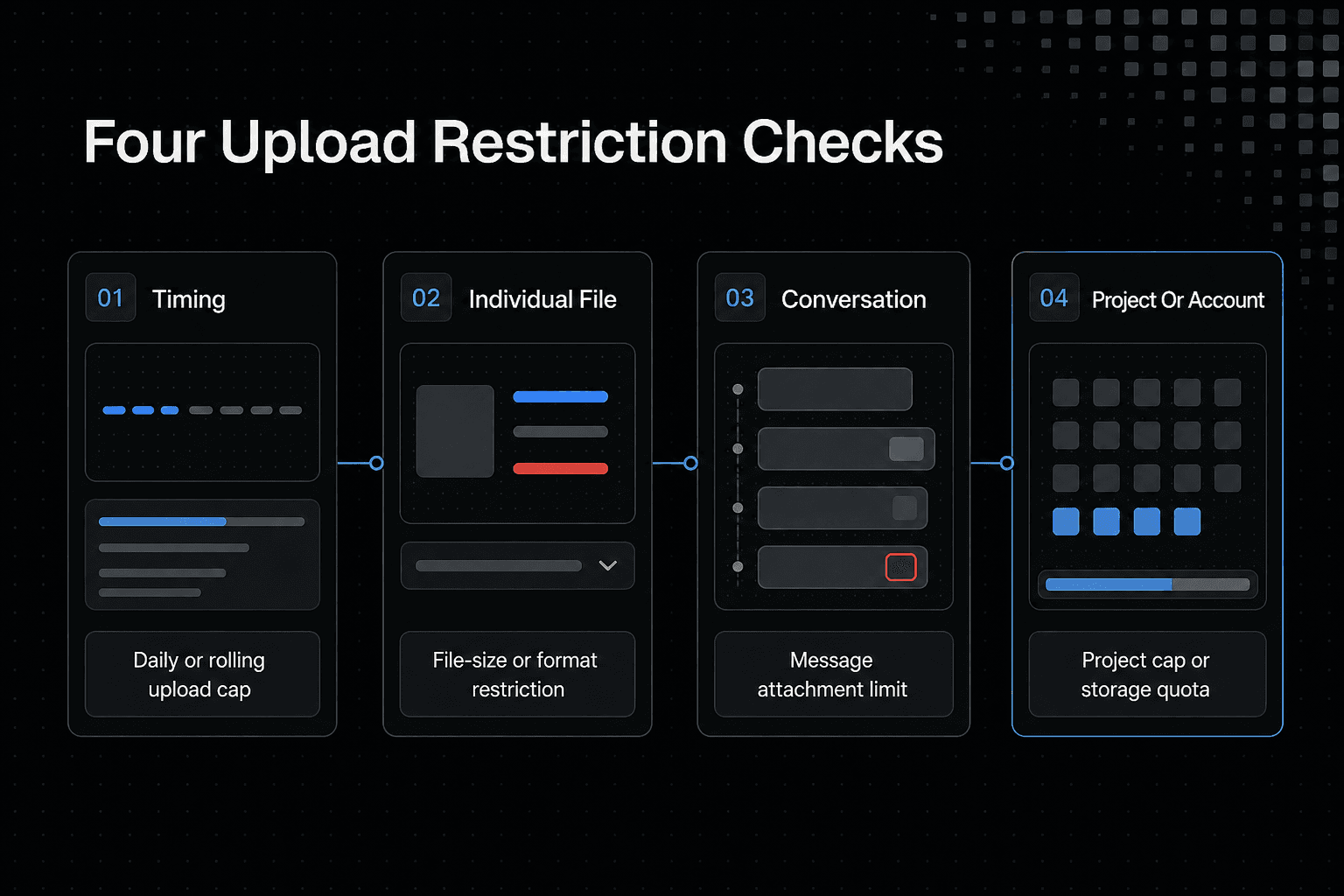
Which upload restriction should you check?
| Factor | Possible restriction | Diagnostic focus |
|---|---|---|
| Timing | Daily or rolling upload cap | Check the notice and current plan rules. |
| Individual file | File-size or format restriction | Check the file against current upload requirements. |
| Conversation | Message attachment limit | Check how many files are attached to one message. |
| Project or account | Project cap or storage quota | Check the relevant Project and account storage status. |
ChatGPT upload limits by plan: how to read the official rules
The plan name alone doesn't tell you what you can upload. OpenAI can set limits by feature, workspace, or current demand, so a higher tier isn't proof of a fixed daily allowance.
[!tip] For code, CSVs, or datasets, keep a concise index of the source files and their purpose. It can help you identify essential files when an upload is blocked.
Comparison table: plan, rolling cap, daily cap, file size, attachments, Projects, and storage
Check the current, dated OpenAI Help Center or product documentation for each cell before publishing. Don't use figures from search snippets, old screenshots, or third-party roundups.
| Plan | Rolling cap | Daily cap | File size | Attachments | Projects | Storage |
|---|---|---|---|---|---|---|
| Free | <br>3 uploads per day<br> | <br>3 uploads per day<br> | <br>512 MB per file; text/document files up to 2M tokens; spreadsheets approx. 50 MB; images 20 MB<br> | <br>Up to 10 files at once in Projects<br><br> | <br>5 files per Project<br> | <br><br><br>500 MB Library storage<br> |
| Plus | <br>Up to 80 files every 3 hours<br> | <br>No separate daily cap published<br> | <br>512 MB per file; text/document files up to 2M tokens; spreadsheets approx. 50 MB; images 20 MB<br> | <br>Up to 10 files at once in Projects<br> | <br>25 files per Project<br> | <br>20 GB Library storage<br> |
| Pro | <br>Up to 80 files every 3 hours<br> | <br>No separate daily cap published<br> | <br>512 MB per file; text/document files up to 2M tokens; spreadsheets approx. 50 MB; images 20 MB<br> | <br>Up to 10 files at once in Projects<br> | <br>40 files per Project<br> | <br>100 GB Library storage<br> |
| Business | <br>Up to 80 files every 3 hours<br> | <br>No separate daily cap published<br> | <br>512 MB per file; text/document files up to 2M tokens; spreadsheets approx. 50 MB; images 20 MB<br> | <br>Up to 10 files at once in Projects<br> | <br>40 files per Project<br> | <br>20 GB Library storage<br> |
| Enterprise | <br>Up to 80 files every 3 hours<br> | <br>No separate daily cap published<br> | <br>512 MB per file; text/document files up to 2M tokens; spreadsheets approx. 50 MB; images 20 MB<br> | <br>Up to 10 files at once in Projects<br> | <br>40 files per Project<br> | <br>Enterprise Library storage quota not publicly specified<br> |
How to cite the OpenAI Help Center and product documentation with an access date
Use the OpenAI Help Center or product documentation page that names the exact limit. Link the claim to that page and record the date you accessed it, since usage caps and plan features can change.
A pricing page may show that a plan exists. It may not state its upload rules.
How to label limits that are dynamic, plan-dependent, workspace-admin-controlled, or not publicly specified
Write "dynamic" when OpenAI says availability or limits can vary. Write "workspace-admin-controlled" when a Business or Enterprise admin can restrict a feature.
If the documentation gives no number, say "not publicly specified" rather than turning a general plan description into an allowance. Keep the scope beside the limit.
What not to infer from a higher-priced plan
Don't infer unlimited uploads, larger files, more attachments per message, or permanent storage from a higher-priced plan unless the official page says so. A plan can improve access to one feature while retaining separate caps for files, Projects, or workspace storage.
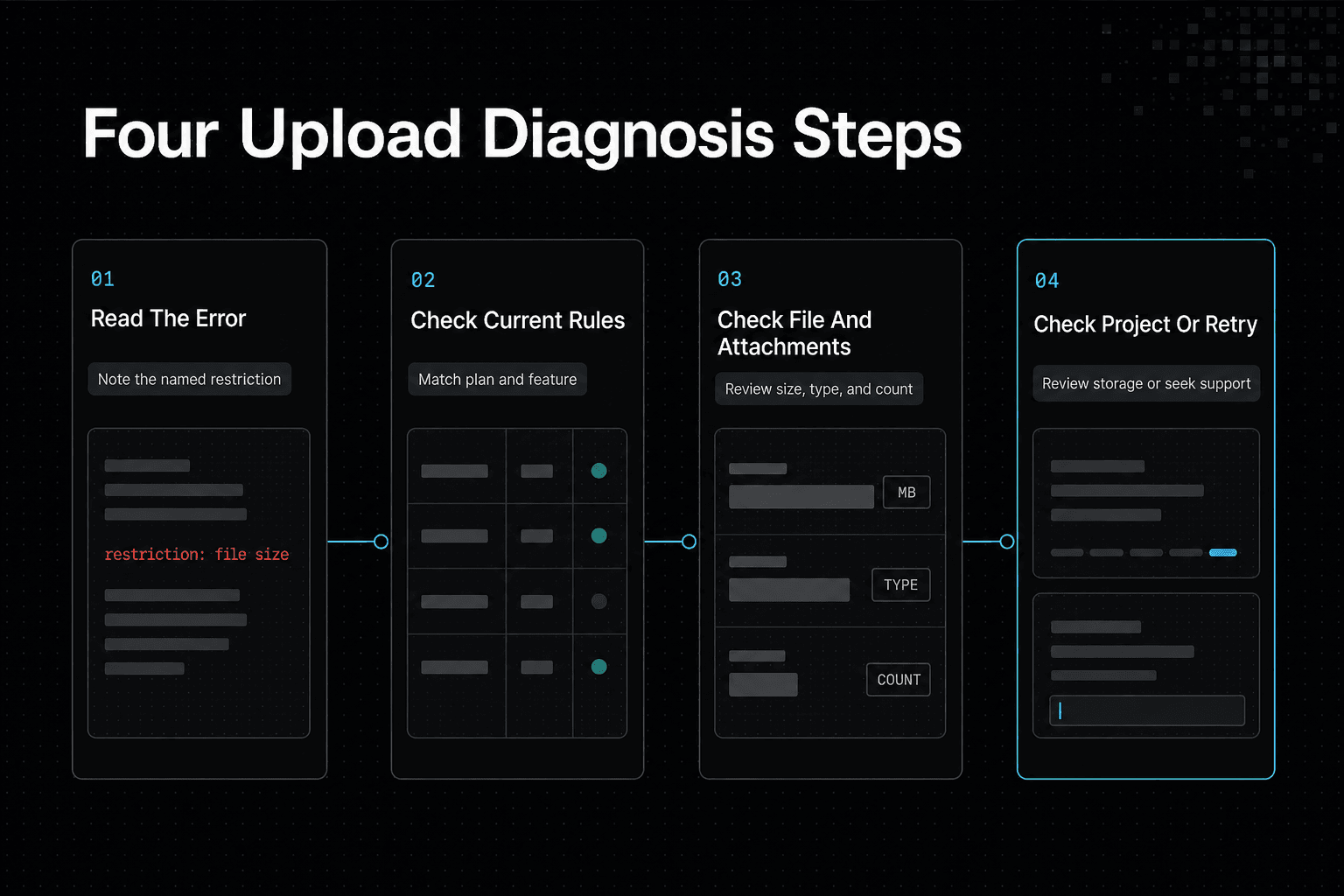
Step-by-step: diagnose an upload failure
- Read the full error message and note whether it names a time, file, message, Project, or storage restriction.
- Check the current official OpenAI limits for your plan and the feature you are using.
- Check the file's size and type against the applicable requirements.
- If attaching several files, try separating them across messages where the rules allow it.
- For a Project-related error, check its file count and your account's storage status.
- If the cause remains unclear, wait and retry later or consult OpenAI support.
How ChatGPT upload controls work in real coding and data workflows
[!note] ChatGPT uploads alone do not guarantee that project context will persist across agent sessions. Confirm how your workflow stores and retrieves context.
Example: debugging a source-file bundle without uploading an entire repository
Start with the failing file, its direct dependencies, the error, and the command that triggers it. A small bundle is easier to review and less likely to hit an attachment or file-size control.
Example: analyzing a CSV when the file is valid but the account has reached an upload cap
A valid CSV still won't upload when your account has reached a usage cap. Wait for the cap to reset, then reduce the sample to the columns and rows needed for the question.
Example: using a ChatGPT Project without confusing Project capacity with permanent agent memory
A Project can keep related chats and files together. It does not turn uploaded material into permanent, independent memory for every future agent task.
Persistent context across sessions: what file uploads do and do not solve
Keep a source-of-truth location outside the chat for long-lived code, schemas, and decisions. Uploads can provide task context, but they can't replace version control or a durable knowledge system.
Common ChatGPT upload errors: causes, checks, and fixes
An upload error doesn't reliably name its cause. The same failed attempt can come from a usage cap, the file itself, your browser, a network break, or a workspace rule, so check the failure point before changing your plan or reworking the file.
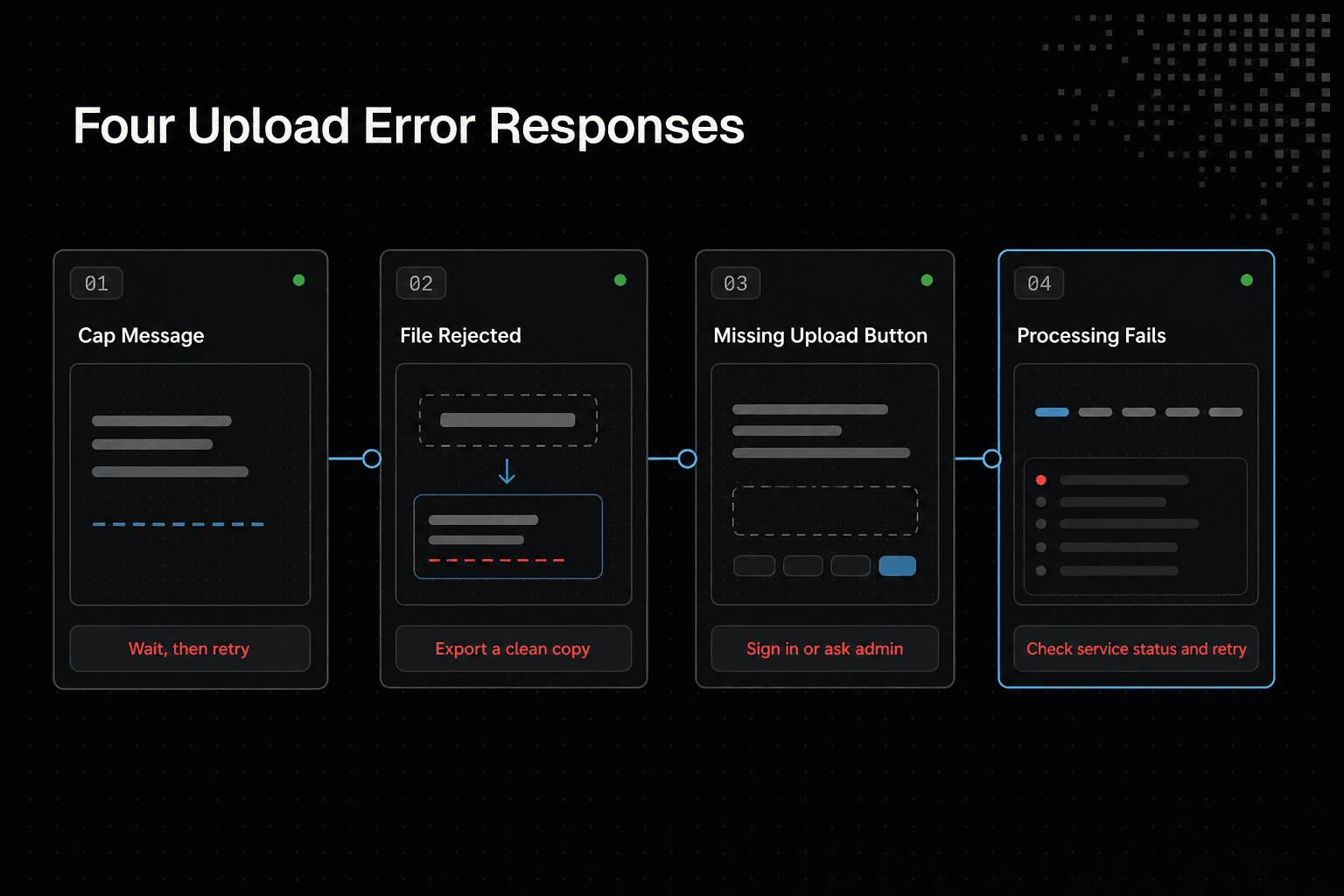
Troubleshooting decision table: symptom, likely limit or failure, diagnostic step, and next action
| Symptom | Likely failure | Check | Next action |
|---|---|---|---|
| Cap message | Account usage control | Try later | Wait, then retry. |
| File rejected at once | File or format issue | Open it locally | Export a clean copy. |
| Upload button is missing | Browser or permission issue | Try another chat or browser | Sign in again or ask your admin. |
| Processing fails | Network or temporary service issue | Retry with a small file | Check service status and retry. |
"You have reached your upload limit" or similar cap messages
Treat this as a usage-control problem first. It may be a daily allowance, a rolling cap, or another account-level control, and the wording alone may not tell you which.
Wait before repeatedly retrying. Repeated attempts won't make capacity return sooner.
File too large, unsupported, corrupted, password-protected, or improperly formatted files
Open the file outside ChatGPT and make sure it loads. Then remove password protection, export it in a common format, or split it into smaller task-focused files.
Don't split a file blindly. Keep headers, schema notes, and the rows or source files needed to understand the part you upload.
Upload button unavailable, failed processing, and browser or network issues
Try a fresh browser session and a stable connection. If a small plain-text file also fails, the issue is less likely to be your original document.
Browser extensions, stale sign-in sessions, and blocked site data can also interfere. Use a supported browser profile with extensions disabled if needed.
Workspace, Project, or admin-controlled restrictions
A shared workspace can apply controls that your personal account does not. Check whether uploads work in another permitted workspace or chat, then ask the workspace admin what file-sharing or data controls apply.
When to wait, reduce or split a file, remove old files, switch workflows, or contact support
Wait for a cap. Reduce or split a valid file that is too large.
Remove old files only when storage appears to be the issue, because deletion may not restore a usage cap. Contact support when the problem persists across browsers and small valid files, especially if you can reproduce it with the time, workspace, and file type recorded.
A practical upload-limit workflow for ongoing AI work
An external knowledge layer won't raise ChatGPT's own upload caps. Use it for durable project context, while treating each ChatGPT attachment as a bounded input for a specific task. With GigaRAG, developers and teams can connect agents to shared project knowledge through MCP or the API and control what each agent can access.
Keep a small, task-specific upload package
Upload the files needed to answer the current question, not an entire repository or data archive. Include a short README, schema note, or file map when context matters.
Record file versions, prompts, and outputs for reproducibility
Save the file version, prompt, and resulting output together. Small changes in source code, CSV rows, or instructions can change the result, and you need a record when you revisit the work.
Use stable source-of-truth locations for long-lived project knowledge
Keep long-lived code, documents, and decisions in a versioned repository or shared system of record. Attach excerpts when needed, rather than assuming a prior upload will act as permanent agent memory.
Verify current limits before changing plans or redesigning a workflow
Check the current official limits and your workspace rules first. A plan change isn't worth it if the real problem is file size, storage, or a rolling cap.
Frequently asked questions
Does ChatGPT have a file upload limit per day?
Do not assume every upload error is a daily cap. Check the current official OpenAI rules for your plan and distinguish any time-based restriction from per-file, message, Project, or storage limits.
What is the difference between a daily upload limit and a rolling upload cap in ChatGPT?
A daily limit refers to a fixed daily period, while a rolling cap uses a moving time window. Check the notice and current official rules to determine which applies.
Why does ChatGPT say I have reached my upload limit when I did not upload many files today?
The message may relate to a rolling cap, file size, message attachments, a Project cap, or storage rather than a count of files uploaded today. Check the error details and the relevant current plan rules.
What is the maximum file size I can upload to ChatGPT?
Check OpenAI's current official upload requirements for the file type and feature you are using. Limits can change, so don't rely on an undated figure.
How many files can I attach to a single ChatGPT message?
Check the current official rules for the ChatGPT feature and plan you are using. A message attachment limit is distinct from a daily upload cap.
Do ChatGPT Projects have separate file limits?
Project capacity can be separate from message attachments or time-based upload limits. Check the current official Project rules and your Project's status.
Does deleting old ChatGPT files free up storage or upload capacity?
Don't assume deletion changes every kind of limit. Check the current official storage and upload rules to see which quota, if any, is affected.
Can ChatGPT file uploads give an AI agent persistent memory across sessions?
An upload alone does not guarantee that an agent will retain or retrieve that context across sessions. Verify that your workflow has an explicit way to store and reload the needed information.
Will using an external RAG or knowledge system increase ChatGPT upload limits?
An external retrieval workflow does not change ChatGPT's upload limits. It may provide a separate way to manage and retrieve project knowledge, subject to that system's own capabilities and limits.
About GigaRAG
GigaRAG is a shared memory platform for AI agents that helps developers and teams keep project knowledge available across sessions and tools. It can support a workflow where ChatGPT uploads remain task-specific instead of serving as the only place to keep project context.
You can connect agents to a central Hive Mind through MCP or the API. Access controls manage what each agent can use.