
ChatGPT Saved Memory Full: How to Fix It and What It Means
Seeing a "Saved Memory Full" warning in ChatGPT can make it seem as if the tool will forget everything you tell it. It won't tell you to delete your chats, clear every browser file, or remove uploaded files: the warning is about the limited space for retained saved memories.
The fastest first step is to check Settings, then Personalization and Memory, and review what ChatGPT has stored. The main catch is that saved memory, chat history, file storage, and a single conversation's context window are separate things, so the wrong cleanup won't fix the problem. Labels and feature access can vary by account. This guide covers how to identify the cause, clear low-value memories without losing track of what matters, test the result, and handle cases where ChatGPT still won't remember new details.
Quick answer
A “Saved Memory Full” warning concerns ChatGPT’s saved-memory capacity. It does not, by itself, mean you need to delete chats or browser files.
- Review saved memories and remove information you no longer need.
- Keep chat history, conversation-specific context, and file storage separate when diagnosing the issue.
What ChatGPT Saved Memory Is and What It Is Not
A "Saved Memory Full" warning is about the small set of details ChatGPT may retain for later use, not a command to erase chats or browser data. It doesn't tell you that a chat has run out of context or that file storage is full.
[!note] Deleting saved memories addresses retained-memory content; it does not, by itself, delete chat history or resolve a problem with conversation-specific context or file storage.
Saved memory versus chat history
Saved memory is the bucket for details you want carried into later chats, such as a preference or recurring fact. Chat history is the record of past conversations, so removing a saved item is not the same as deleting a chat.
Saved memory versus a chat's context window
A context window is the working material available within a chat. A memory cleanup won't make an overlong conversation shorter or restore details that have already fallen outside that chat's working context.
Saved memory versus file storage
Files are separate uploads or stored attachments. A memory-full notice alone cannot tell you a file-storage limit, how much file space remains, or whether deleting a memory will change either.
What a memory-full warning does and does not indicate
The warning tells you to look at saved memories first. It does not diagnose a browser problem, guarantee that every old chat will forget you, or explain a chat-specific reply.
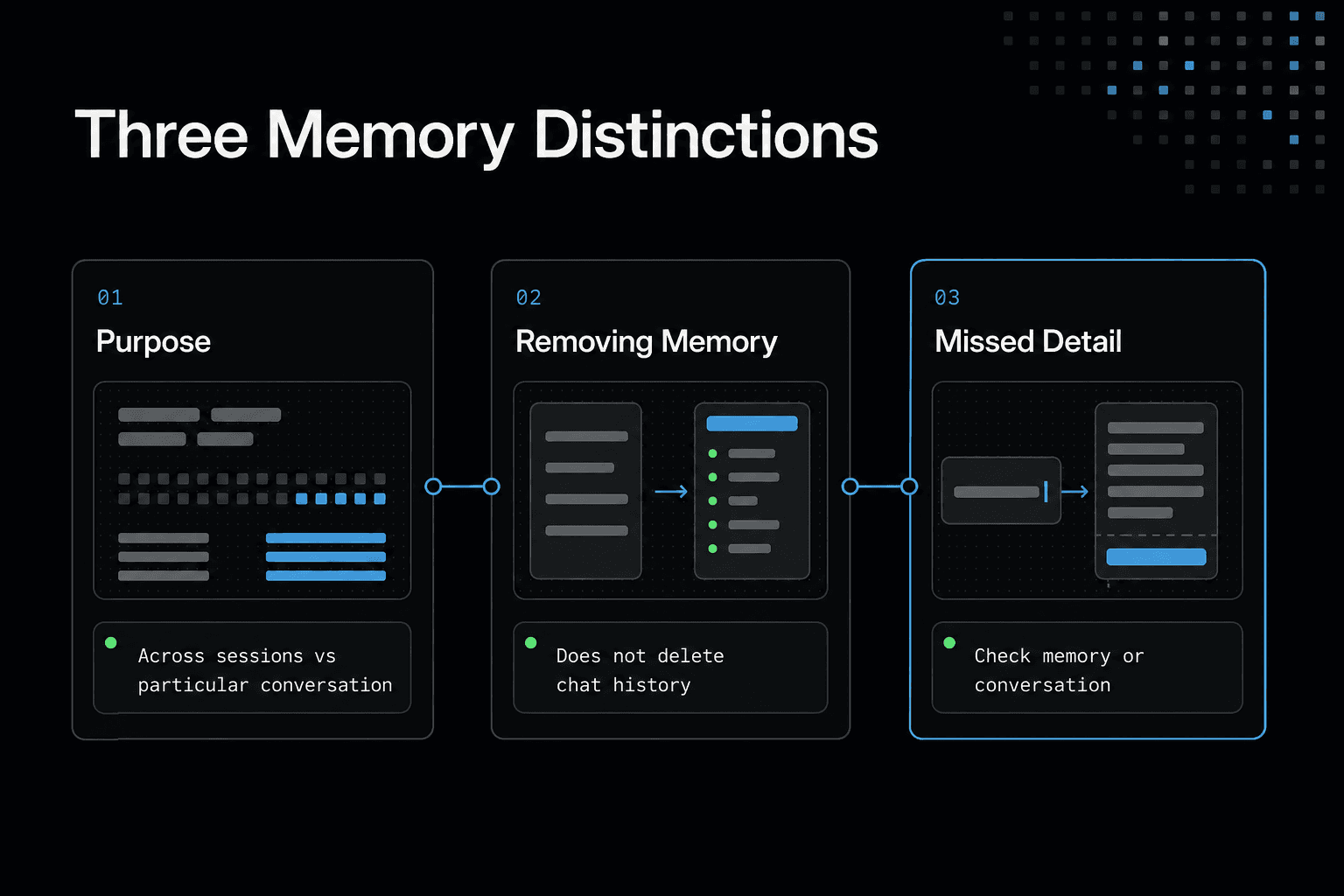
Saved Memory vs Chat History vs Conversation Context
| Factor | Saved memory | Chat history or context |
|---|---|---|
| Purpose | Information retained for use across sessions | Information in a particular conversation |
| If you remove a saved memory | That saved information is removed | The action does not, by itself, delete chat history |
| If ChatGPT misses a detail in one chat | Check whether it was saved as a memory | Check the conversation where the detail appeared |
Why the Memory-Full Warning Appears
The warning usually means the saved-memory area has reached its capacity. It isn't a measure of your total chats, uploaded files, or everything ChatGPT can read in one conversation.
Cause: saved-memory capacity has been reached
Saved memories are retained details, not a running archive of every message you send. Once that space is full, ChatGPT may have no room to add another item until you manage what is already there.
That is the practical limit. Sharing more details won't necessarily create a new saved memory.
Symptoms: new preferences or details may not be retained
You may tell ChatGPT a preference, role, project detail, or recurring instruction, then find it doesn't carry into a later chat. It may still respond to that detail in the current conversation because the message is in the chat context.
That can be confusing. A useful reply now doesn't prove the detail was saved for later.
What happens to new information when it cannot be saved
When saved-memory capacity is unavailable, new information can remain part of the current chat without becoming a retained memory. A new chat may therefore start without that preference or fact.
Don't assume it was ignored. It may simply have nowhere to be stored as a saved memory.
Why user reports can differ from one account or chat to another
It depends on which memory controls are available on your account, what has already been saved, and whether the information was shared in the same chat or a new one. Chat behavior can also differ when saved memory, chat history reference, or temporary-chat behavior is turned on or off.
Keep the diagnosis narrow: a saved-memory warning points to saved-memory capacity first, while a single chat that loses track of details points elsewhere.
Step-by-Step: Troubleshoot a Saved-Memory-Full Warning
- Open ChatGPT’s saved-memory controls and review the retained information.
- Identify memories that are outdated, duplicated, or less useful to you.
- Remove only the saved memories you are comfortable no longer retaining.
- Check whether the warning has cleared and whether the information you kept is still useful.
- If the issue concerns one conversation or an uploaded file, troubleshoot that context or file separately.
- If the warning persists, use ChatGPT’s available support path rather than repeatedly clearing unrelated data.
How to Fix ChatGPT Saved Memory Full
Start with the saved memories list, not your chat archive or browser settings. The goal is to free space for details you want ChatGPT to retain across chats, then check that one new preference can be saved.
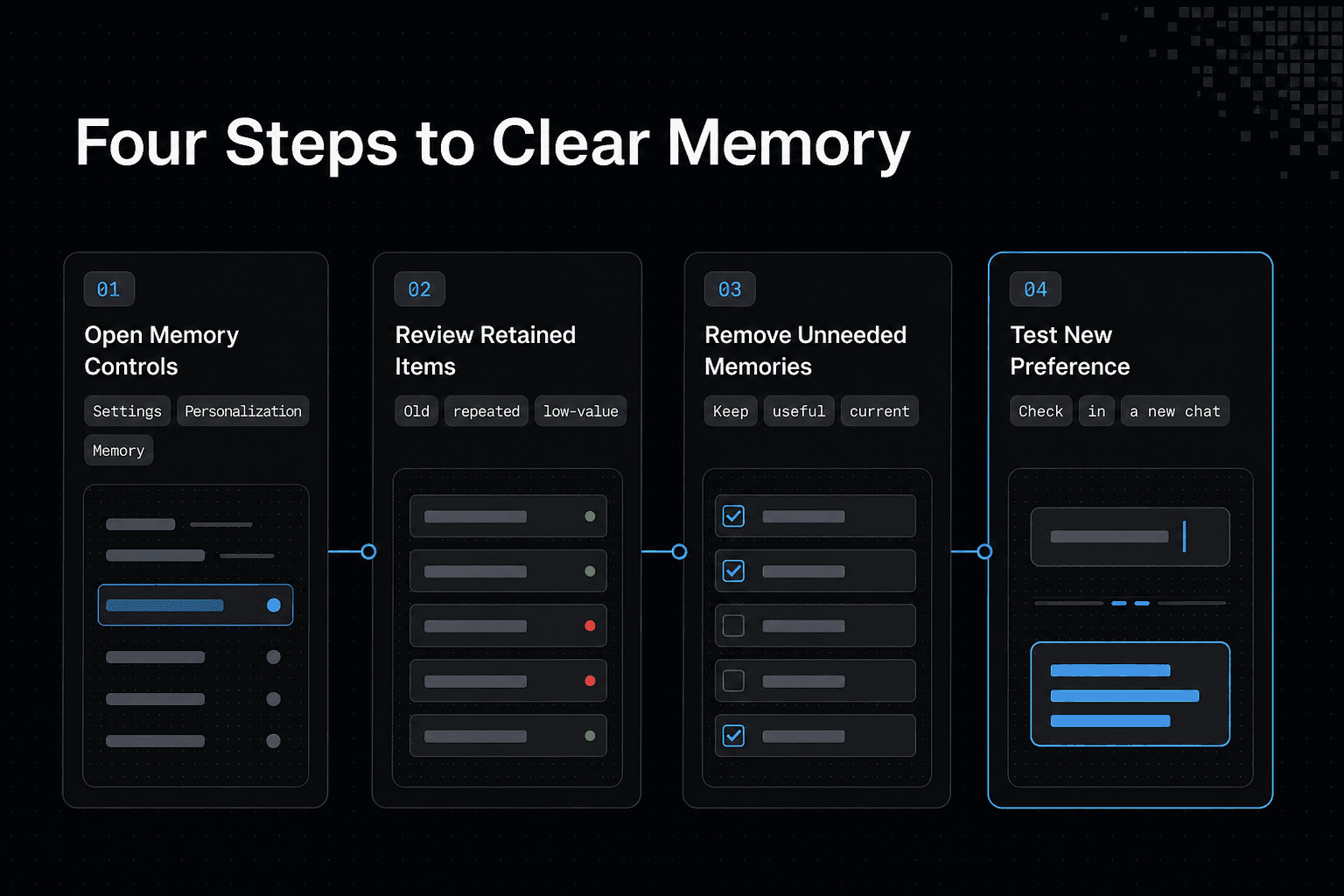
Step 1: Open Settings → Personalization → Memory
Open ChatGPT settings and look for Personalization, then Memory. From there, open the saved memories controls to view the items ChatGPT has retained.
Labels can vary by account or app version. If you don't see the same wording, look for a Memory setting under Personalization rather than deleting chats at random.
Step 2: Review saved memories before deleting
Read the list first. Look for details that are old, repeated, too broad, or no longer useful, such as a former job title, an abandoned project, or preferences you no longer want applied.
Don't clear everything by default. Keeping a short set of current, high-value details makes it easier to tell what ChatGPT should remember later.
Step 3: Remove outdated, duplicate, or low-value memories
Delete the items you no longer need, starting with duplicates and stale facts. One removed memory may be enough if the list contains only a small amount of clutter, but it depends on how much saved-memory space your account has available.
This fixes capacity, not every recall problem. A detail still visible in an old chat may be part of that conversation rather than a saved memory.
Step 4: Update or restate the details that should be prioritized
After making room, state the information you want retained in plain terms. Keep it specific and stable, such as a writing preference or a recurring role, rather than pasting a long project brief.
Avoid sensitive details. Saved memory is for useful preferences, not secrets you would not want retained.
Step 5: Test the expected outcome with one new, non-sensitive preference
Add one small preference, then start a new chat and see whether ChatGPT applies it. For example, ask it to remember that you prefer short answers, then check whether that preference carries over.
If it doesn't, don't keep adding the same detail. Check that Memory is enabled and move to the next troubleshooting steps.
When Memory Stays Full or ChatGPT Does Not Remember
A saved-memory cleanup should change the available space, but it won't fix every kind of recall failure. Check the symptom first, because a browser problem, a disabled setting, and one overloaded chat need different fixes.
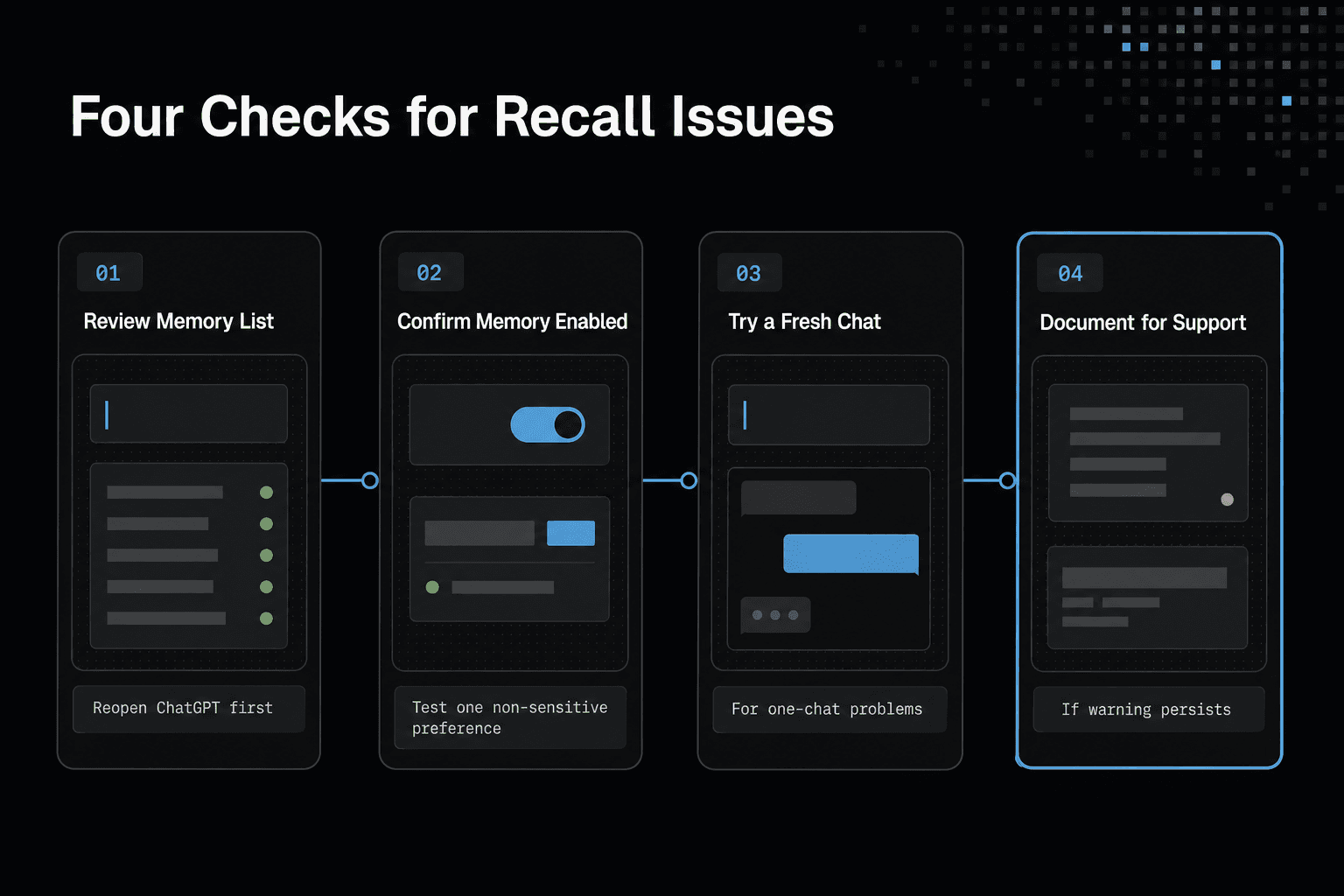
Issue: memory still appears full after deletion
Close and reopen ChatGPT, then return to the saved memories list. If deleted items still show, don't keep deleting chats. Record what you removed and whether the warning remains, since the change may not have applied to the current session.
Issue: ChatGPT does not remember newly shared information
Check that Memory is enabled before you repeat the detail. Then add one short, non-sensitive preference and test it in a new chat.
If it still isn't retained, the issue isn't solved by making the request longer. Keep the exact wording and result for support.
Issue: memories seem to disappear unexpectedly
First, check the saved memories list rather than relying on what appears in one conversation. A detail that isn't available in a new chat may not have been saved, or its behavior may differ from the memory list you can review.
Issue: only one recent chat is behaving badly
Start a fresh chat and ask the same question with the same relevant detail. If the new chat behaves normally, the problem is likely specific to that conversation's context, not saved-memory capacity.
Don't delete useful memories for this.
When cache and cookies may help and when they will not
Clear your browser cache and cookies if ChatGPT is loading stale pages, failing to show setting changes, or acting like an old session is still open. Sign in again afterward.
The main catch is simple: browser data lives on your device. Clearing it does not create saved-memory capacity in your ChatGPT account.
When to document the behavior and contact OpenAI support
Contact OpenAI support when the warning persists after you remove visible memories, a new test preference won't save, or memories vanish from the list. Include screenshots, the device and browser or app you used, the steps you took, and the time the behavior occurred.
When Saved Memory Is Not Enough for Ongoing Agent Work
Saved memory can hold personal preferences, but it isn't a project knowledge base you can inspect, share, or apply across several tools. If your work depends on code decisions, repo rules, task history, and team context, deleting memories won't solve the real problem.
[!tip] For ongoing agent work, keep durable shared knowledge in a purpose-built external workflow when appropriate. For example, GigaRAG connects agents to a central Hive Mind through MCP or an API, separately from ChatGPT’s native saved-memory capacity.
Signs you need project knowledge rather than personal saved memory
Look for repeat work: you keep pasting architecture notes into coding chats, agents reach different conclusions from the same repository, or a new session loses the decisions that shaped the last one. That is project knowledge, not a personal preference.
You may need a shared external workflow that stores project knowledge where agents and teammates can use it across sessions and tools. GigaRAG is a shared memory platform for AI agents designed for that purpose, but it will not increase ChatGPT's built-in saved-memory capacity or remove a saved-memory-full warning.
Trade-offs: convenience, control, setup, and maintenance
Saved memory is convenient because it needs little setup. The main catch is that it gives you limited control over how project information is organized, checked, updated, and shared.
An external knowledge workflow can give you clearer sources and access rules, but somebody must connect the tools, keep records current, and decide what each agent may read. Stale project notes can mislead an agent just as easily as missing notes.
Final operating rule: use the fix that matches the type of memory problem
Use saved-memory settings for account-level preferences and the full warning. Use a fresh chat for chat-specific context trouble.
For ongoing coding or multi-agent work, evaluate shared project knowledge when the same facts must persist across sessions, tools, and people.
Frequently Asked Questions
Where can I find saved memories in ChatGPT?
Look for the saved-memory controls in ChatGPT’s settings or memory-related interface. The precise menu path may vary, so use the controls available in your account.
What does “Saved Memory Full” mean in ChatGPT?
It indicates that ChatGPT’s saved-memory capacity is full. It refers to retained memory, not necessarily chat history, browser files, or a particular conversation’s context.
Will deleting a saved memory delete my chat history?
Deleting a saved memory removes that retained information; it does not, by itself, delete your chat history. Manage chats separately if you want to remove them.
Why is ChatGPT not remembering new information after I clear memories?
The issue may involve whether the information was saved as a memory or whether you expect it to carry over from a particular conversation. Check saved-memory controls and distinguish retained memories from chat-specific context.
Is ChatGPT saved memory the same as a conversation's context window?
No. Saved memory concerns information retained across sessions, while conversation context concerns information available within a particular chat.
Will clearing my browser cache and cookies free up ChatGPT saved memory?
Browser cache and cookies are separate from ChatGPT’s saved-memory content. Clearing them is not the same as removing saved memories.
Is file storage related to the ChatGPT saved-memory-full warning?
File storage and saved memory are separate issues. A saved-memory warning does not, by itself, show that file storage is full.
What should I do if saved memory still appears full after I delete items?
Review the saved-memory controls to confirm the changes, and make sure the problem is not about a chat or file instead. If the warning persists, use ChatGPT’s available support path.
About GigaRAG
GigaRAG is a shared memory platform for AI agents that helps developers and teams keep project knowledge available across sessions and tools. Connect your agents to a central Hive Mind through MCP or the API, with access controls to manage what each agent can use.