Claude Code Checkpoints Explained: How to Rewind Code and Conversations
Claude Code starts a refactor after a simple prompt, then the changes spread through files you did not mean to touch. Your first instinct may be to rewind, but checkpoints cannot reliably recover every change: Bash output, manual or external edits, subagent work, and linked paths may sit outside what Claude Code restores.
Claude Code checkpoints are automatic recovery points tied to the conversation, not durable repository history. That distinction matters when you need to choose between undoing code, returning to an earlier line of thought, or keeping the work and compressing a detour. Git commits and independent backups still protect work that a session-level snapshot may miss. For project knowledge that agents need across sessions and tools, GigaRAG provides a shared memory layer separate from checkpoint recovery.
Quick answer
If Claude Code starts an unwanted refactor, pause before choosing a rewind option. Decide whether you want to change code, conversation context, or both, then protect any work you want to keep.
- Check manual edits, Bash output, external changes, and subagent work.
- Confirm that the recovery point you want is available.
- Use Git or an independent backup for work that must remain recoverable.
Claude Code checkpoints explained: how they work
Claude Code checkpoints are automatic recovery points created before each prompt and tied to that conversation. They can help you rewind Claude Code's tracked work, but they are not Git history or a full backup.
[!tip] Before rewinding a shared or long-running repository task, identify and preserve changes made outside Claude Code so they are not confused with the work you intend to undo.
Checkpoints are created before each prompt
Before Claude Code acts on your next request, it creates a checkpoint. That gives you a point to return to if the next turn starts an unwanted refactor, follows the wrong plan, or fills the conversation with a dead end.
You do not need to create these snapshots by hand. The main catch is that they support recovery within the Claude Code session, not a durable record of your repository.
What file changes Claude Code tracks
A checkpoint records file changes Claude Code makes as part of its work. Rewind can use that record to restore code, conversation context, or both, depending on the option you choose.
It is not a universal undo button. Changes from Bash commands, manual edits, other tools, or linked paths may sit outside what the checkpoint can safely restore.
How checkpoints stay associated with a conversation
Checkpoints belong to the conversation that created them. That link matters because rewind can change more than files: it can also return Claude Code to an earlier point in the discussion.
Keep Git in place. A checkpoint helps you escape a bad agent turn, while a commit preserves work you chose to keep.
How to use Claude Code checkpoints with /rewind or Esc Esc
Open the rewind menu with /rewind or Esc twice
Type /rewind, or press Esc twice, to open the rewind menu. Select the checkpoint from before the turn you want to change, then choose an action.
Pause before you confirm. Some choices change files, some change conversation context, and two only summarize it.
Restore code and conversation: undo an unwanted implementation path
Choose Restore code and conversation when you want to undo both Claude Code's generated changes and the discussion that led to them. Use it after an unwanted refactor or a feature built on the wrong assumption.
It returns you to the selected point in both the working code Claude Code tracked and the conversation, so later instructions and responses no longer guide the session.
Restore conversation: keep files but return to an earlier discussion state
Choose Restore conversation when the files are worth keeping but the conversation has gone off course. Claude Code may have produced usable code while spending several turns on an architecture you no longer want to discuss.
Your files stay as they are. Only the conversation returns to the checkpoint, so you can give a cleaner next instruction without discarding later code.
Restore code: discard generated file changes while keeping later context
Choose Restore code when you reject the generated implementation but want Claude Code to retain what was discussed later. This fits a failed edit where the reasoning, requirements, or debugging details still matter.
The code goes back to the selected checkpoint. The conversation does not, so make sure later context will not push Claude Code toward the same bad implementation again.
Summarize from here: preserve the earlier path and compress a later detour
Choose Summarize from here when the conversation was useful up to a checkpoint, then became long or repetitive. Claude Code keeps the earlier path and replaces the later stretch with a summary.
No files are restored. This is a context-management choice, not a recovery choice.
Summarize up to here: retain later context while condensing earlier discussion
Choose Summarize up to here when the later conversation matters most, but the earlier discussion is taking up too much context. Claude Code condenses everything before the selected point and keeps the later path available.
Your files do not change. Use it after a long successful session when the recent work needs to remain detailed.
A quick decision rule for choosing the right option
Start with what you need to preserve: files, conversation, or both. Choose Restore code and conversation to remove both, Restore conversation to keep files, and Restore code to keep the discussion.
Choose either summarize option only when the problem is context length. Before restoring code, save any manual or external edits you cannot afford to lose.
Step-by-step: prepare before rewinding
- Pause the unwanted work and identify the point you want to recover from.
- Review manual edits, Bash output, external changes, and subagent work that may matter.
- Preserve useful work separately before changing code or conversation state.
- Open the rewind menu and inspect the available choices.
- Select the option that matches whether you want to restore code, conversation, or both.
- Review the resulting repository and conversation before continuing.
Recovery scenarios: when to rewind, restore, or summarize
The choice is not about which option sounds safest. It depends on what you need to keep: working files, useful context, or neither.
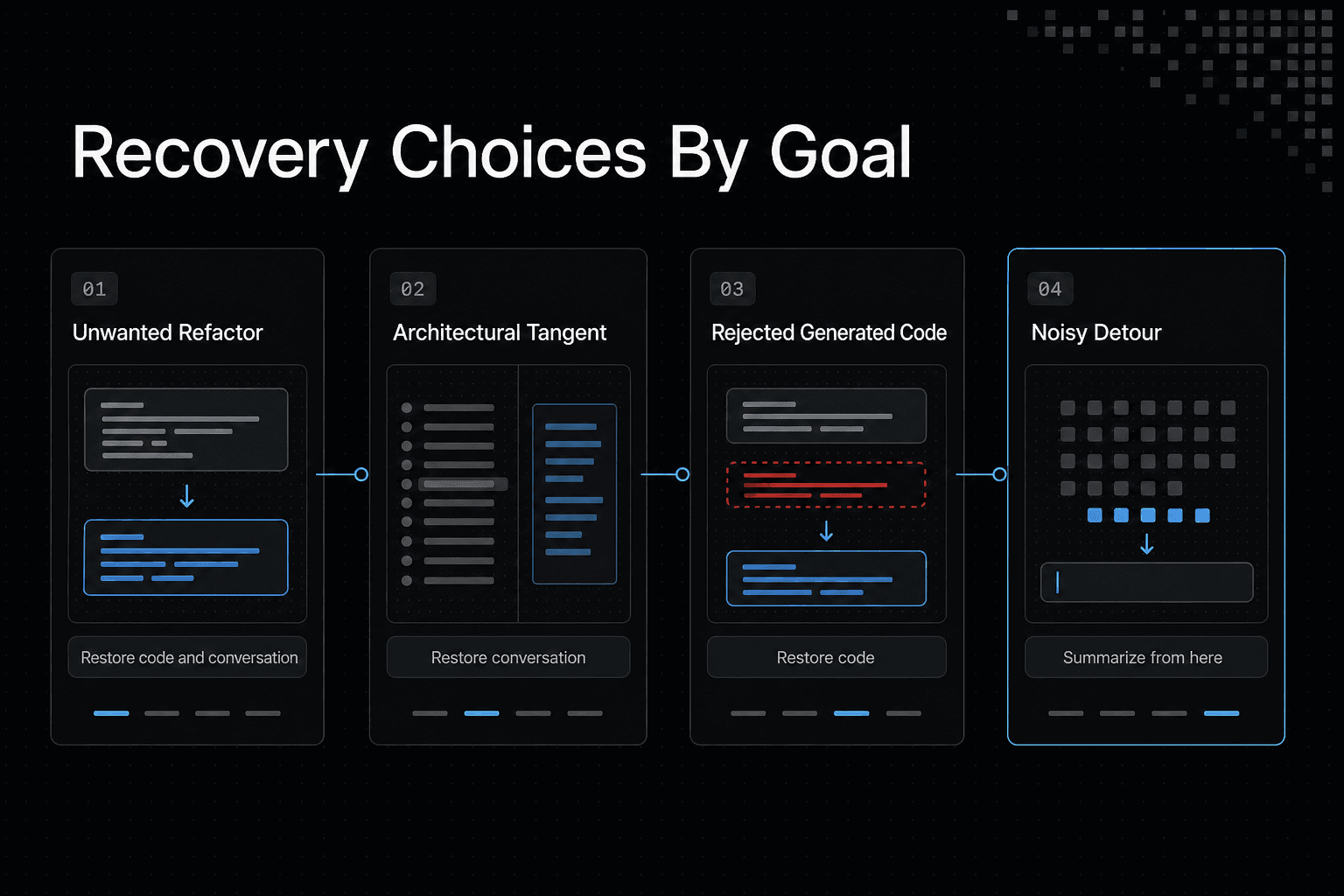
An unwanted refactor: restore code and conversation
Claude Code rewrites several modules around a pattern you did not ask for, and the later discussion assumes that pattern is correct. Choose Restore code and conversation.
You remove the tracked implementation and the prompts that built on it. Then give a narrower instruction from the earlier checkpoint, before the wrong direction shaped both the code and the discussion.
A bad architectural tangent: restore conversation
The files are useful, but the conversation has spent too long debating a design you now reject. Choose Restore conversation.
Your working files remain. You can return to the earlier discussion state and state the architectural constraint clearly without throwing away code that still earns its place.
Generated code you reject but reasoning you need: restore code
A generated patch is wrong, yet the later turns contain bug details, API constraints, or acceptance criteria you need. Choose Restore code.
This drops the tracked code changes while keeping that later context. Check the conversation first, because it may still contain an assumption that led to the bad patch.
Useful implementation, noisy detour: summarize from here
The implementation is sound, but a long detour after a checkpoint is filling the conversation with dead ends. Choose Summarize from here.
No files change. You keep the useful earlier path and compress the later noise, leaving more room for the next task.
A long successful session: summarize up to here
After a long session, the recent work matters most. Choose Summarize up to here to condense the early discussion while retaining later detail.
Do not use it to undo artifacts created through Bash or other external work. A summary changes context, not files.
Claude Code checkpoint limitations and safe recovery practices
Checkpoints are not backups. They may not capture every change on disk, so rewind can leave work behind or fail to restore work you expected to return.
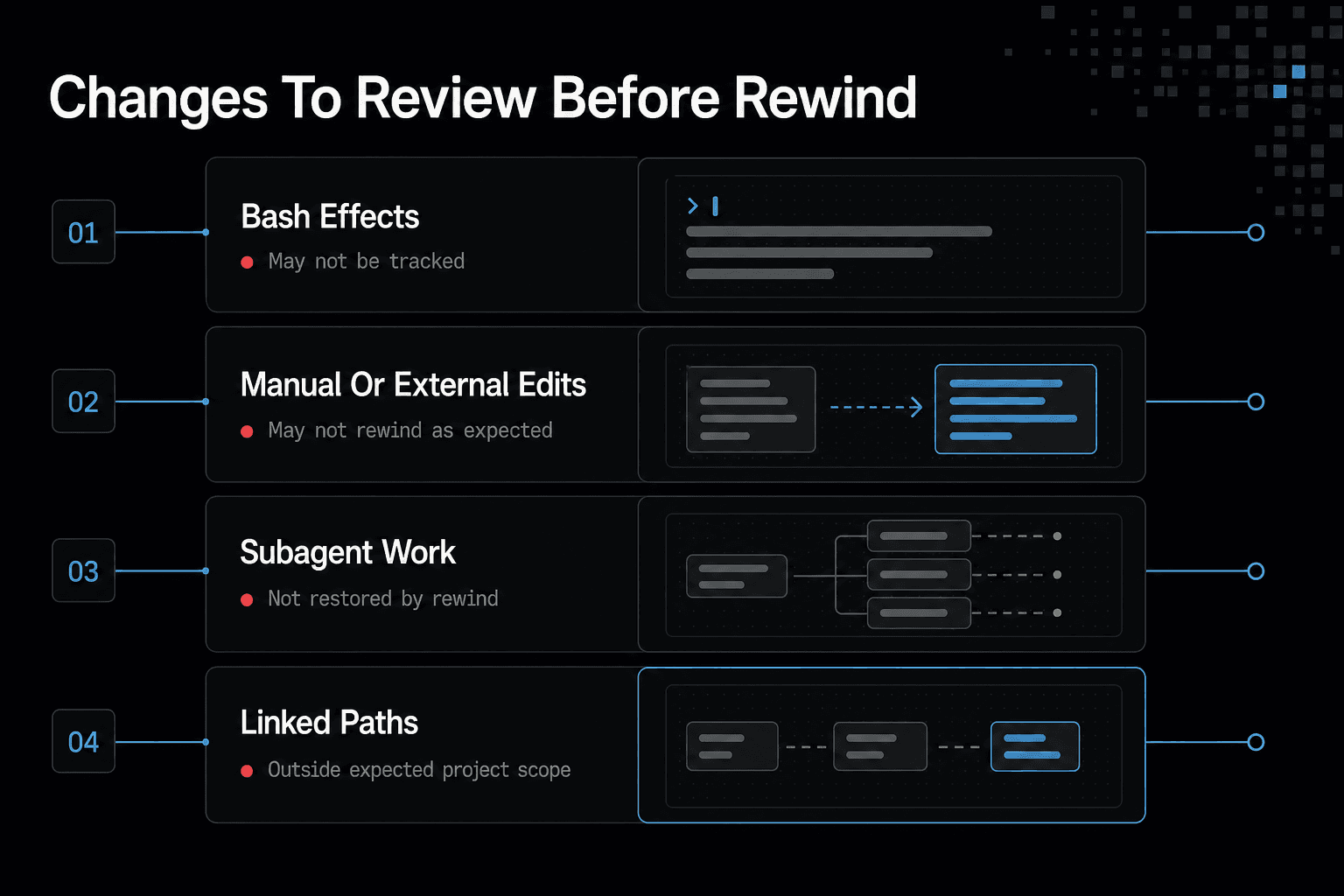
Changes made through Bash may not be tracked
Do not assume a shell command is reversible. Files created, changed, moved, or deleted through Bash may sit outside the checkpointed changes, so inspect the working tree before you rewind.
Manual and external edits may not rewind as expected
The same caution applies to edits you make yourself or another process makes. An editor, formatter, watcher, or build tool can change files while Claude Code is running, and rewind may not put those files back where they were.
Subagent changes are not restored
Work done by subagents is another boundary. If a subagent changed files you need to protect, review and save that work before choosing a restore option.
Linked paths and files outside the expected scope
Symlinks and hard links can point beyond the files Claude Code expects to manage. Do not use rewind to roll back linked paths or files outside your project scope.
Deleted or unavailable snapshots and checkpoint retention
A checkpoint can be unavailable if its snapshot was deleted or is no longer retained. The honest answer is that you cannot recover a missing snapshot with rewind, so Git history or an independent backup must carry that job.
Safe recovery checklist: inspect, preserve, rewind, test, commit
Start by checking git status and reviewing the diff. Copy or commit any manual edits, Bash output, external changes, and subagent work you want to keep.
Then rewind only the tracked work you mean to discard. Run your tests, inspect the resulting diff, and make a Git commit once the repository is back in a state you trust.
Claude Code checkpoints vs Git commits vs backups
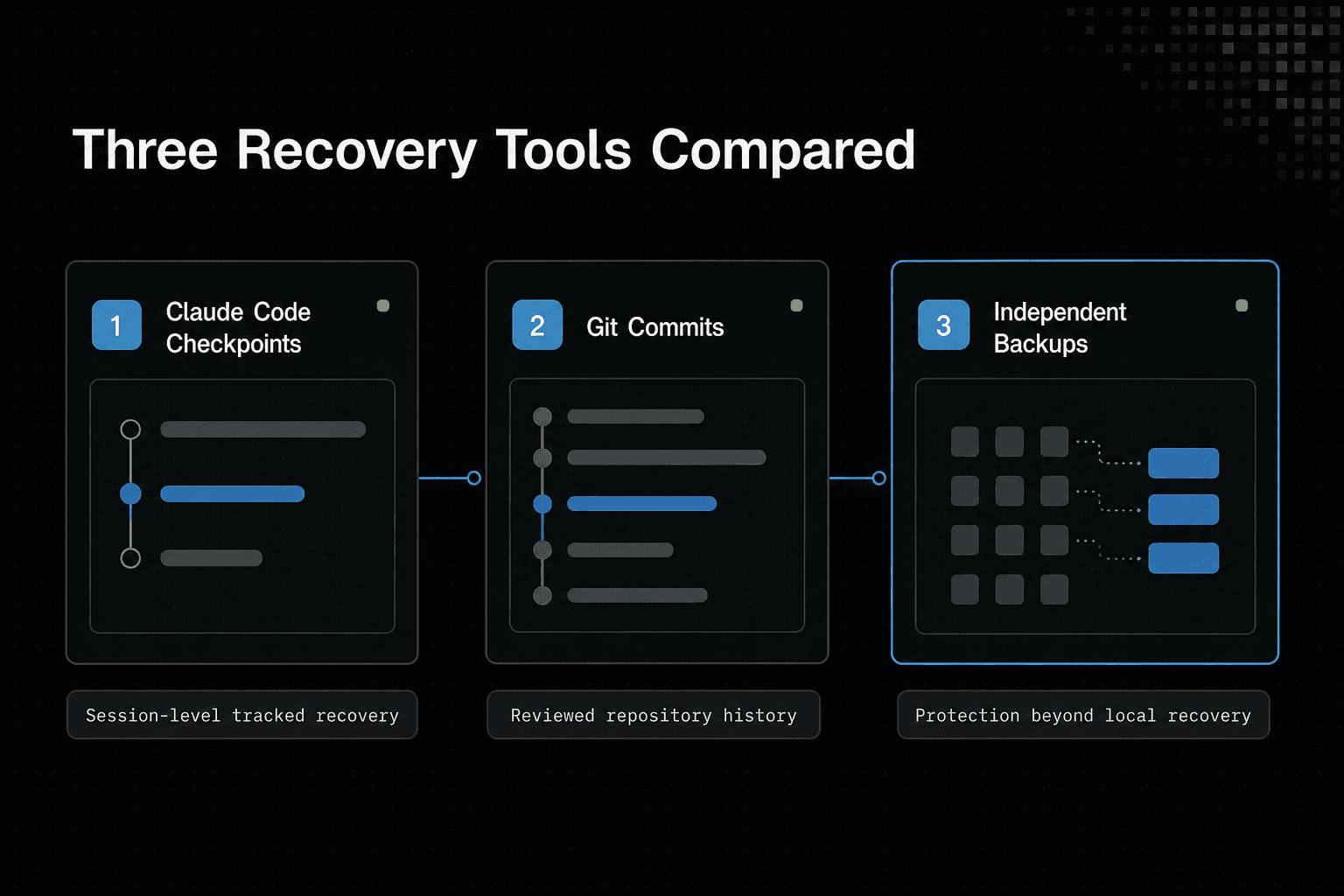
Each tool solves a different recovery problem. A checkpoint helps you undo a recent Claude Code path, a commit records a repository state you chose, and a backup gives you another copy when local recovery data is gone.
| Factor | Claude Code checkpoints | Git history or backups |
|---|---|---|
| Primary decision | Choose whether to rewind code, conversation, or both. | Choose a saved repository state or backup to recover. |
| Before recovery | Check the rewind options and whether the desired point is available. | Check which changes were committed or included in the backup. |
| Work to verify | Review manual edits, Bash effects, external changes, and subagent work. | Review what the saved history or backup contains. |
| Recovery boundary | Do not assume every kind of change is included in a checkpoint. | Do not assume unsaved or unbacked-up work is recoverable. |
What checkpoints are best for
Use checkpoints when a conversation has just gone wrong and you need to change course. They can restore tracked code, conversation context, or both, but they are not durable history and may miss changes outside their scope.
Short-term only.
What Git commits are best for
Use Git commits for work you have reviewed and want to keep as repository history. A commit gives you a named point to compare, revert, branch from, or share with your team after you check that the diff contains the files you intend.
Do not commit blindly. Generated artifacts and unrelated local edits can still end up in a commit if you do not inspect what is staged.
What independent backups are best for
Use independent backups to protect against loss that neither a live conversation nor local Git data can solve. That can include a missing checkpoint, a damaged working copy, deleted local history, or a machine problem.
A backup is only useful if it exists somewhere separate from the failure.
A practical workflow: checkpoint, verify, commit, back up
Let Claude Code checkpoints handle the immediate detour. Verify the resulting files and tests, then make a Git commit when the change is intentional. Keep an independent backup for recovery beyond the repository and session data available to you.
Troubleshooting Claude Code rewind and building a safer workflow
[!note] Do not treat a rewind choice as a guarantee that Bash effects, manual edits, external changes, or subagent work will be reversed.
Rewind did not restore the change you expected
First, inspect the diff. The change may have come from a manual edit, Bash command, subagent, or external process rather than the tracked Claude Code action you rewound.
Do not keep retrying rewind blindly. Save any work you want, identify the missing file or change, then use Git history or a backup if the checkpoint cannot cover it.
The checkpoint you need is unavailable
A missing checkpoint is not recoverable from the rewind menu. Check your working tree, recent commits, remote branches, and independent backups before making more changes that could overwrite useful evidence.
Common mistakes before and after rewind
Do not treat a checkpoint as a clean repository state. Review the files, run the relevant tests, and check git status after recovery.
The minimum safe workflow for agent-assisted coding
Start with a clean or understood working tree. Let checkpoints handle a short detour, inspect the result, commit reviewed work, and keep backups outside the machine or local repository.
Preserve Project Knowledge Across Sessions with GigaRAG
Claude Code checkpoints help developers rewind unwanted code changes and conversation turns. However, they are not designed to preserve reusable project knowledge across different agents, sessions, and tools.
For this, developers can use GigaRAG, a shared memory platform that gives connected AI agents access to a central knowledge base through MCP (Model Context Protocol) or its API.
Unlike checkpoints, GigaRAG does not save repository snapshots or restore code. It preserves project information that developers or agents explicitly save, making it available in future sessions.
Step 1: Connect GigaRAG to Claude Code
Run this command in your terminal:
claude mcp add --transport http --scope user gigarag https://mcp.gigarag.com/mcp
Authenticate with your GigaRAG account:
claude mcp login gigarag
Follow the browser authentication flow, select the workspace you want to connect, and approve access.
The user-level connection makes GigaRAG available across your Claude Code projects.
Step 2: Verify the MCP connection
Open Claude Code and run:
/mcp
Confirm that GigaRAG appears as a connected MCP server.
You can also ask Claude Code:
List my GigaRAG buckets.
If it can retrieve your workspace's buckets, the connection is working.
Step 3: Save important project knowledge
Create a dedicated bucket for your project and organize its information into threads and memos.
For example, save:
- Architecture decisions and technology choices.
- Important implementation details and dependencies.
- Bugs encountered and solutions that worked.
- Files modified and their current status.
- Outstanding tasks and the next development steps.
GigaRAG provides MCP tools such as list_buckets, create_bucket, create_thread, and create_node to organize and store this information.
For example, ask Claude Code:
"Save a project handoff memo in GigaRAG containing the current project objective, architecture decisions, files modified, unresolved bugs, Git status, and the next development task. Organize it under the appropriate project bucket and thread."
Claude Code can use the connected GigaRAG tools to create the memo.
Step 4: Retrieve project knowledge in a new session
After restarting Claude Code or opening another connected agent, ask it to search the shared memory:
"Search GigaRAG for the latest project handoff notes for this repository. Retrieve the relevant memo and summarize the architecture, current implementation status, unresolved issues, and next steps."
GigaRAG provides search_nodes to find relevant memos and fetch_node or fetch_nodes to retrieve their contents.
This lets a new session access previously saved project knowledge without depending entirely on the original conversation.
Frequently asked questions
How are Claude Code checkpoints created?
Claude Code creates checkpoints automatically before each prompt. They stay tied to the conversation that created them.
How do I open the Claude Code rewind menu?
Type /rewind or press Esc twice. Then select the checkpoint and the action that matches what you need to preserve.
What is the difference between Restore code and conversation and Restore code?
Restore code and conversation returns both tracked code and conversation context to the selected checkpoint. Restore code returns the tracked code but keeps the later conversation.
When should I choose Restore conversation instead of restoring code?
Choose Restore conversation when you want to return to an earlier discussion state but keep the current files. It fits useful code paired with a conversation that has gone off course.
What do Summarize from here and Summarize up to here do?
Summarize from here keeps the earlier path and condenses the later discussion. Summarize up to here condenses the earlier discussion while keeping the later path detailed.
Neither option restores files.
Does Claude Code rewind restore changes made through Bash commands?
Do not assume it does. Bash effects may sit outside the tracked changes, so inspect the repository and any affected external state before and after rewind.
Can Claude Code checkpoints replace Git commits?
- Checkpoints help with session-level recovery, while Git commits preserve repository history you have reviewed and chosen to keep.
Why is the checkpoint I need unavailable?
A snapshot may have been deleted or may no longer be retained. If it is missing, use your working tree, Git history, remote branches, or an independent backup instead.
About GigaRAG
GigaRAG is a shared memory platform for AI agents. It allows connected agents to access project knowledge, technical decisions, and reusable context through MCP or an API, with access controls governing what each agent can use.
It complements Claude Code checkpoints, Git, and backups rather than replacing them. Learn more at GigaRAG.