How to Restore a Claude Code Session
You close a terminal, Claude Code crashes mid-task, or yesterday's conversation simply isn't there. Start with the native paths: claude --continue reopens the latest session for the current project, claude --resume lets you pick from available sessions, claude --resume <session-id> targets a known conversation, and /resume switches sessions from inside Claude Code.
The main catch is that reopening a Claude Code session doesn't guarantee every earlier message, context-window detail, completed tool state, or deleted transcript will return. Your changed files are separate: check Git status and preserve the working directory before you retry anything.
Process overview
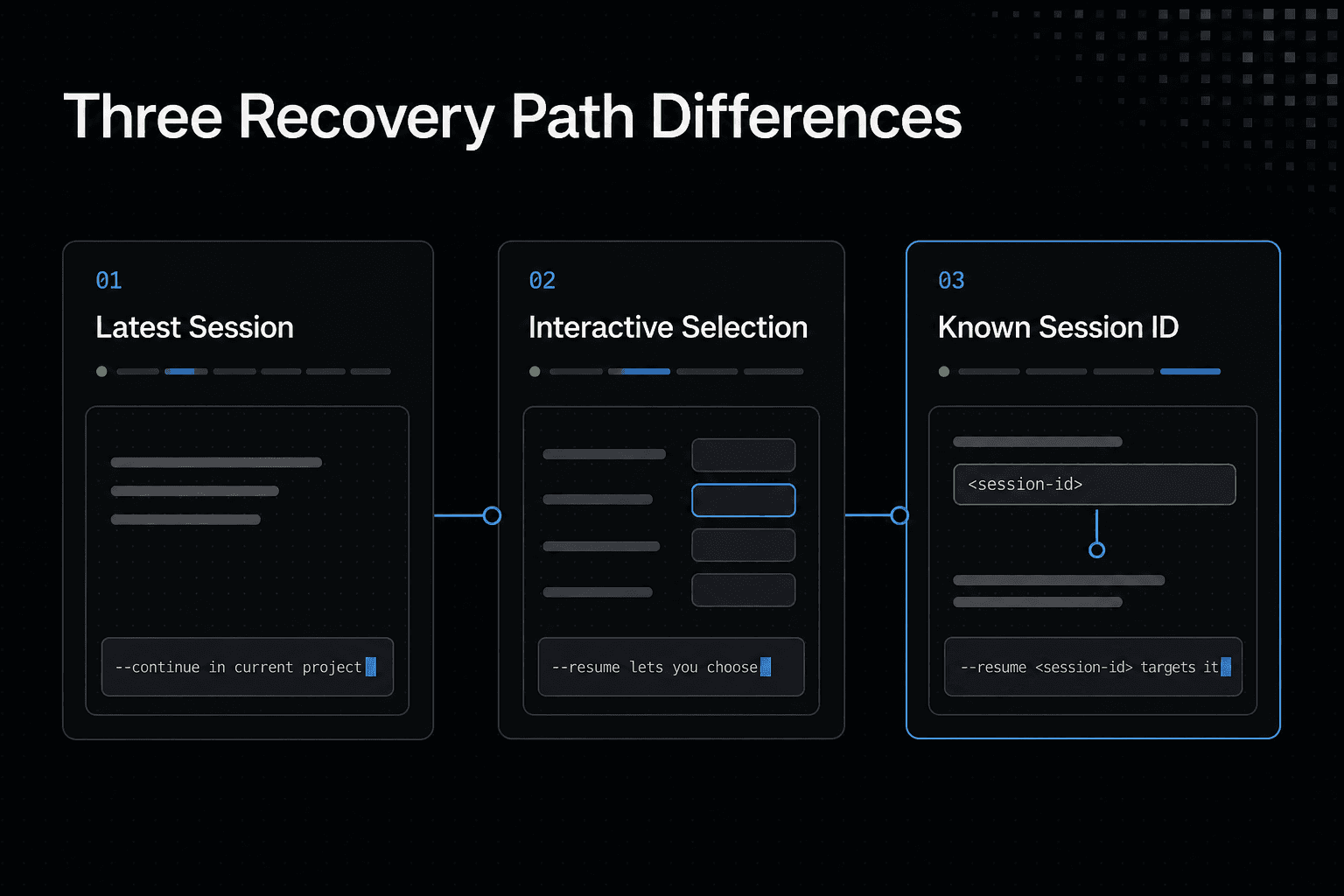
Choose the recovery command that matches what you need: a recent session, an interactive choice, or a specific session ID. Then verify the conversation and project files separately.
- For the latest session in the current project, use
claude --continue. - To choose a session interactively, use
claude --resume. - To target a known session, use
claude --resume <session-id>. - After reopening, check the conversation and project files separately.
Before you restore a Claude Code session: know what is recoverable
A resumed Claude Code session and recovered project work are not the same thing. One may reopen a prior conversation, while the other depends on what remains in your working directory, Git history, and backups.
[!note] Restoring a session and restoring project files are separate recovery tasks. Reopening a conversation does not guarantee that prior tool state or deleted transcript content returns.
What session restoration can reopen
Session restoration can reopen a saved conversation so you can see prior prompts and continue the task. It may give you enough task history to pick up where you stopped.
Check it first. Read the last exchange, confirm the project directory, and inspect the files before asking Claude Code to make more changes.
What it cannot guarantee: full context, completed tool state, or deleted transcripts
The main catch is context. A reopened conversation may not contain every detail Claude Code had before a crash, and an interrupted tool call may not have finished.
Deleted or unavailable transcripts are a hard stop. Don't treat a new session as proof that the old conversation, tool output, or agent state has returned.
Check the project directory and preserve current file changes first
Before you start, open the intended project directory and run git status. Then preserve anything you can't afford to lose with a diff, a commit, or a copy of the changed files.
Code recovery is separate. Even if no session returns, uncommitted changes may still be on disk, so avoid cleanup commands until you know what changed.
Use issue threads as task context, not recovery instructions
Issue threads, pull requests, and repository notes can tell you what the task was meant to do. They can't restore a missing transcript or rerun a tool call.
GigaRAG is a shared memory platform for AI agents that can keep project knowledge available across sessions and tools. However, previously saved knowledge is not a replacement for a missing Claude Code transcript.
Which Claude Code session recovery path should you use?
| Factor | --continue | --resume |
|---|---|---|
| Use it when | You want the latest session in the current project | You want to choose a session interactively |
| Session selection | Targets the latest session | Lets you select a session |
| Specific session | Not the stated choice for targeting a known ID | Can be used with a session ID |
Restore a Claude Code session with native commands
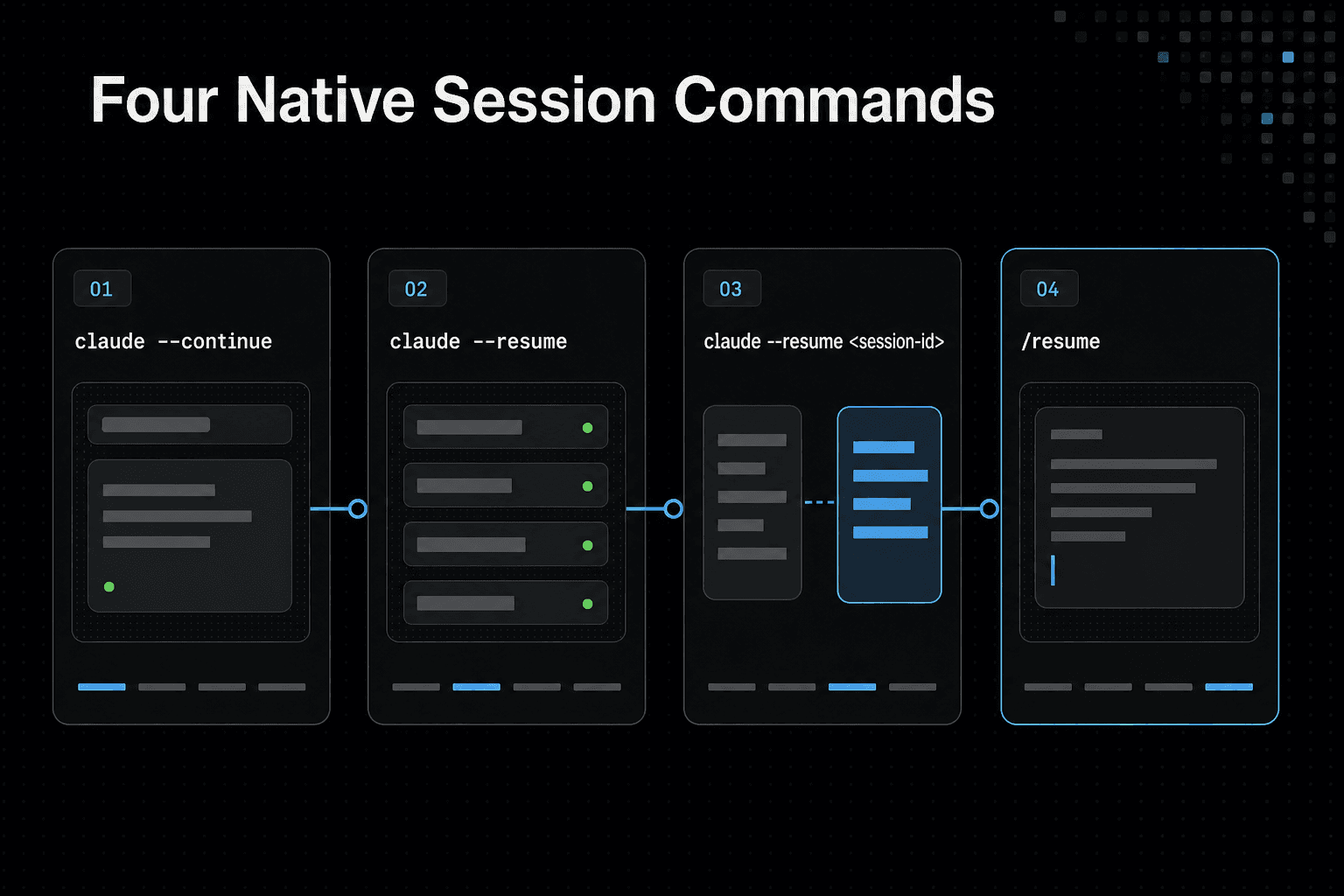
Use claude --continue for the latest session in this project, claude --resume to choose one, claude --resume <session-id> when you know its ID, or /resume from inside Claude Code. Then check the conversation and files before you continue work.
1. Run claude --continue to reopen the latest session in the current project
Start in the project directory you were using, then run claude --continue. This is the fastest path when the most recent session is the one you need.
It can open the wrong session if you start from the wrong project. Check before you act.
2. Run claude --resume to browse and select a previous session
Run claude --resume when you need to choose rather than reopen the latest session. Use the available details to match the task, branch, and rough time you last worked.
Don't guess from the first result. A similar task can lead you to make changes against the wrong context.
3. Run claude --resume <session-id> to reopen a known conversation
Use claude --resume <session-id> if you recorded the session ID earlier. Replace <session-id> with the actual ID, keeping it exactly as saved.
An invalid or unavailable ID won't recreate the conversation. Instead, switch to file and Git recovery if it no longer opens.
4. Use /resume inside Claude Code to switch sessions
If Claude Code is already open, enter /resume to select another saved session without leaving the interface. This helps when the current conversation is new, empty, or clearly not the task you meant to restore.
Read the final exchanges once it opens. An interrupted tool call may still need a safe retry.
Verify the recovered session: inspect the task, working tree, and next safe action
Before you continue, confirm three things: the task matches your intent, git status shows the expected working tree, and the next action won't overwrite existing work. Then ask Claude Code to state what it believes happened last and what it plans to do next.
Small checks save time.
Find the right session, project directory, and session ID
Confirm you are in the same project directory before using claude --continue
Run pwd and git status first. Compare the path and branch with the work you meant to resume, because claude --continue only helps when you start from the same project context.
Don't fix this by moving files yet. Open the intended repository in a new terminal if there is any doubt.
Use interactive resume to compare available sessions by recognizable context
Run claude --resume when the latest session is not clearly the right one. Compare each available entry against details you can recognize: the task, branch name, files discussed, and when you last worked.
Read enough of the restored conversation to confirm it. Similar feature work can look convincing at first.
How to record and reuse a session ID when it is available
If Claude Code shows a session ID, save it with a short task note in your issue, scratch file, or commit message. Keep the full value exactly as shown, then use:
claude --resume <session-id>
A session ID is a pointer, not a backup. If it becomes unavailable, it can't rebuild a missing transcript.
Locate local session data carefully
Local data may help you inspect what remains, but don't assume a path from an old guide applies to your installed version. Check the current Claude Code documentation or its settings before you alter, move, or delete session-related files.
The main catch is simple: cleanup can make recovery worse.
Practical example: recovering yesterday's feature branch after reopening a terminal
Start in the repository for the feature branch, run git status, then use claude --resume to find the session that mentions the feature and its changed files. Once it opens, compare its last task with the working tree before asking Claude Code to continue.
If the conversation is gone but the files remain, preserve the code first.
Troubleshoot missing, invalid, or interrupted Claude Code sessions
If the expected session does not appear in claude --resume
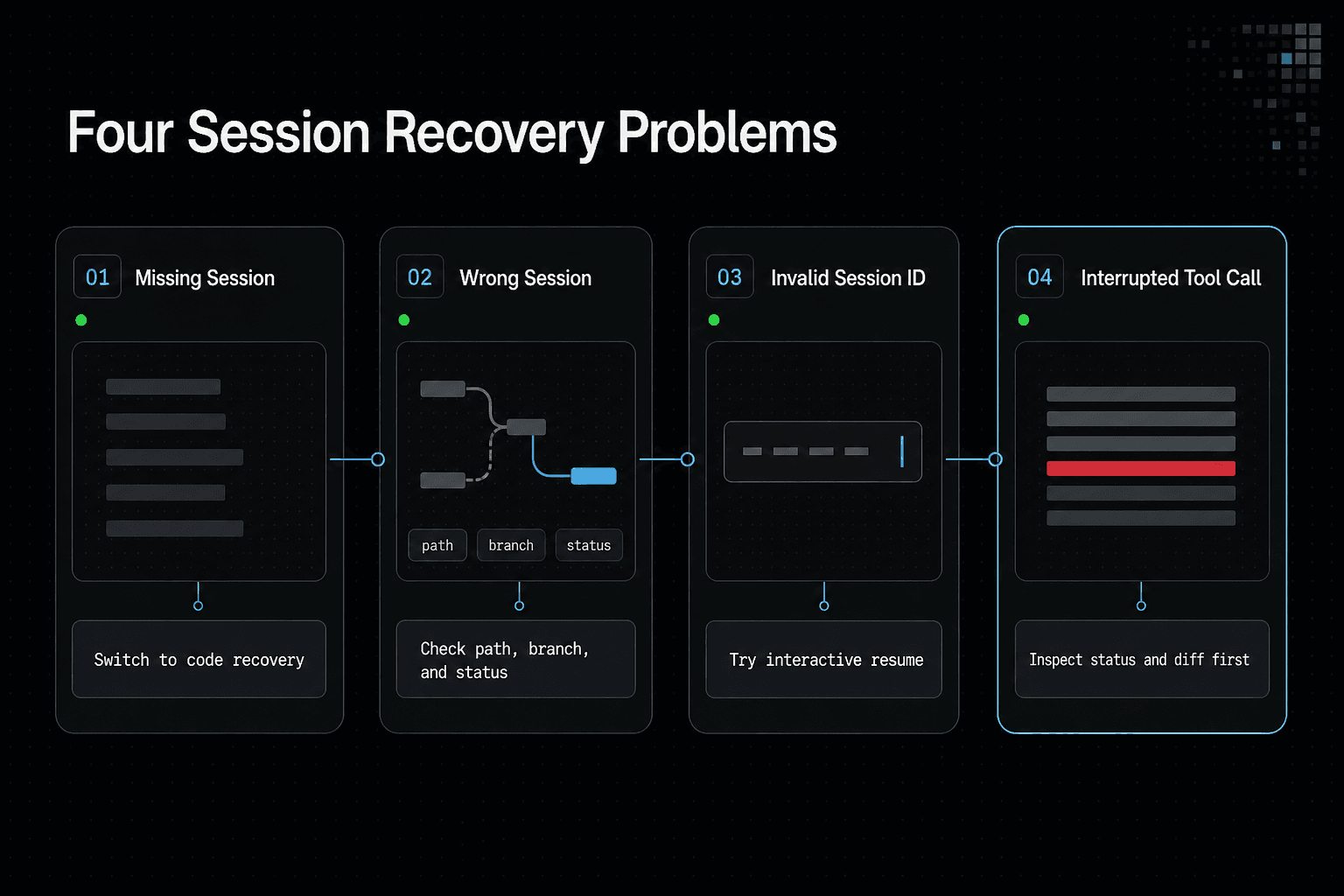
Start in the repository where you did the work, then run claude --resume again. If it still isn't listed, don't keep retrying in the hope that a missing transcript will appear.
Check any task notes or saved session ID. If neither points to an available session, switch to code recovery.
If claude --continue opens the wrong or an empty session
Stop there. An empty or unrelated conversation means claude --continue is not a safe recovery path for this task.
Run pwd, git status, and check your branch. Then open the intended project directory and use claude --resume to choose a session by recognizable task details.
If a session ID is invalid or no longer accepted
Copy the ID again and make sure it has no missing characters or added spaces. Then try claude --resume without the ID to see whether the session is still available for selection.
If the ID remains invalid and the session isn't listed, treat the conversation as unavailable. A session ID identifies a saved session, but it isn't a copy of its contents.
If Claude Code crashed during a tool call or terminal interruption
Reopen the project and inspect the working tree before you resume anything:
git status
git diff
A crash can leave changed files, partial output, or no visible code change. Read the diff before rerunning a command, especially if the interrupted tool could have edited, deleted, or generated files.
If the transcript is missing or deleted: what cannot be recovered
A deleted or unavailable transcript can't be recreated with --continue, --resume, or a session ID. Those commands can reopen what remains available, but they can't reconstruct prior messages, tool state, or reasoning that no longer exists.
The honest answer is that you must rebuild task context from the repository, commits, issue notes, and saved documentation. GigaRAG or another knowledge system cannot restore a deleted transcript unless an approved, documented integration stored it.
Recover changed code separately with Git status, diffs, commits, and project backups
Conversation recovery and code recovery are different jobs. Run git status, inspect git diff, and look through recent commits before you edit further.
If changes are present, copy or commit them before trying another recovery path. If they aren't, check your project backup or version history rather than assuming the transcript held the only copy.
Environment-specific caution for IDE terminals, tmux, and cmux workflows
An IDE terminal, tmux pane, or cmux workspace may reopen a shell without restoring the Claude Code conversation you expected. Don't mistake a surviving terminal window for a restored session.
Check the repository, branch, and working tree each time you reconnect.
Prevent lost context in future Claude Code work
[!tip] Before closing a work session, record its session ID and make a Git checkpoint so you can identify the conversation and inspect code changes independently.
Name or record important sessions and their purpose
Record the session ID, branch, and task goal in the issue. This gives you recognizable context if you need to resume later.
Make small Git commits before risky or long-running agent work
Commit reviewed changes before long runs or broad edits. A checkpoint keeps code recovery separate from conversation recovery.
Back up important project files and preserve reproducible task notes
Back up files and save the command, inputs, and checks needed to rerun work. Notes can help rebuild a task when a transcript cannot return.
Use saved project knowledge as a supplement, not as transcript recovery
GigaRAG can keep project knowledge available across sessions and tools through a central Hive Mind connected by MCP or the API. It does not restore a vanished exchange unless an approved, documented integration stored that transcript.
Frequently asked questions
How do I restore the latest Claude Code session in the current project?
Use claude --continue to reopen the latest session in the current project. Check the conversation afterward to confirm it is the one you intended.
What is the difference between claude --continue and claude --resume?
claude --continue targets the latest session in the current project. claude --resume opens an interactive session-selection flow.
How do I resume a Claude Code session with a session ID?
Use claude --resume <session-id> with the ID of the session you want. Verify the reopened conversation before continuing work.
Why does claude --continue open the wrong session?
claude --continue targets the latest session in the current project, which may not be the one you meant to reopen. Use interactive claude --resume or target the session by ID instead.
What should I do if my previous session is missing from claude --resume?
Check that you are in the correct project, then try a session ID if you have one. If the transcript is unavailable, inspect Git or backups for project changes.
Can Claude Code restore a conversation after a terminal crash or interrupted tool call?
You can try continuing or resuming the session, but reopening it does not guarantee that every prior message or tool state returns. Verify the conversation and inspect project files separately.
Can I recover a deleted Claude Code transcript?
No. If the transcript is deleted or unavailable, --continue, --resume, and a session ID cannot recreate it.
Does restoring a Claude Code session restore my uncommitted code changes?
No. Reopening a conversation does not establish that uncommitted code changes are present. Inspect the project files separately and check Git or backups for recoverable work.
About GigaRAG
GigaRAG is a shared memory platform for AI agents that helps developers and teams keep project knowledge available across sessions and tools. For Claude Code work, that knowledge can help you rebuild task context when the original conversation is unavailable.
You can connect agents to a central Hive Mind through MCP or the API, with access controls to manage what each agent can use. GigaRAG does not replace Git checkpoints, project backups, or a saved Claude Code transcript.