How to Fix an MCP Memory Server Connection Failure in Codex
An MCP memory server problem in Codex can show up as a configuration error, a server that does not appear in the client, or tools that are unavailable when you try to use them.
Start with the exact message and the setup that produced it. Change one documented setting at a time so you can compare the result.
Quick diagnosis
Use the symptom you can observe first, then verify the relevant configuration and server documentation before changing the next part of the setup. This approach also applies when you connect GigaRAG, a shared memory platform for AI agents, through MCP.
- Check that Codex loads the MCP config without a TOML error.
- Run the server using its documented command and record its output.
- Follow the authentication method documented for the server and Codex build you use.
- Check the MCP status or server view available in your Codex version, then try a permitted test action.
How to fix an MCP memory server connection failure in Codex
Work from the first visible failure: confirm the active configuration, use the server's documented command and settings, and record what Codex shows after each change.
[!note] A successful OAuth login does not by itself show that Codex connected to the server or exposed its tools. A Codex Windows Desktop issue report describes a case where login completed but the MCP server was not connected or listed in the MCPs tab.
Avoid changing timeouts, transports, and credentials together. Make one documented change, retest, and keep the resulting error or status message.
Use the observed symptom to guide the next check
Compare your configuration, server command, transport setting, and authentication method with the documentation for the specific server and Codex version in use.
When Codex provides an MCP status or server view, record the displayed server state and any listed tools before making another change.
Treat individual signals as clues, not a complete test
A saved file, an open process, or a browser authorization prompt can help narrow the investigation, but each is only one observation from your setup.
Record the exact result from each check so the next troubleshooting step is based on evidence rather than a broad rewrite of the configuration.
Start with the exact message or status Codex displays
Use the full error text and the point at which it appears to choose the next check. Compare configuration-related messages with the active config file, process output with the server's startup instructions, and authentication prompts with the supported sign-in flow.
Record the result before editing another part of the setup. That history is also useful if you need to report the problem.
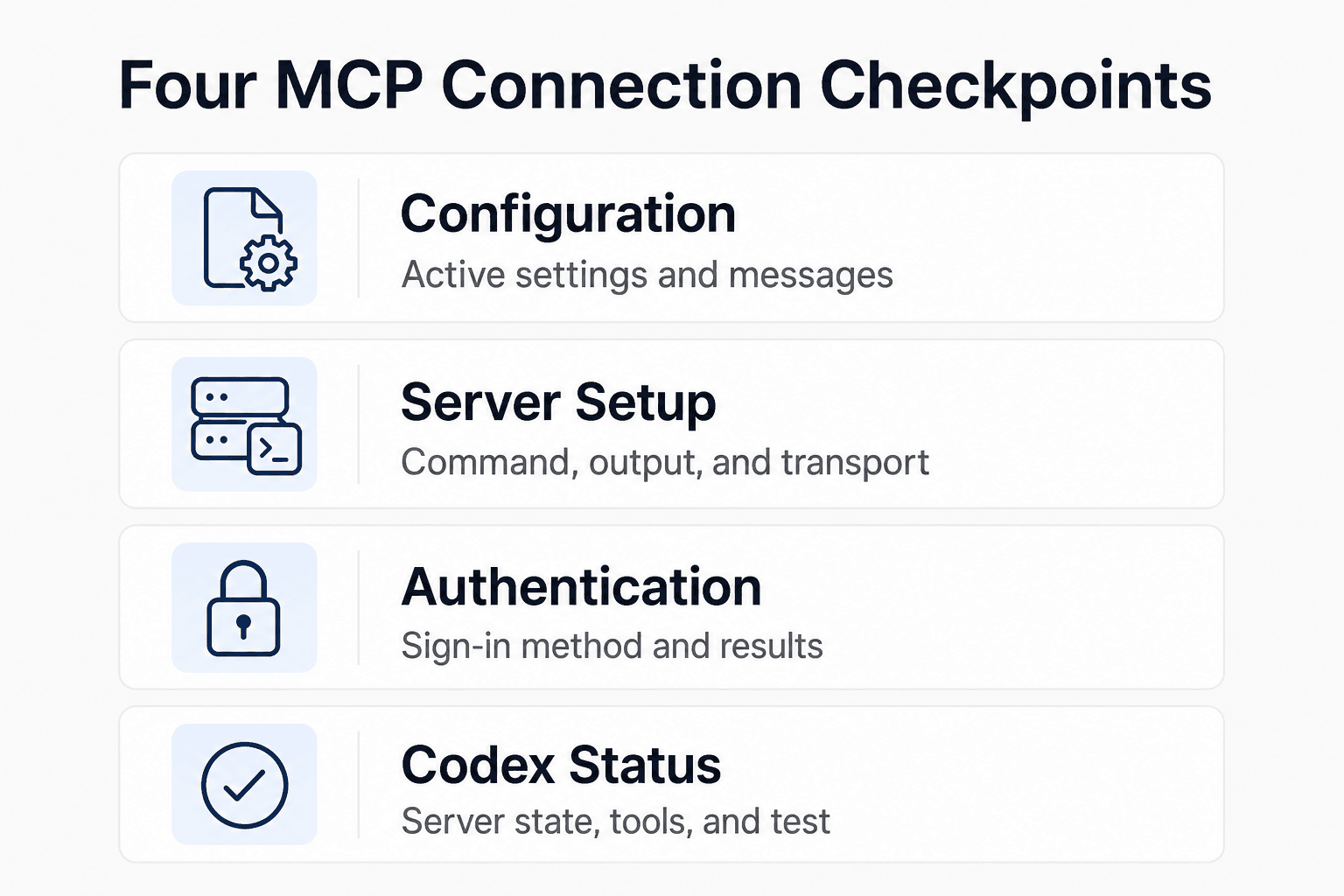
Which MCP connection checkpoint is failing?
| Checkpoint | What to verify | What a failure suggests |
|---|---|---|
| Configuration | The active settings and exact configuration message | A configuration detail to compare with documentation |
| Server setup | The documented command, process output, and selected transport | A server setup detail to verify |
| Authentication | The sign-in method and any authorization result or error | An authentication detail to verify |
| Codex status | The displayed server state, tools, and test result | Details to include in further troubleshooting |
Step 1: Check Codex MCP configuration and prerequisites
Before you edit anything, capture the failed state. Record your Codex version, operating system, whether you use the CLI or app, the server command or URL, and the full error text.
Include the full text of the message rather than relying on a cropped screenshot alone.
Record the environment and exact error before editing
Keep these details in one note so you can compare later results with the same Codex client, server command, and configuration.
Change one setting at a time. Otherwise, you won't know what fixed or caused the failure.
Check the active configuration location and TOML syntax
For the Codex CLI, the chaitin/monkeycode-cli configuration page describes $CODEX_HOME/config.toml, with CODEX_HOME defaulting to ~/.codex, and shows --config values in TOML format. Check how your client was launched and which configuration source it documents before assuming a local file is active.
Check table names, quotes, brackets, and duplicate keys. Preserve any parsing message exactly as shown before you edit the file.
Confirm that the server command, arguments, environment variables, and selected transport match the memory server's own documentation
Copy the server's documented command exactly, including required arguments and environment variables. Don't swap a URL for a local command or choose HTTP for a server documented only for stdio. If you are connecting GigaRAG, use the intended MCP connection to its central Hive Mind rather than API details from a different integration.
Use the transport and connection form documented by both the memory server and the Codex client you are running.
Do not add timeout or transport settings unless the installed Codex version and server documentation support them
Do not paste settings from issue comments or another client's configuration. Add a timeout or transport option only when it is documented for your installed server and Codex version.
Keep the failing config and error text. You'll need both if the next check points to startup instead of parsing.
Step 2: Start the server and test the MCP transport
First run the memory server using its own documented test path. Then compare the command, environment, and transport setting with the configuration used by Codex. For GigaRAG, compare the MCP connection to the central Hive Mind used in each test.
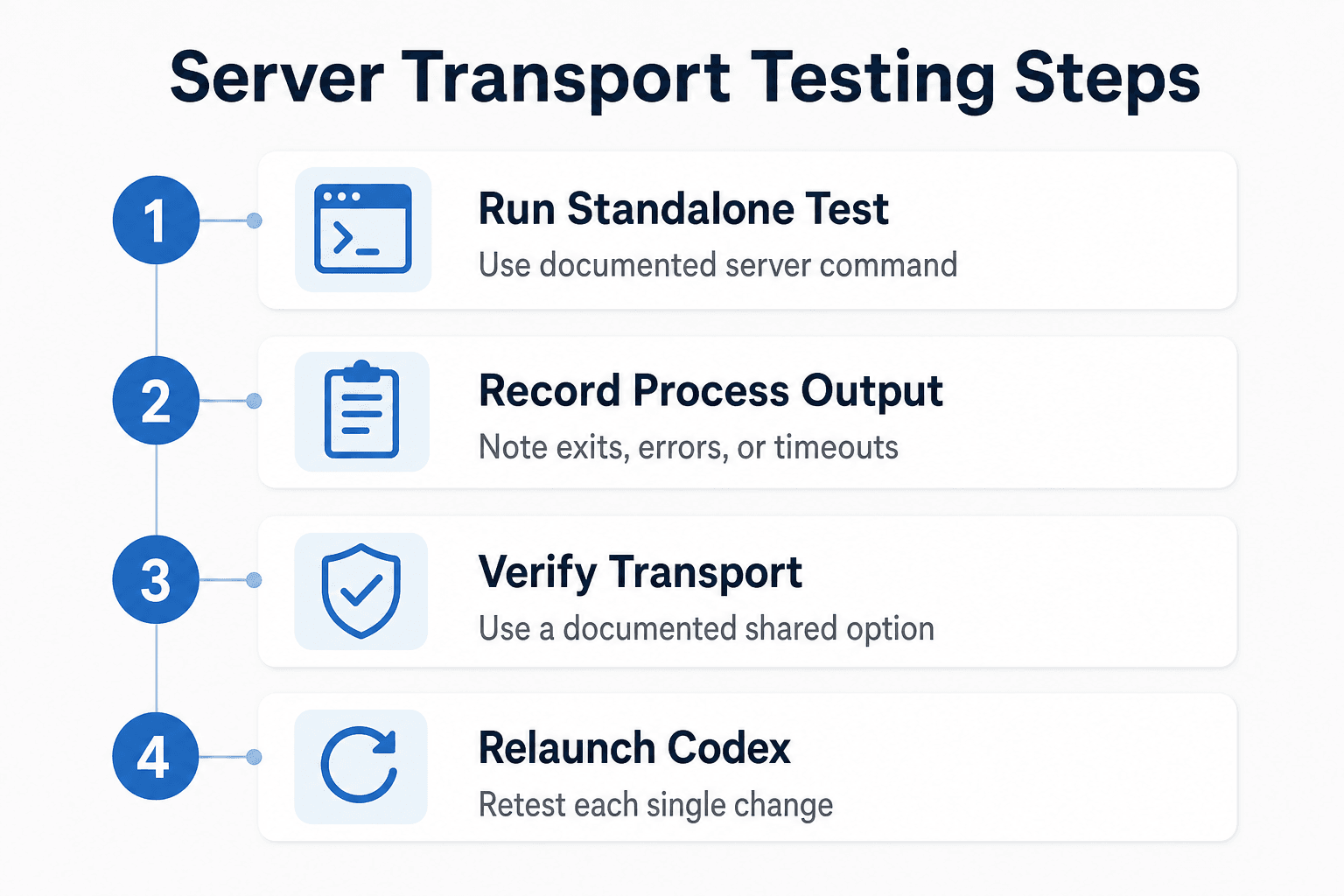
Run the memory server using its documented standalone test path before blaming Codex
Use the server's documented command in a normal terminal, from the same project folder and with the same environment variables Codex should receive. Don't add Codex to the path yet.
Record whether the command stays running, exits, or prints an error, along with the complete output. Use that result when comparing the Codex setup with the server documentation.
Interpret startup timeout, exit-code, missing-runtime, and missing-environment-variable symptoms
If the command exits or reports an error, retain the complete process output and compare the command, arguments, runtime requirements, and environment variables with the server's documentation.
For a timeout, record the timeout value, the last process output, and the configuration used for that attempt before changing the setting.
Compare an "Invalid transport" message with the documented transport setting
If Codex displays "Invalid transport," preserve the full message and compare the configured value with the transport names supported in the documentation for your installed client and server.
Return to the server docs and your installed Codex version. Use only a transport both sides document.
Retest from a clean Codex launch after each single configuration change
Quit and reopen Codex before repeating a test when you have changed its configuration, then record the result of that single change.
Step 3: Verify authentication, tool discovery, and a new Codex thread
After configuration and server setup are in place, follow the documented authentication flow and use the Codex status information available in your version to see what the client reports.
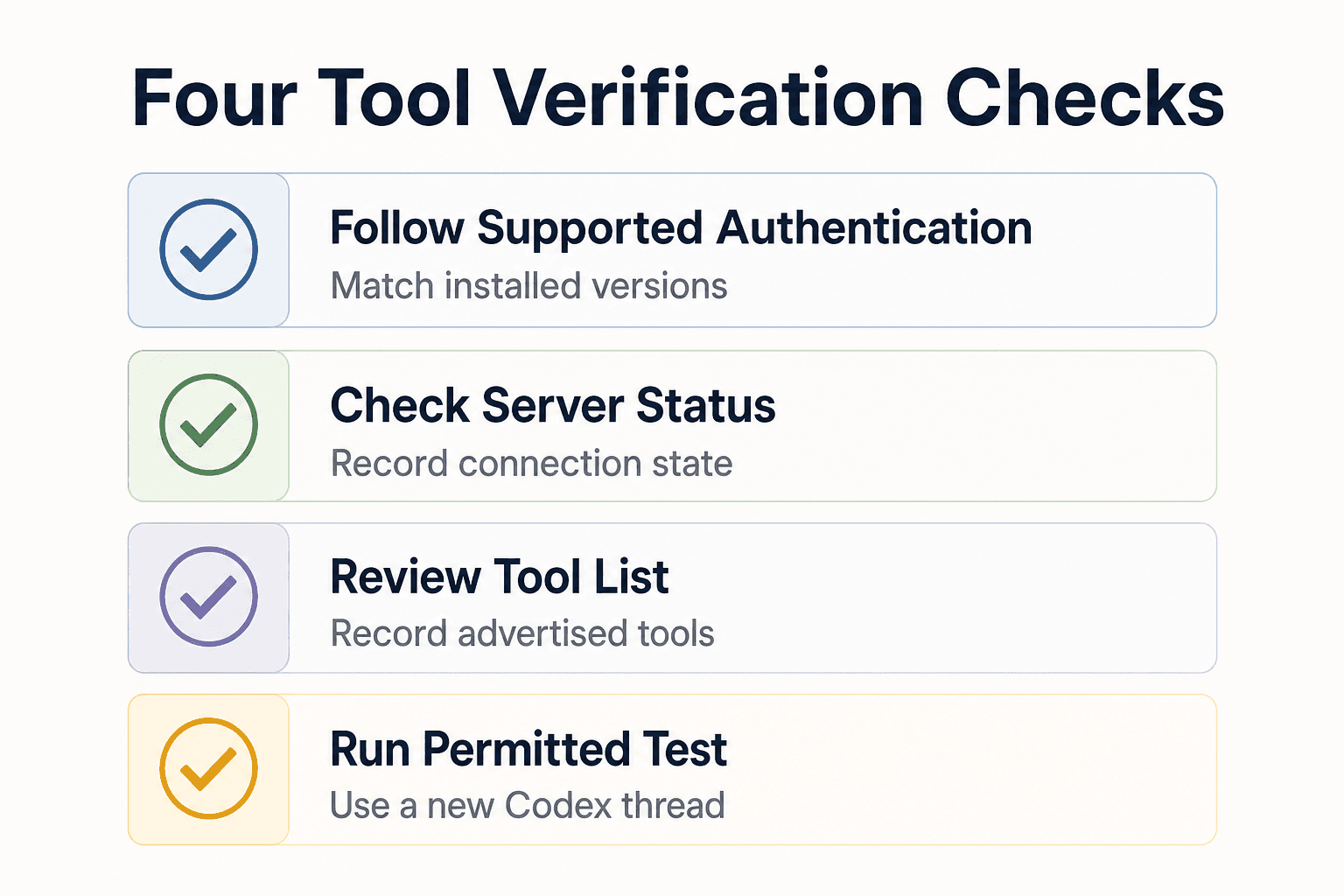
Complete authentication only through the server and Codex flow actually supported by the installed versions
Follow the auth path documented for your server and installed Codex build. Don't paste tokens, callback URLs, or transport settings from a guide for another client or release.
If a browser-based authorization flow appears to finish but the server is not shown as connected, record both observations and compare them with the supported flow for your versions.
Check whether Codex recognizes the server and discovers its advertised tools
Open Codex's MCP status or server view, if your version provides one. Check for the server name, connection state, and an advertised tool list.
Record the displayed result, including an empty tool list if one is shown, rather than inferring the cause from that status alone.
Create or refresh a Codex thread and request a harmless, clearly permitted memory-server action
After the server shows the expected status in your client, start a new thread or refresh the current context and make one harmless action that the memory server explicitly permits, such as reading a known test record. When testing GigaRAG, choose an action that is within the access controls assigned to that agent.
Use a request with an expected result and record Codex's response. This gives you a concrete example for comparison or a bug report.
If the server is connected but tools remain absent, capture the exact behavior
Record the server status, any displayed tool names, the new-thread prompt, and Codex's response. Include the exact version, operating system, transport, and auth method.
Don't keep changing credentials at this point. The failure may sit after authentication.
Preserve the details when Codex status and behavior do not match
Record what the server reports, what Codex displays, the test prompt, and the response. Those details make it easier to compare behavior across versions or seek support.
If repeated, documented checks leave the same mismatch between the displayed server state and the test result, include the evidence in a Codex issue rather than making unrelated configuration changes.
Troubleshoot Windows cases and prepare a useful Codex issue
[!tip] For a Windows Codex Desktop case involving a local OAuth callback or loopback connection, record the app version and exact failure before investigating AppContainer or loopback behavior. The cited report concerns a specific Desktop case, not all Windows MCP failures.
Windows-only branch: distinguish local server reachability from an AppContainer or OAuth callback restriction
If you are investigating a Windows Desktop problem after a browser authorization flow, record whether the server can be reached outside Codex and preserve the exact callback or connection failure.
OpenAI Codex issue #26693 contains one Windows Desktop report in which the reporter attributed an OAuth callback problem to AppContainer isolation. It is a reported case, not a universal Windows diagnosis.
Scope loopback-exemption guidance to the reported Windows Codex Desktop scenario
Don't change loopback exemptions just because you're on Windows. Verify current Codex and Windows guidance first, and use it only when your Desktop build, OAuth callback, and symptoms match the reported case.
Include the details needed to reproduce the problem
Write a short description with the Codex version, Windows build, transport, server configuration with secrets removed, and exact errors.
Add numbered reproduction steps, expected and actual behavior, relevant logs, and a brief timeline of changes and retests.
GitHub page chrome is not troubleshooting evidence
Don't copy Navigation Menu, Repository navigation, or Footer text from GitHub. Keep the issue focused on the failed connection or missing tools, so maintainers can reproduce what you saw.
Frequently asked questions
What does an MCP memory server connection failure in Codex mean?
It means Codex is not producing the expected result with the configured memory server. Start with the exact error or status, then compare the active configuration, server command, transport, and authentication flow with their documentation.
Why can an MCP server start successfully but its tools still be missing in Codex?
A running server is useful evidence, but it does not explain what Codex will display. Record the process output, Codex server status, any listed tools, and the result of a permitted test request.
Can a successful OAuth login prove that Codex can use my MCP memory server?
No. A reported Codex Desktop case had a completed browser auth challenge while the server still appeared disconnected and its tools were unavailable.
What should I check first when Codex reports an invalid transport error?
Keep the complete error text, then compare the configured transport value with the transport options documented for the installed Codex client and the memory server.
How should I investigate an MCP startup timeout in Codex?
Record the timeout setting, the server command, its environment, and the last process output. Compare those details with the server's documented startup instructions before changing other settings.
Why should I test MCP tools in a new or refreshed Codex thread?
A fresh test gives you a clear prompt and response to record after a configuration change. Use one harmless action the server explicitly permits and note the expected result.
Are Windows Codex Desktop MCP failures always caused by AppContainer isolation?
No. One reported Windows Codex Desktop case linked an OAuth callback problem to AppContainer isolation and loopback behavior, but that report does not establish a universal cause.
What information should I include when filing a Codex MCP connection bug report?
Include the Codex version, platform, server command or URL, sanitized configuration, steps to reproduce, expected and actual behavior, exact errors, relevant process output, and the result of a concrete test request.
About GigaRAG
GigaRAG is a shared memory platform for AI agents that helps developers and teams keep project knowledge available across sessions and tools.
You can connect agents to a central Hive Mind through MCP or the API, with access controls to manage what each agent can use.