How to Fix an MCP Memory Server Not Appearing in Cursor
When an MCP memory server is not appearing in Cursor, work through the configuration, connection, authentication, and tool checks in a consistent order.
Use the chosen server vendor’s setup instructions when checking configuration, startup, authentication, and tool visibility.
If GigaRAG is your chosen memory service, make sure you are troubleshooting the intended MCP connection rather than an API-only workflow. After the connection is available, test with one non-sensitive request for known project context.
Quick diagnosis
Use the checks below to compare your Cursor setup with the memory server vendor’s instructions before making broader changes.
- Confirm the configuration is for Cursor and names the intended server.
- Check that the documented launch details or URL are correct.
- Determine whether Cursor shows a connection or sign-in challenge.
- If tools appear, test one for the expected project context.
Diagnose the stage of the MCP setup
Start with what Cursor displays, then compare each setting and prompt with the server vendor’s documented setup. This keeps configuration, sign-in, and tool checks separate.
Server is not shown in the MCP list
Check the configuration location, JSON syntax, server name, and any reload or restart required by the server’s setup instructions.
Server is shown but is not ready to use
Compare the configured command or URL, transport, and authentication steps with the vendor’s instructions. Complete any sign-in flow the service presents.
Server is connected but expected tools are not available
Check the tools the server documents for its Cursor integration, then run one non-sensitive request with an expected project-specific result.
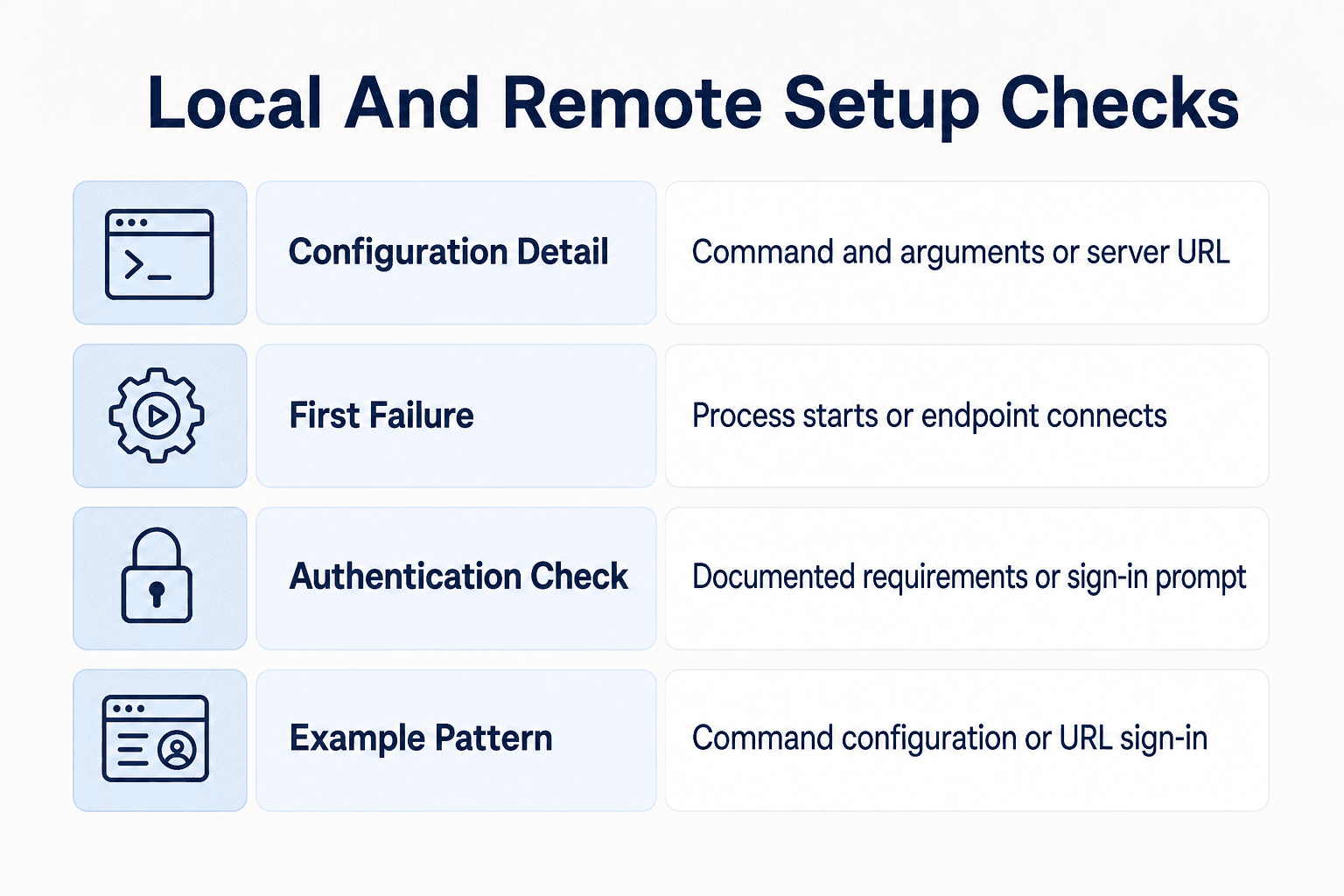
Local vs remote MCP server setup: What to check
| Factor | Local server | Remote server |
|---|---|---|
| Configuration detail | A documented command and arguments | A documented server URL |
| First failure to investigate | Whether the configured process starts | Whether the configured endpoint connects |
| Authentication | Check the server's documented requirements | Check whether the service prompts for sign-in |
| Documented example | A command-based configuration | A vendor-provided URL configuration and sign-in flow |
Before you change Cursor: Capture the config, runtime, and expected result
Save a copy of the active configuration before making changes so you can compare later edits with the original setup.
[!tip] Keep the original configuration before editing it. Change one setting at a time and record the result of each change.
Record the server name, transport, endpoint or command, and authentication method
Copy the active configuration somewhere safe. Record the transport, command or URL, required environment variables, and sign-in method specified by the server vendor.
Record your Cursor version, underlying VS Code version, and server runtime version. Don't copy secrets into a support ticket.
Validate the JSON before interpreting a connection failure
Run the configuration through a JSON validator before continuing. Correct any syntax errors, then return to the server vendor’s documented fields and values.
Choose a non-sensitive test request with a known expected result
Pick one small query whose answer you can verify, such as a project name or documented module. Avoid customer data, keys, and private code. This becomes your final retrieval check.
Step-by-step: Isolate the MCP failure
- Record what Cursor shows: no entry, a connection issue, or a connected server without tools.
- Verify the Cursor configuration location and compare its server entry with the server's instructions.
- For a local server, check its documented command, arguments, and required environment variables.
- For a remote server, check its documented URL and complete any authentication prompt.
- After connection, inspect whether the server's tools are visible in Cursor.
- Call an appropriate memory tool with a known project-specific question and check whether it returns expected context.
Step 1: Identify the GigaRAG MCP connection to troubleshoot
Confirm the intended GigaRAG connection details
For this Cursor troubleshooting workflow, distinguish MCP connection information from API connection information. The checks in this section apply to the MCP connection you intend to use.
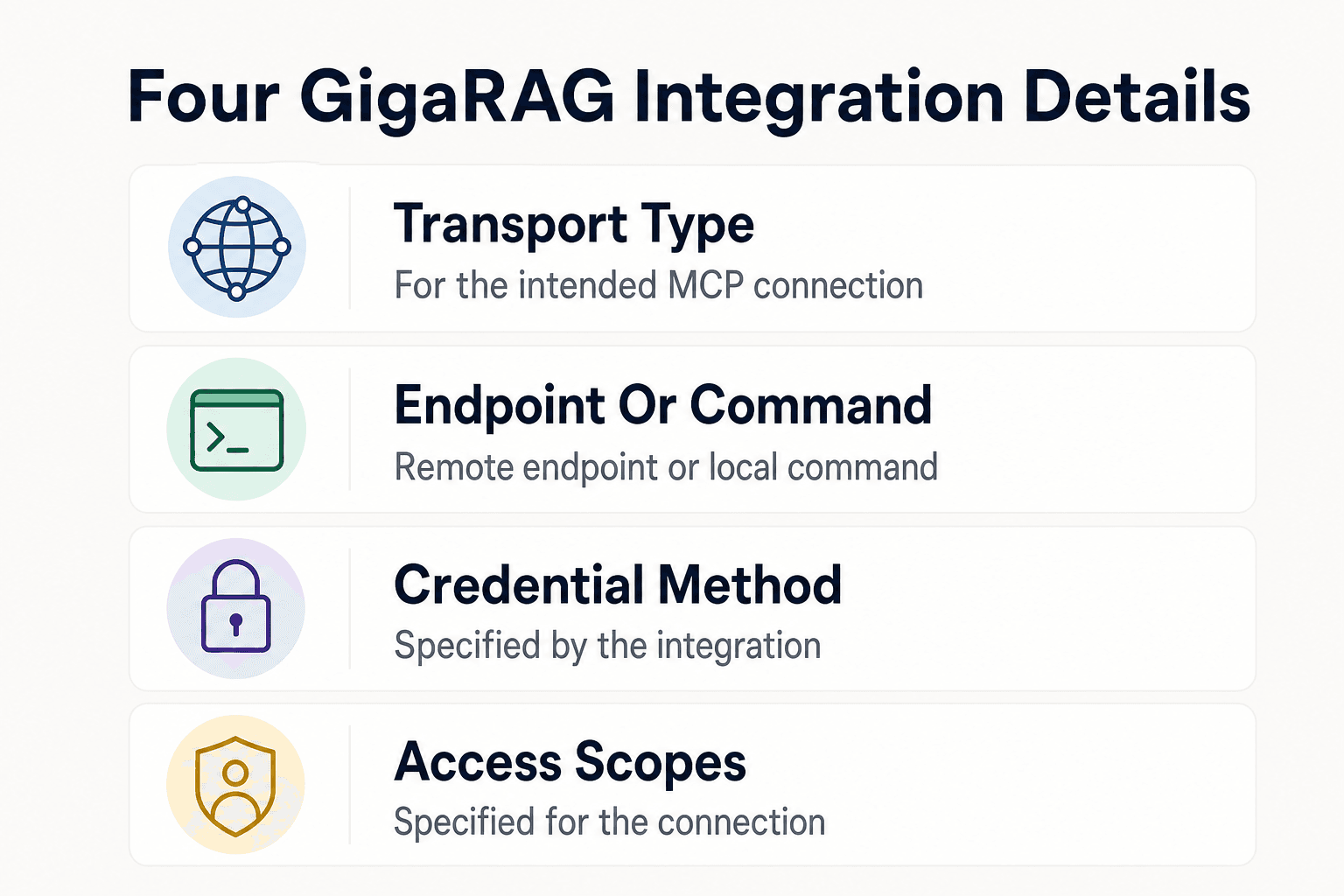
Collect the four integration details
Before adding or changing a server entry, record the transport type, remote endpoint or local command, credential method, and any access scopes specified for the intended MCP connection. If a required detail is unavailable, pause the setup until you can confirm it.
Use only settings for the intended connection
Use the settings supplied for the intended GigaRAG MCP connection. Do not infer field names, environment variables, endpoints, or credentials from another service’s example.
If the instructions for your integration call for Cursor to restart or reload, complete that step before checking the result.
Check the configuration outcome
After applying the connection settings, note whether Cursor lists a server and what status it displays. If the server presents an appropriate memory capability, run the non-sensitive test request selected earlier and record the result.
Step 2: Apply the vendor’s documented MCP setup pattern
[!note] A configuration example demonstrates only the service it was written for. Use your own server vendor’s connection values and sign-in steps.
Use the memory-server vendor's native Cursor instructions when available
Use the memory-server vendor’s own Cursor guide when one is available. Follow its configuration, authentication, and tool instructions exactly.
Do not fill gaps with a configuration from a different service.
Remote server pattern: Add the documented URL to ~/.cursor/mcp.json
For a URL-based setup, enter only the URL and configuration fields supplied by the vendor. For example, WHAWIT’s Cursor guide places its HTTPS URL under mcpServers in ~/.cursor/mcp.json and presents a browser sign-in challenge on first connection.
The WHAWIT example illustrates a URL-based configuration pattern only. It does not establish a universal file format, server name, URL, or authentication flow.
Local server pattern: Confirm the command, runtime, and environment
For a command-based setup, use the vendor’s documented command, arguments, runtime requirements, and environment variables. Confirm those values before adding them to Cursor.
Run the documented command in a terminal and keep any output available while you compare the setup with the vendor’s instructions.
Use examples to identify the setup pattern
Use an example to determine whether a service uses a URL-based or command-based setup, then return to that service’s documentation for the actual configuration fields and authentication method.
Reconnect and confirm memory-related tools
Restart or reload Cursor when the vendor’s instructions call for it. Then check the displayed server status and tools, and run one safe request for known project context.
Step 3: Troubleshoot an MCP memory server not appearing in Cursor
Configuration is not loaded: Check the path, JSON syntax, server key, and restart behavior
Start with the configuration file and fields identified in the server vendor’s Cursor instructions. Check the JSON syntax, server key, and documented field names.
Restart or reload Cursor only as the server vendor's instructions require.
Local process exits: Run the server command outside Cursor
Run the exact documented command in a terminal before changing Cursor again. Compare any terminal output with the server’s runtime and environment requirements.
Keep the error output for your troubleshooting notes or support request.
Remote transport fails: Verify the URL, network access, and sign-in flow
Check the URL character by character against the vendor's documentation, including the protocol and path. Then confirm your network can reach it and complete any required browser sign-in flow.
Authentication fails: Use the supported credential or browser authorization flow
Use the vendor's supported token, environment variable, or browser authorization method. Don't paste API keys, session tokens, or other secrets into chat prompts, shared config snippets, or support tickets.
Confirm that you are using the credential or browser authorization method specified by the vendor, and check any account-access requirements in that setup.
Tools are absent or memory is empty: Separate connection from retrieval
Check that the tools documented for the server are visible, then send one safe request for known project context.
If the response is not what you expect, record the request and result, then compare your account access and project setup with the memory-service documentation.
When to collect versions and logs
Collect the redacted configuration, Cursor version, runtime version, server command or URL, connection state, and relevant Cursor and server logs. Include the exact safe test request and result.
These details make a support report more specific. Redact configuration values and review logs for secrets or private project data before sharing them.
Step 4: Verify the setup with a bounded request
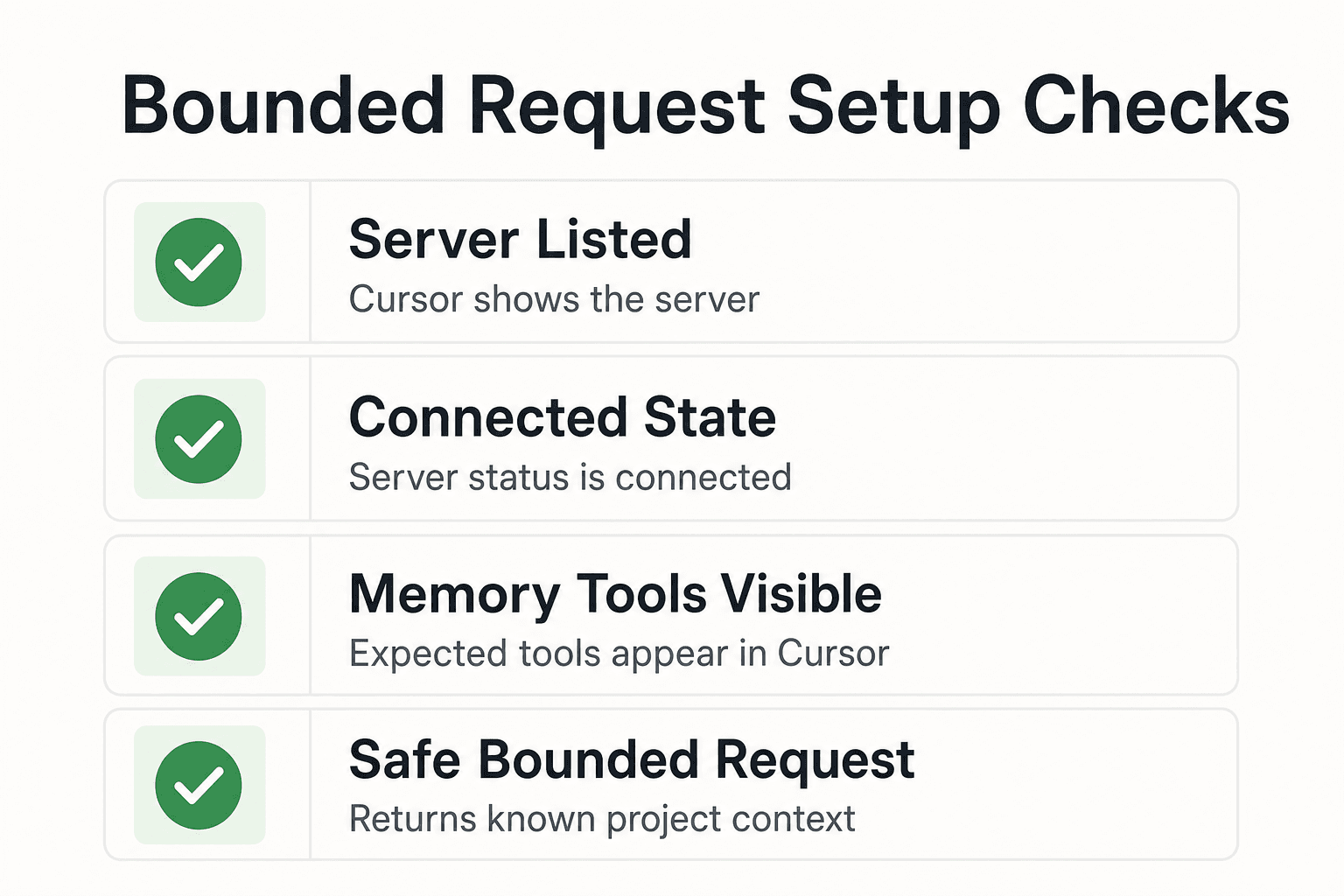
Five checks to complete after setup
Check five things: Cursor lists the server, its state is connected, the expected memory tools are visible, Cursor and server logs show no relevant error, and a safe bounded request returns the known project context you expected.
Keep the request narrow. Ask for a non-sensitive fact you can verify without exposing source code or secrets.
Extend testing for the access you need
A successful bounded request confirms the response for that request. Use additional non-sensitive, scoped requests when you need to test other project areas or agent access.
For GigaRAG, access controls manage what each agent can use. Confirm that the agent and project access match the setup you intend to use.
What to include in a useful support report
Send the redacted configuration, Cursor and runtime versions, server command or URL, connection state, visible tools, relevant logs, and the exact safe request with its result. Remove tokens and private project data before you share it.
Frequently asked questions
Why is my MCP memory server not appearing in Cursor?
Check the Cursor configuration against the server vendor’s setup instructions. Confirm the configuration location, server entry, required reload or restart step, and any sign-in requirement.
Where should I check the MCP configuration Cursor is loading?
Check Cursor's MCP configuration and confirm that it contains the intended server entry. Use the configuration path and fields supplied for your server rather than assuming another service uses the same file or format.
What should I check if an MCP server is shown but its tools are not visible?
Compare the visible tools with the server vendor’s Cursor documentation. Confirm the configured server details and complete any authentication steps before testing a non-sensitive request.
How can I check a command-based MCP setup before using it in Cursor?
Compare the configured command, arguments, runtime, and environment variables with the vendor’s instructions. Run the documented command in a terminal and retain any output for troubleshooting.
What should I check when an MCP server using HTTP is not connecting?
Compare the configured URL, protocol, path, and sign-in flow with the vendor’s instructions. Confirm that the URL and authentication method belong to the server you are configuring.
How do I test whether an MCP memory tool returns the project context I need?
Confirm that the expected tool is visible, then ask one non-sensitive, project-specific question with a result you can recognize. Record the request and response for follow-up testing or support.
What details should I send to a memory-server vendor or Cursor support when the connection fails?
Include the redacted configuration, Cursor and runtime versions, server command or URL, displayed connection state, visible tools, relevant logs, and a safe test request with its result. Remove tokens and private project data before sharing.
What GigaRAG information is relevant to this MCP check?
GigaRAG lets agents connect to a central Hive Mind through MCP or the API. For this workflow, use the MCP connection information available for your environment, then confirm that the agent’s access controls permit the project context you expect it to use.
About GigaRAG
GigaRAG is a shared memory platform for AI agents that helps developers and teams keep project knowledge available across sessions and tools. You can connect agents to a central Hive Mind through MCP or the API.
GigaRAG includes access controls to manage what each agent can use. Those controls matter when you need to check whether an agent can retrieve the project context you expect.