How to Troubleshoot Memory Write Permission Errors in RAG Pipelines
Your agent writes a handoff memo, then fails with "Permission denied." That message doesn't prove the memory platform is at fault. The blocked boundary may be the process identity, target path, container volume, or API request.
Don't start with chmod 777, a root container, or a new API key. Those changes can hide the cause, widen access, and still leave the deployed workload unable to write.
The main catch is that similar errors need different fixes. A 401 points to credentials, a 403 to authorization, and "Read-only file system" to a mount or filesystem state. No application integration, including a GigaRAG connection, can repair an invalid target path or host-level policy on its own.
Quick diagnosis
A failed memory write can come from identity, authorization, path, ownership, or mount state, not just the memory platform. Identify the failing boundary before changing permissions.
- Confirm the error and which write operation failed.
- Check the process identity and the identity used for API credentials.
- Inspect the target path and its parent-directory permissions.
- Check whether the container or filesystem is mounted read-only.
- Apply the narrowest relevant fix, then retry as the same workload.
Classify memory write permission errors before changing anything
Classify the exact error, then inspect the workload identity and write target before changing permissions. A 401 usually concerns credentials, a 403 concerns access policy, and local errors concern the target path or mount. Don't use one fix for all of them.
[!note] A process may be able to traverse a directory without permission to create a file there. A read-only mount also cannot be made writable by changing ordinary file permissions.
Troubleshooting decision table: error, likely layer, first check, safe fix, and verification
| Error | Layer | First check | Safe fix | Verify |
|---|---|---|---|---|
| 401 Unauthorized | Auth | Secret | Load or renew | Retry as workload |
| 403 Forbidden | Policy | Scope or role | Scoped write grant | Same identity |
| Permission denied | Filesystem | Owner and path | Scoped access | Write probe |
| Read-only file system | Mount | Mount mode | Writable mount | Write probe |
| No such file or directory | Path | Parent path | Create or correct path | Write probe |
What 401 Unauthorized usually means
A 401 can mean credentials are missing, expired, malformed, or unavailable to the workload. Check the deployed credential source. A new key won't help if the workload can't load it.
What 403 Forbidden usually means
A 403 means the service recognized the identity but won't let it write to the target resource. Check the target scope and write role. Authentication isn't permission.
What filesystem errors usually mean
"Permission denied," "Read-only file system," and "No such file or directory" need different checks. Inspect the path and mount because ownership, traversal, writable state, and missing directories are separate problems.
Don't treat a general memory error as proof of a write-permission problem
A vague memory error may come from an SDK rule. It doesn't prove that the write was denied.
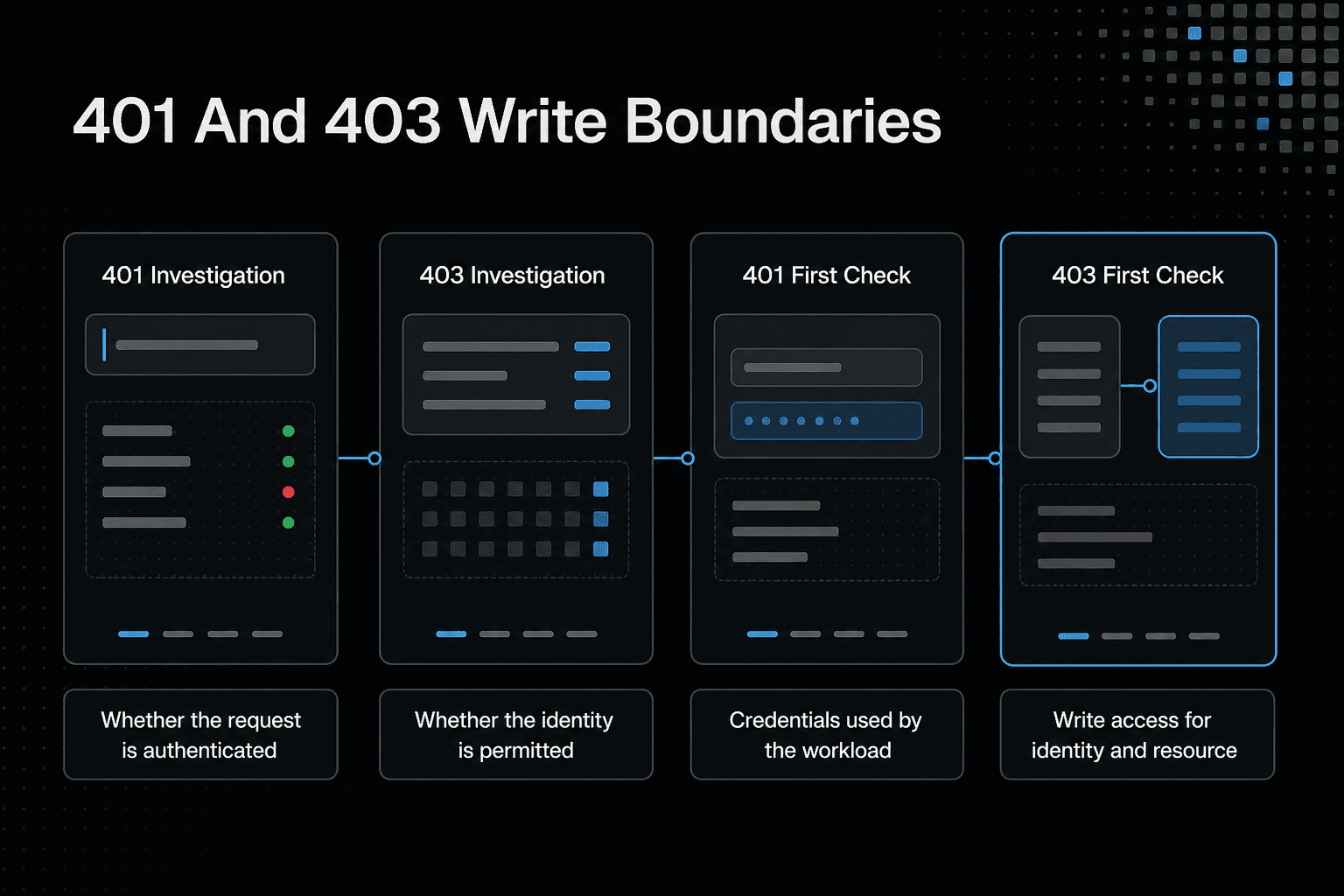
401 vs 403: which authorization boundary failed?
| Factor | 401 Unauthorized | 403 Forbidden |
|---|---|---|
| What to investigate | Whether the request is authenticated | Whether the authenticated identity is permitted |
| First check | Credentials provided to the actual workload | Write access for that identity and resource |
| Credential change | Use only after confirming the intended workload identity | Changing credentials may not help if access is not granted |
| Verification | Retry with the same workload and intended credentials | Retry the write as the same identity after a scoped permission change |
Inspect the failing identity, path, and mount state
A write can fail even when the target file looks writable. The process may be a different user, lack search permission on a parent directory, or write through a read-only mount.
[!tip] When debugging Docker, run identity and path checks inside the container as the application process. Host-side permissions alone may not reflect the container's runtime access.
Capture the exact failure details
Save the full command, error, resolved path or URI, and whether it ran on the host, in Docker, or through a service. Don't diagnose from a shortened stack trace. You need the identity that made the failed call.
Linux checks: identity, path, and mount
Run these as the failing process where possible:
id; whoami; pwd
namei -l /target/path
stat /target/path
findmnt -T /target/path -o TARGET,SOURCE,FSTYPE,OPTIONS
Use ls -ld on the target and each parent directory. namei -l shows ownership and mode bits for every path component.
Confirm directory traversal separately from file write permission
A directory needs x permission to traverse it. It needs w permission to create, rename, or remove entries.
A writable file inside an unsearchable parent still won't help you.
Docker checks: runtime user and mounts
Check the running container, not the image:
docker exec CONTAINER id
docker inspect -f '{{.Config.User}} {{range .Mounts}}{{.Source}} -> {{.Destination}} rw={{.RW}} {{end}}' CONTAINER
Then inspect the bind-mount source on the host with ls -ld /host/path. A container path can map to a host directory that the container user cannot modify.
Why host and container UID/GID mismatches cause Permission denied
Docker applies numeric UID and GID checks to the mounted filesystem. If the container runs as UID 1000 but the host directory grants write access only to another owner or group, the write fails.
Don't switch to root first. Fix access for the intended workload identity.
Step-by-step: trace a failed memory write
- Capture the exact error, operation, target, and execution environment.
- Inspect the effective user and, for API-backed storage, the credentials and identity used by the workload.
- Check the target path, parent-directory traversal and write access, ownership, and mount mode.
- For Docker, inspect the container's runtime user and mounted path from inside the container.
- Apply the narrowest fix at the failing boundary rather than broadening unrelated permissions.
- Retry the same write from the same workload identity and environment, then confirm the result.
Fix local and Docker write paths with least privilege
Change only the directory or mount that the failing workload needs. Broad permissions, root containers, and random credential swaps can hide the cause while creating a wider access problem.
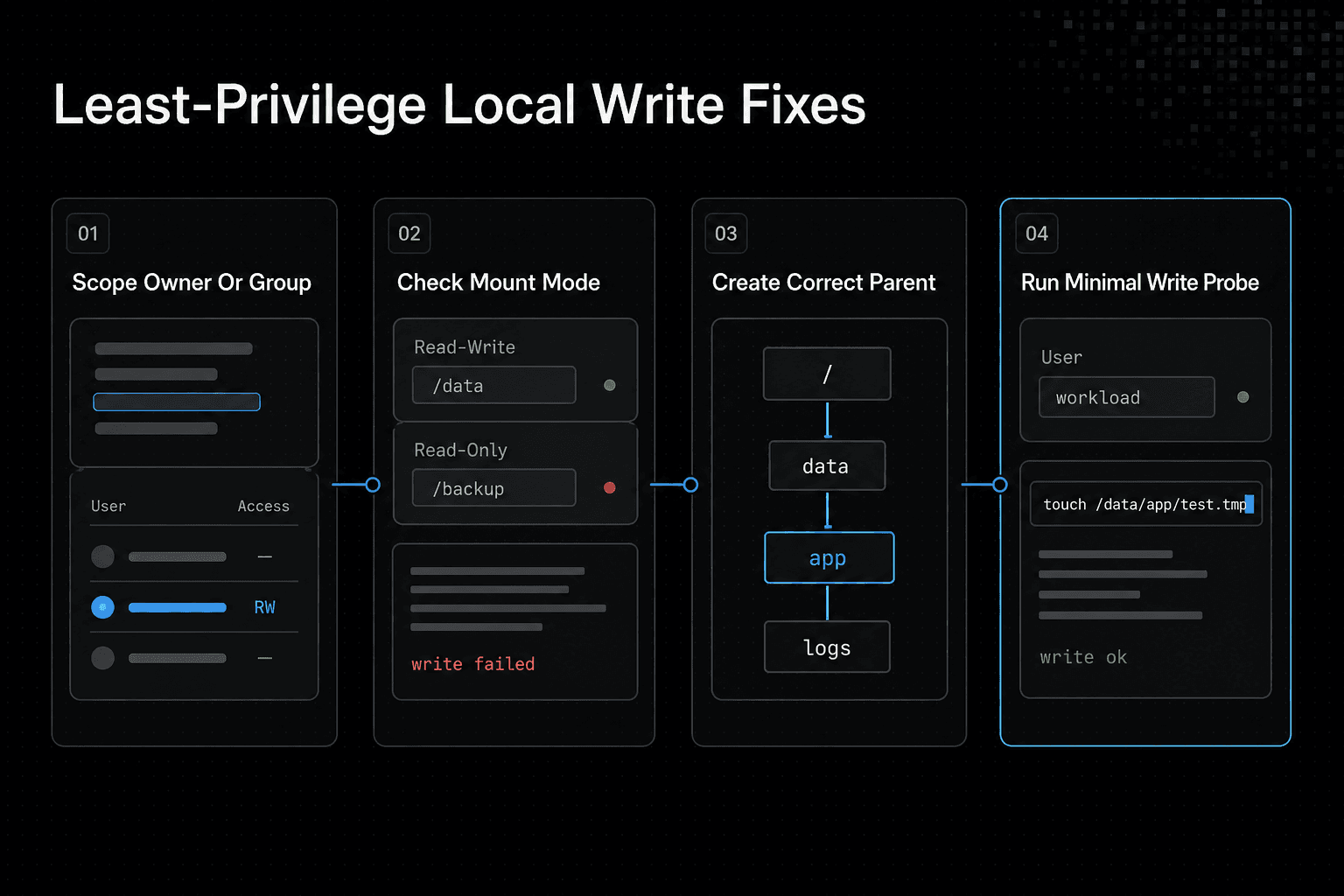
Permission denied: fix the intended owner or group
If the workload should own one directory, scope the change to that directory:
sudo chown -R 1000:1000 /host/app-data
sudo chmod 750 /host/app-data
If several processes need access, use a shared group instead:
sudo chgrp -R ragwriters /host/app-data
sudo chmod -R g+rwX /host/app-data
Don't start with chmod 777. It grants every local user and process write access, and it still won't fix a read-only mount, missing parent, or container running under the wrong UID.
Read-only file system: check the mount before changing modes
A Docker mount marked read-only cannot accept writes, regardless of chown or chmod. Check docker inspect for rw=false, then change the mount declaration only if that destination is meant to hold runtime data.
If the mount is writable but the filesystem reports read-only, inspect it with:
findmnt -T /target/path -o TARGET,SOURCE,OPTIONS
Don't force permissions on an unavailable filesystem. Fix the mount or host storage state first.
No such file or directory: create the right parent
Create the expected directory, then set its access:
install -d -o 1000 -g 1000 -m 750 /host/app-data/memory
Check configuration expansion too. A host path such as /host/app-data isn't automatically the same path inside the container, where it may be mounted at /app/data.
Use a minimal write probe
Run the probe as the same workload user and in the same target directory:
id
touch /app/data/memory/.write-probe
rm /app/data/memory/.write-probe
A successful probe only proves that exact path is writable.
Verify the original failure path
Rerun the original command with the same UID, GID, image, command, and mount setup. Then confirm the expected memory file or record exists rather than treating a changed shell session as proof that the deployed workload can write.
Troubleshoot API-backed RAG and agent memory writes
An SDK retry can't repair invalid credentials, missing write access, or a request aimed at the wrong tenant. Start with the HTTP status, exact target URI, and identity that the deployed workload uses.
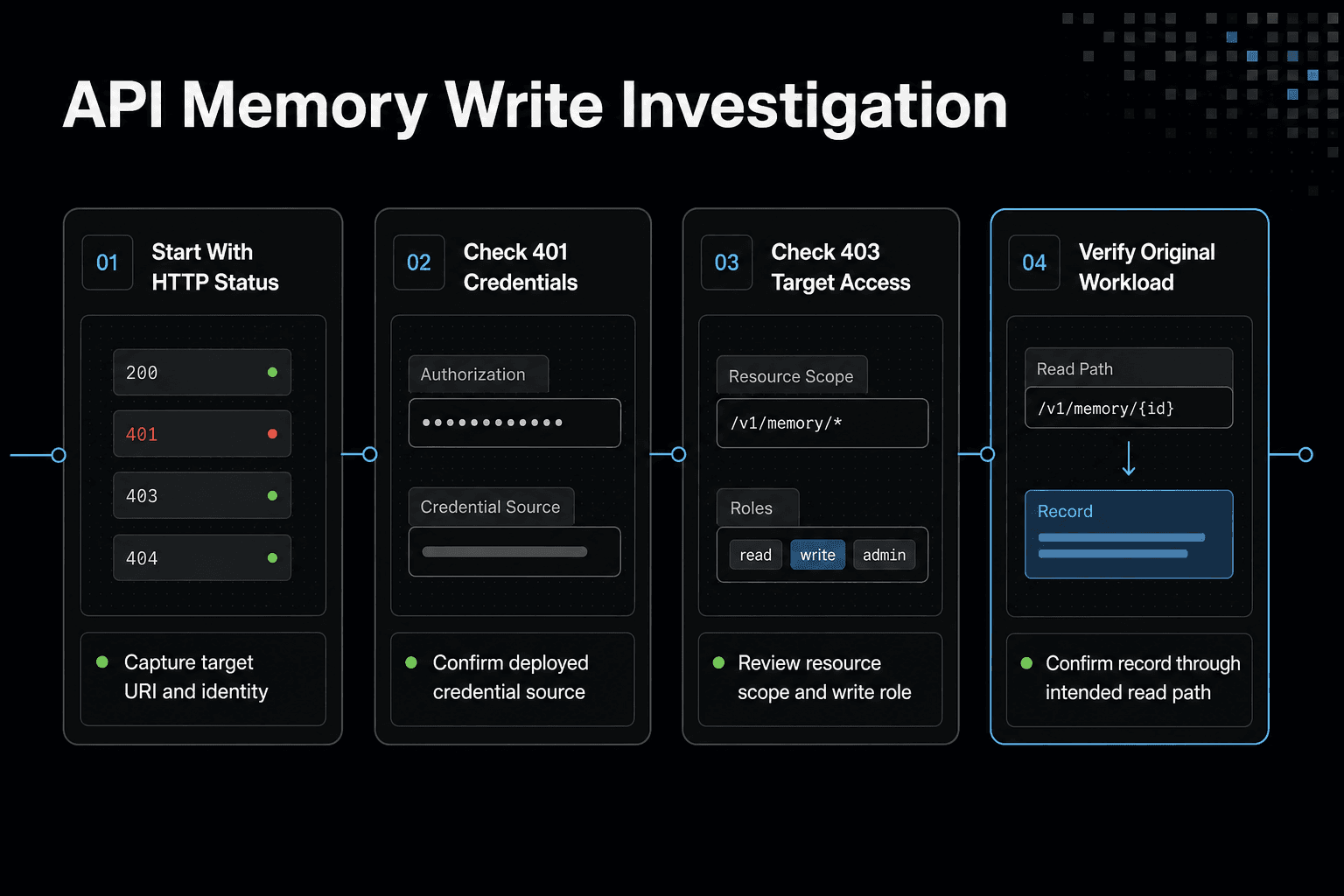
GigaRAG can connect agents to a central Hive Mind through MCP or the API. That connection still depends on the identity and access controls used for the request.
401 Unauthorized: check how the workload gets credentials
A 401 usually means the service can't accept the credential presented. Check the expected environment variable or secret mount, confirm the token has not expired, and make sure the application didn't load an empty value after startup.
A developer shell is not proof. Your container, job, or function may use a different service account, secret version, or token source.
403 Forbidden: check access to the exact target
A 403 means the service recognized an identity but won't let it write to that resource. Check the selected project or tenant, then the namespace, bucket, collection, or memory ID in the failing request.
The main catch is scope. A role that permits reads, or writes in one namespace, may not permit writes to the target your RAG pipeline sends.
Provider-specific investigation: follow the request
Save the provider request ID, timestamp, status, and target resource identifier. Then use the provider's audit trail and IAM or RBAC policy view to check the rejected request against the workload identity.
Don't infer access from a local test. It may use a different API key, network path, project, or default profile.
Python write example: handle failures without exposing secrets
Catch local and HTTP failures separately, and log safe context:
import logging
import requests

try:
    with open(target_path, "w") as f:
        f.write(payload)
    response = requests.post(memory_url, json={"text": payload})
    response.raise_for_status()
except (FileNotFoundError, PermissionError, OSError) as err:
    logging.error("Local write failed for %s: %s", target_path, err)
except requests.HTTPError as err:
    logging.error("Memory API write failed for %s: HTTP %s",
                  memory_url, err.response.status_code)
Don't log tokens, authorization headers, or full secret-bearing URLs.
Verify with the same workload identity
Rerun the original payload using the same service account, API key source, container identity, network path, and target resource. Confirm the expected record exists through the intended read path, not just from a developer machine.
Use shared agent memory deliberately and verify the workflow
Shared memory doesn't repair invalid credentials, missing authorization, a bad target path, or a read-only mount. Treat it as a separate workflow layer. First prove that the original write can succeed under the failing workload identity.
Use scoped access controls
GigaRAG is a shared memory platform for AI agents. It can connect agents to a central Hive Mind through MCP or the API, with access controls that manage what each agent can use.
Keep handoffs narrow. Shared memory is not a substitute for access control or secret handling.
Verify the original failure is fixed
- Preserve the original workload identity.
- Rerun the original failing operation.
- Confirm the expected write exists.
- Record the least-privilege change you made.
Frequently asked questions
What is the difference between 401 Unauthorized and 403 Forbidden when writing agent memory?
A 401 points to an authentication problem, such as whether the workload supplied the intended credentials. A 403 points to an authorization problem. Check whether the authenticated identity has write access to the resource.
Why does a write succeed on my laptop but fail in a Docker container?
The container may run as a different user or access a mounted path with different ownership or permissions. Check the runtime user and target path from inside the container.
How do I check which user a Linux process is using to write a file?
Inspect the effective user in the process's execution environment, ideally as the application process itself. For containerized workloads, check inside the container rather than relying only on the host identity.
Why can a process access a directory but still fail to create a file inside it?
Directory traversal and file creation require different access. Check whether the process has write access to the target directory and permission to traverse its parent directories.
How do I fix a Read-only file system error without changing unrelated permissions?
Check the mount mode first. If the target is mounted read-only, use the intended writable mount or correct its configuration. Changing file permissions does not make a read-only mount writable.
What causes No such file or directory during a memory write?
The target path or one of its parent directories may not exist, or may not match the path the workload uses. Check the path from the workload's execution environment, then create or correct the expected directory.
Why should I verify a permission fix with the same workload identity?
A retry as a different user or with different credentials doesn't confirm that the original workload can write. Verify with the same identity and execution environment that produced the failure.
Is chmod 777 a safe way to fix a memory write permission error?
No. Broad permissions can expose access beyond the workload that needs to write. Identify the failing identity and grant only the required access at the relevant path.
About GigaRAG
GigaRAG is a shared memory platform for AI agents that helps developers and teams keep project knowledge available across sessions and tools. In a RAG workflow, it can hold shared context apart from the application's local filesystem and provider-backed storage.
You can connect agents to a central Hive Mind through MCP or the API. Its access controls manage what each agent can use, but they don't replace the filesystem, container, or API permissions required by the workload that writes memory.